
Changing Your Two-Factor Authentication Device
If you are replacing your phone or switching to a different authenticator application, use the "Change Authenticator" option in your account settings to register a new device. This process keeps Two-Factor Authentication enabled on your account and does not require you to disable and re-enable Two-Factor Authentication.
1. Update your Ocean User Account Settings
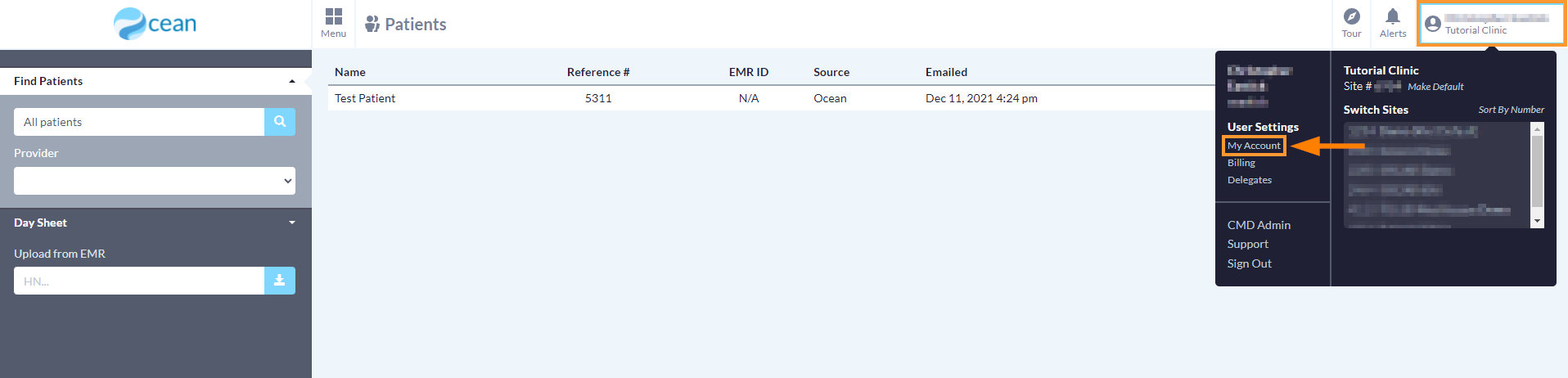
- Sign into the Ocean Portal and click your name located at the top right of the screen and select "My Account".
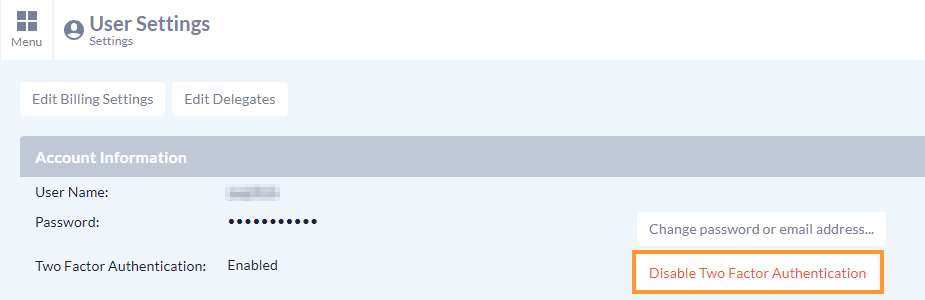
- Under the Account Information section, click "Change Authenticator".
2. Enter your Credentials
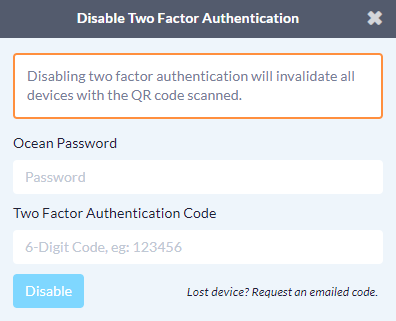
- You will be prompted to enter your Ocean user account password and the 6-digit Authentication Code from your authenticator app. If you do not have access to your authenticator app, select "Request an Emailed Code" to receive a one-time code sent to the email address associated with your Ocean account.
- After entering your password and Authentication Code, click "Next".
3. Set up your New Authenticator App
- Once successfully verified, you will be prompted to scan a QR code with your device.
- Enter the 6-digit Authentication Code generated by your new authenticator app and click "Change authenticator".
- Once the code is verified, your new authenticator app will be activated and a confirmation email will be sent to the email address associated with your Ocean user account.