When patients are sent automated Patient Reminder emails, you can optionally enable the ability for them to cancel their upcoming appointment.
To Enable Appointment Cancellation via Patient Reminders:
- Log into the Ocean portal. Open the 'Menu'and select 'Patient Reminders'.

- Click 'Settings' in the top right corner.

- Create a new Reminder Rule by clicking Add Reminder Rule or Edit an existing one.

-
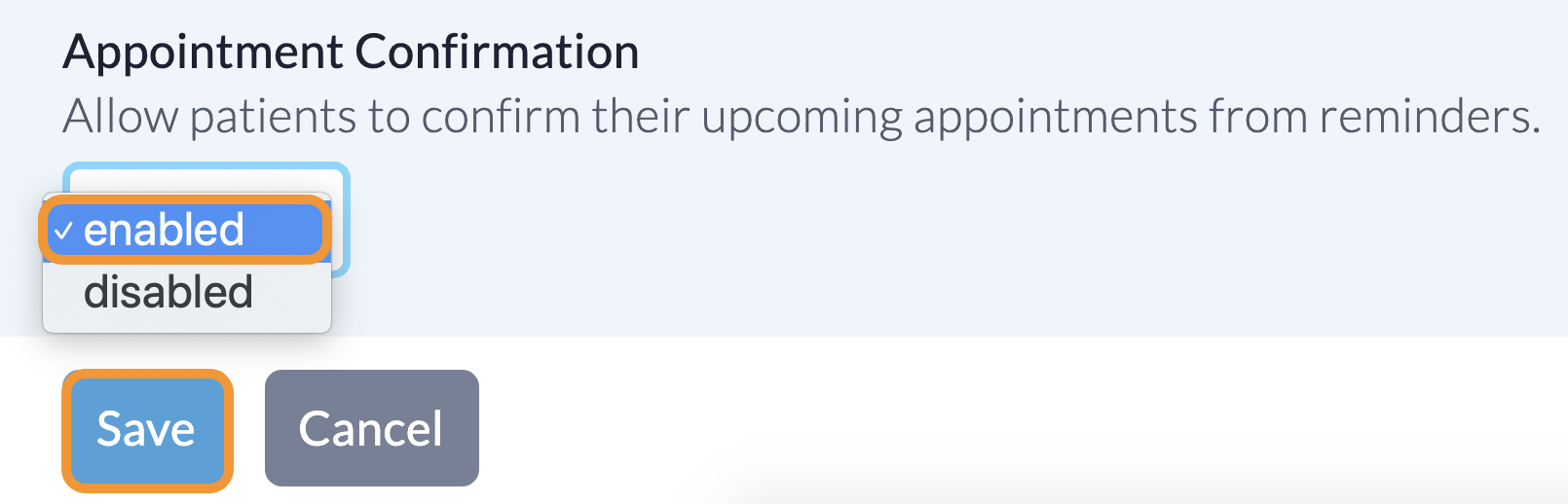
Under the "Appointment Cancellations" setting, use the drop down and select 'Enabled'.
Note: Appointment Cancellation cannot be enabled for reminders which send on the same day of the appointment, or after the appointment.

-
Under the 'Appointment Cancellation Window' setting, enter the minimum amount of time (in days and/or hours) before the appointment that patients are allowed to cancel.
Note: The cancellation window must be shorter than the time between when the reminder is sent and the appointment itself, so that patients always receive the reminder before their cancellation deadline.

- Finish configuring your Reminder Rule and then press 'Save'.
Messaging Template Best Practices
Note: We recommend to including the @apptDate, @apptTime and @providerName keywords in your Messaging Template for patient convenience.
How Patients Cancel Appointments via Patient Reminders:
- When appointment cancellation has been enabled in your reminder rule, the [weblink] keyword in the email Messaging Template will be updated with the corresponding hyperlink text (i.e., 'Cancel your appointment' or 'Confirm or cancel your appointment').
-


- After clicking on the confirmation/cancellation link, the patient will be prompted to verify their identity.

- After verifying their identity, the patient will be presented with the confirmation/cancellation page, in which they can review their appointment details prior to making their decision.
-


- When the patient selects 'Cancel Appointment', they are prompted to confirm their decision.

- After confirming their decision to cancel the appointment, a confirmation message is displayed to indicate that the appointment has been cancelled successfully.

- The patient will receive an email confirming that the appointment has been cancelled successfully.

-
When appointment cancellation has been enabled in your reminder rule, the SMS reminder sent to the patient includes a link allowing the patient to 'manage their appointment'.
Note: The SMS sent to the patient may vary in content based on what is included in the reminder. An outline of possible scenarios can be found in the Sending Patient Reminders via SMS Text Message guide.

- The patient will be presented with a confirmation/cancellation page after clicking the link provided in the SMS. They can review their appointment details before making a decision.

- When the patient selects 'cancel appointment', they are prompted to confirm their decision.
-
- A page to optionally opt in to receive an email record of the cancellation will become available if the patient selected 'cancel appointment' in the previous step.

-
Two email fields appear between the checkbox and the 'cancel appointment' button.
Note: The patient will see the ‘cancel appointment button’ is disabled if either the email field is empty or a cancellation is already in progress.

- After the patient confirms their decision to cancel the appointment, a confirmation message is displayed to indicate that the appointment has been cancelled successfully.
-
- The patient will receive an email confirming that the appointment has been cancelled successfully.
-
- The patient will be shown a warning dialog indicating no email was provided, with options to go back to add an email or continue.

-
After confirming their decision to cancel the appointment, a confirmation message is displayed to indicate that the appointment has been cancelled successfully.
Note: The patient will not receive any email confirmation indicating the appointment has been cancelled.
-
How Appointment Cancellations Appear in the EMR:
- The appointment is automatically updated to Cancelled in the PS Suite schedule.

- A Progress Note is created in the patient's chart recording the cancellation.

- Note: The appointment may or may not appear with strikethrough text in the PS Suite schedule depending on the enablement of the 'Show appointments cancelled within 24 hours of the appointment date' setting in your PS Suite EMR and the date/time the patient cancelled the appointment with respect to the scheduled appointment date/time.

- The Appointment Status is automatically updated to 'Cancelled' and the appointment is removed from the Med Access schedule.

- A new Task is created in the patient's chart recording the cancellation.

- For specific details about the Task assignment and state, refer to Ocean Note Tasks.
- The appointment is automatically removed from the Accuro schedule, and an Encounter Note is created in the patient's chart recording the cancellation.

- The Appointment Status is automatically set to 'Cancelled'.

- An Encounter Note is created in the patient's chart recording the cancellation.

How to Receive Email Notifications for Patient Cancelled Appointments
Site Admins can optionally configure Ocean to send an email notification to the clinic when a patient cancels an upcoming appointment through Patient Reminders or Online Appointment Booking.
To receive this email notification:
- Log into the Ocean Portal.
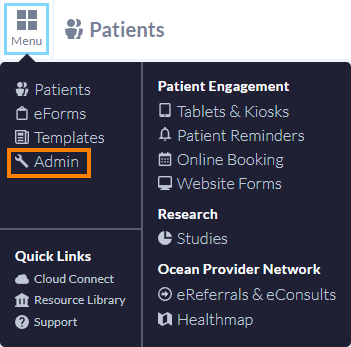
- Click the 'Menu' button and select 'Admin'.
-
- Select 'Site Features'.
-

- In the Notify this email address when patients cancel appointments through online booking and reminders (optional) setting, enter the email address that should receive patient cancellation notifications. Save your changes.
- When the patient cancels their upcoming appointment via reminders or online booking, you will receive an email notification with details of the cancelled appointment.
-


How to Obtain a Report of Appointments Cancelled via Patient Reminder:
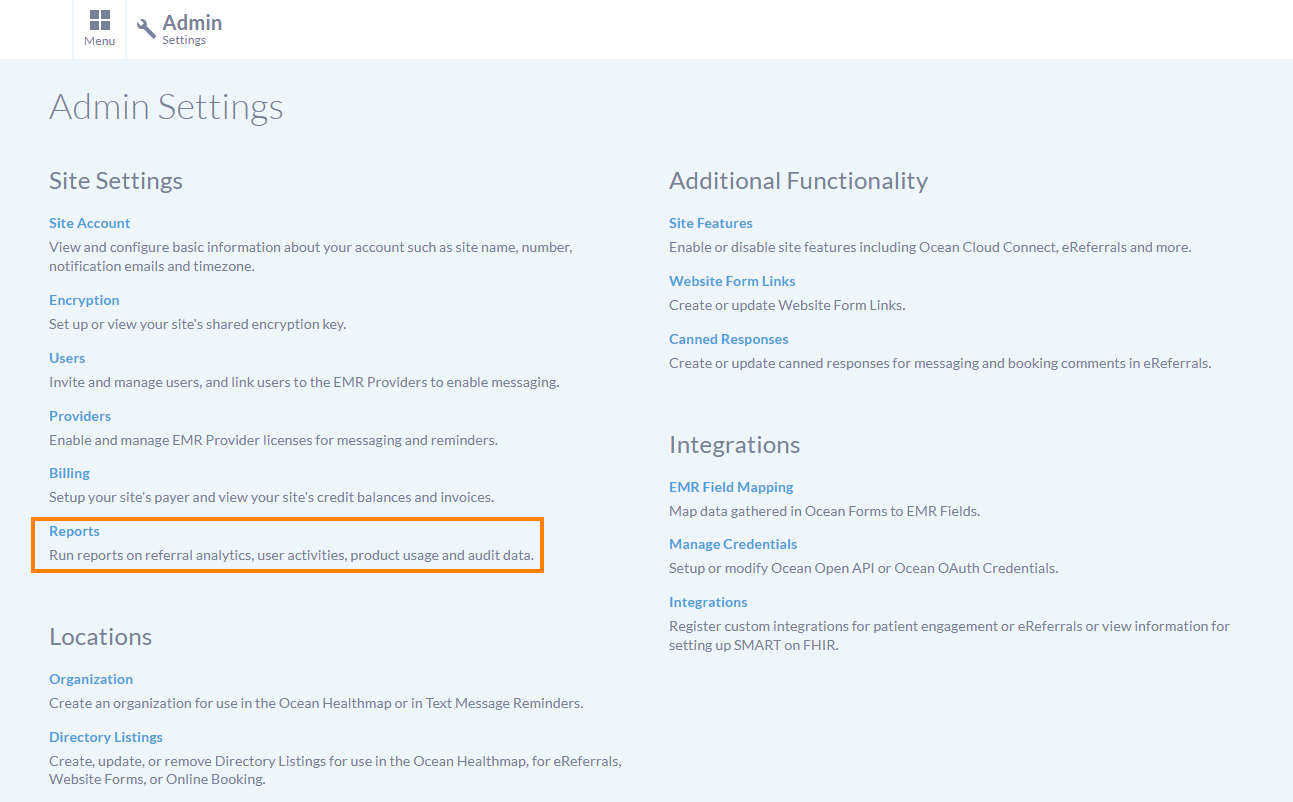
A report of cancellations via Patient Reminder can be found within the 'Reports' area accesible to Site Admins.
- Within the Admin area, select 'Reports'.
-
-
Under the 'Export Audit Data' heading, select the 'Ocean Reminder Appointment Cancelled' activity, and press 'Export'.
A complete Data Dictionary for the report is available within: Where can I get reports on Ocean usage?
-

Appointments that were originally booked using Ocean Online Booking:
- For appointments that were originally booked using Ocean Online Booking and then cancelled via Patient Reminder, the appointment within the 'Online Booking' area in Ocean will also be automatically moved to the 'Cancelled' folder.

- A note is automatically added to the booking submission in Ocean, indicating that the patient canceled the appointment via patient reminder.

Appointments that were added to an Ocean eReferral:
- For appointments that were added to the 'Scheduling' area within an Ocean eReferral and then cancelled via Patient Reminder, the appointment within the eReferral will be automatically removed and a Booking Comment will be added to indicate that the patient cancelled the appointment via patient reminder.

- A private note (visible to only the Ocean Site at which the appointment was booked at) will also be added to the 'Notes' area of the eReferral to record the cancellation. This private note also causes the eReferral to be flagged in the Ocean Site's 'Needs Review' folder in the eReferrals & eConsults dashboard.

- Since the appointment was removed from the eReferral, the eReferral will also be automatically re-categorized into the 'Pending Booking' status folder in the eReferrals & eConsults dashboard.

- This appointment cancellation status change consequently triggers email notifications as outlined below:
- An email notification will be sent to the referrer (who must be a user on a different Ocean Site):

- An email notification will be sent to the patient (this email notification is in addition to the notification shown in Step F above):

- An email notification will be sent to the referral recipient:

What happens when a patient tries to cancel their appointment too close to or after the appointment date/time?
- When a patient attempts to cancel their appointment too close to the appointment date/time (as defined by your 'Appointment Cancellation Window' reminder rule setting), they are prevented from cancelling the appointment and instructed to contact the clinic for further assistance.

- Patients are also unable to cancel appointments after the appointment time has passed. However, they will still be able to access the appointment details using the original reminder link.

How does the Patient Reminder Cancellation Window interact with the Online Booking Cancellation Window?
Patient Attempts to Cancel via Patient Reminder
- If you have customized your Online Appointment Booking Form to specify a cancellation window for appointments booked through Ocean, and a patient attempts to cancel via a Patient Reminder, Ocean will check to see if they are outside the minimum cancellation windows as set within both the reminder rule and the Booking Form.
-
- If the patient is trying to cancel too close to the appointment date as per either setting, they will be unable to cancel.
Patient Attempts to Cancel via Online Booking Confirmation Email
If a patient attempts to cancel an appointment through the automatic email confirmation they received at the time of booking through Ocean, Ocean will check to see if they are outside the minimum cancellation window as set only within the Booking Form.
If the patient is trying to cancel too close to the time the appointment date, they will be unable to cancel.