
Time zone issue affecting appointment times
TELUS Health is investigating an issue related to the permanent time zone changes taking effect in British Columbia, Alberta, and Manitoba, where clocks will not “fall back” on November 1.
Clinics in these provinces using Med Access or PS Suite may see appointment times that are one hour off for appointments on or after November 1.
What may be affected
- Appointment reminders: The reminder may show a time that is one hour off from the actual appointment time.
- Online bookings: The appointment may be entered into your EMR schedule one hour off from the time the patient selected.
TELUS Health is working on a fix and expects to release it by November 1. We will update this notice as more information becomes available.
What you can do now
- Pause online booking to prevent new appointments from being booked at incorrect times.
- Update your appointment reminder text to advise patients that times shown for appointments on or after November 1 may be inaccurate and that they should call the clinic to confirm. You can also pause appointment reminders.
- Review existing online bookings using the online booking export report. Look for patients who booked online for appointments on or after November 1, contact them to confirm the correct time, and update your schedule if needed. To learn more, review the article "Can I get a report of bookings made online?"
To make online booking unavailable to patients while TELUS Health resolves this issue, follow the steps below.
-
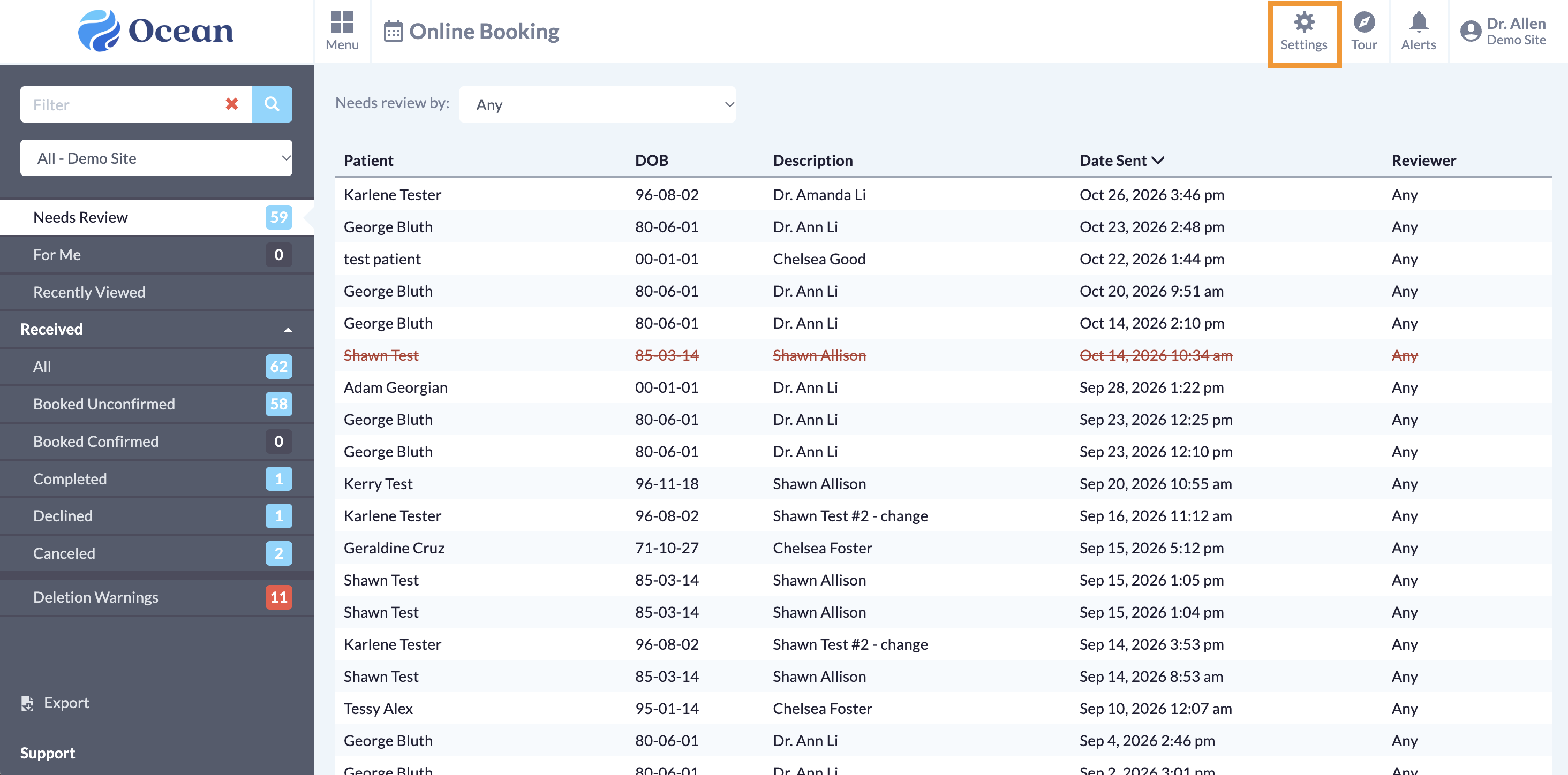
- Log in to the Ocean Portal, open the 'Menu' and select 'Online Booking'.

-
- Click the 'Settings' button.
-
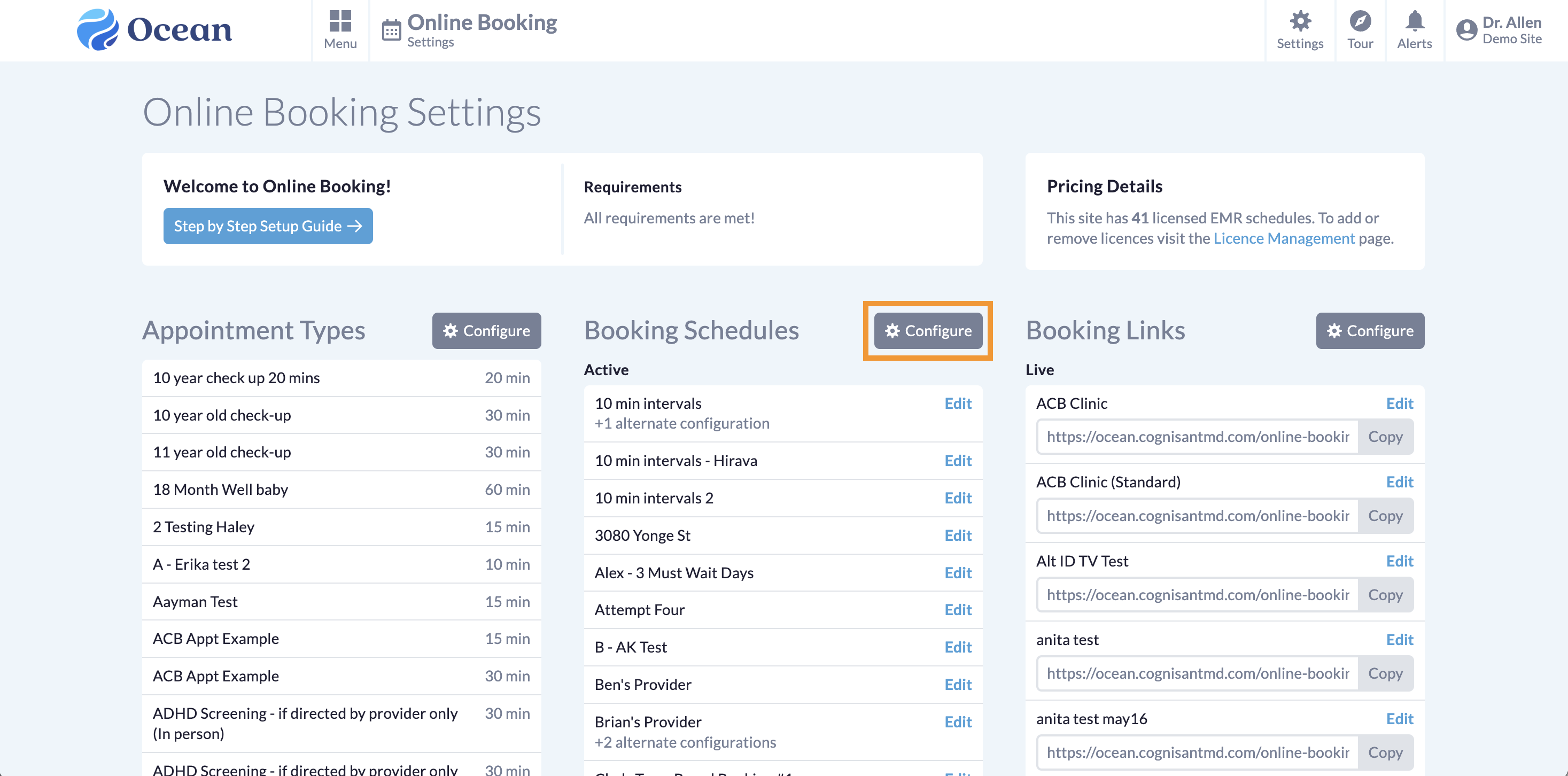
- Next to the Booking Schedules heading, click 'Configure'.
-
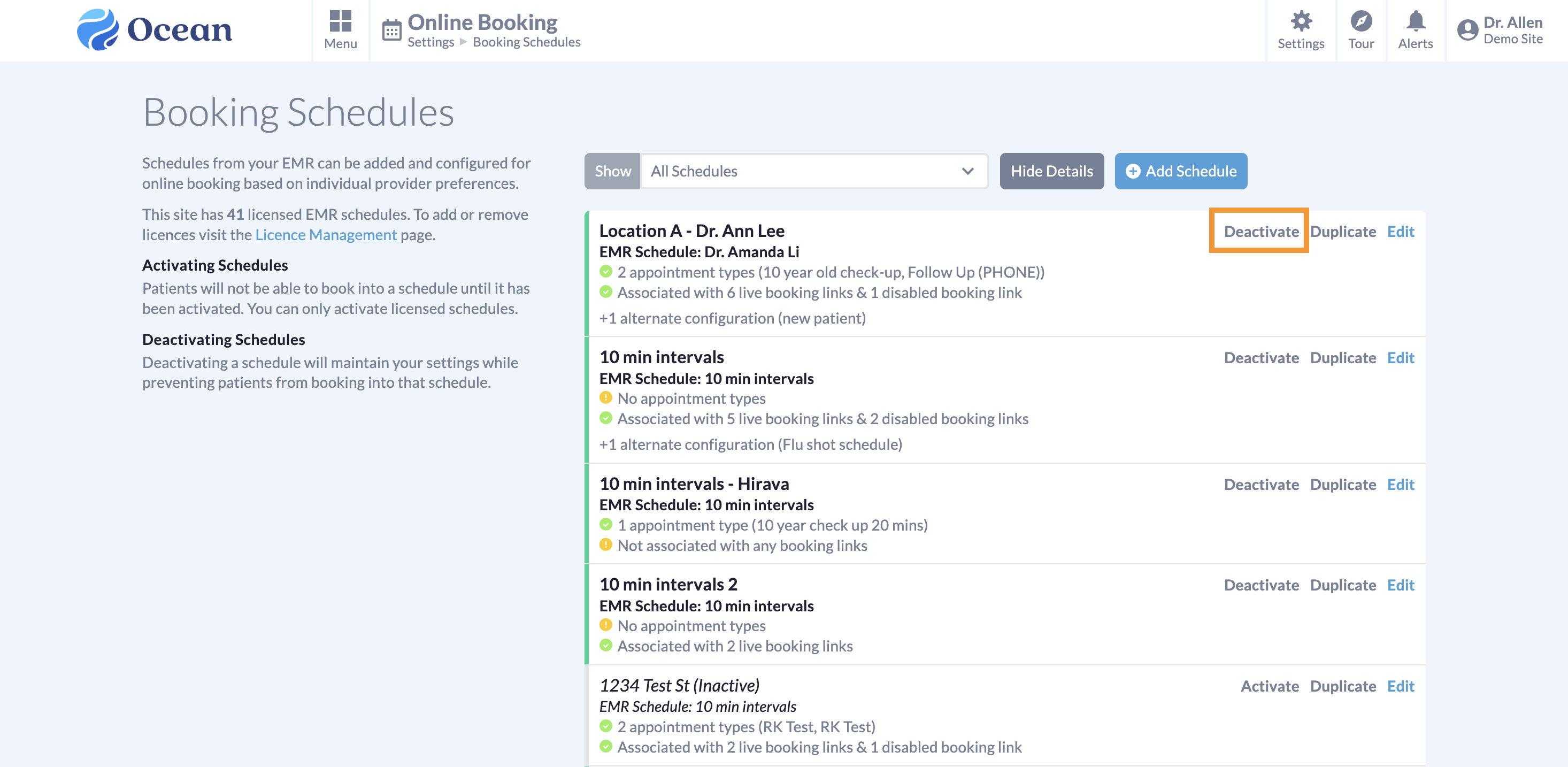
- Click 'Deactivate' next to each booking schedule that you want to make unavailable.
Consider editing your Online Booking Introductory Message to inform patients that they should call the clinic to schedule their appointment.
-
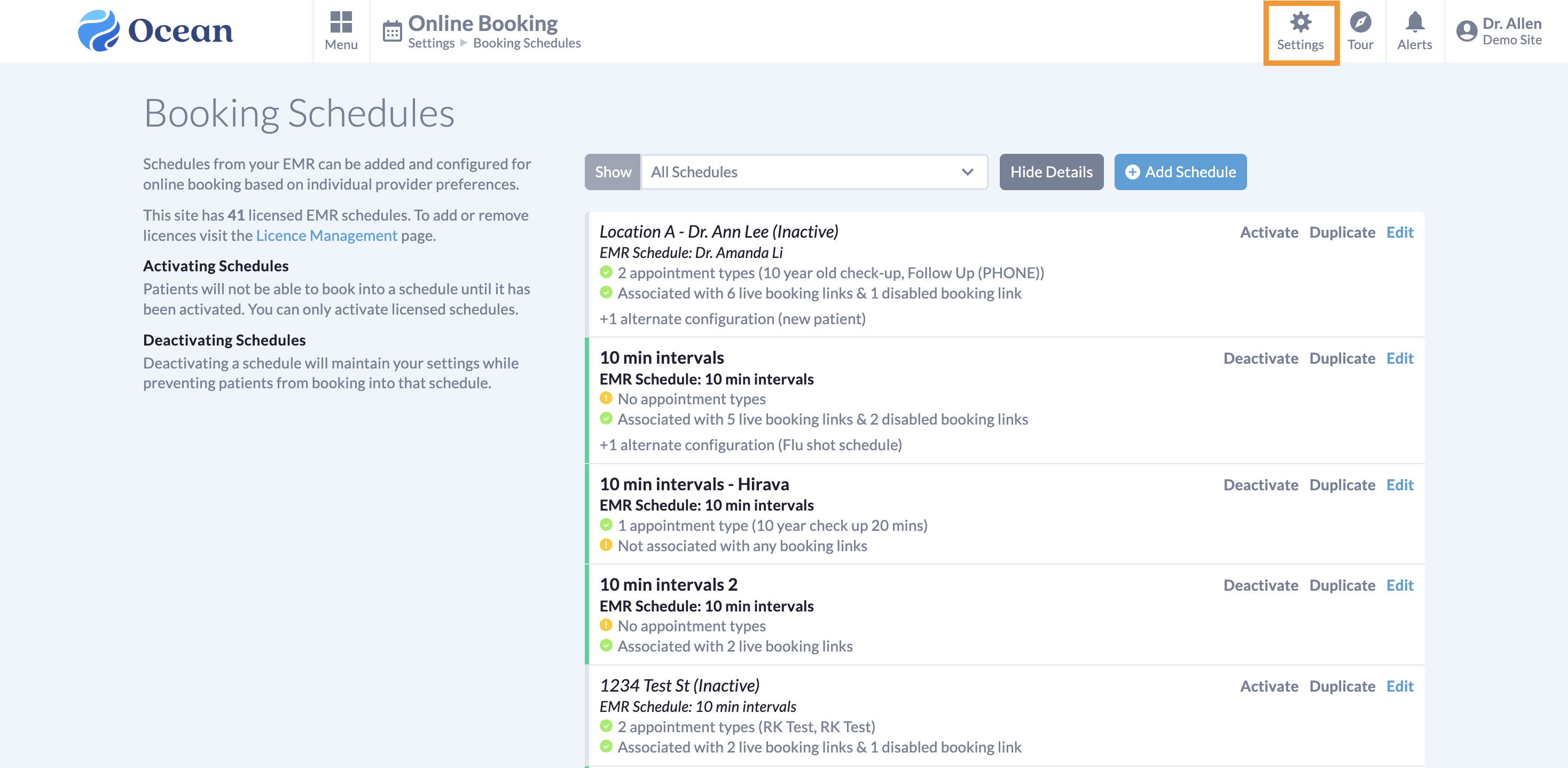
- Click 'Settings' to return to the Online Booking settings page.
-
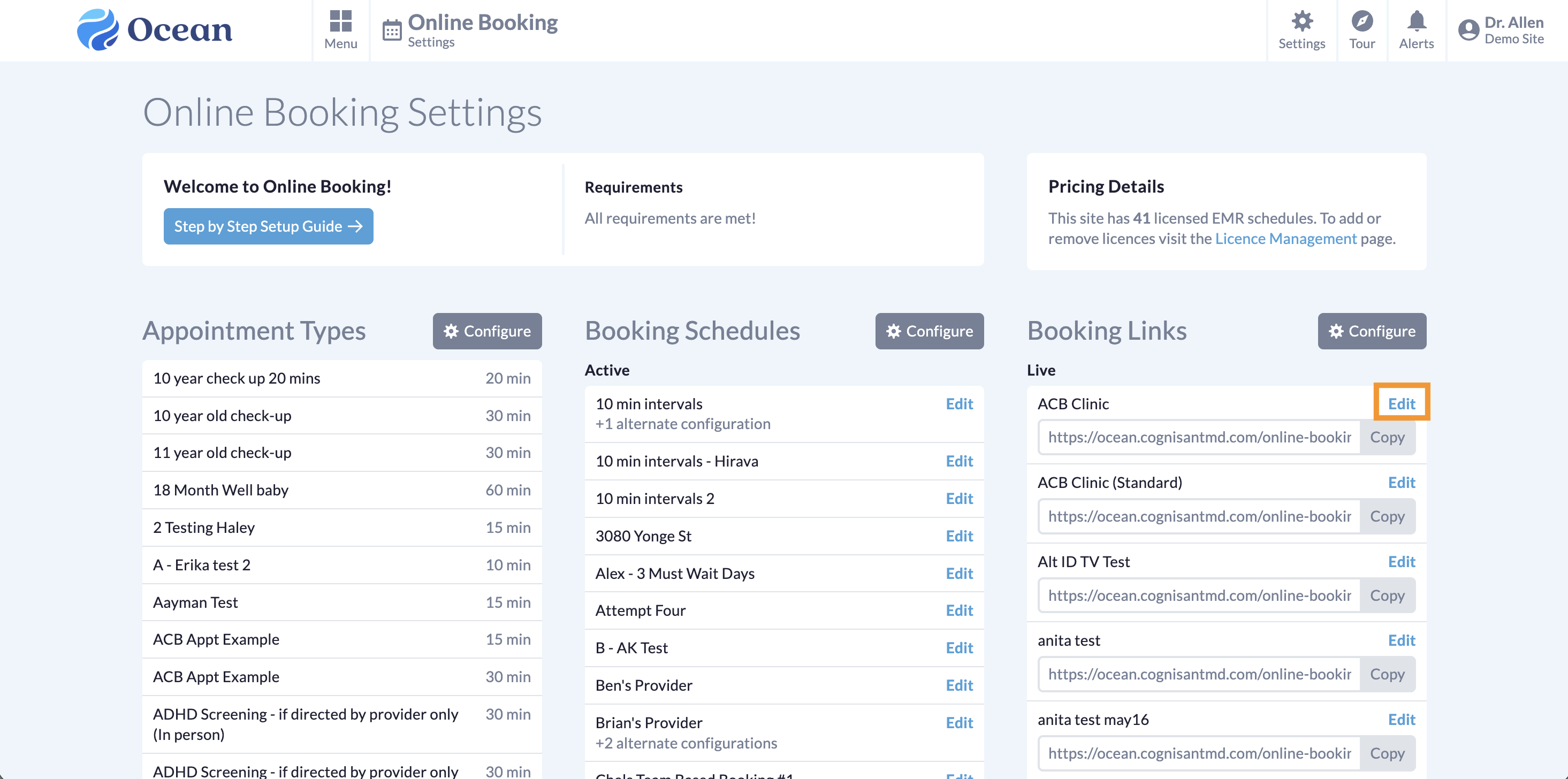
- Click 'Edit' next to the Booking Link that you want to update.
-
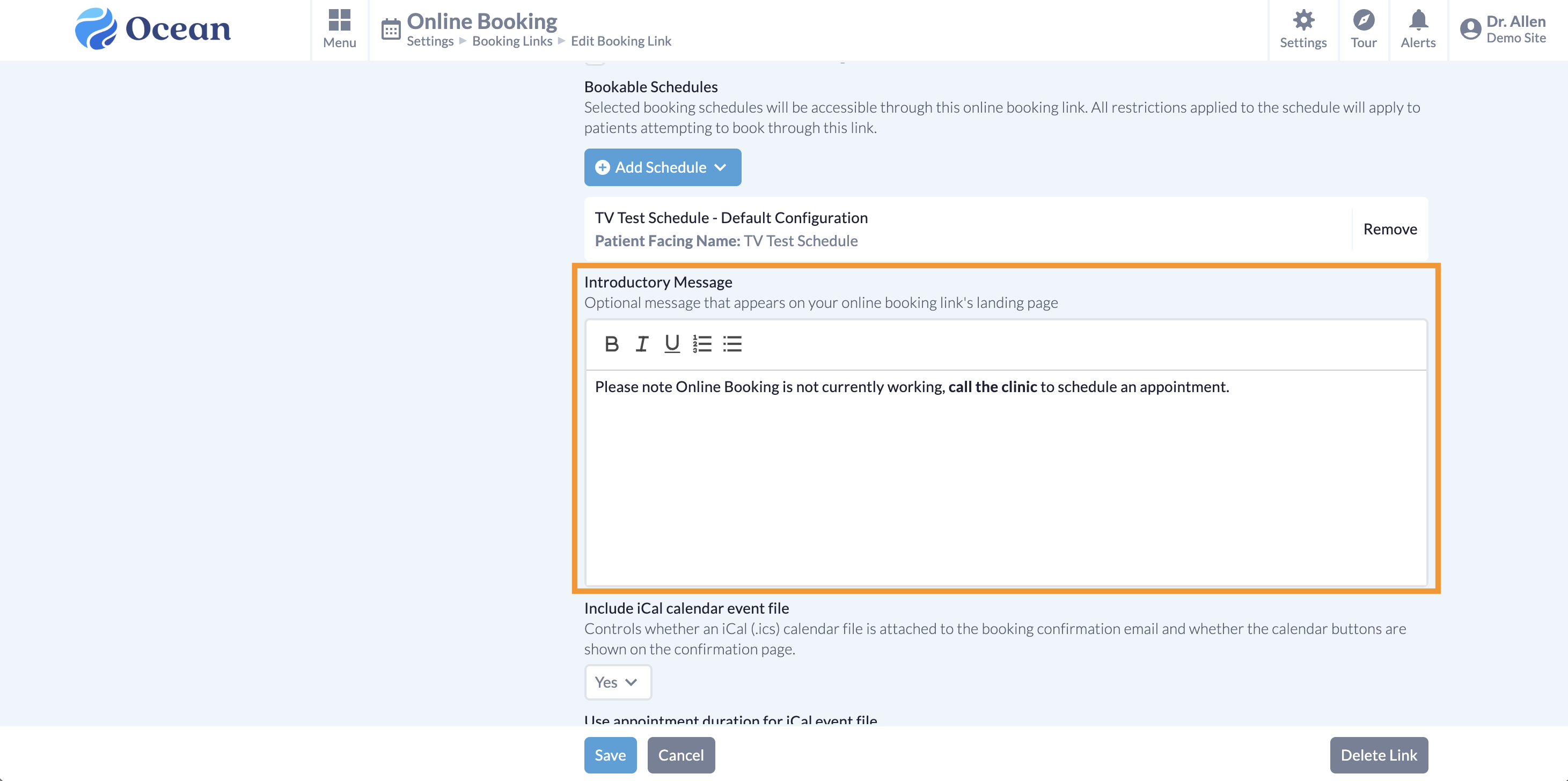
- Update the 'Introductory Message' to tell patients to call the clinic to schedule their appointment. Click “Save” to save your changes.
Consider editing your Patient Reminder templates to inform patients that times shown for appointments on or after November 1 may be inaccurate and that they should call the clinic to confirm.
-
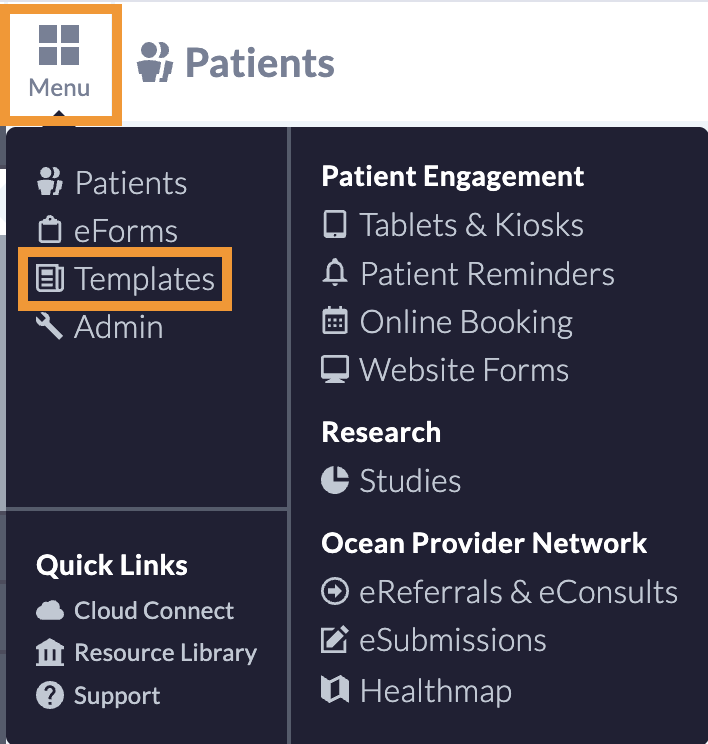
- Log in to the Ocean Portal, open the 'Menu' and select 'Templates'.
-
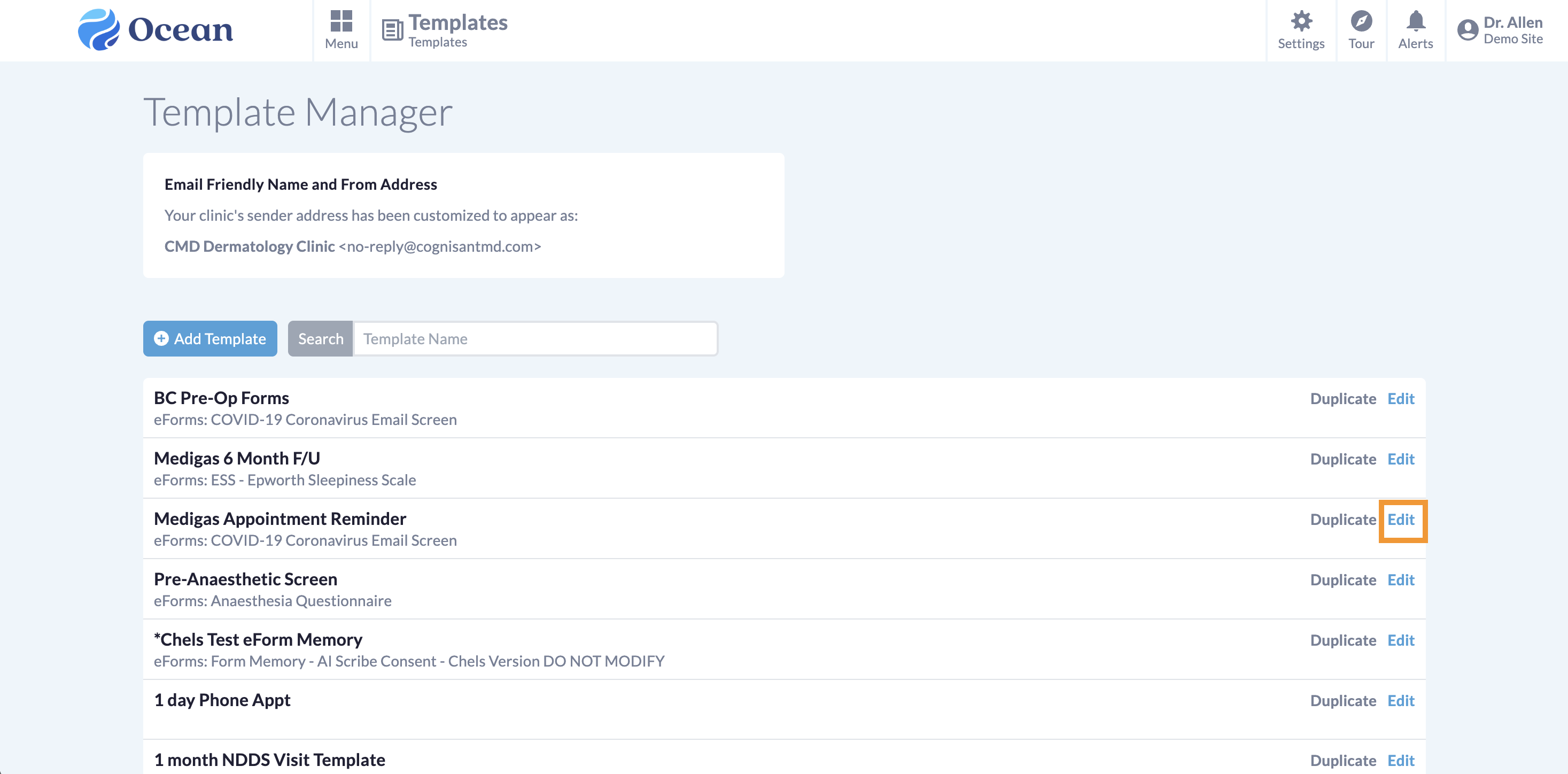
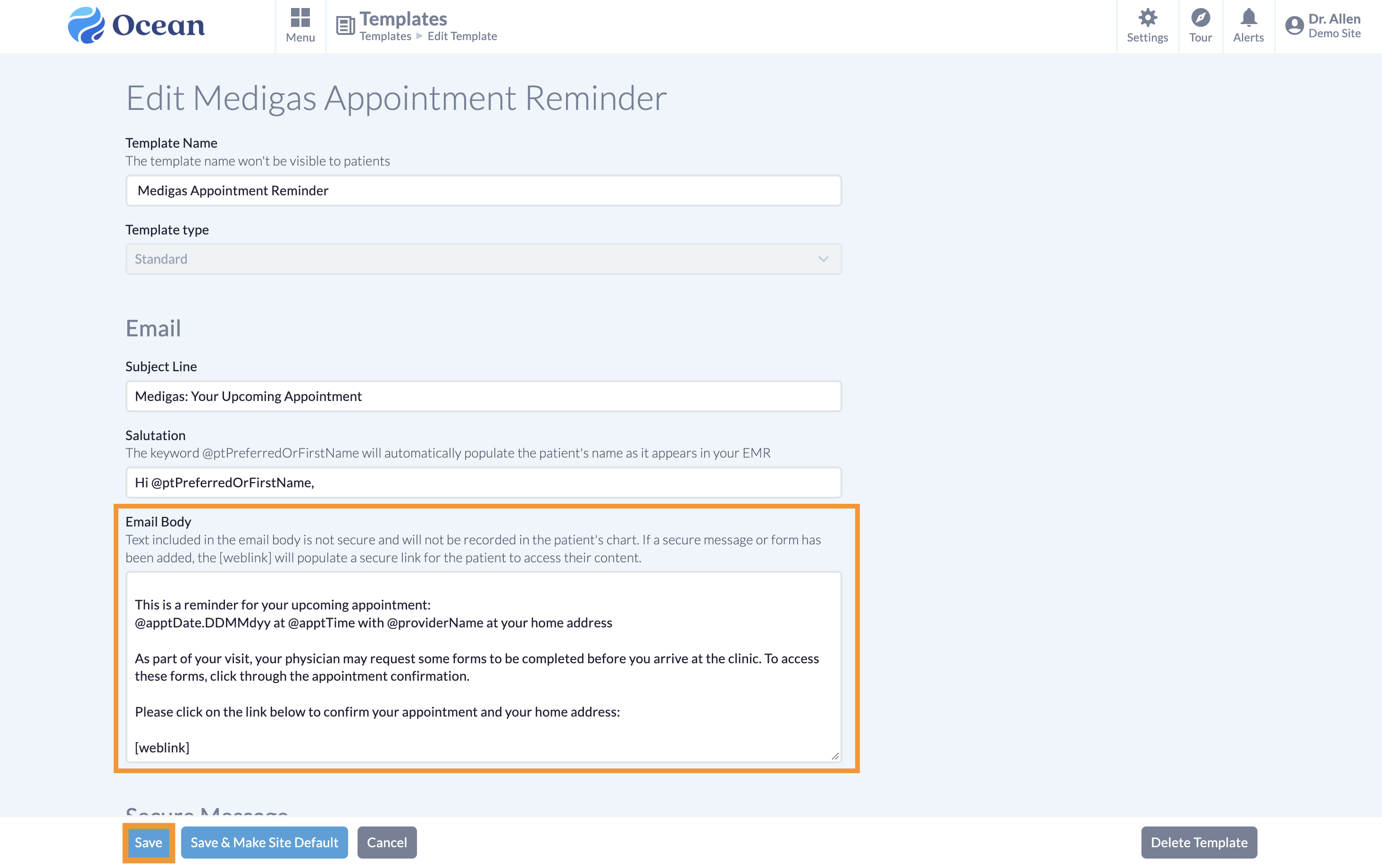
- Find the template used by your Patient Reminder and click 'Edit'.
-
- Edit the reminder content under 'Email Body', then click 'Save'.
-
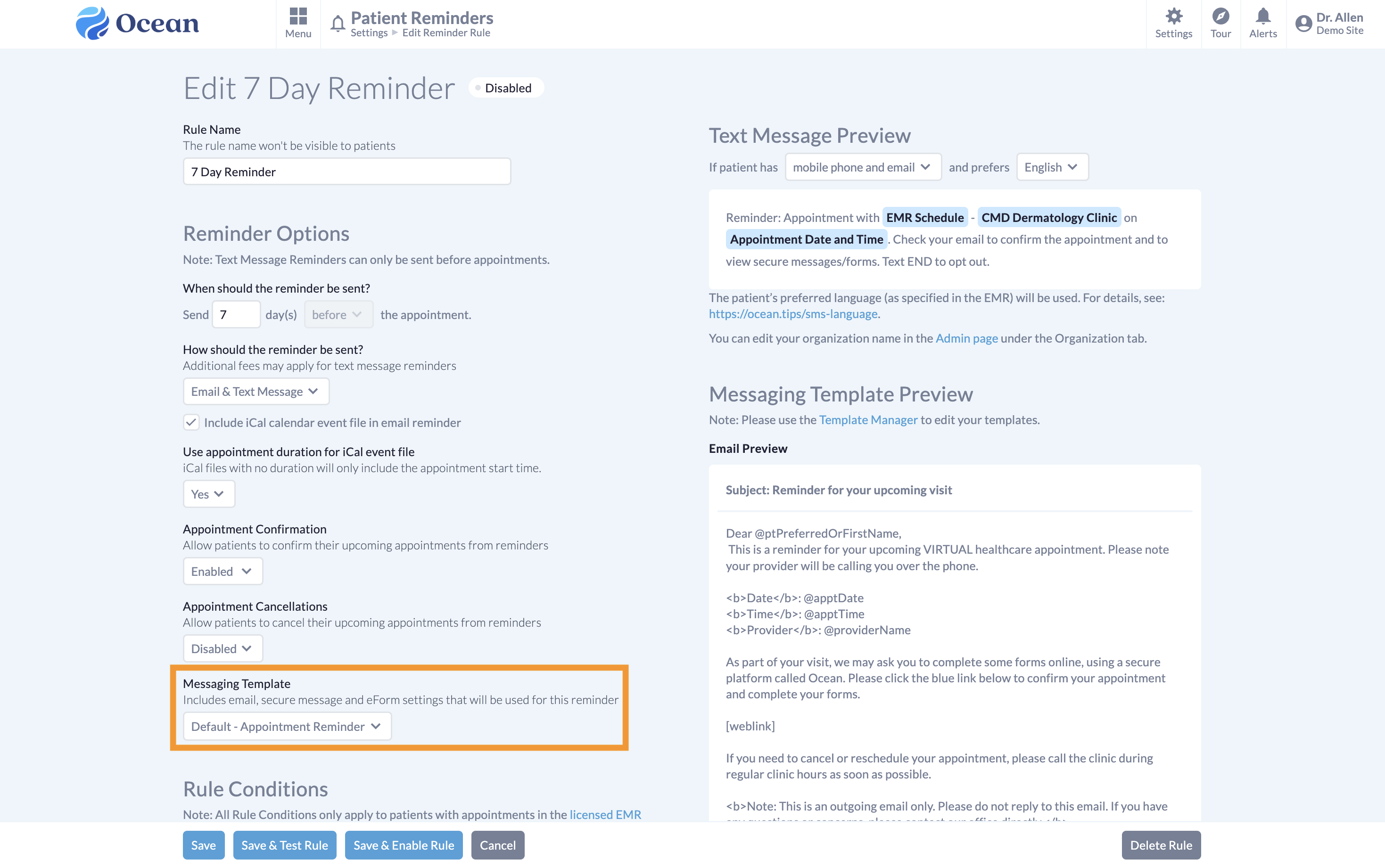
- Not sure which template to edit? Go to Menu > Patient Reminders > Settings. Click the Reminder Rule and find the template name under 'Messaging Template'.
To pause Patient Reminders until TELUS Health resolves this issue, follow the steps below.
-
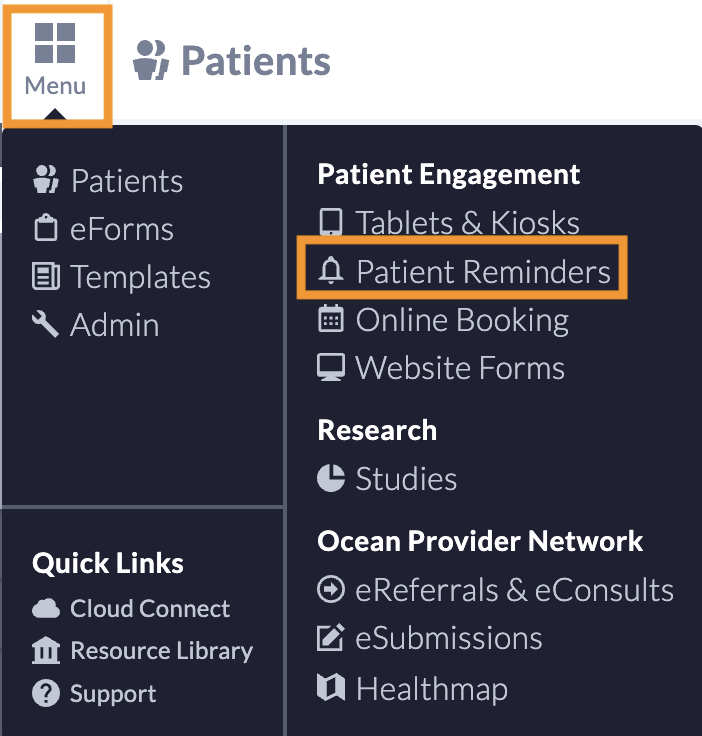
- Log in to the Ocean Portal, open the 'Menu' and select 'Patient Reminders'.
-
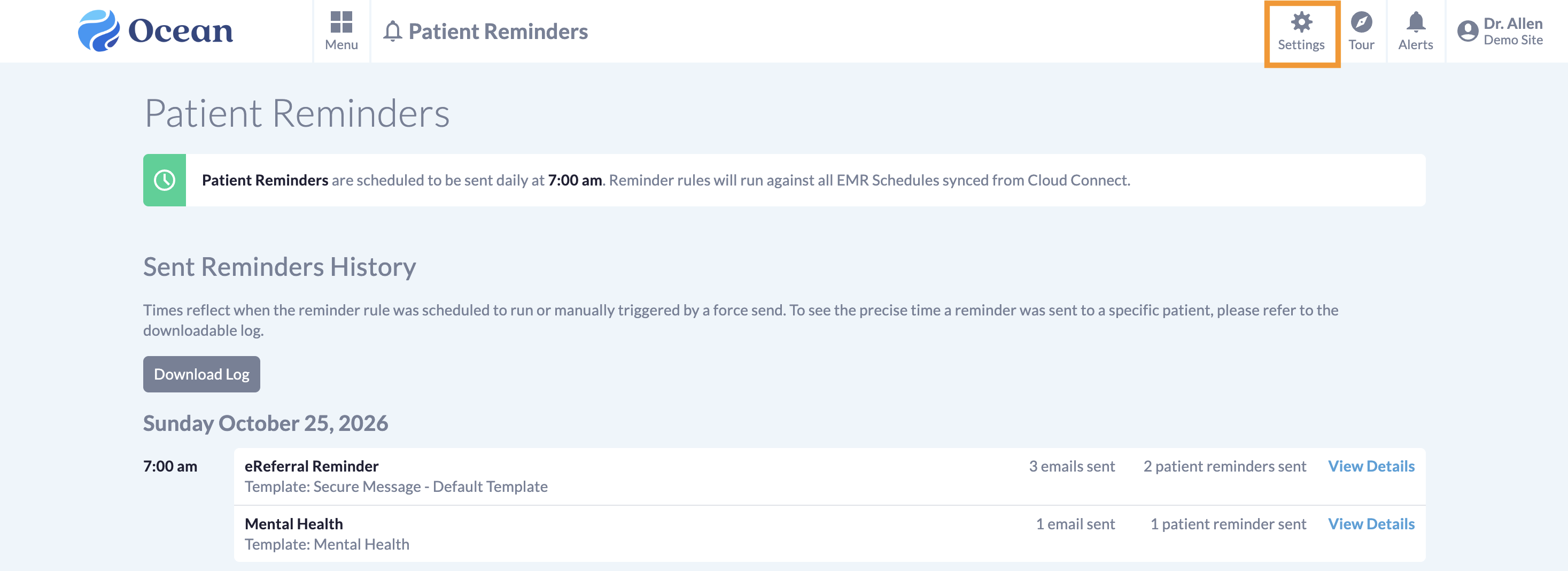
- Click the 'Settings' button.
-
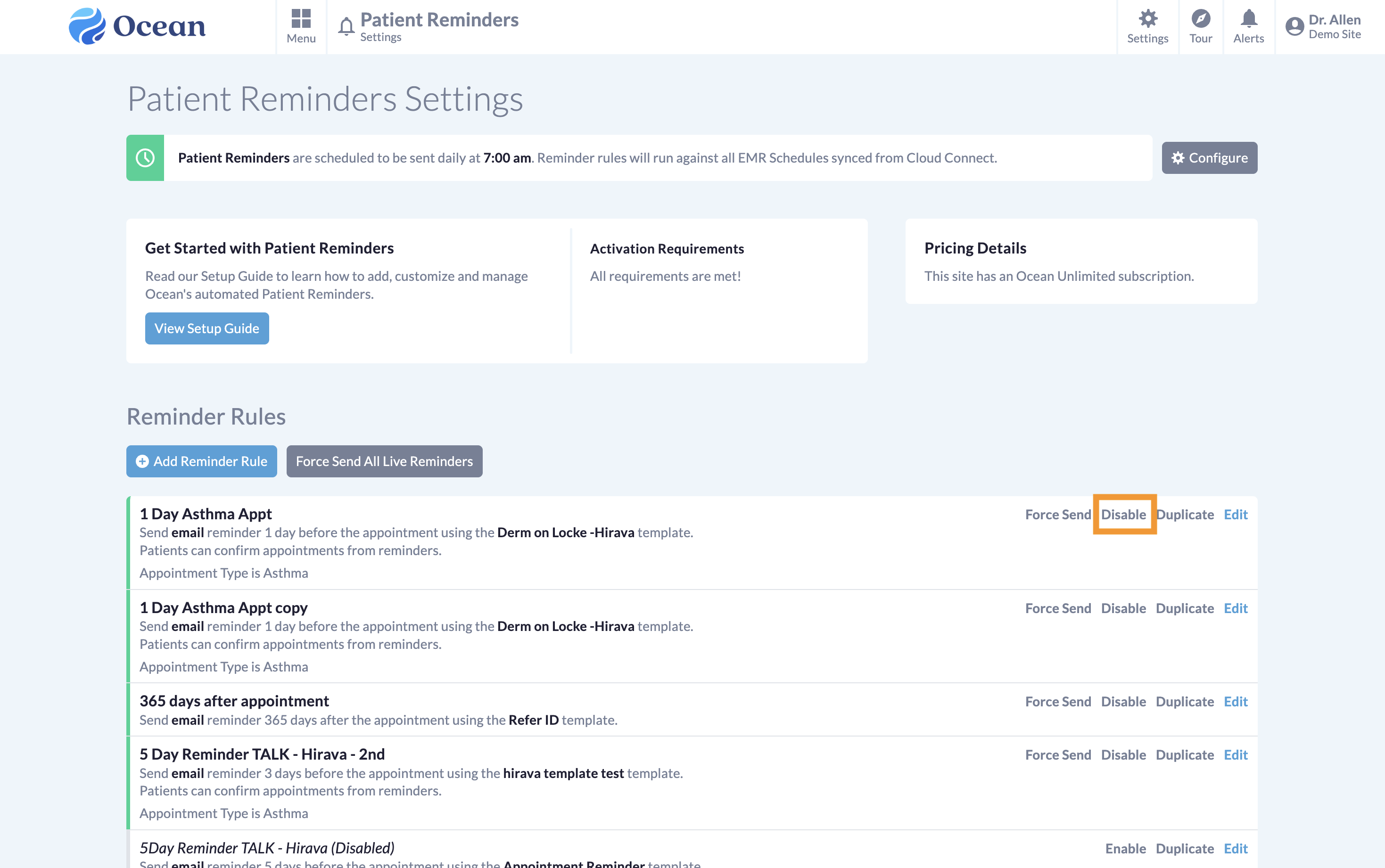
- Under Reminder Rules, click 'Disable' next to each reminder that you want to pause.
Our Support team can help you run the export report, update reminder wording, or pause online booking or reminders.
We’re sorry for any disruption to your clinic and patients. We are following up closely with TELUS Health.