
Learn how to navigate Ocean's eReferrals & eConsults area, and the basic sections within an eReferral.
The eReferrals & eConsults view is used for viewing, tracking, and managing all of your eReferrals in one central area. Learning the basic functionalities of this area will allow you to confidently navigate Ocean and handle your referrals with ease.
The diagram below outlines the key areas and functionalities in the eReferrals & eConsults view.

- 1. Search Box
To find a specific referral, type into the search bar. You can search by patient surname, or the names of the related healthcare providers.
- 2. General Folder Group
These folders are used to flag referrals that need to be reviewed, referrals that have been flagged for your specific attention, and referrals you have recently viewed.
- 3. Sent/Received Status Folder Group
The 'Received' and 'Sent' folder groupings contain individual status folders which are used to organize referrals as they progress through their lifecycle. The specific purpose of each status folder is defined in this support article.
- 4. Actions Menu
Used for quick access and advanced functionalities, including creating manual inbound requests, launching the Ocean Healthmap, claiming a printed Ocean requisition, exporting your referrals, batch print referrals, bulk updating your estimated wait times, viewing a patient's referral history, and disabling/enabling folder counts.
- 5. Group-Level Filters
Contains filters that can be applied across all status folders within the 'Sent' or 'Received' folder grouping.
- 6. Folder-Specific Filters
Contains filters that can be applied only within the currently-opened status folder.
- 7. Patient Referral List
Shows basic information about the patient referrals that match your currently selected folder and applied filter(s).
- 8. Settings Button
Used for accessing the configuration options available for eReferrals & eConsults at your Ocean Site.
- 9. Status Icons
Used for quickly indicating relevant statuses and characteristics for each referral. A full legend for all icons is found in this support article.
A referral can be opened by simply clicking on it from the patient referral list. The diagram below outlines the key areas and functionalities within a referral.
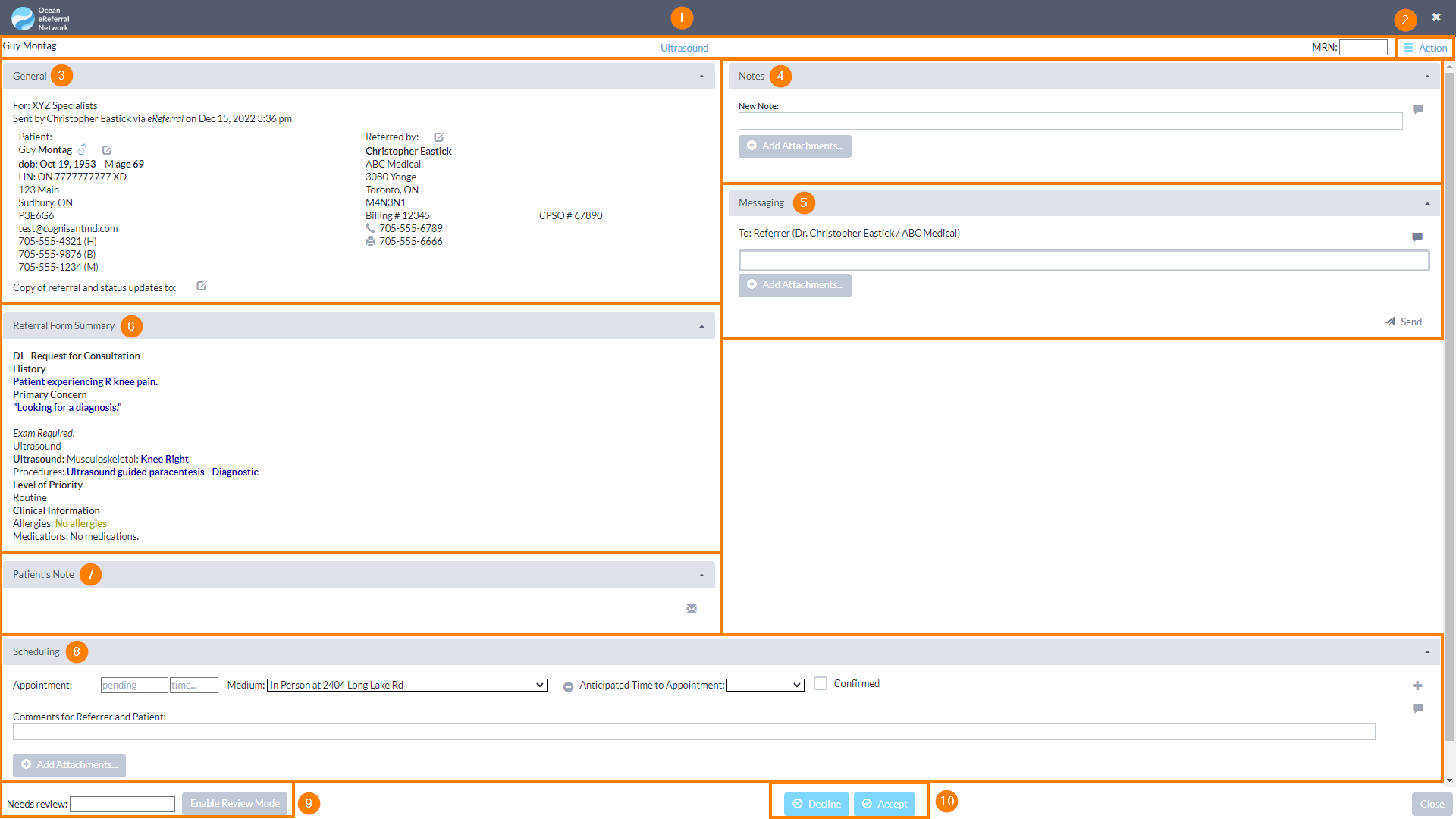
- 1. Health Service Offering
The patient's name, health service offering that they were referred for, and MRN/EMR ID number are displayed at the top of the referral.
- 2. Action Menu
Used to action and manage the referral from directly within. Each action menu item is described in detail in this support article.
- 3. General
Contains basic information regarding the patient, the referrer, the date of the referral, and any additional stakeholders copied on the referral.
- 4. Notes
Used for general and/or private note-taking regarding the referral, as well as advanced functionalities such as the review/triage form, and specifying dates affecting readiness to consult/treat.
- 5. Messaging
Used for communicating with other referral stakeholders. Common use cases include requesting additional information prior to accepting/declining a referral (e.g., lab values, imaging results).
- 6. Referral Form Summary
Contains a note summarizing the referrer's responses to the referral form questions/criteria during the referral sending process.
- 7. Patient's Note
If the patient recently completed an Ocean eForm(s) or responded to a Secure Message, the resultant note(s) will be displayed here.
Providers with an Ocean Patient Messages license can use the envelope icon to send a secure message and/or additional digital questionnaires to the patient.
- 8. Scheduling
Used for scheduling appointment dates or estimating wait times, specifying the appointment medium, and including comments or attachments for the patient and referrer.
- 9. Needs Review
Used to assign a referral to be reviewed by another user on your Ocean site.
- 10. Action Buttons
Used to accept or decline the referral.