
Once you have claimed a Directory Listing for your site and set up the Directory Listing details, the next step is to configure the site-level features associated with receiving consults and/or referrals.
1. Indicate that your Ocean Site is Receiving Referrals
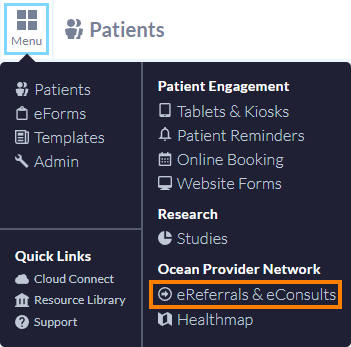
- Log in to the Ocean Portal and navigate to the eReferrals & eConsults page.
-
Select the Settings button in the top-right corner of the page.
Note: The Settings button is only visible to Site Admin users.

-
Under the Welcome to Ocean eReferrals! section, ensure that the appropriate selection is made for how your site is using eConsults and/or eReferrals ('Receiving Referrals' or 'Sending & Receiving Referrals').
This selection enables the configuration options in Step 2 that are relevant to Ocean Sites that receive referrals.

2. Configure Referrals
- Within the eReferrals & eConsults page select the Configure Referrals button.
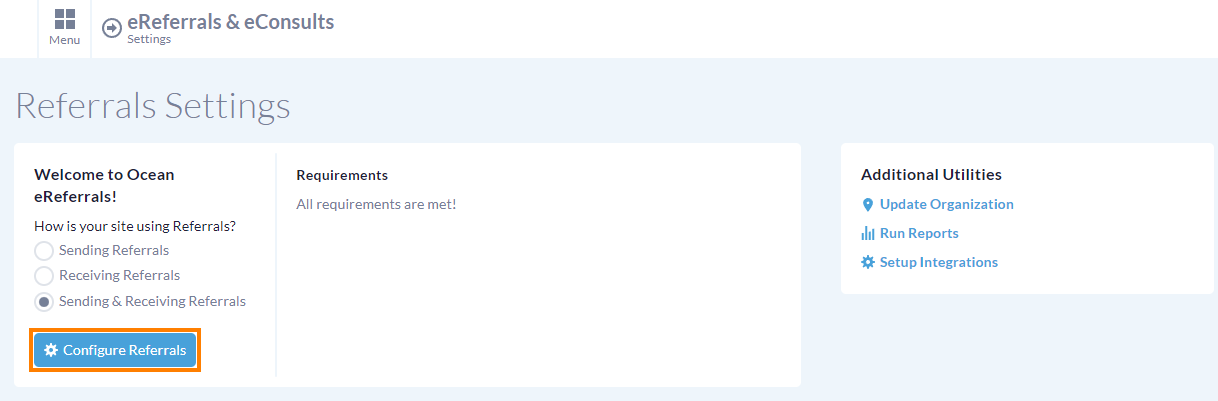
- You will be presented with the Referrals Configuration page:

Receiving Referrals
- Trustees/Custodians
Indicate whether your Ocean Site is a Trustee/Custodian.
- Default Incoming Referral Notification Emails
Set your default email(s) for notifications regarding incoming eConsults and/or eReferrals. Further details on email notifications for receivers can be found in this article: Set Up Receiver Email Notifications.
- Send Patients Email Notifications
Select whether you would like Ocean to automatically send patients email notifications regarding status updates for their referrals sent to your site. The list of email notifications patients will receive can be found in this article: What email notifications will patients receive regarding their eReferrals?
- Include iCal event file in appointment email notifications
-
Select whether an iCal event file is included in appointment email notifications sent to patients. When set to 'No', appointment email notifications will not include an iCal event file.
Note: This setting does not apply to referral appointment reminders. To include an iCal event file in referral reminder emails, enable this option in the reminder rule settings. For more information, see Set Up Automated Referral Appointment Reminders*
- Specify iCal event file duration
-
Select whether the appointment duration will be included in the iCal event file. The default duration is 120 minutes. This duration also applies to iCal event files included in referral appointment reminders. When set to 'No', the appointment start time is only included in the iCal event file.
Note: If an appointment duration is provided by an integration, that duration will be used instead.
- Hide appointment duration
Select this option to show only the appointment start time in the iCal event file. This setting also applies to iCal event files included in referral appointment reminders.
- Use Ocean patient's email address for integrations*
When set to 'Yes', Ocean will send patient email notifications to the email address submitted with the eReferral/eConsult. This is the recommended configuration.
When set to 'No', Ocean will send patient email notifications to the email address included in the FHIR payload.
*This setting is only available for Ocean Sites that have enabled a referral integration within the 'Admin -> Integrations' area of the Ocean Portal.
- Create Charts for New Patients
When set to 'Yes', this allows Ocean to create new patient charts in your EMR when a referral is accepted and no existing EMR chart is found.
- Referral Records/Notes Filetype
Choose which file format you would like Ocean to download your records and notes as. More details can be found in this article: Can I change the File Format for Downloaded Records and Notes?
- Automatically Close Referrals
Select if you would like Ocean to automatically mark booked referrals as completed, a specified number of days after the appointment date. More details can be found in this article: Can Ocean Automatically Mark Booked Referrals as Closed at my Site?
eConsult Management
- Display eConsult Folders
If your site is using eConsults, ensure the display of eConsult status folders is set to 'Yes'.
Appointment Time Options
- Time System
Indicate if Ocean should display times using a 12-hour or 24-hour clock format, or both.
- Time Interval
Select the increments of time that are selectable in the Scheduling area of a referral.
- Time Range
Indicate the bookable hours of the day.
- Preview Appointment Time Options
Open this dropdown to view the options that will be available based on your current settings.
More information regarding these settings can be reviewed in the following support article: Can I Configure the Booking Time Options that Appear in the eReferral Scheduling Pane?
Once you're satisfied with your configuration choices, click the 'Save' button at the bottom of the page.