
1. Initiate Your Ocean eReferral

    You can access the Ocean eReferral Network from the link in your FHIR-integrated EMR or directly from the Ocean Healthmap to initiate your referral.

    With an Ocean account, you can initiate an Ocean eReferral at any time directly from the Ocean Healthmap. If you are using an EMR that is integrated with Ocean using FHIR APIs, you can also initiate an eReferral at any time by following the steps below.

    Initiate your eReferral (without an attachment)

    Intrahealth Profile
    • An eReferral can be initiated from the Medical Record or Work Centre in Profile.

    From the Medical Record

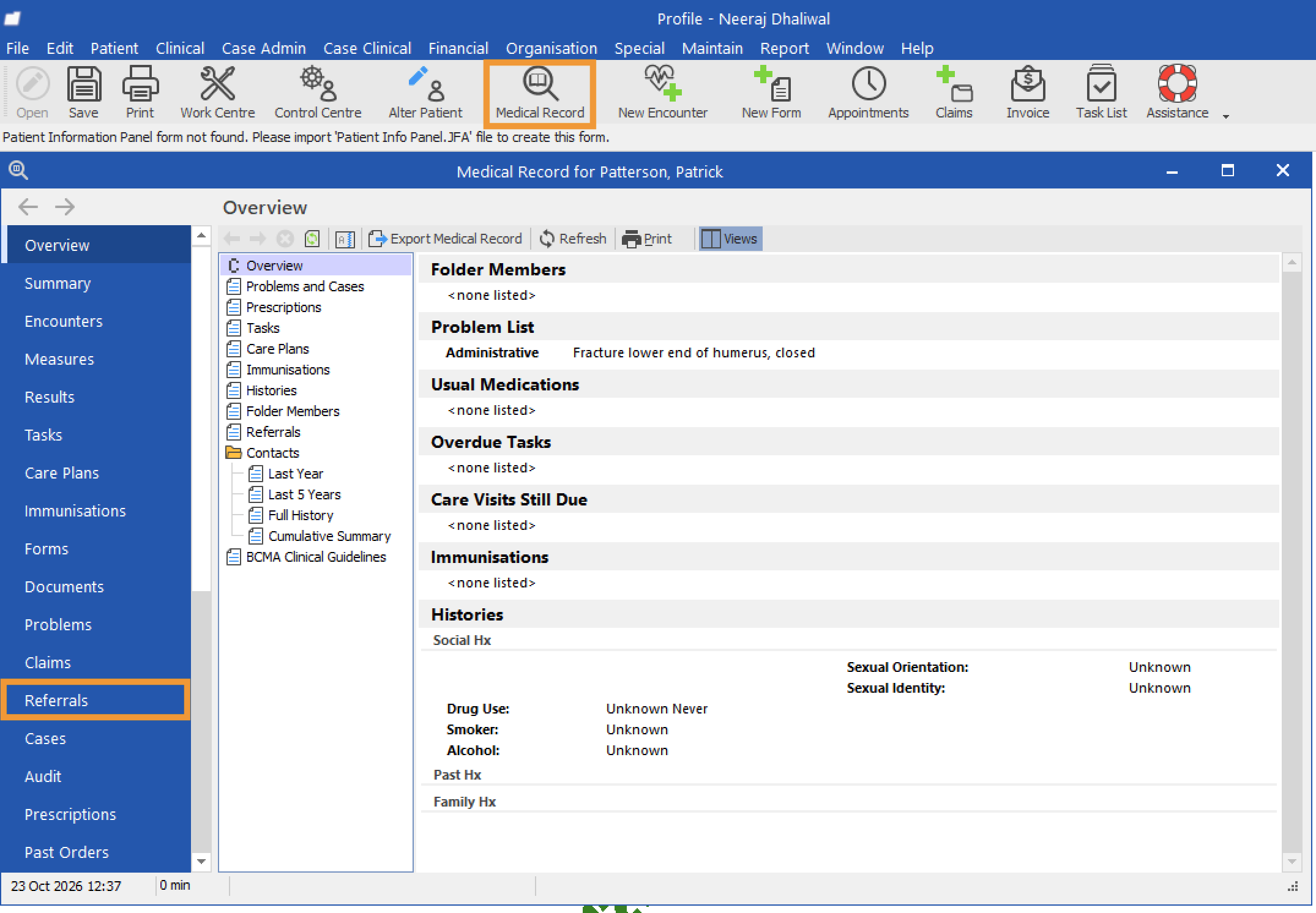
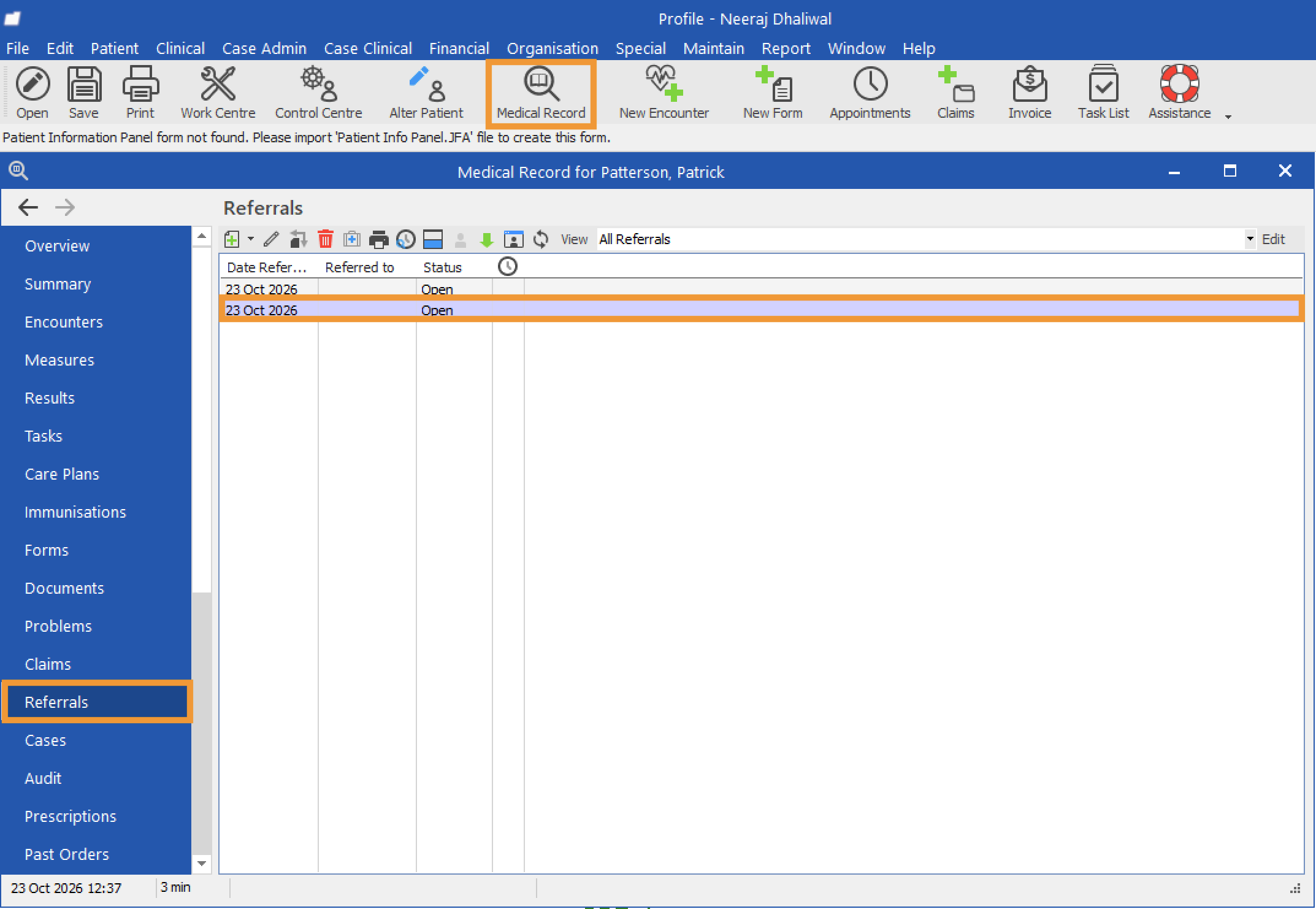
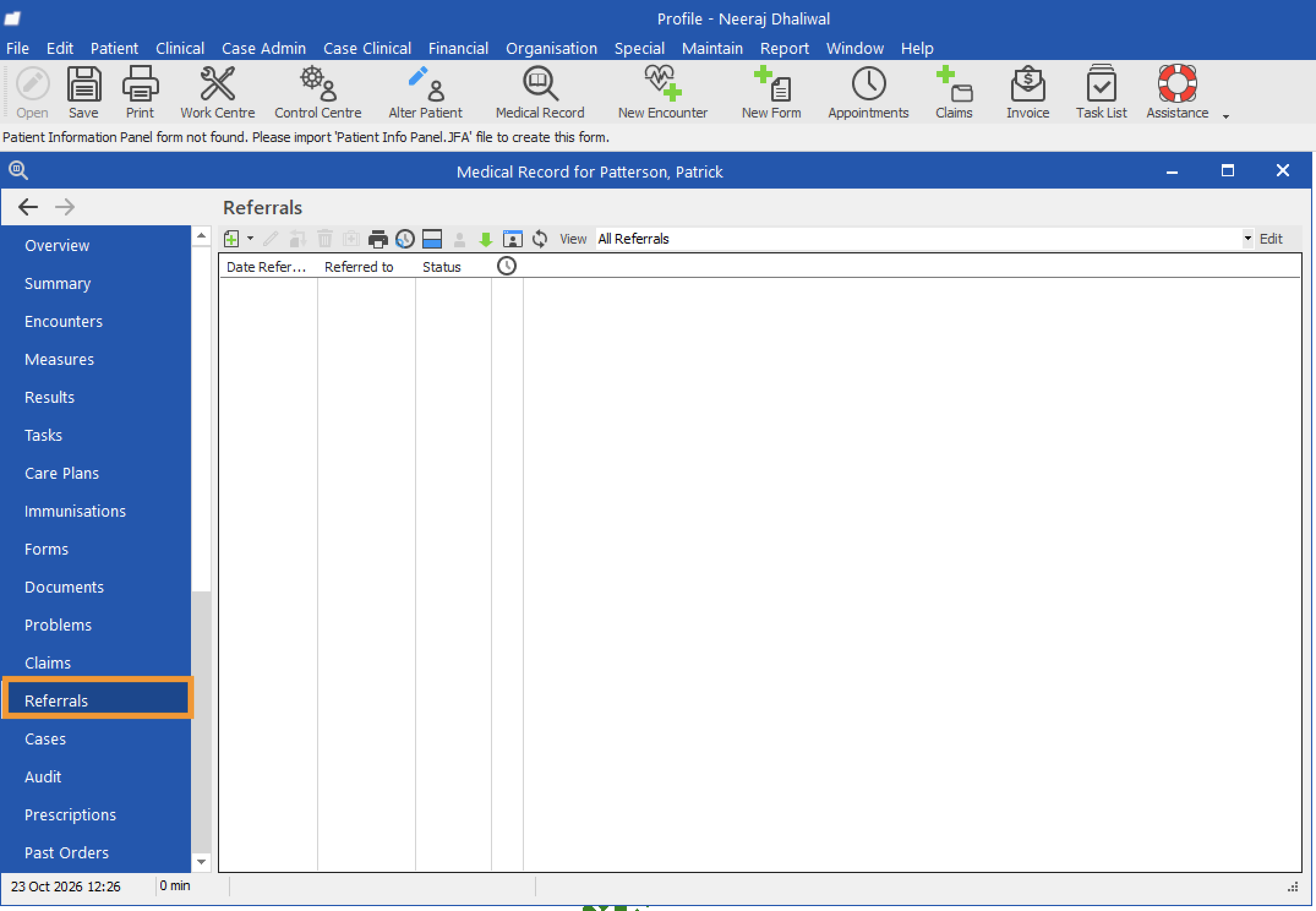
    • Open the patient’s Medical Record in Profile and select Referrals from the sidebar.
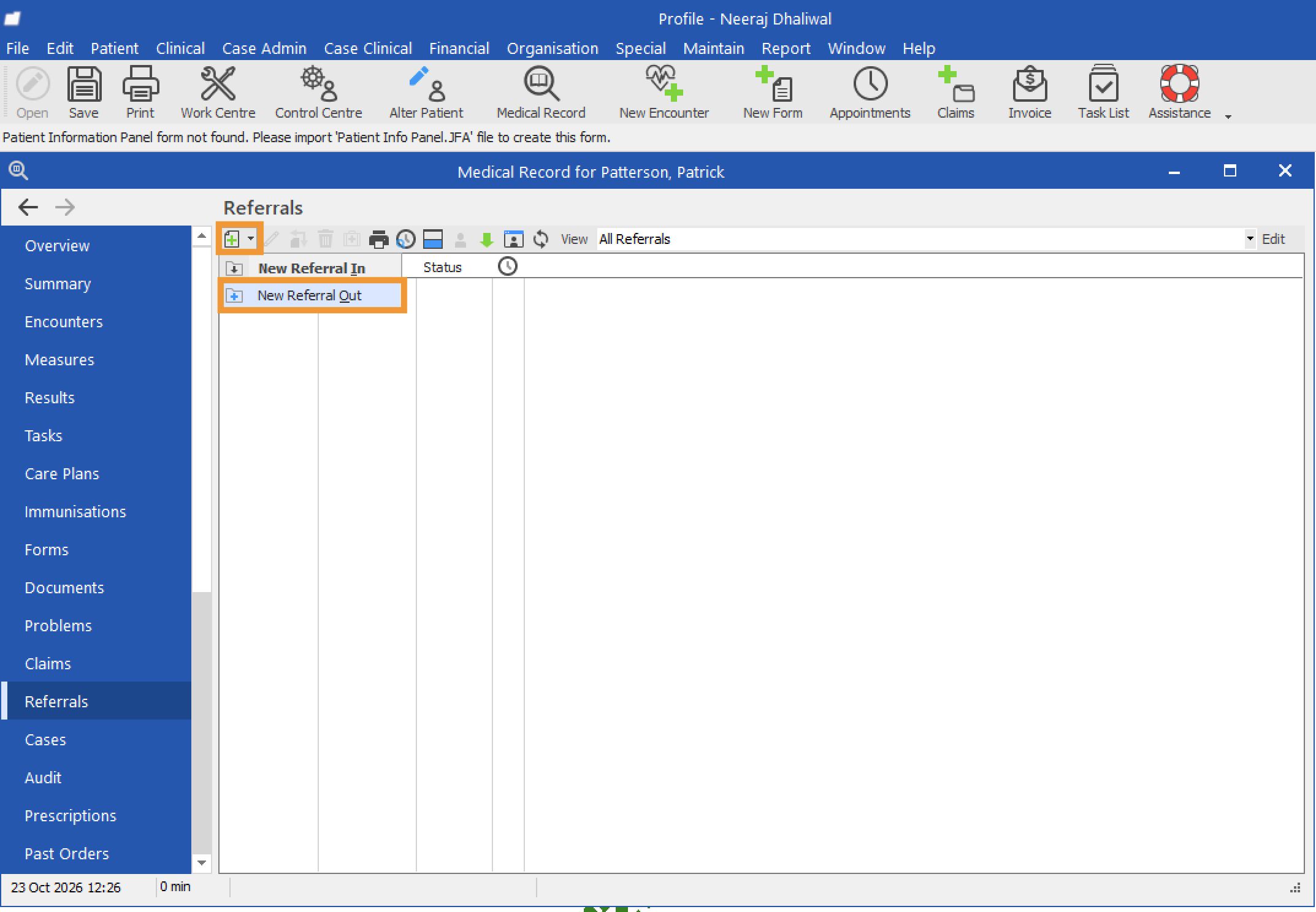
    • Click the dropdown next to the plus (+) icon and select 'New Referral Out'.
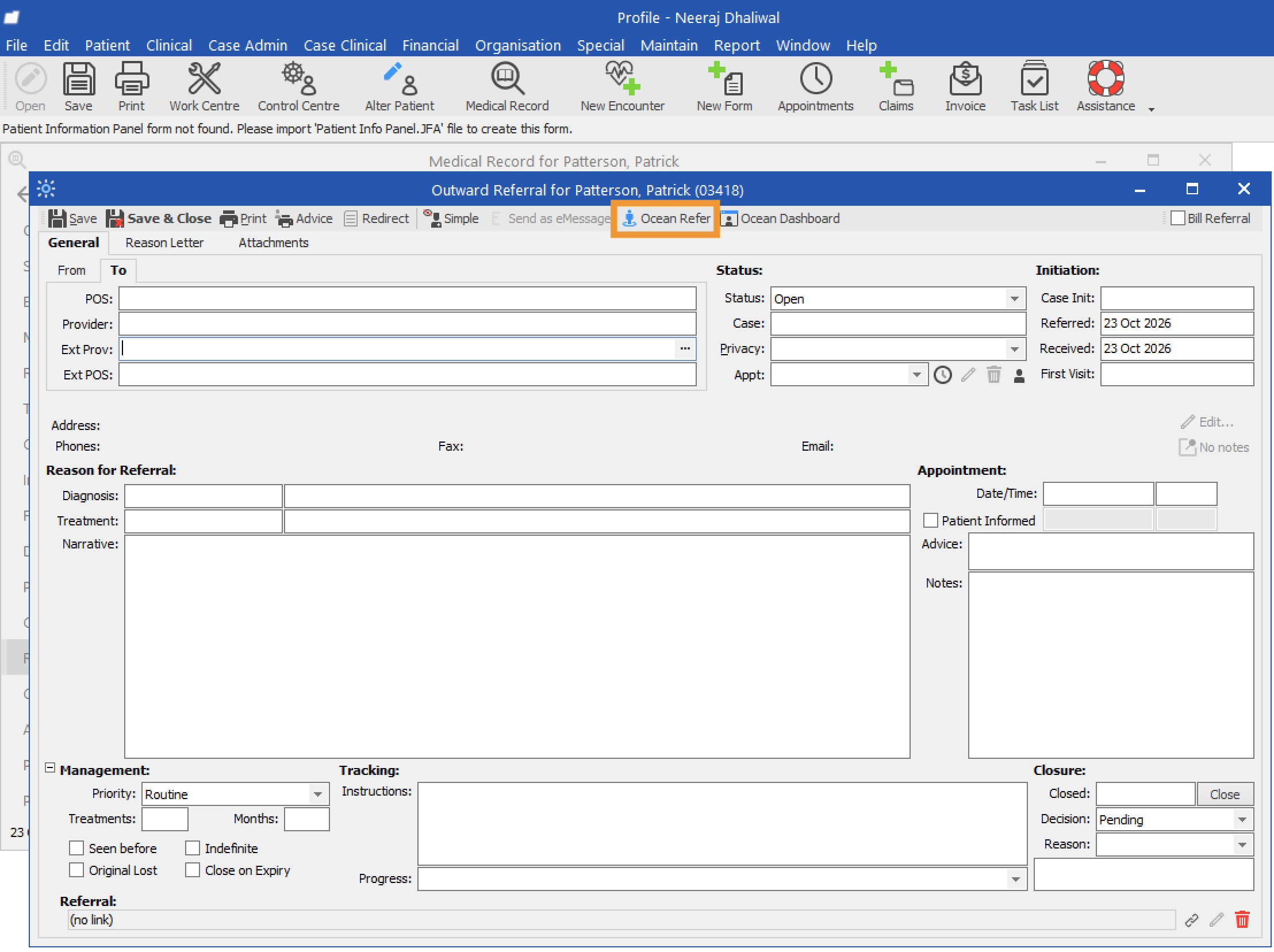
    • Click 'Ocean Refer' to open the Ocean Healthmap.
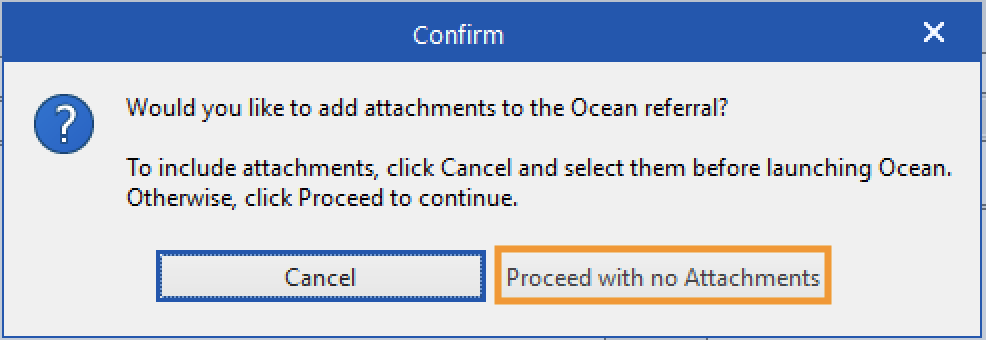
    • If prompted, click 'Proceed with no Attachments' to continue initiating your eReferral without attachments.
    From the Work Centre

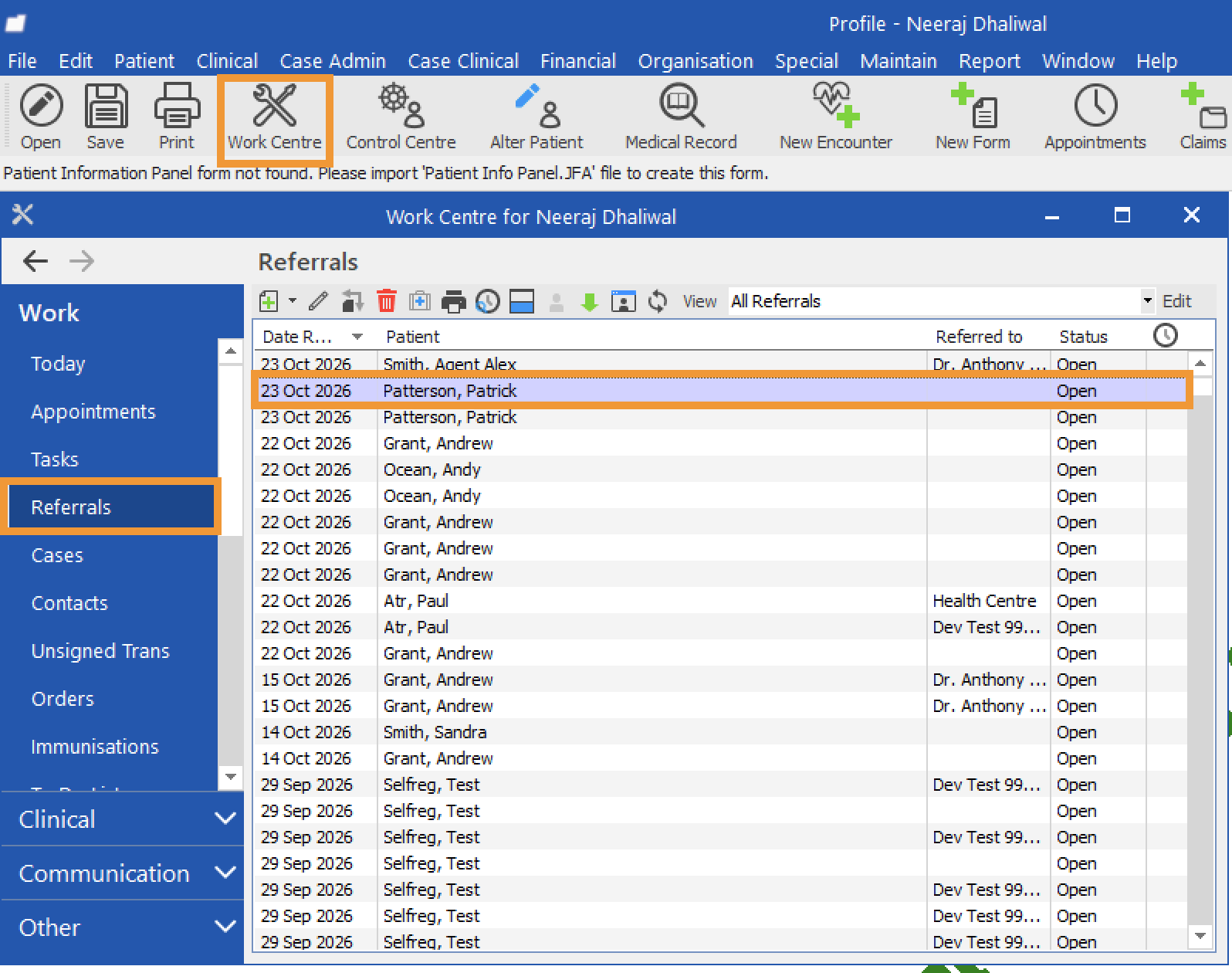
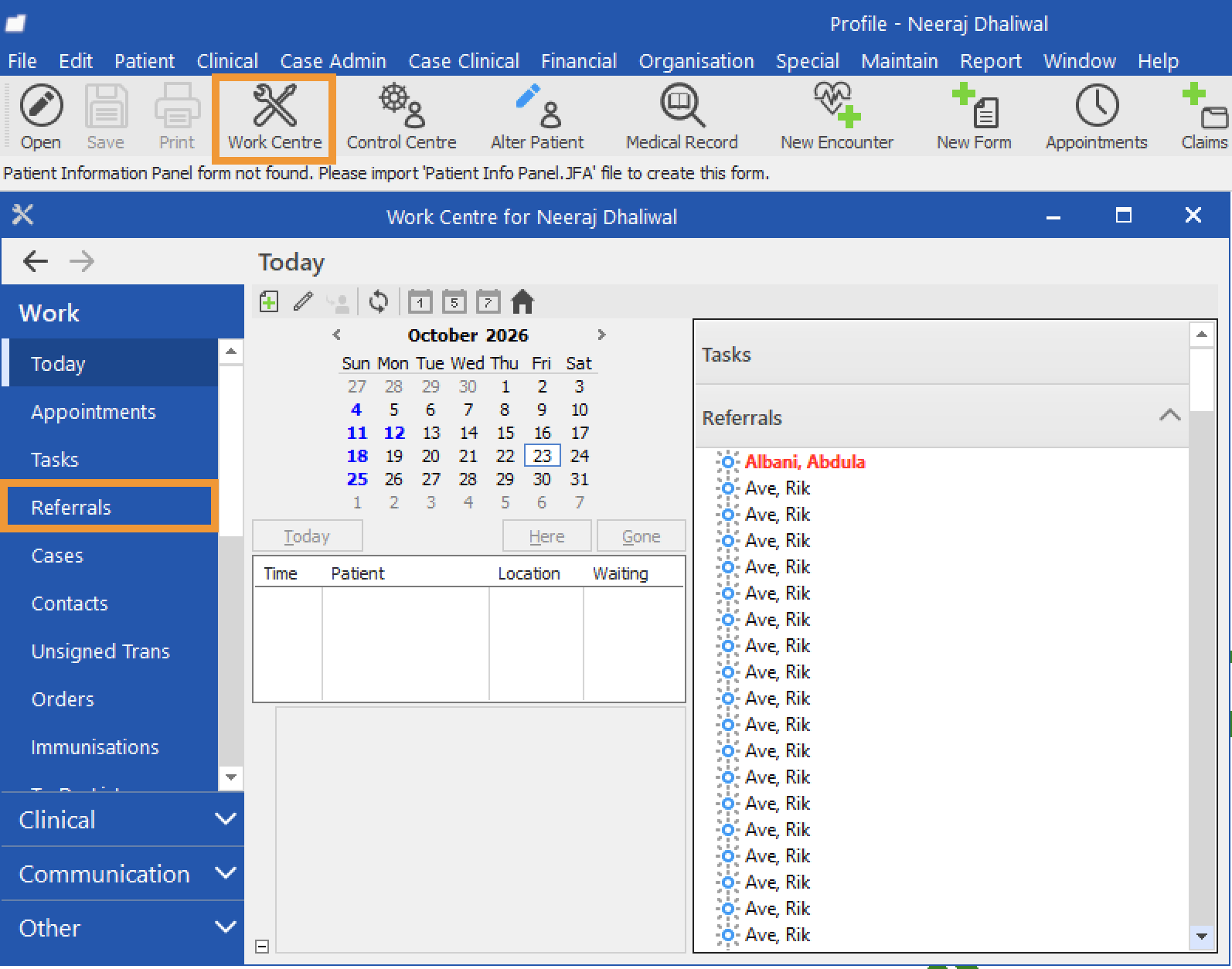
    • Open the Work Centre and select Referrals from the sidebar.
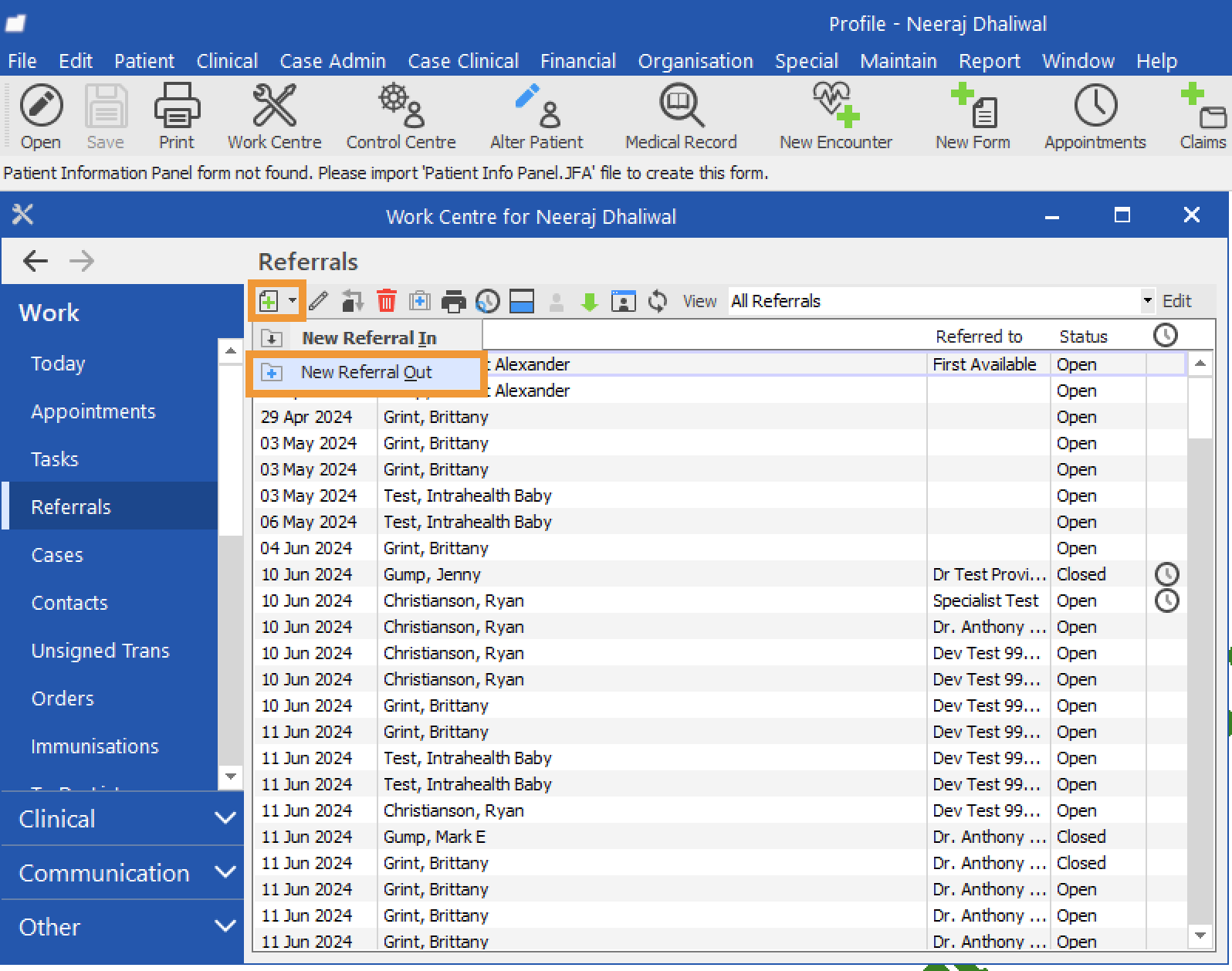
    • Click the dropdown next to the plus (+) icon and select 'New Referral Out'.
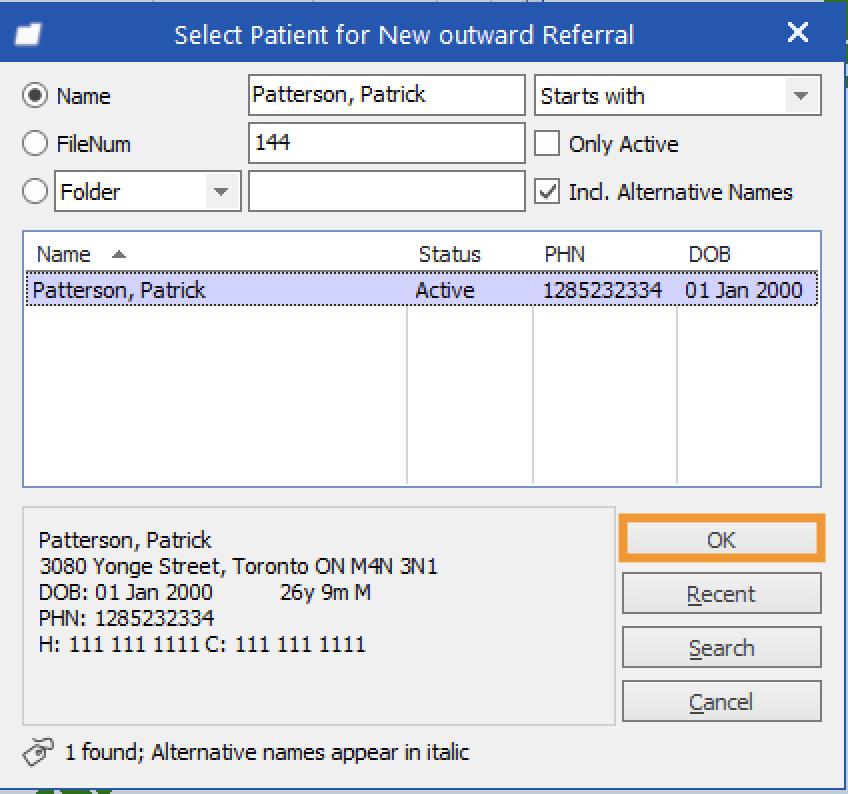
    • In the Select Patient for New Outward Referral window, search for the patient, select the correct patient, and click 'OK'.
    • Click 'Ocean Refer' to open the Ocean Healthmap.
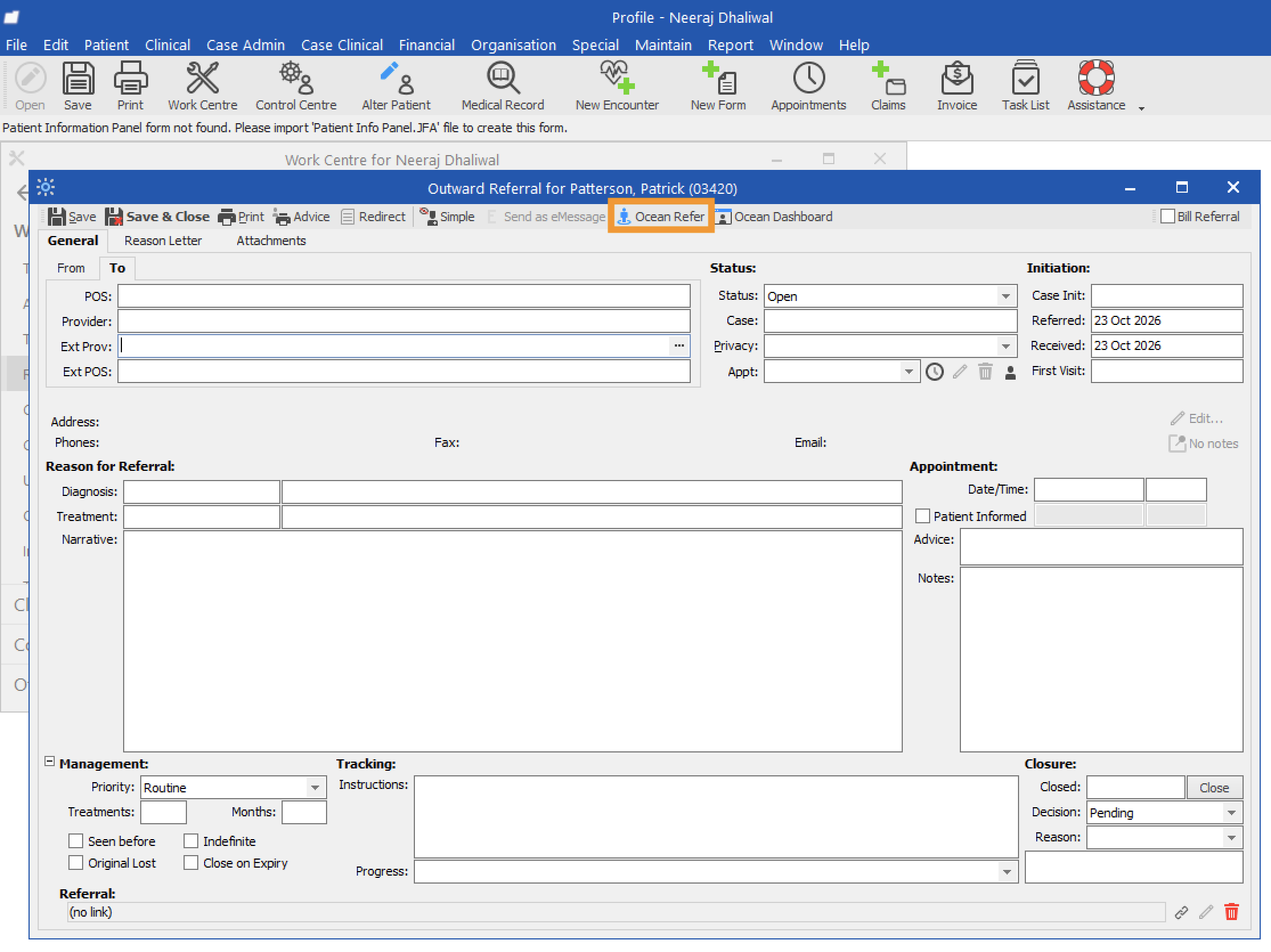
    • If prompted, click 'Proceed with no Attachments' to continue initiating your eReferral without attachments.

    Initiate your eReferral (with an attachment)

    Intrahealth Profile
    • Open the patient’s Medical Record in Profile and select Referrals from the sidebar.
    • Click the dropdown next to the plus (+) icon and select 'New Referral Out'.
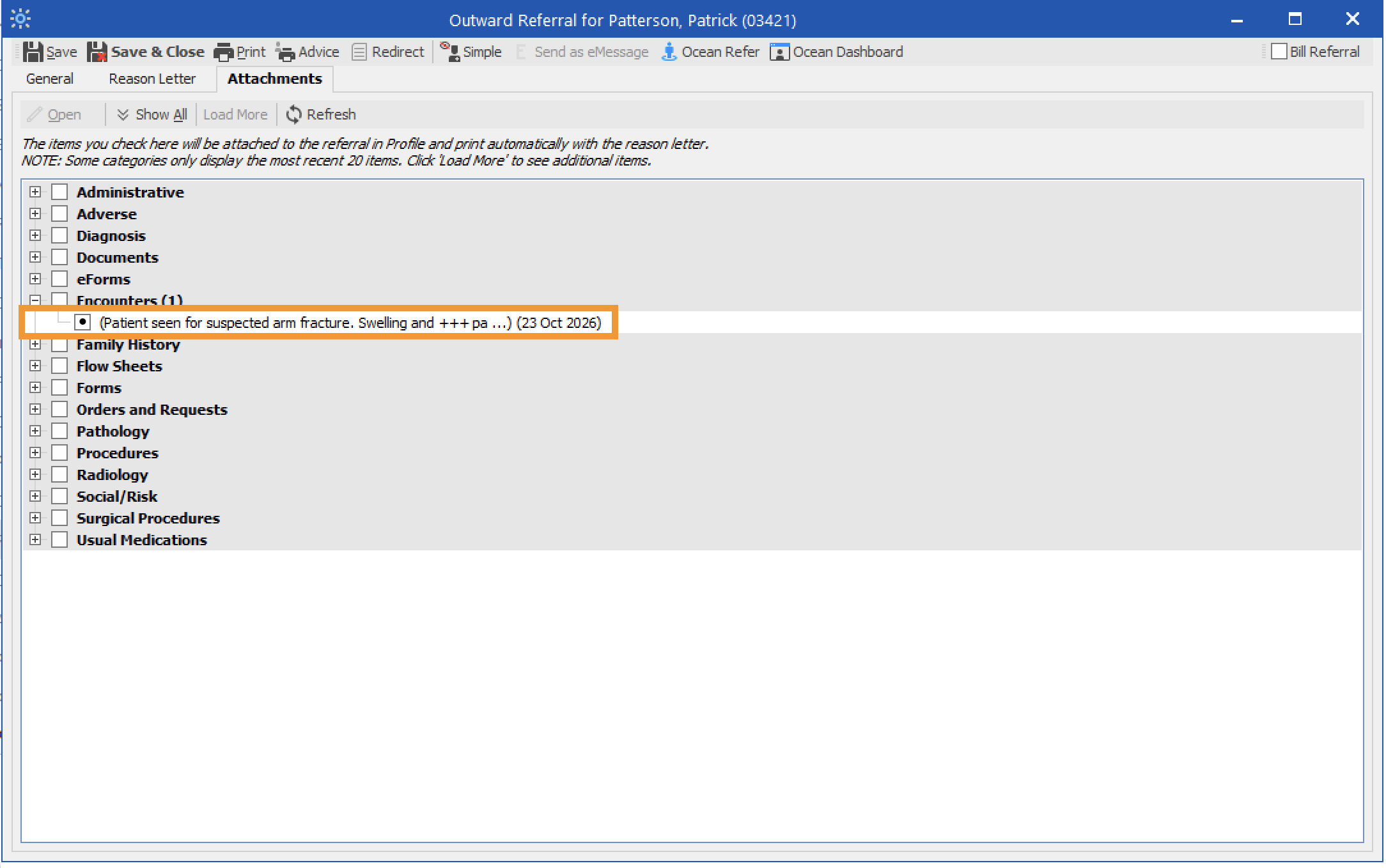
    • Select 'Attachments'.
    • Choose the items you want to include from the patient’s chart.
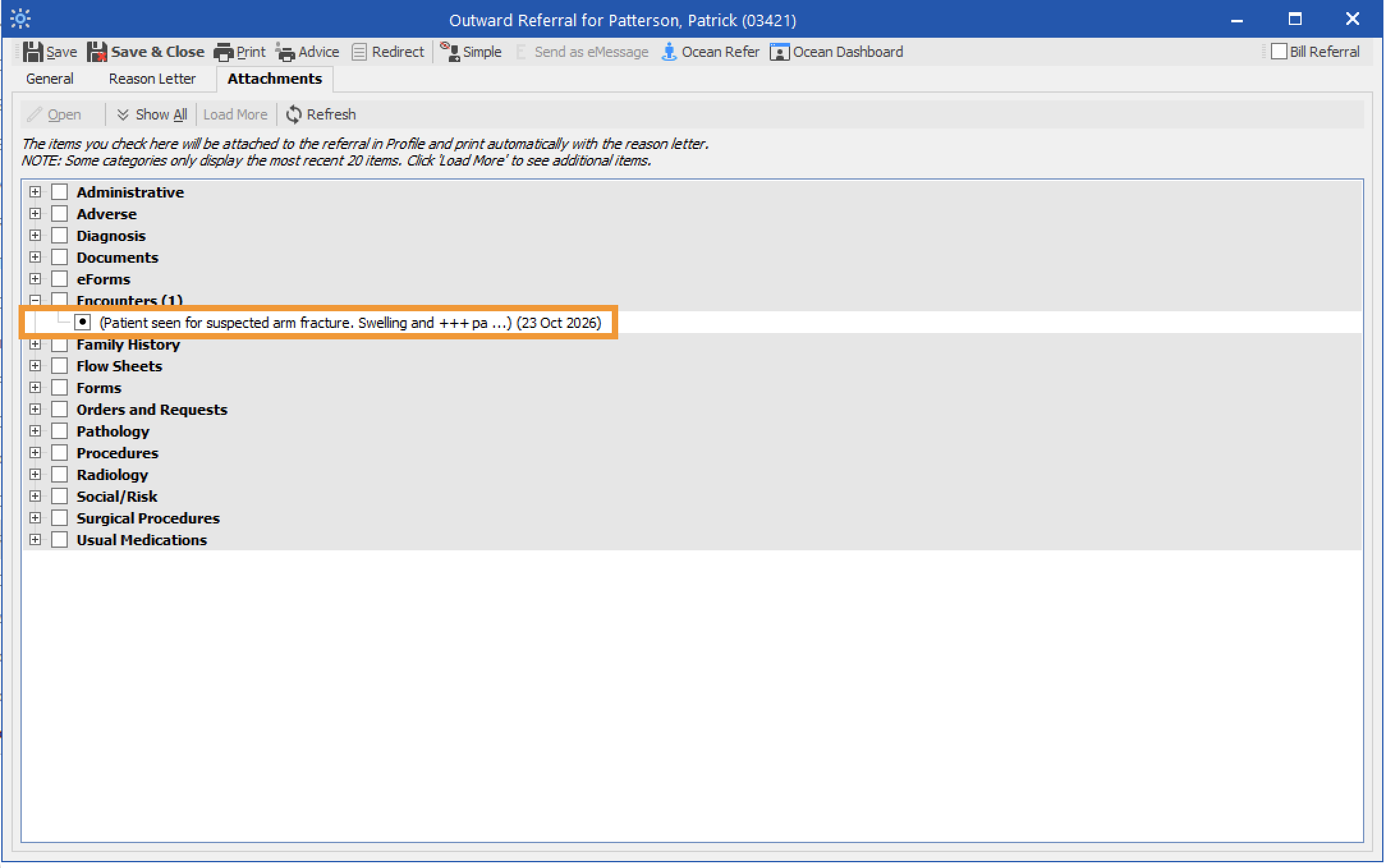
    • Click 'Ocean Refer' to open the Ocean Healthmap.
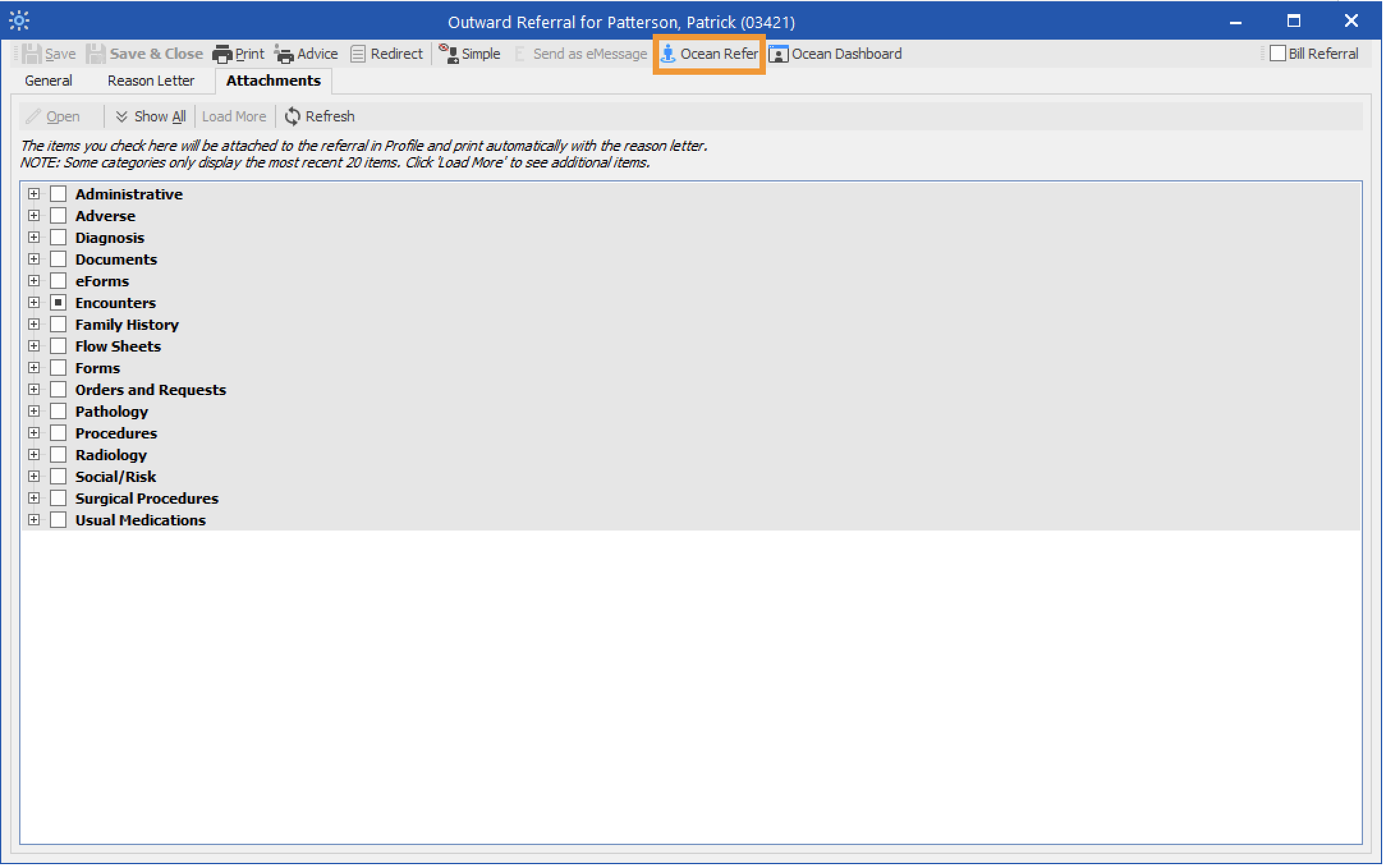
    • The EMR-specific actions above will take you directly to the Ocean Healthmap.

    Note: Log in to the Ocean Healthmap with your Ocean user credentials if your user name does not appear in the top right so that your provider details are autopopulated in the eReferral.

  2. Select an eReferral Recipient
    Please refer to the article Select an eReferral recipient.
  3. Send Your eReferral

    Complete the eReferral form and send your referral off to the referral recipient.

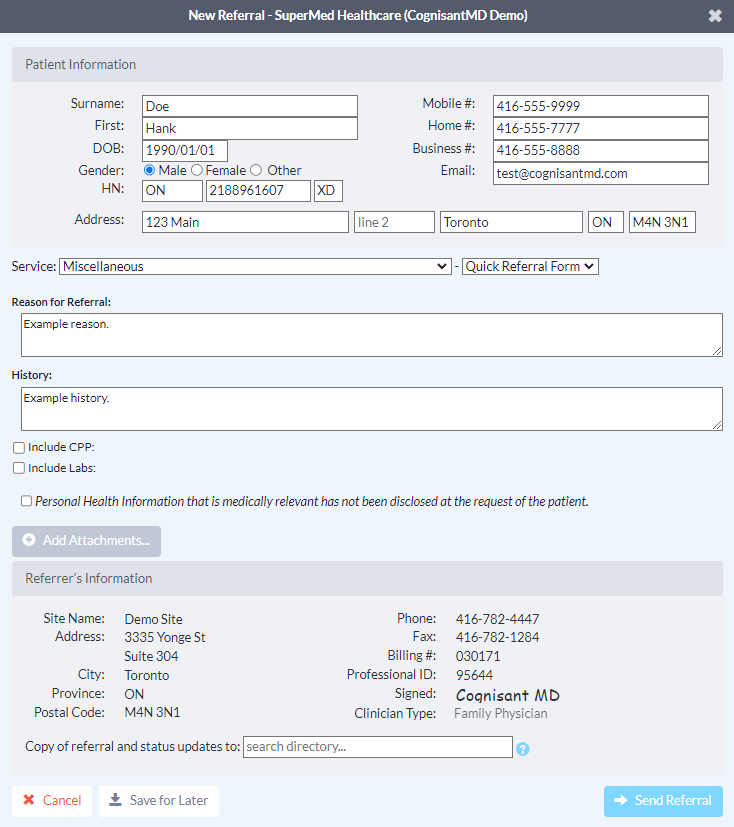
    • Complete the eReferral form, as required. If you initiated the referral from an integrated EMR, patient contact information and other required details will be automatically pre-populated. Complete the remaining fields as required.

      Note: The 'Email' field in the Patient Information section supports only one patient email address per eReferral. Do not include more than one email patient address in this field.

    • Include any relevant attachments by pressing the 'Add Attachments' button and selecting them from your computer.

      If you are an Intrahealth Profile user and you initiated your eReferral with an attachment, it will be automatically included below the 'Add Attachments' button.

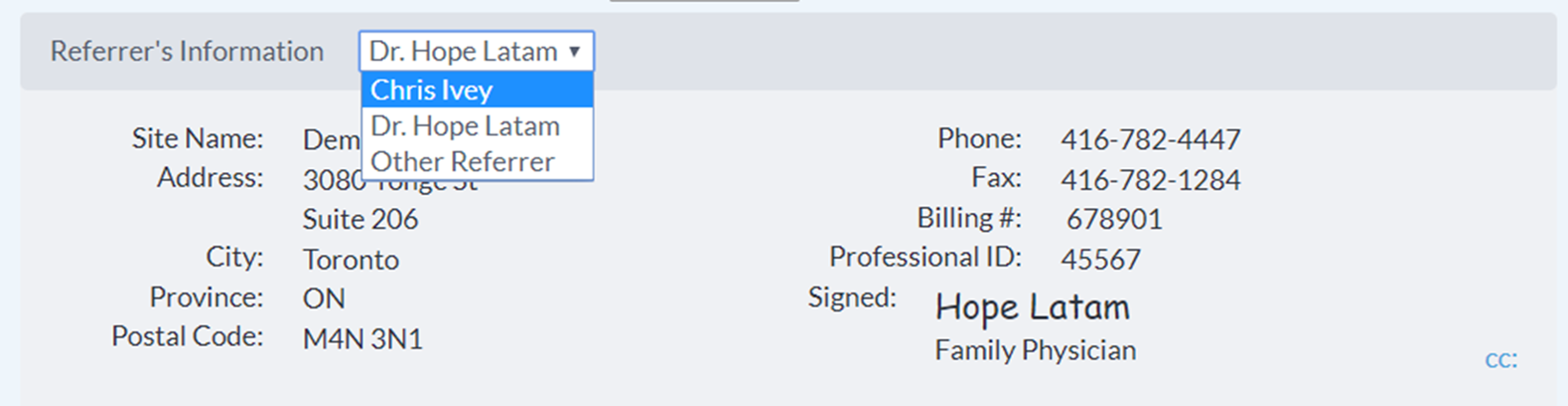
    • If you are sending an eReferral as a delegate, you will need to select the appropriate provider that you are referring on behalf of (from the dropdown menu at the top of the "Referrer Information" panel).
    • Click the "Send Referral" button to send your eReferral.

      Note: If the Directory Listing you are sending to is accepting referrals under a Regional Authority (such as a provincial eReferral initiative), you must accept the Regional Authority's Terms of Use located beside the “Send Referral” button the first time you send eReferral.

    • Once sent, you will see a confirmation window with the option to print a copy of the referral for the patient.
    • The eReferral will then be documented in the patient's chart.
    Intrahealth Profile

    The eReferral information summary will be automatically downloaded into the patient chart.

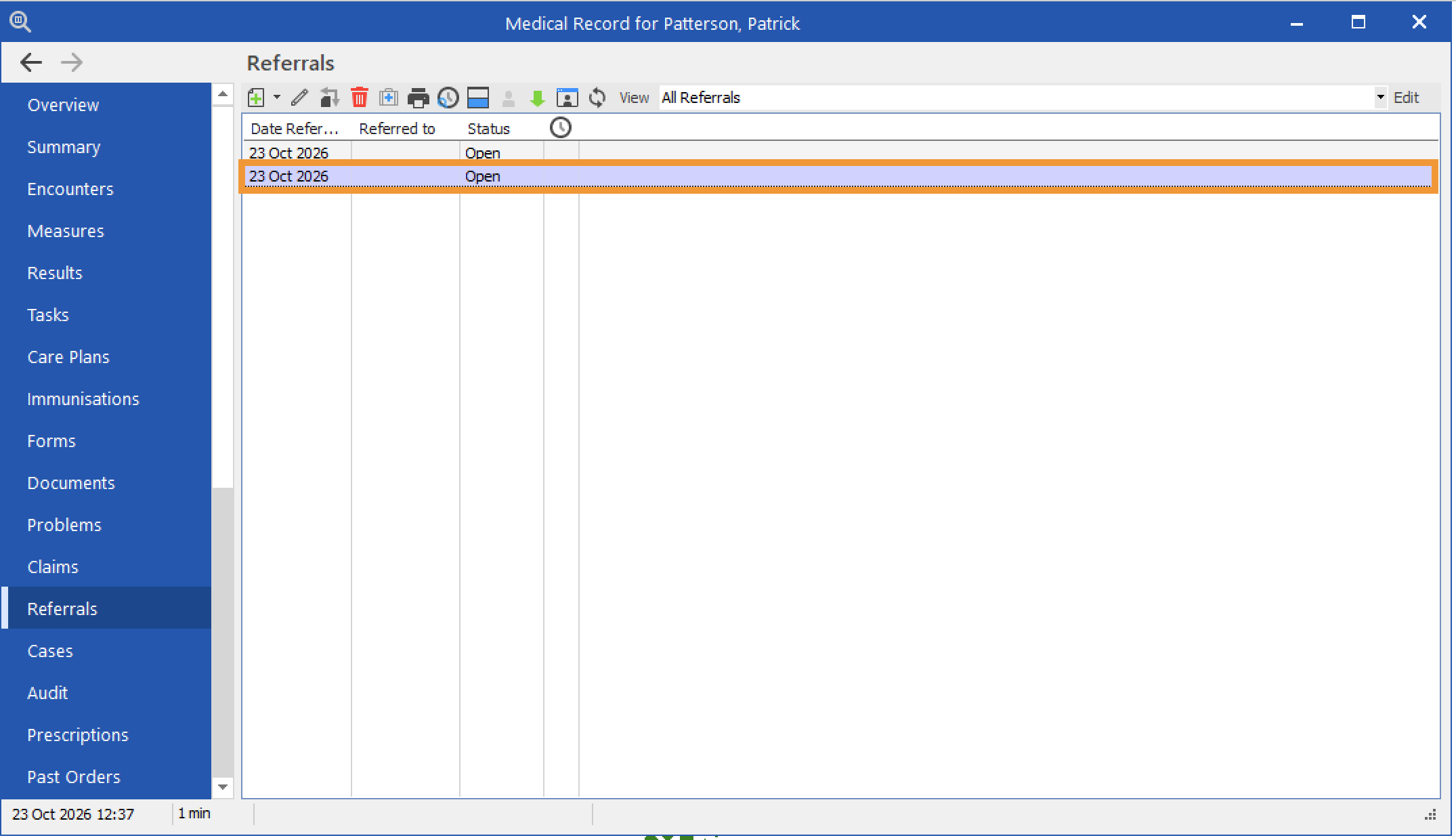
    • Return to the patient’s Medical Record in Profile. Select Referrals.
    • Open the referral you sent.
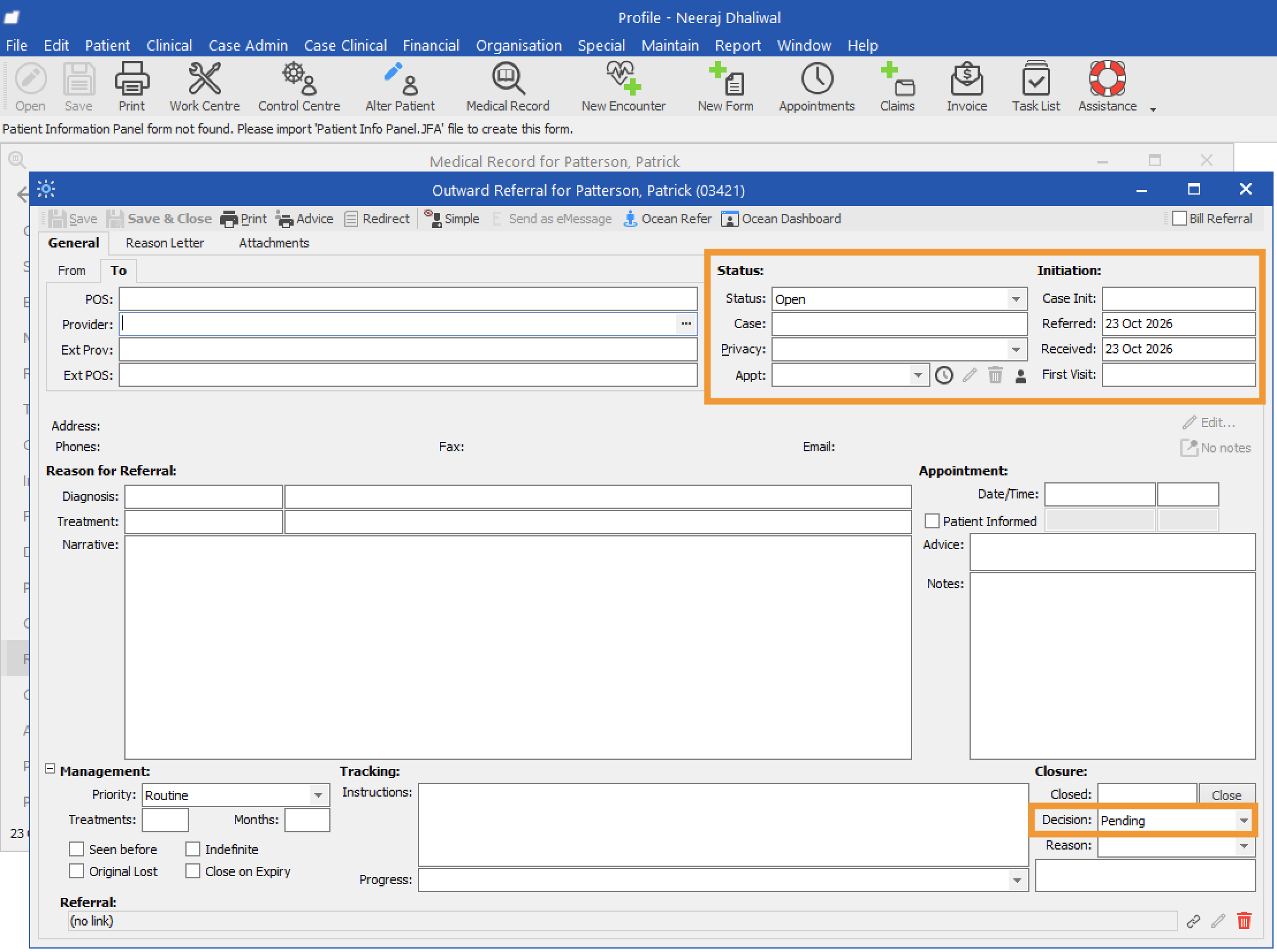
    • The Status of the newly sent referral will be set to Open. You can also review the dates when the eReferral was sent and received. Under Decision, you can find the current decision status of the referral. When the referral is newly sent, its decision status will be set to Pending.
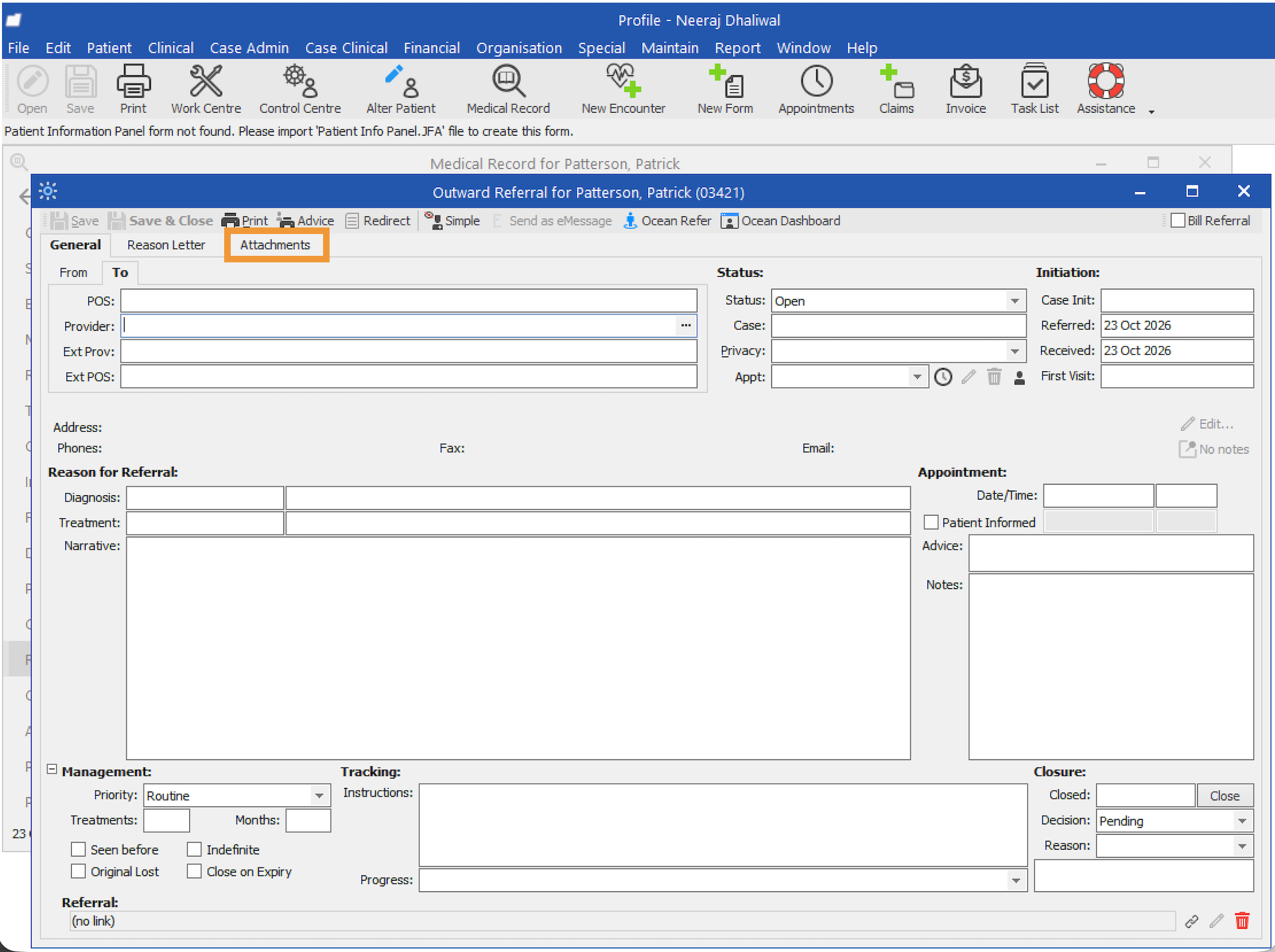
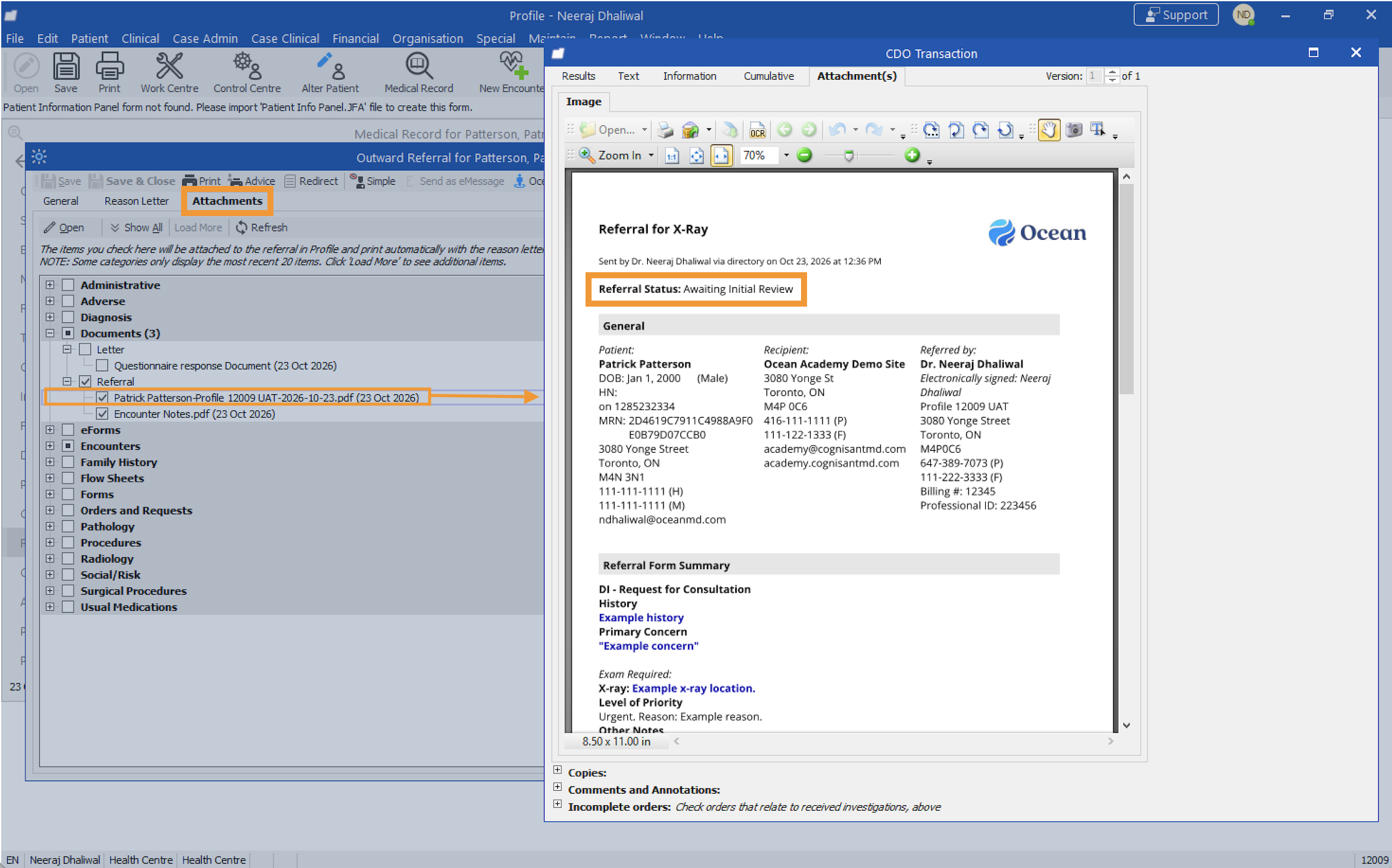
    • Select Attachments.
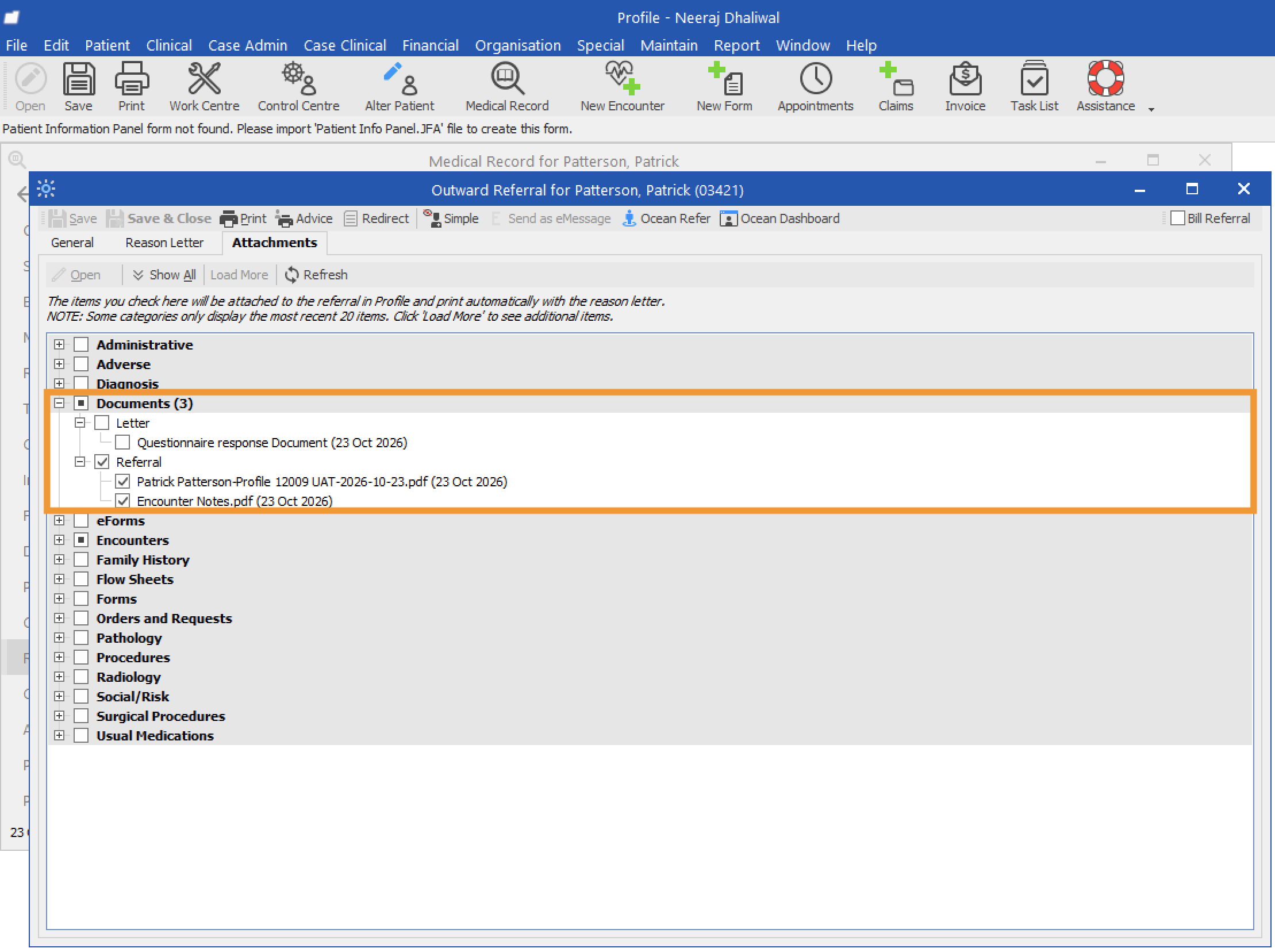
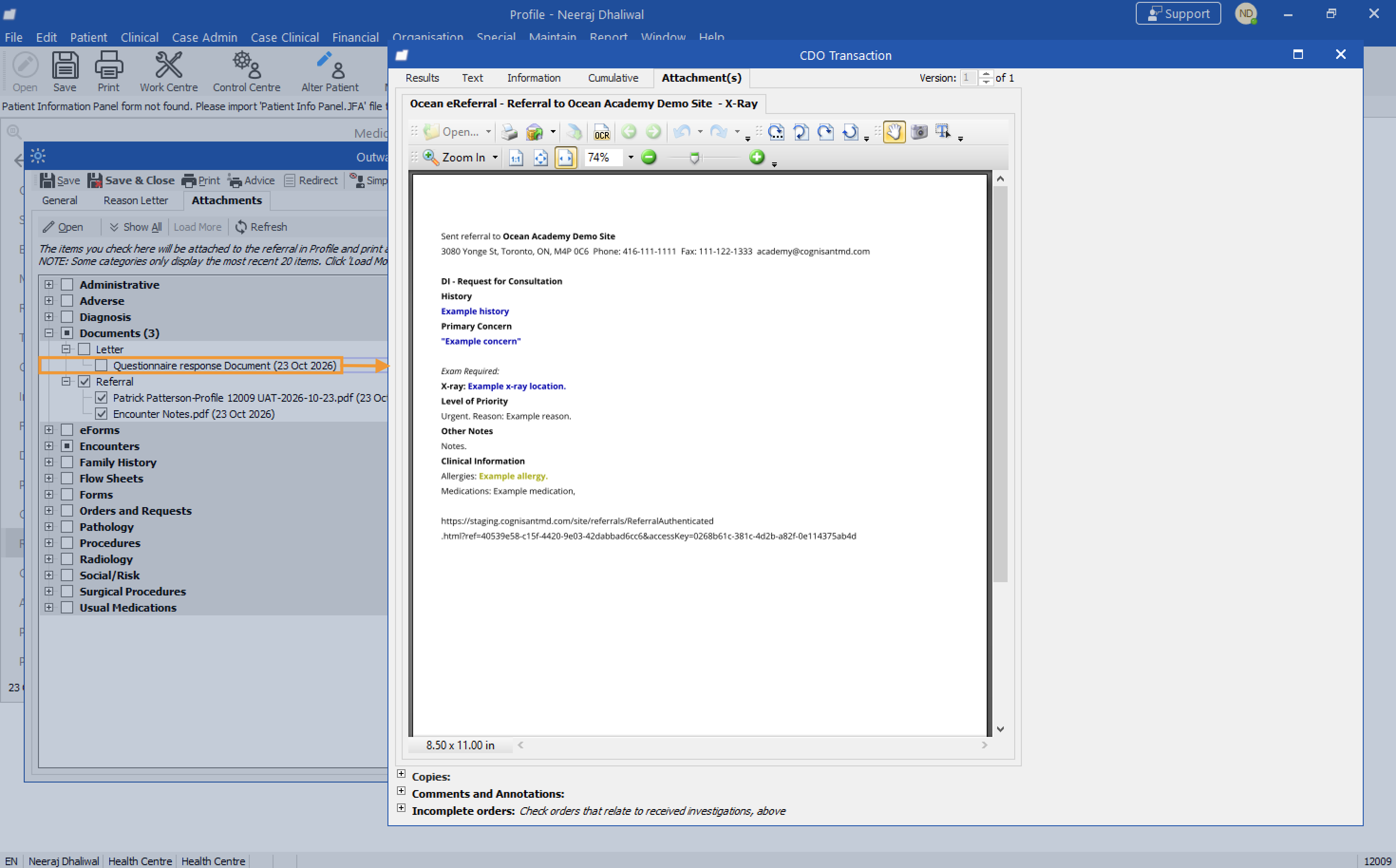
    • Under Documents, you can find a copy of the eReferral information summary.
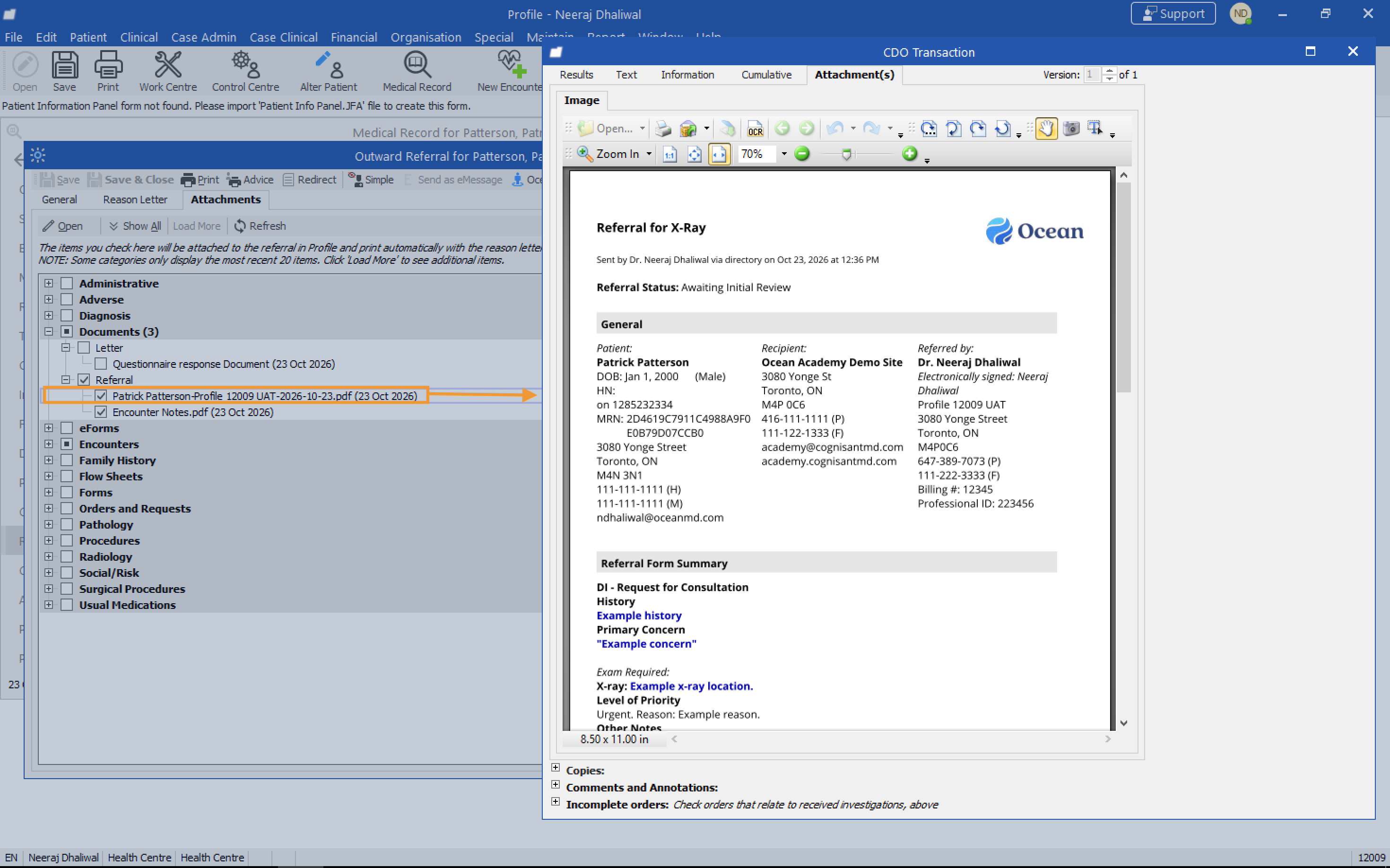
    • In the Referrals subfolder, you can view a PDF copy of the referral record.
    • In the Letter subfolder, the Questionnaire response document contains the eReferral information summary.
  4. View & Track Your eReferral

    You will receive email notifications about the status of your referral(s).

    From there, you can view and track the status of your referral from within your EMR and/or the eReferrals & eConsults View of the Ocean Portal.

    Review your sent eReferral and follow its progress from Profile or the Ocean Patient Dashboard.

    1. View your eReferral

    Intrahealth Profile
    • In Profile, open the Work Centre or a patient’s Medical Record and select Referrals from the sidebar. Find the referral you want to review and double-click it to open it.
    • Select Attachments.
    • Under Documents, you can find a copy of the eReferral information summary.
    • In the Referrals subfolder, you can view a PDF copy of the referral record.
    • In the Letter subfolder, the Questionnaire response document contains the eReferral information summary.

    2. Check the status of your eReferral

    Intrahealth Profile

    In Profile

    • In Profile, open the eReferral from the Referrals tab in the Work Centre or the patient’s Medical Record.
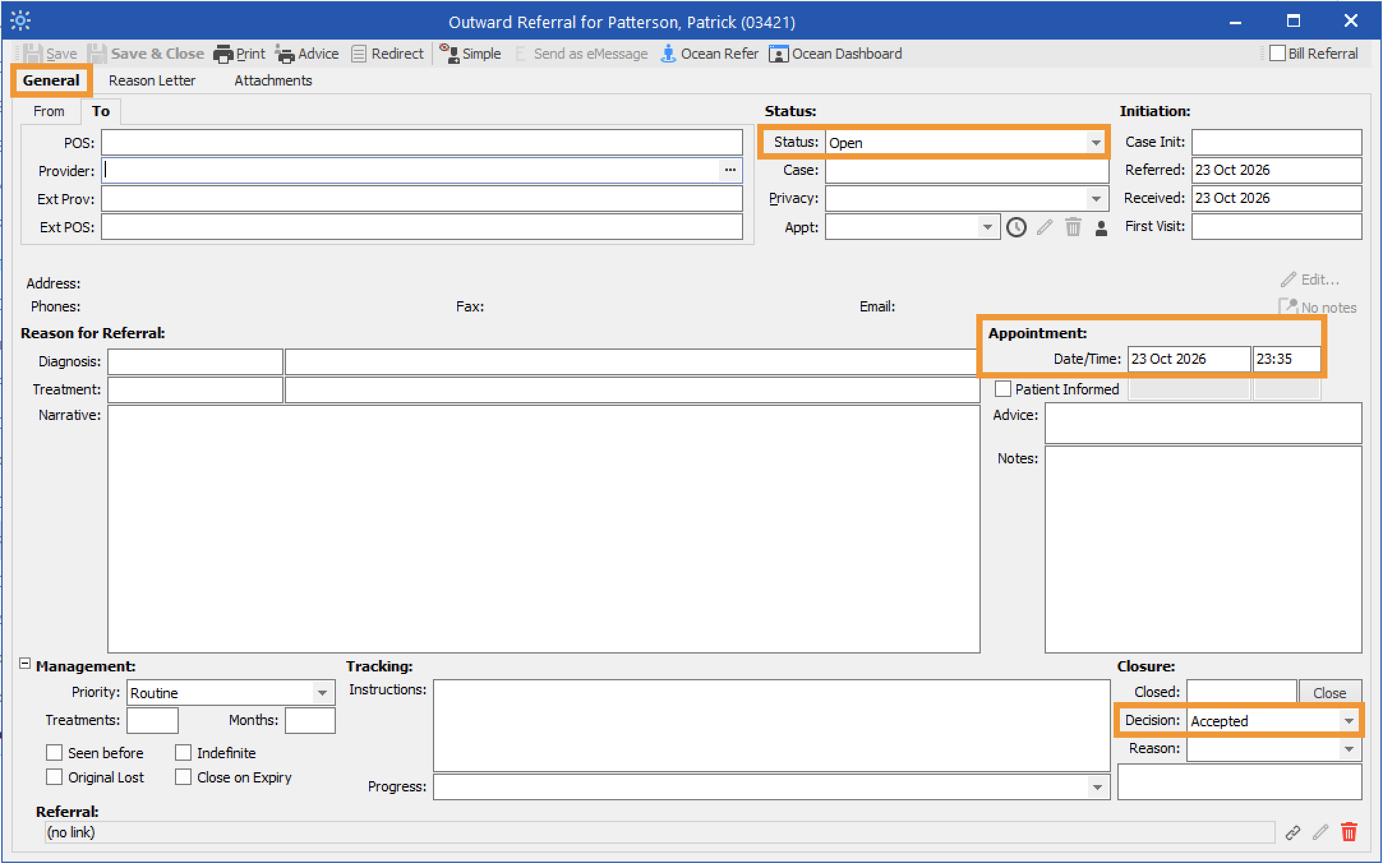
    • The General tab contains information about the referral’s status, decision, and appointment.
    • Status: Shows whether the eReferral is Open or Closed. A referral is closed once it reaches a terminal state, such as declined, cancelled, or completed.
    • Decision: Shows whether the eReferral is awaiting acceptance, has been accepted, or has been declined.

      Pending: Corresponds to the Awaiting Response status folder in the Ocean Portal.

      Accepted: Corresponds to the Pending Booking, Booked Unconfirmed, or Booked Confirmed status folders in the Ocean Portal.

      Declined: Corresponds to the Declined status folder in the Ocean Portal.

    • Appointment details: Automatically populated when the recipient has booked an appointment.
    • The Attachments tab contains the referral record PDF under Documents.
    • The Referral Status field in the referral record PDF is updated as the referral moves through different statuses.

    In Ocean

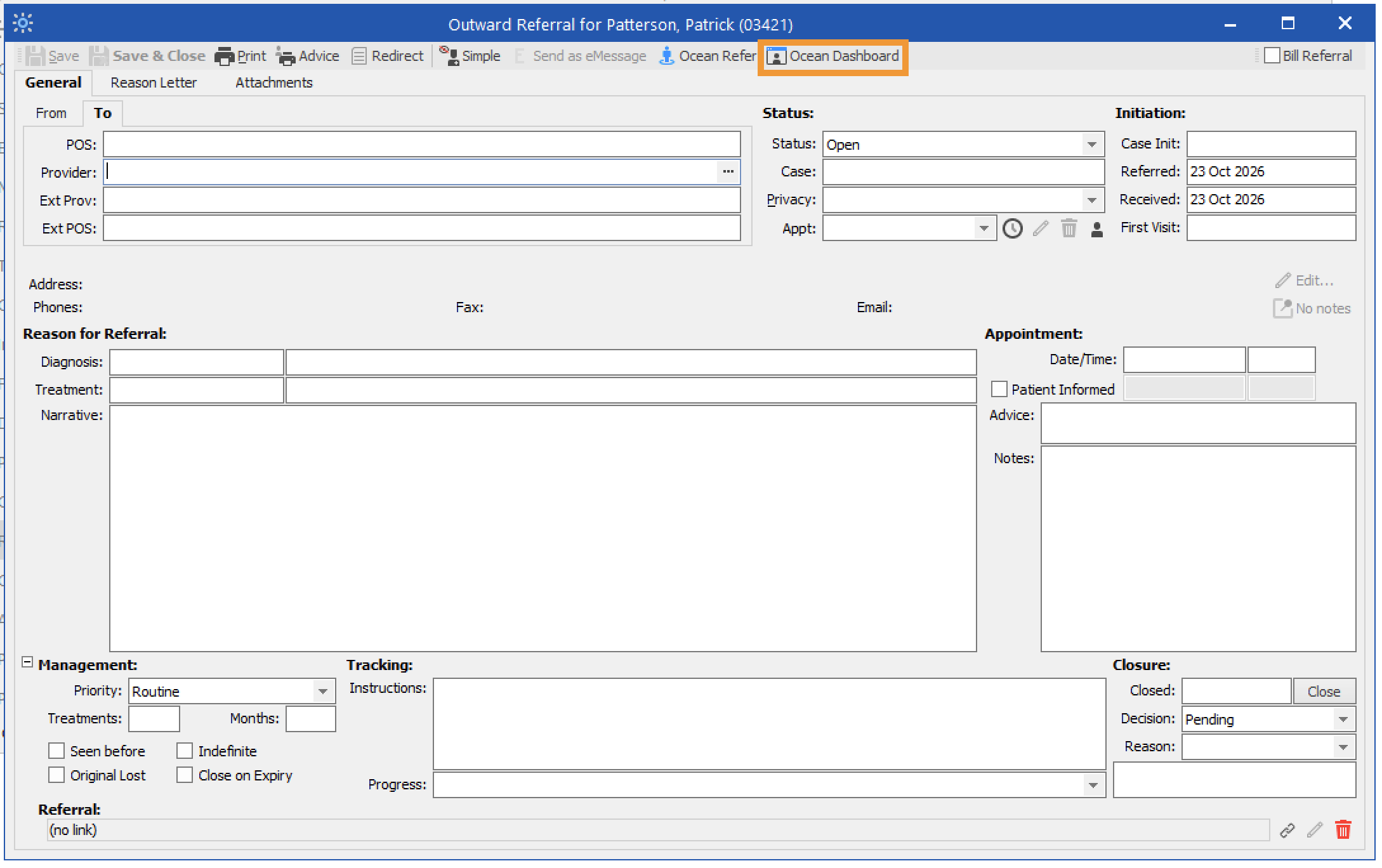
    • Click the 'Ocean Dashboard' button from the referral in Profile. This opens the Ocean Patient Dashboard.
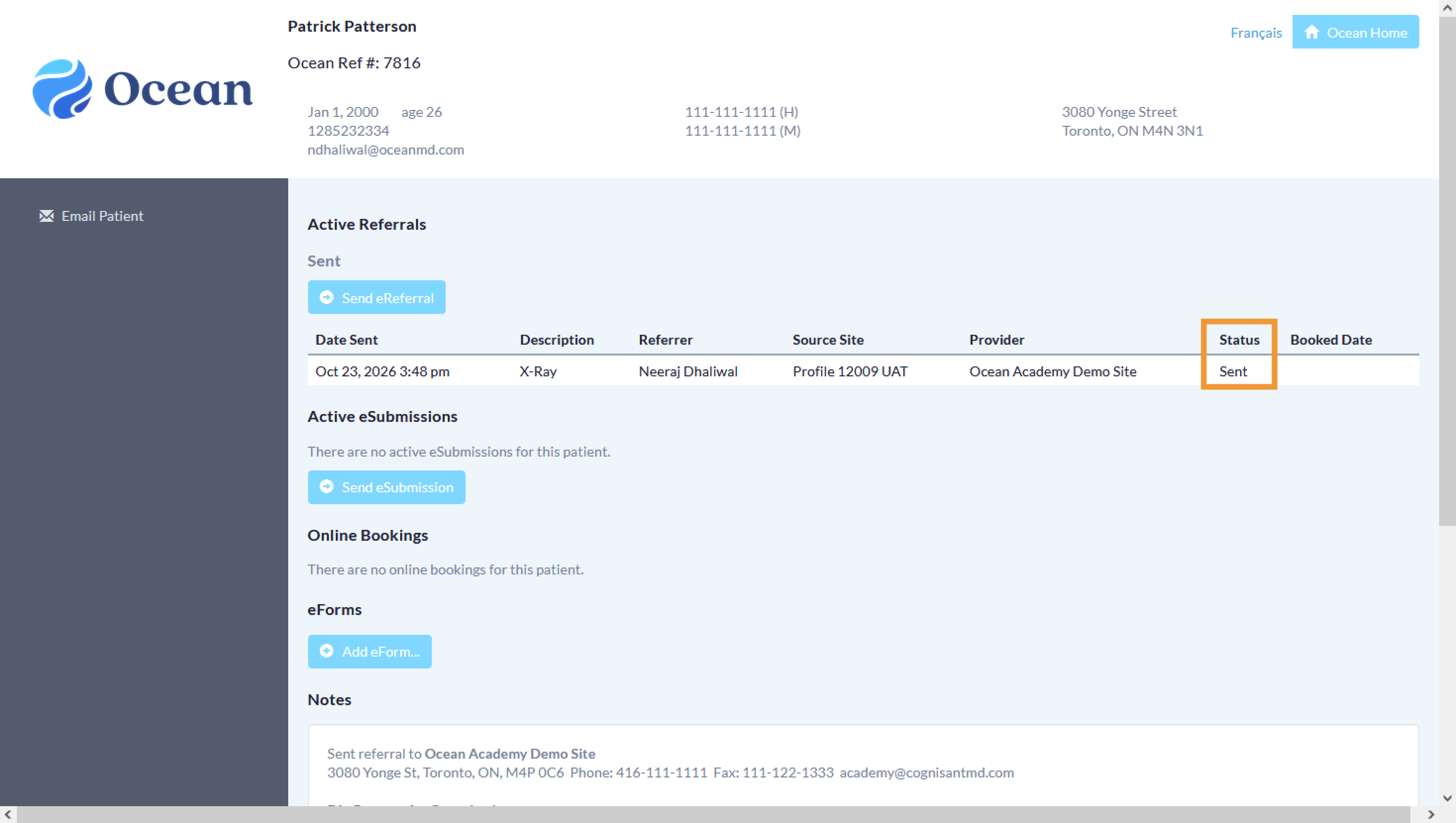
    • In the Ocean Patient Dashboard, review the referral’s Status column.
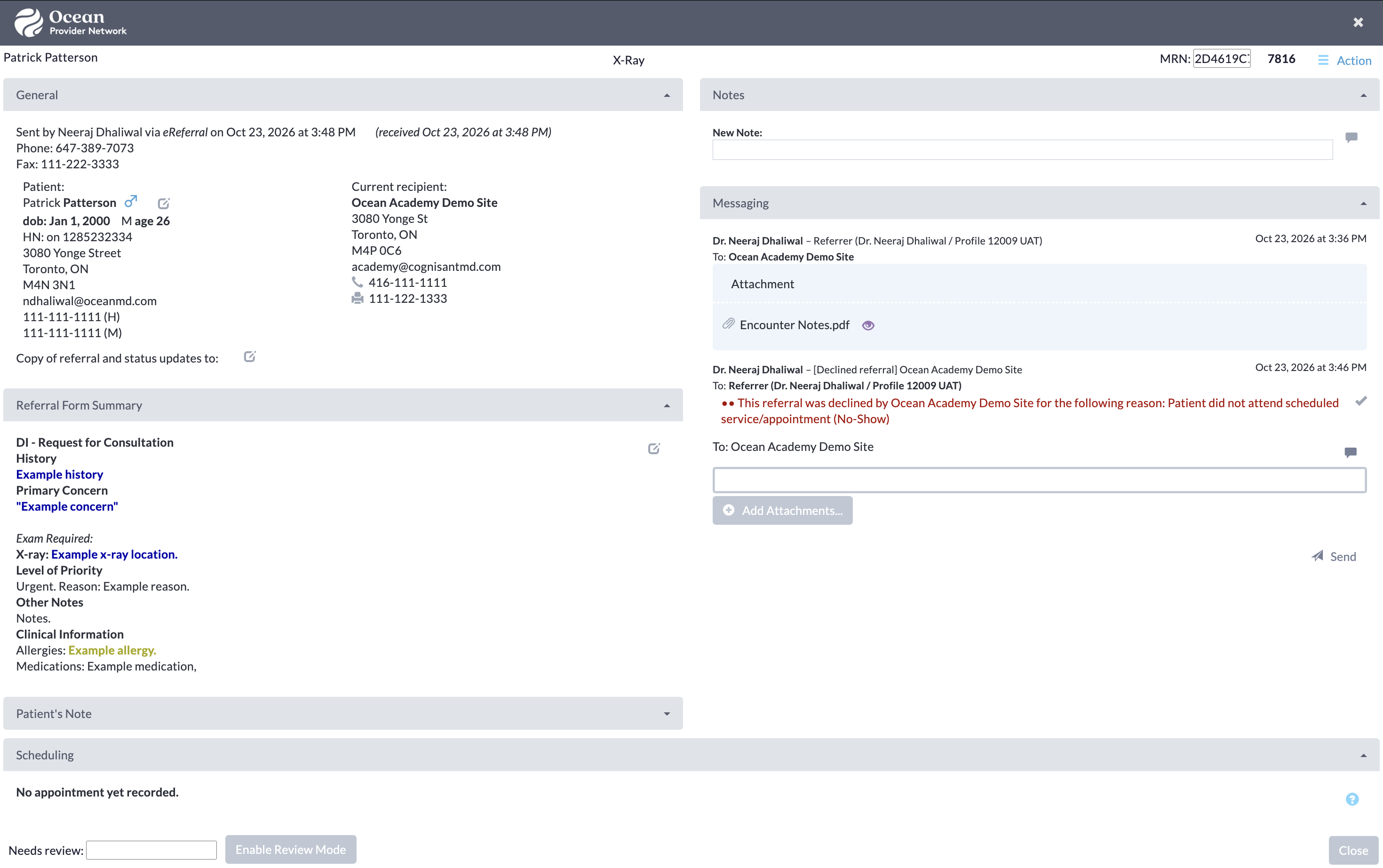
    • Click the referral to view the patient information, referrer information, and referral form summary. You can also view and add notes, send messages to involved stakeholders, and review scheduling details.

    If you’ve linked your referral to your own Ocean account, you will also automatically receive email updates when the status of your eReferral changes, such as when it is booked, cancelled, or changed. More details about these email updates can be found in the article “Where do eConsult and/or eReferral notification emails get sent to?”.

  5. Manage All Your eReferrals in the Ocean Portal
    Please refer to the article Manage All Your eReferrals in the Ocean Portal.

Initiate Your Ocean eReferral

You can access the Ocean eReferral Network from the link in your FHIR-integrated EMR or directly from the Ocean Healthmap to initiate your referral.

With an Ocean account, you can initiate an Ocean eReferral at any time directly from the Ocean Healthmap. If you are using an EMR that is integrated with Ocean using FHIR APIs, you can also initiate an eReferral at any time by following the steps below.

Initiate your eReferral (without an attachment)

Intrahealth Profile
  • An eReferral can be initiated from the Medical Record or Work Centre in Profile.

From the Medical Record

  • Open the patient’s Medical Record in Profile and select Referrals from the sidebar.
  • Click the dropdown next to the plus (+) icon and select 'New Referral Out'.
  • Click 'Ocean Refer' to open the Ocean Healthmap.
  • If prompted, click 'Proceed with no Attachments' to continue initiating your eReferral without attachments.

From the Work Centre

  • Open the Work Centre and select Referrals from the sidebar.
  • Click the dropdown next to the plus (+) icon and select 'New Referral Out'.
  • In the Select Patient for New Outward Referral window, search for the patient, select the correct patient, and click 'OK'.
  • Click 'Ocean Refer' to open the Ocean Healthmap.
  • If prompted, click 'Proceed with no Attachments' to continue initiating your eReferral without attachments.

Initiate your eReferral (with an attachment)

Intrahealth Profile
  • Open the patient’s Medical Record in Profile and select Referrals from the sidebar.
  • Click the dropdown next to the plus (+) icon and select 'New Referral Out'.
  • Select 'Attachments'.
  • Choose the items you want to include from the patient’s chart.
  • Click 'Ocean Refer' to open the Ocean Healthmap.
  • The EMR-specific actions above will take you directly to the Ocean Healthmap.

Note: Log in to the Ocean Healthmap with your Ocean user credentials if your user name does not appear in the top right so that your provider details are autopopulated in the eReferral.


Send Your eReferral

Complete the eReferral form and send your referral off to the referral recipient.

  • Complete the eReferral form, as required. If you initiated the referral from an integrated EMR, patient contact information and other required details will be automatically pre-populated. Complete the remaining fields as required.

    Note: The 'Email' field in the Patient Information section supports only one patient email address per eReferral. Do not include more than one email patient address in this field.

  • Include any relevant attachments by pressing the 'Add Attachments' button and selecting them from your computer.

    If you are an Intrahealth Profile user and you initiated your eReferral with an attachment, it will be automatically included below the 'Add Attachments' button.

  • If you are sending an eReferral as a delegate, you will need to select the appropriate provider that you are referring on behalf of (from the dropdown menu at the top of the "Referrer Information" panel).
  • Click the "Send Referral" button to send your eReferral.

    Note: If the Directory Listing you are sending to is accepting referrals under a Regional Authority (such as a provincial eReferral initiative), you must accept the Regional Authority's Terms of Use located beside the “Send Referral” button the first time you send eReferral.

  • Once sent, you will see a confirmation window with the option to print a copy of the referral for the patient.
  • The eReferral will then be documented in the patient's chart.
Intrahealth Profile

The eReferral information summary will be automatically downloaded into the patient chart.

  • Return to the patient’s Medical Record in Profile. Select Referrals.
  • Open the referral you sent.
  • The Status of the newly sent referral will be set to Open. You can also review the dates when the eReferral was sent and received. Under Decision, you can find the current decision status of the referral. When the referral is newly sent, its decision status will be set to Pending.
  • Select Attachments.
  • Under Documents, you can find a copy of the eReferral information summary.
  • In the Referrals subfolder, you can view a PDF copy of the referral record.
  • In the Letter subfolder, the Questionnaire response document contains the eReferral information summary.

View & Track Your eReferral

You will receive email notifications about the status of your referral(s).

From there, you can view and track the status of your referral from within your EMR and/or the eReferrals & eConsults View of the Ocean Portal.

Review your sent eReferral and follow its progress from Profile or the Ocean Patient Dashboard.

1. View your eReferral

Intrahealth Profile
  • In Profile, open the Work Centre or a patient’s Medical Record and select Referrals from the sidebar. Find the referral you want to review and double-click it to open it.
  • Select Attachments.
  • Under Documents, you can find a copy of the eReferral information summary.
  • In the Referrals subfolder, you can view a PDF copy of the referral record.
  • In the Letter subfolder, the Questionnaire response document contains the eReferral information summary.

2. Check the status of your eReferral

Intrahealth Profile

In Profile

  • In Profile, open the eReferral from the Referrals tab in the Work Centre or the patient’s Medical Record.
  • The General tab contains information about the referral’s status, decision, and appointment.
  • Status: Shows whether the eReferral is Open or Closed. A referral is closed once it reaches a terminal state, such as declined, cancelled, or completed.
  • Decision: Shows whether the eReferral is awaiting acceptance, has been accepted, or has been declined.

    Pending: Corresponds to the Awaiting Response status folder in the Ocean Portal.

    Accepted: Corresponds to the Pending Booking, Booked Unconfirmed, or Booked Confirmed status folders in the Ocean Portal.

    Declined: Corresponds to the Declined status folder in the Ocean Portal.

  • Appointment details: Automatically populated when the recipient has booked an appointment.
  • The Attachments tab contains the referral record PDF under Documents.
  • The Referral Status field in the referral record PDF is updated as the referral moves through different statuses.

In Ocean

  • Click the 'Ocean Dashboard' button from the referral in Profile. This opens the Ocean Patient Dashboard.
  • In the Ocean Patient Dashboard, review the referral’s Status column.
  • Click the referral to view the patient information, referrer information, and referral form summary. You can also view and add notes, send messages to involved stakeholders, and review scheduling details.

If you’ve linked your referral to your own Ocean account, you will also automatically receive email updates when the status of your eReferral changes, such as when it is booked, cancelled, or changed. More details about these email updates can be found in the article “Where do eConsult and/or eReferral notification emails get sent to?”.