
You will receive email notifications about the status of your referral(s).
From there, you can view and track the status of your referral from within your EMR and/or the eReferrals & eConsults View of the Ocean Portal.
Review your sent eReferral and follow its progress from Profile or the Ocean Patient Dashboard.
1. View your eReferral
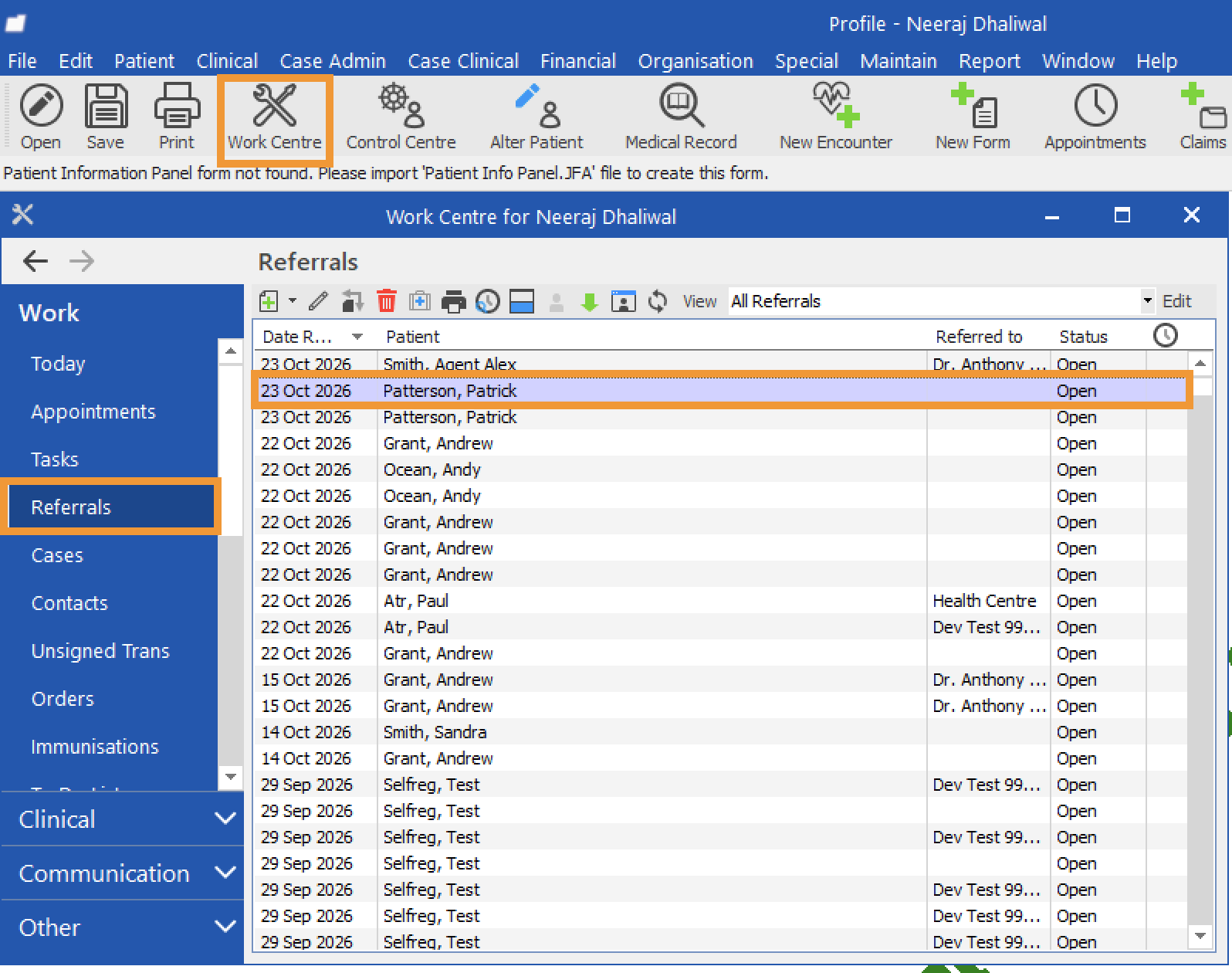
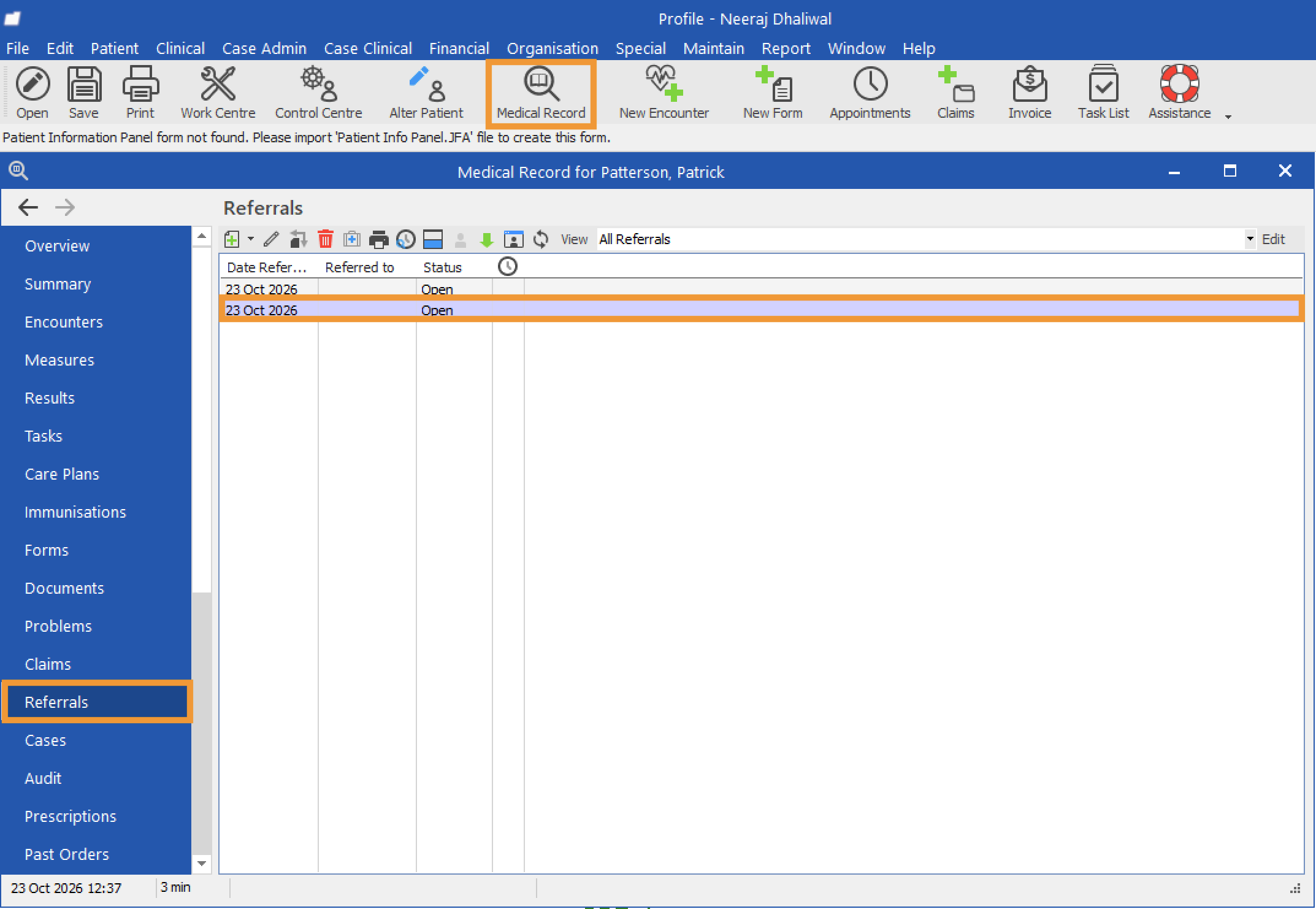
- In Profile, open the Work Centre or a patient’s Medical Record and select Referrals from the sidebar. Find the referral you want to review and double-click it to open it.
-
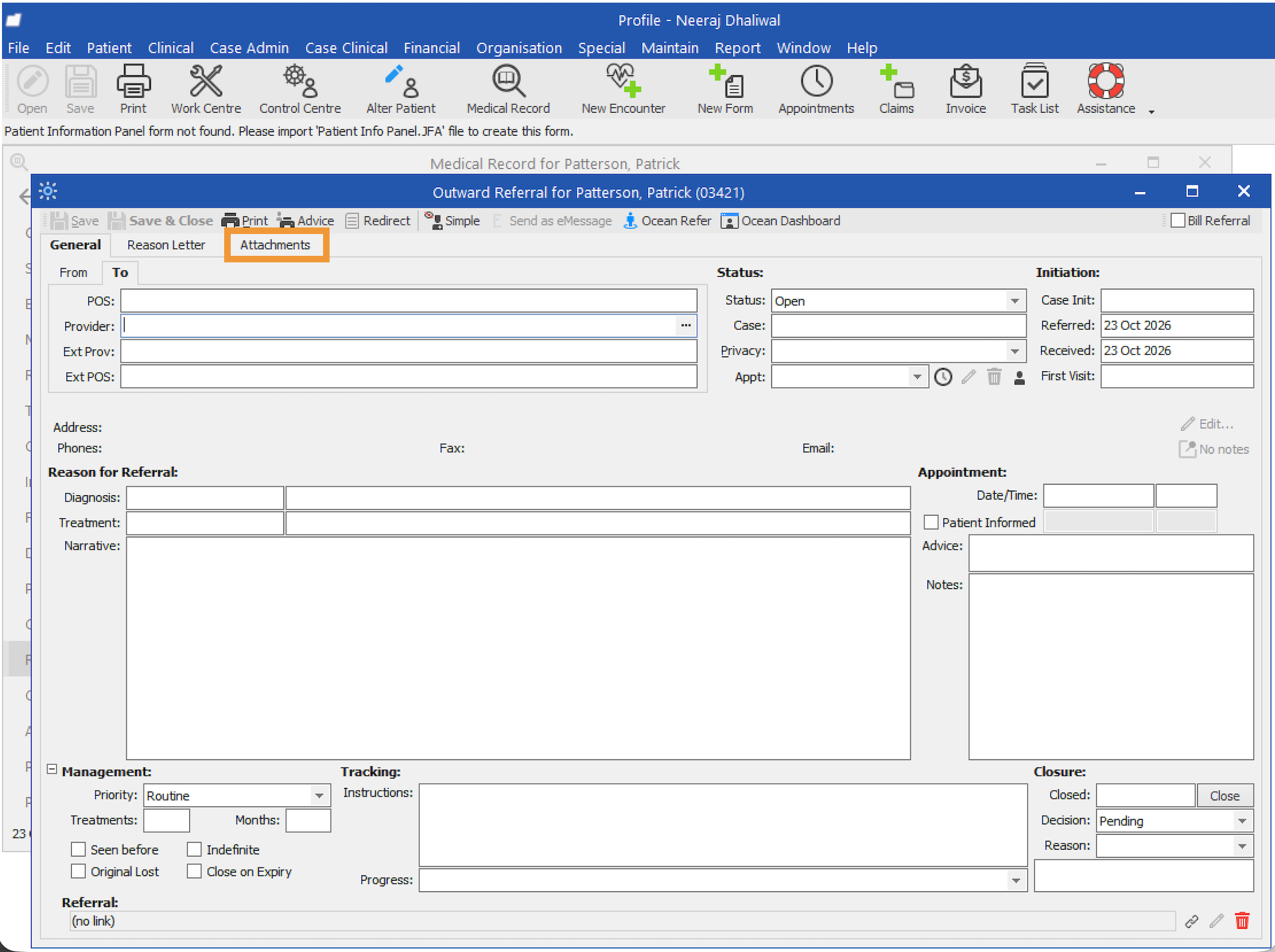
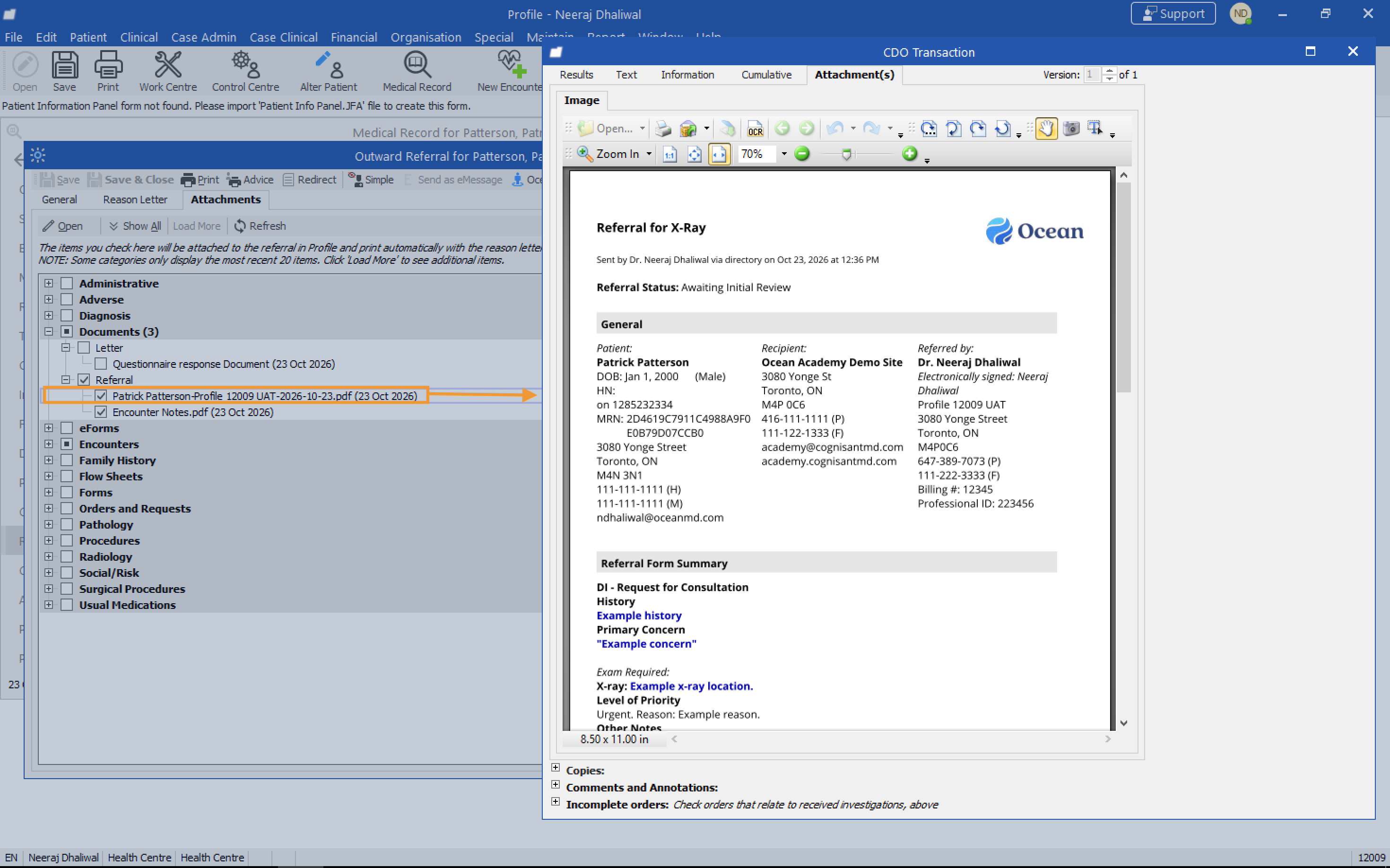
- Select Attachments.
- Under Documents, you can find a copy of the eReferral information summary.
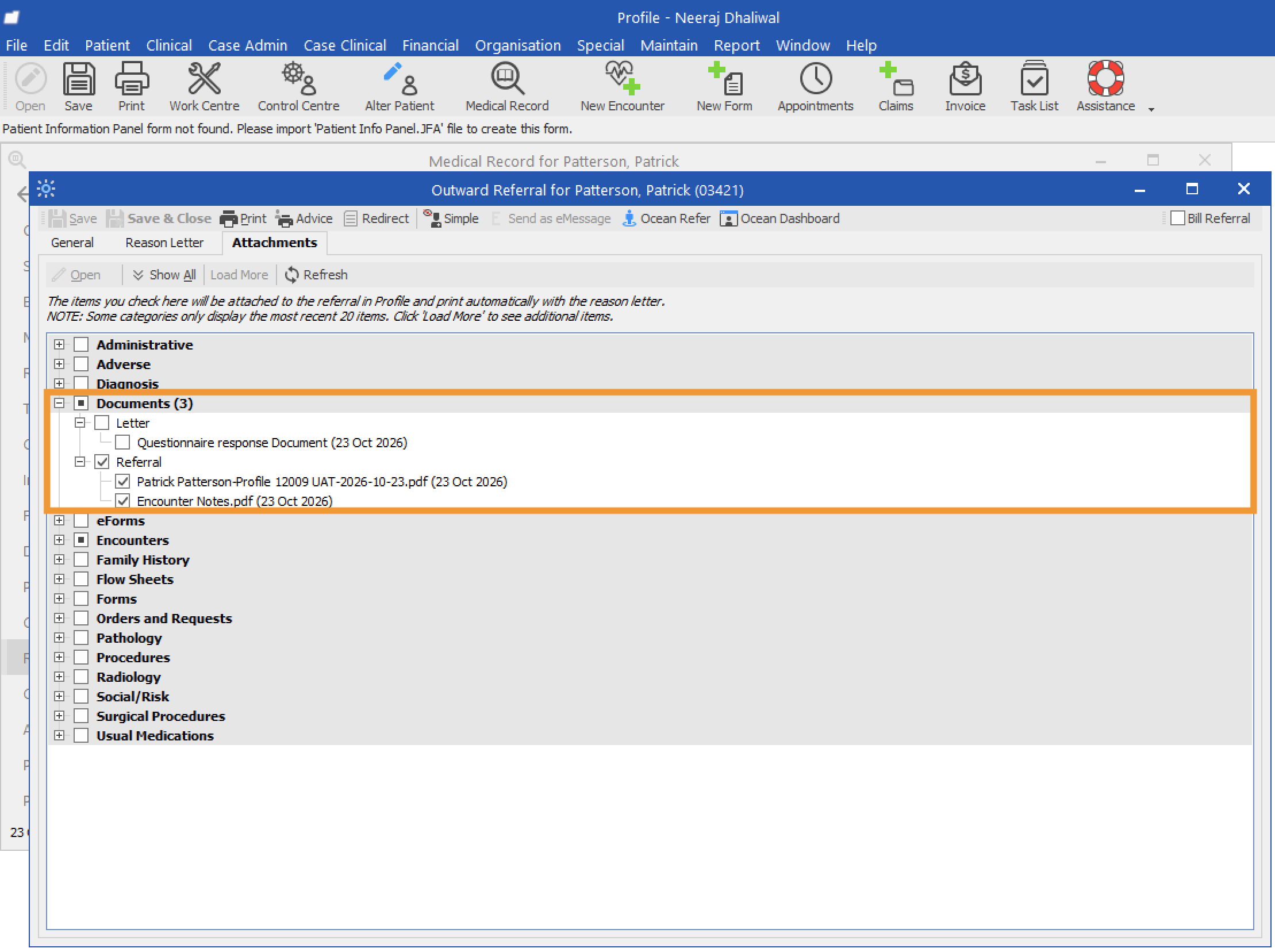
- In the Referrals subfolder, you can view a PDF copy of the referral record.
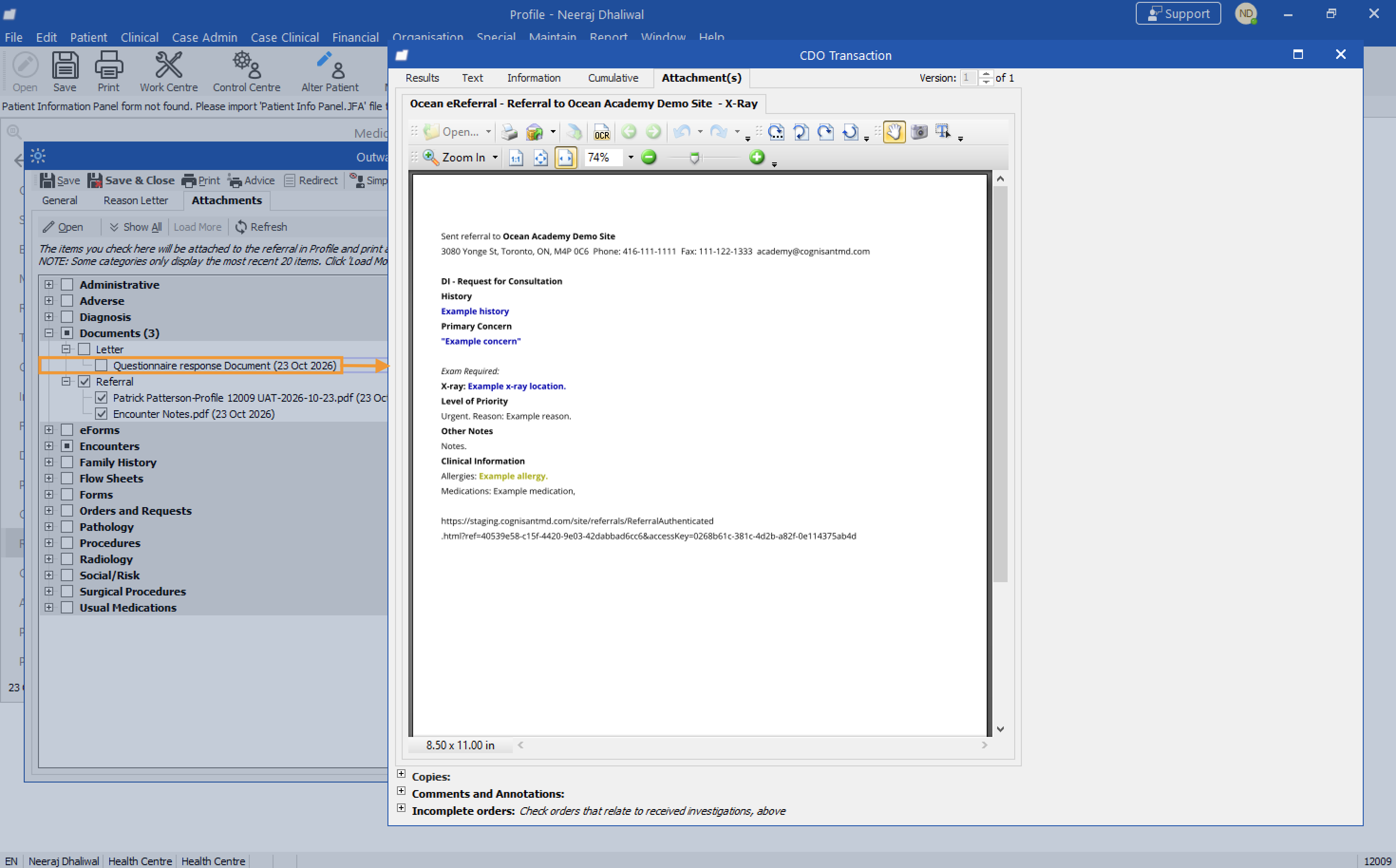
- In the Letter subfolder, the Questionnaire response document contains the eReferral information summary.
2. Check the status of your eReferral
In Profile
- In Profile, open the eReferral from the Referrals tab in the Work Centre or the patient’s Medical Record.
-
- The General tab contains information about the referral’s status, decision, and appointment.
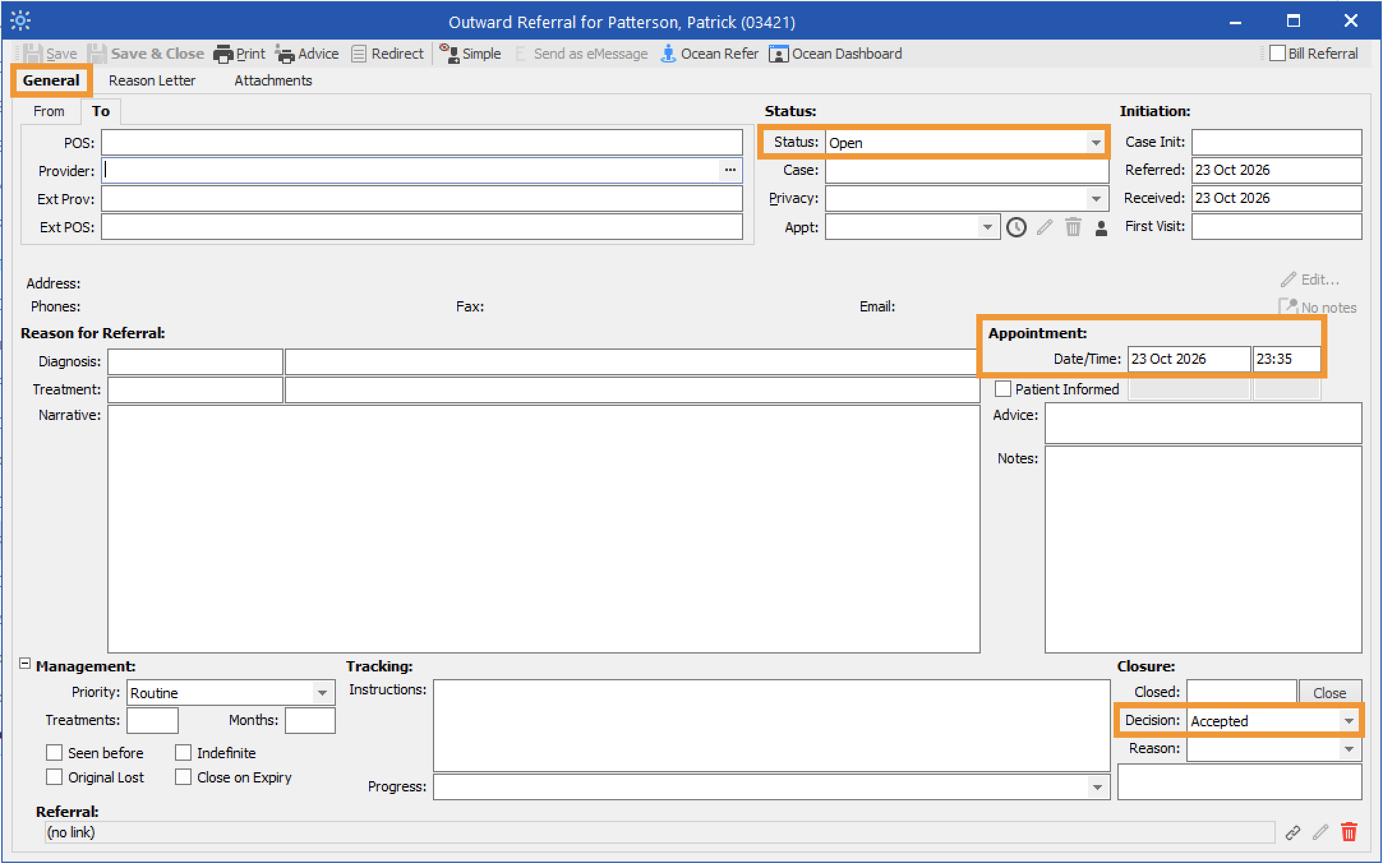
- Status: Shows whether the eReferral is Open or Closed. A referral is closed once it reaches a terminal state, such as declined, cancelled, or completed.
-
Decision: Shows whether the eReferral is awaiting acceptance, has been accepted, or has been declined.
Pending: Corresponds to the Awaiting Response status folder in the Ocean Portal.
Accepted: Corresponds to the Pending Booking, Booked Unconfirmed, or Booked Confirmed status folders in the Ocean Portal.
Declined: Corresponds to the Declined status folder in the Ocean Portal.
- Appointment details: Automatically populated when the recipient has booked an appointment.
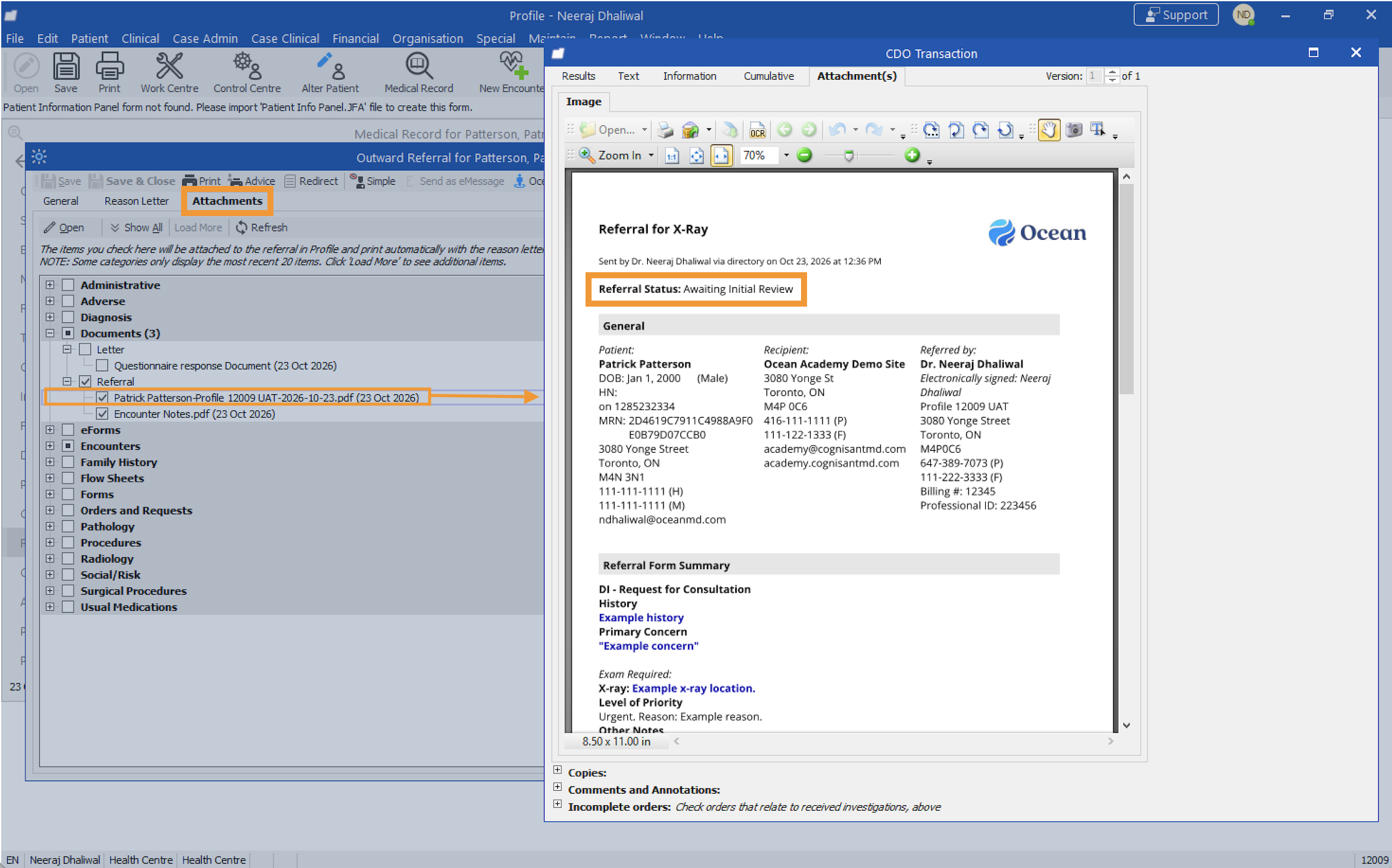
- The Attachments tab contains the referral record PDF under Documents.

- The Referral Status field in the referral record PDF is updated as the referral moves through different statuses.
In Ocean
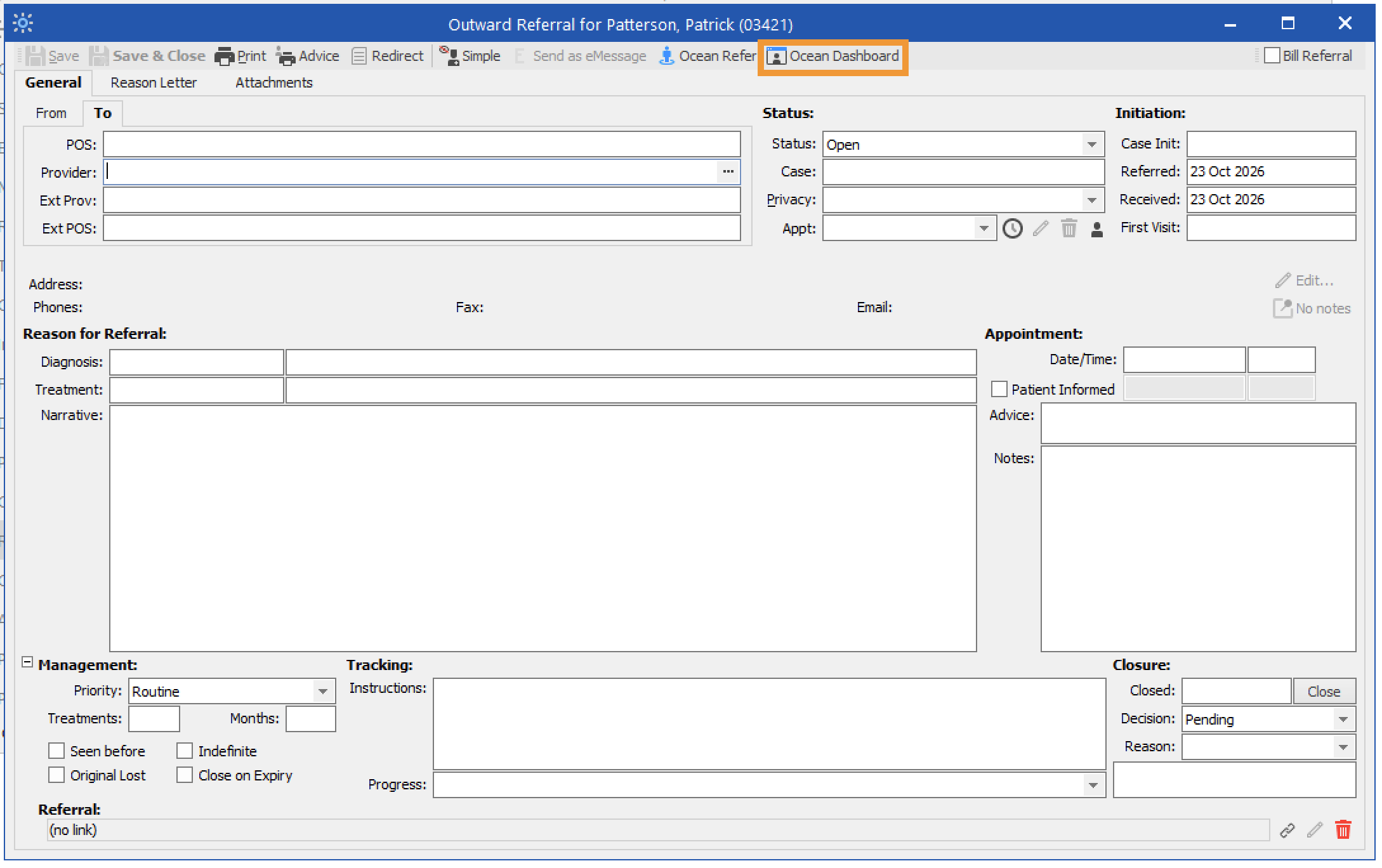
- Click the 'Ocean Dashboard' button from the referral in Profile. This opens the Ocean Patient Dashboard.
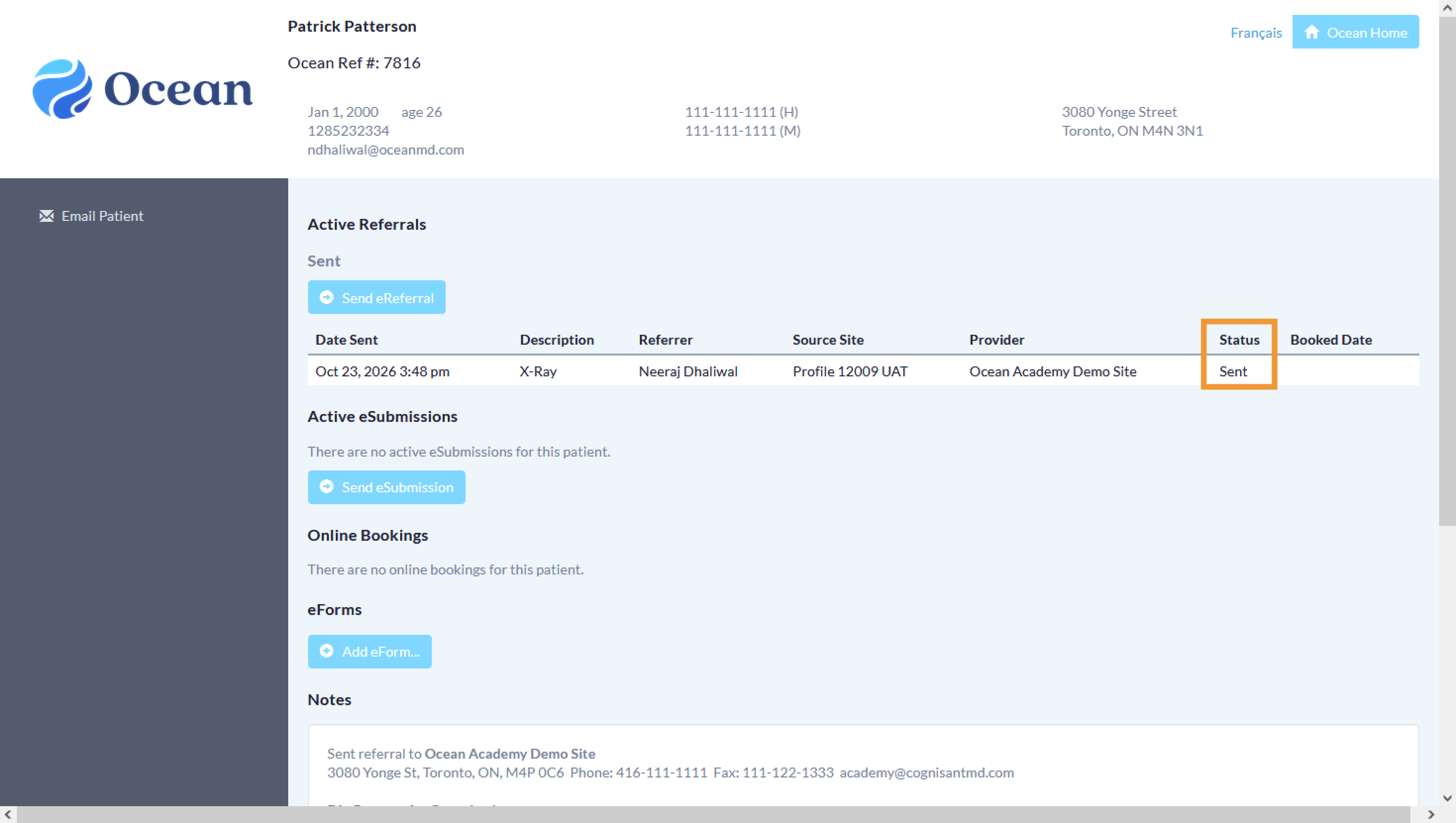
- In the Ocean Patient Dashboard, review the referral’s Status column.
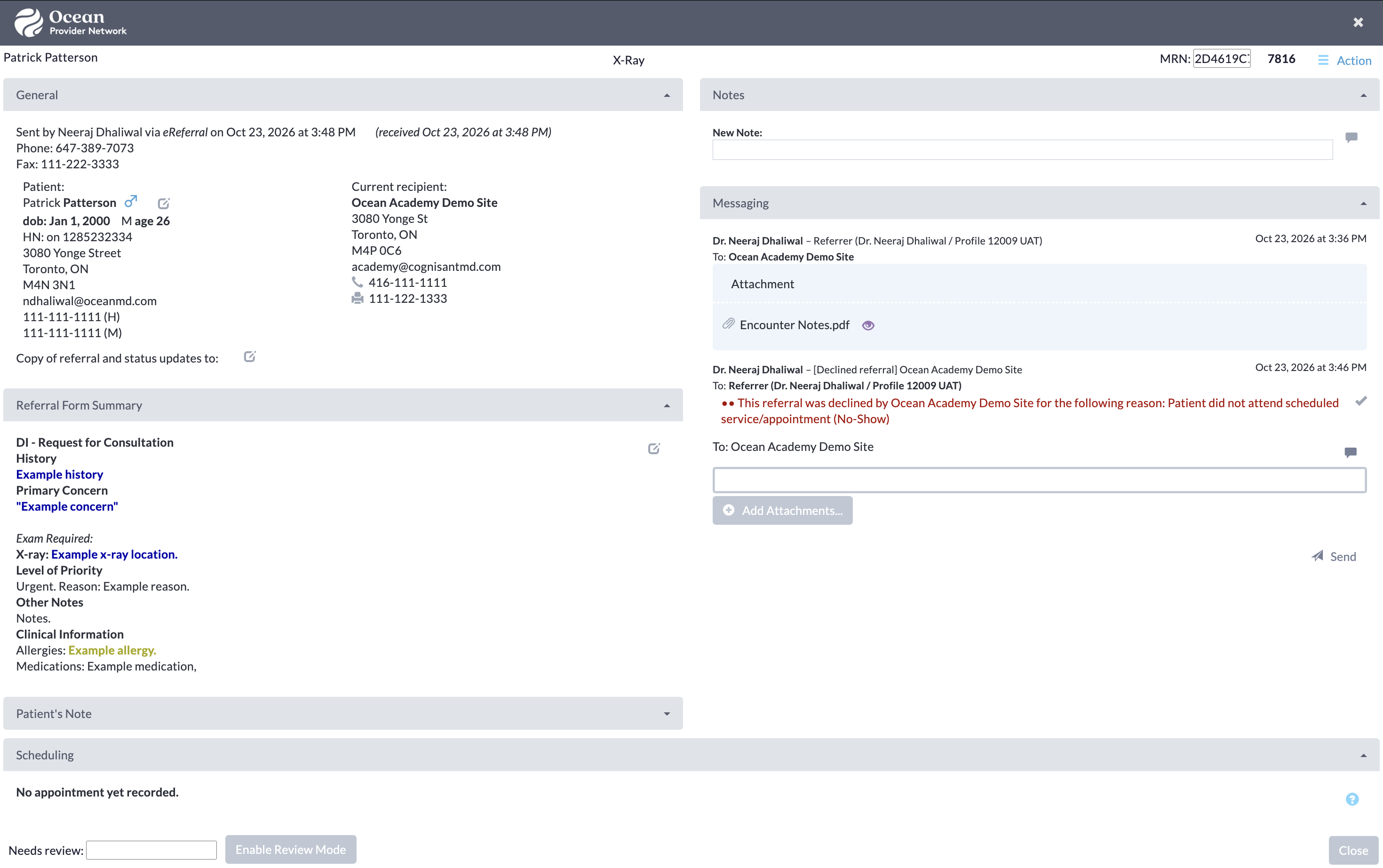
- Click the referral to view the patient information, referrer information, and referral form summary. You can also view and add notes, send messages to involved stakeholders, and review scheduling details.
If you’ve linked your referral to your own Ocean account, you will also automatically receive email updates when the status of your eReferral changes, such as when it is booked, cancelled, or changed. More details about these email updates can be found in the article “Where do eConsult and/or eReferral notification emails get sent to?”.