
Learn how to add appointment details to eReferrals in order to update patients and referring providers with appointment dates, times, mediums, and other scheduling details.
Appointment information can be added, edited, or removed by referral recipients at any point in an eReferral's lifecycle. This allows patients and referring providers to stay up to date with the latest appointment dates, times, delivery modes, and other scheduling details.
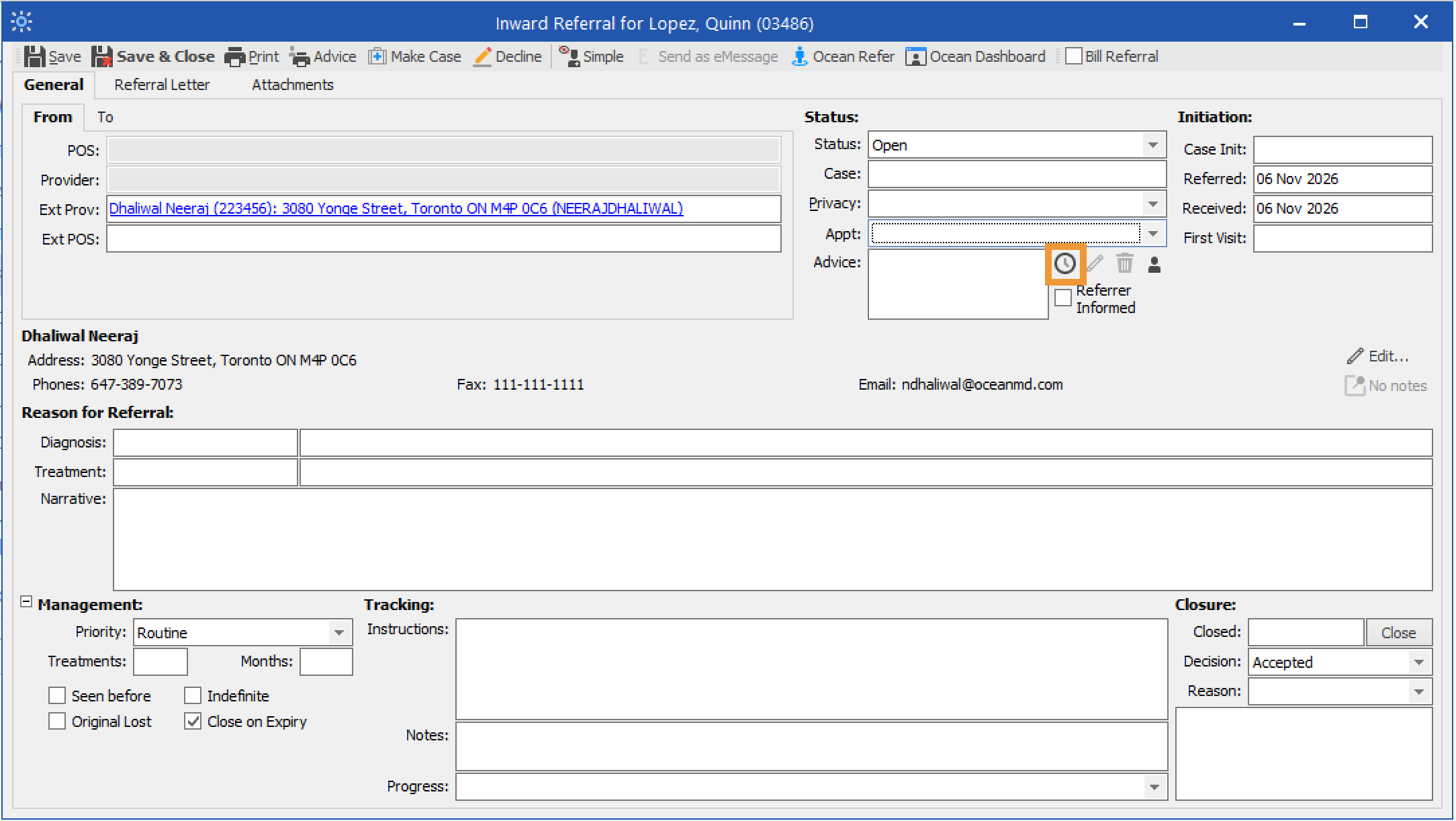
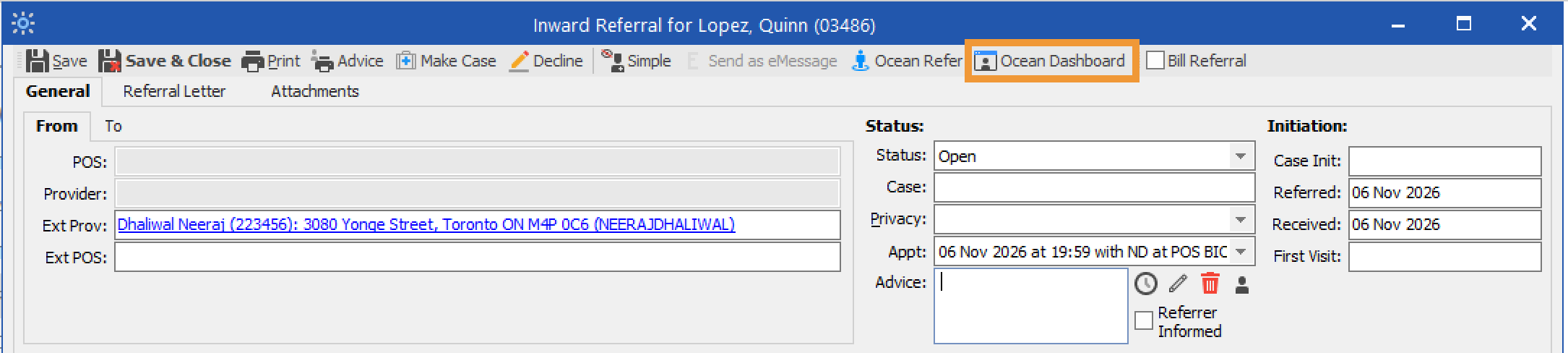
- Open the accepted eReferral in Profile. Under the Status section, locate 'Appt' and click the clock icon to schedule an appointment.
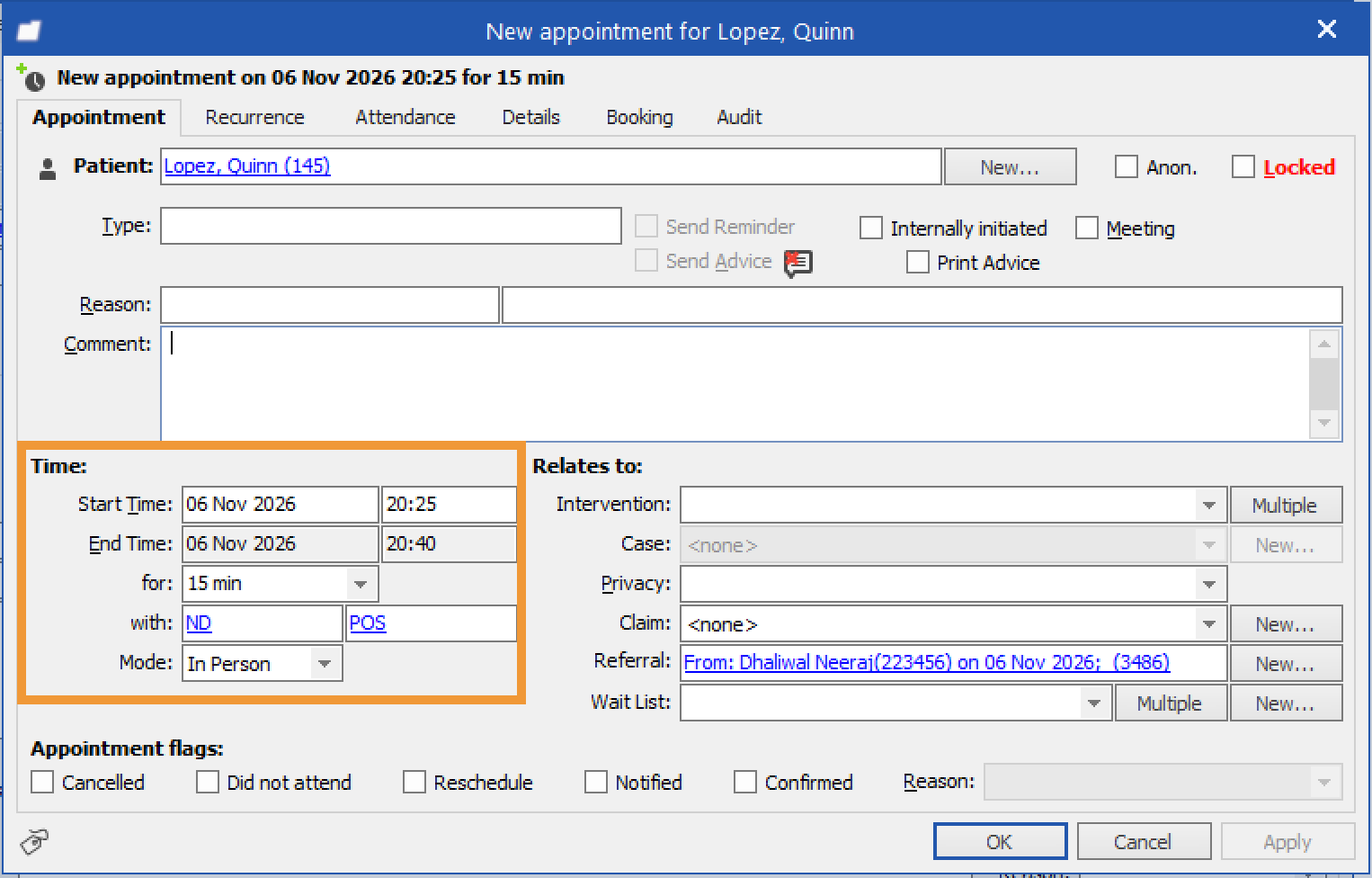
- Choose a delivery Mode (In Person, Phone, or Video) and enter the appointment date and time.
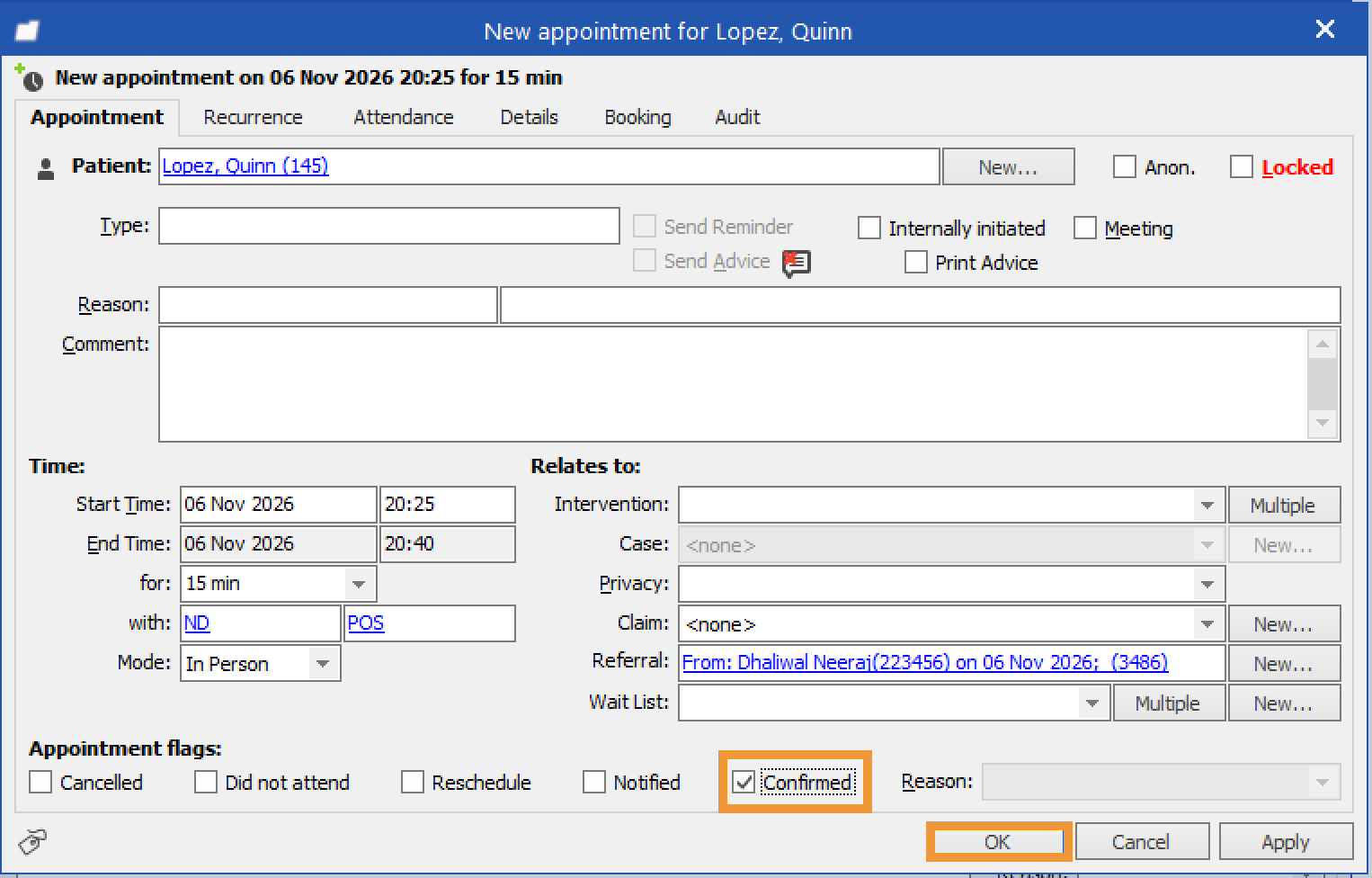
- When the appointment is confirmed with the patient, select the 'Confirmed' checkbox. Click 'OK'.
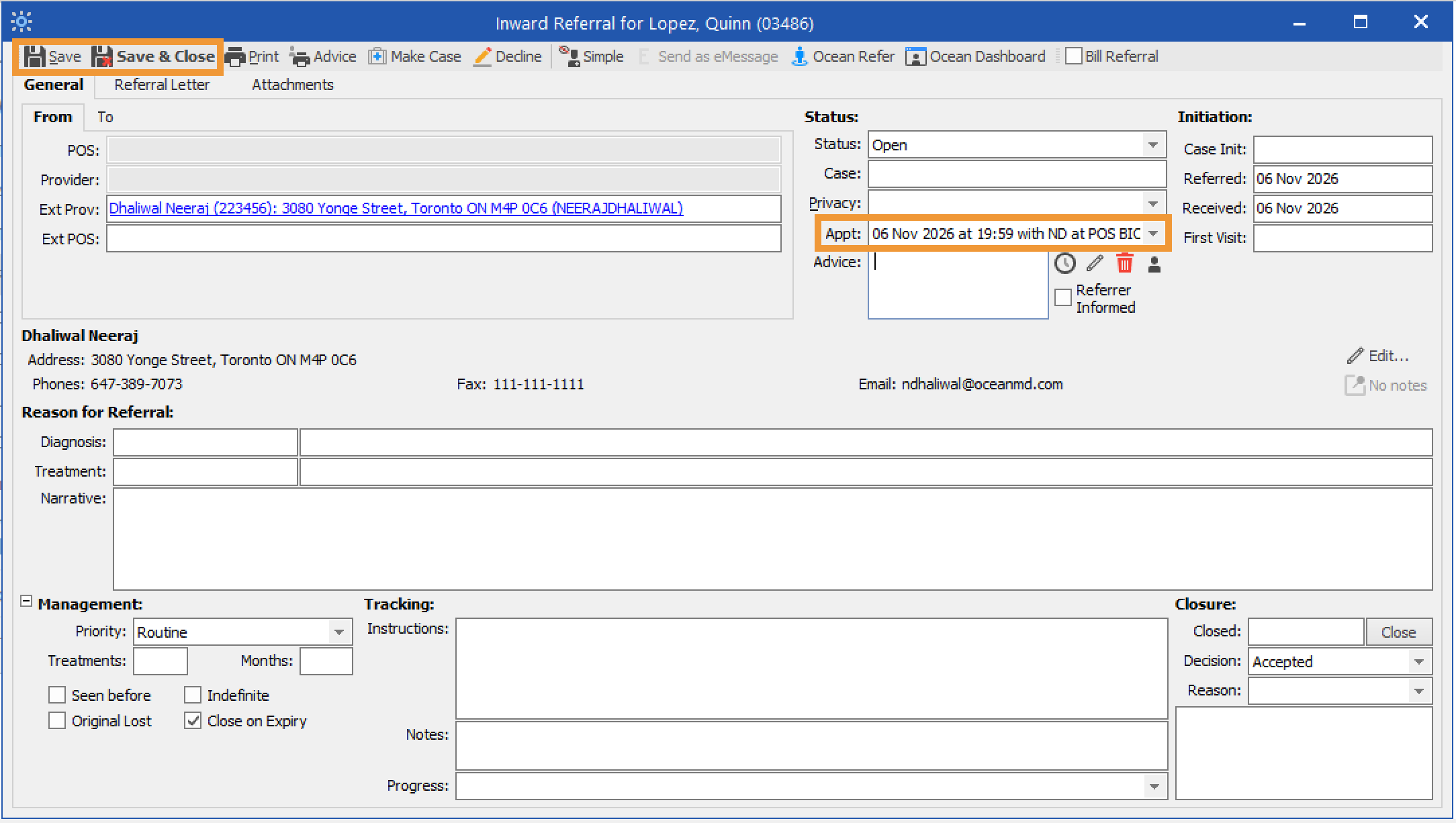
- Click 'Save' or 'Save & Close' to finalize the booking and synchronize it with the Profile schedule.
- Optionally, click the 'Ocean Dashboard' icon to view the eReferral in Ocean.
-
Under the Scheduling area, the appointment date, time, delivery mode, and confirmation status will be automatically populated from the information entered in Profile.
Type any comments for the referrer and patient into the text box, and click 'Add Attachments' to include any file attachments.
Tip: You can create canned booking comments to increase efficiency.

- In the eReferrals & eConsults area of the Ocean Portal, the referral will automatically move to either the Booked Unconfirmed or Booked Confirmed folder, depending on the confirmation status. An email notification will be sent to the referrer and/or patient containing the scheduled appointment details, comments and attachments, and the option to confirm the appointment, if applicable.