Learn how to review incoming eReferrals from your FHIR-integrated EMR or the Ocean Portal.
Review New eReferrals
There are a few ways to review incoming eReferrals, either from the Ocean Portal or through your EMR.
From the EMR
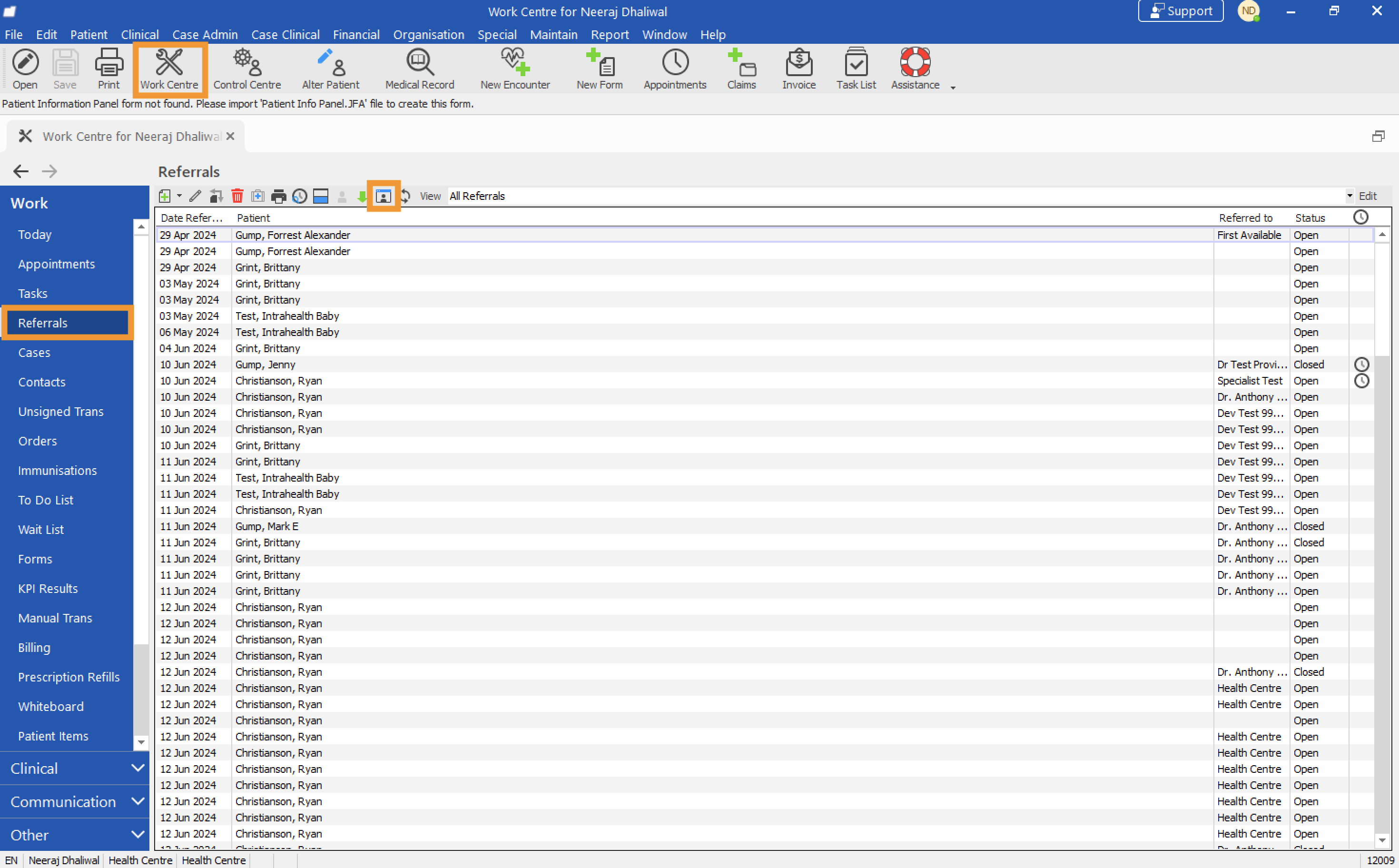
- In Profile, open the Work Centre and select Referrals. Click the 'Ocean Dashboard' icon to access the eReferrals & eConsults area in the Ocean Portal.
From the Ocean Portal
- When you receive a new eReferral, you will receive an email notification based on your notification configuration. Click the link in the email to sign in to the Ocean Portal and view your received eReferrals.

-
Sign in to the Ocean Portal from your web browser and use the menu to navigate to the eReferrals & eConsults area.
Locate the eReferral under the Received tab and in the New status folder. Click the referral to open it and view more details.
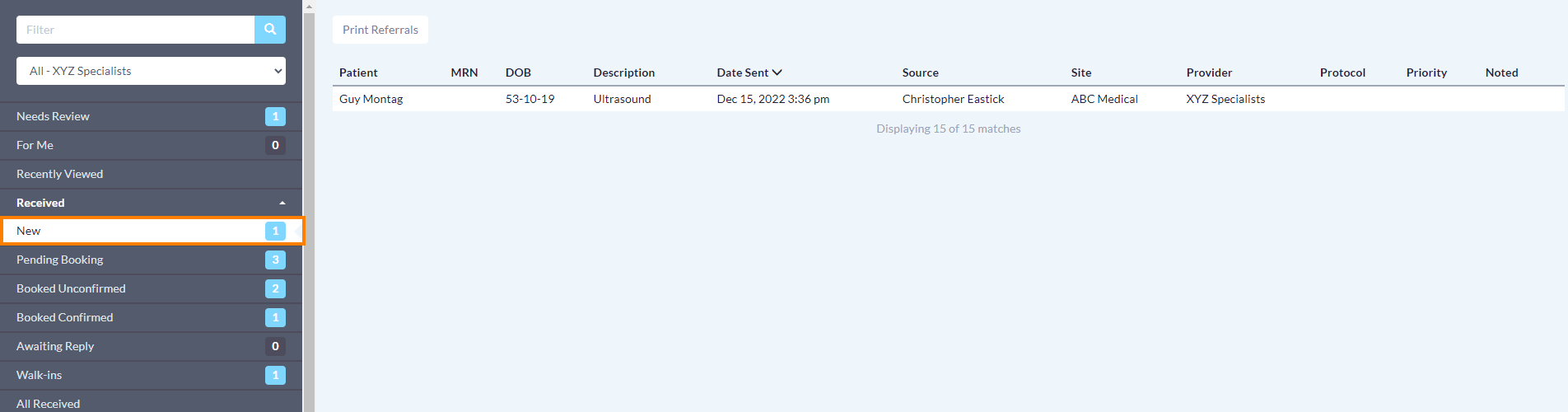
Tip: Certain columns can be used to sort your referrals in ascending or descending order. Click a column header to change the sorting order.
Match Incoming eReferrals to Patients in the EMR
Before actioning an eReferral, check that it is matched to the correct patient chart in Profile. A referral will be unmatched if the patient does not yet have a chart in the EMR or if identifying information is missing.
Review Unmatched Referrals
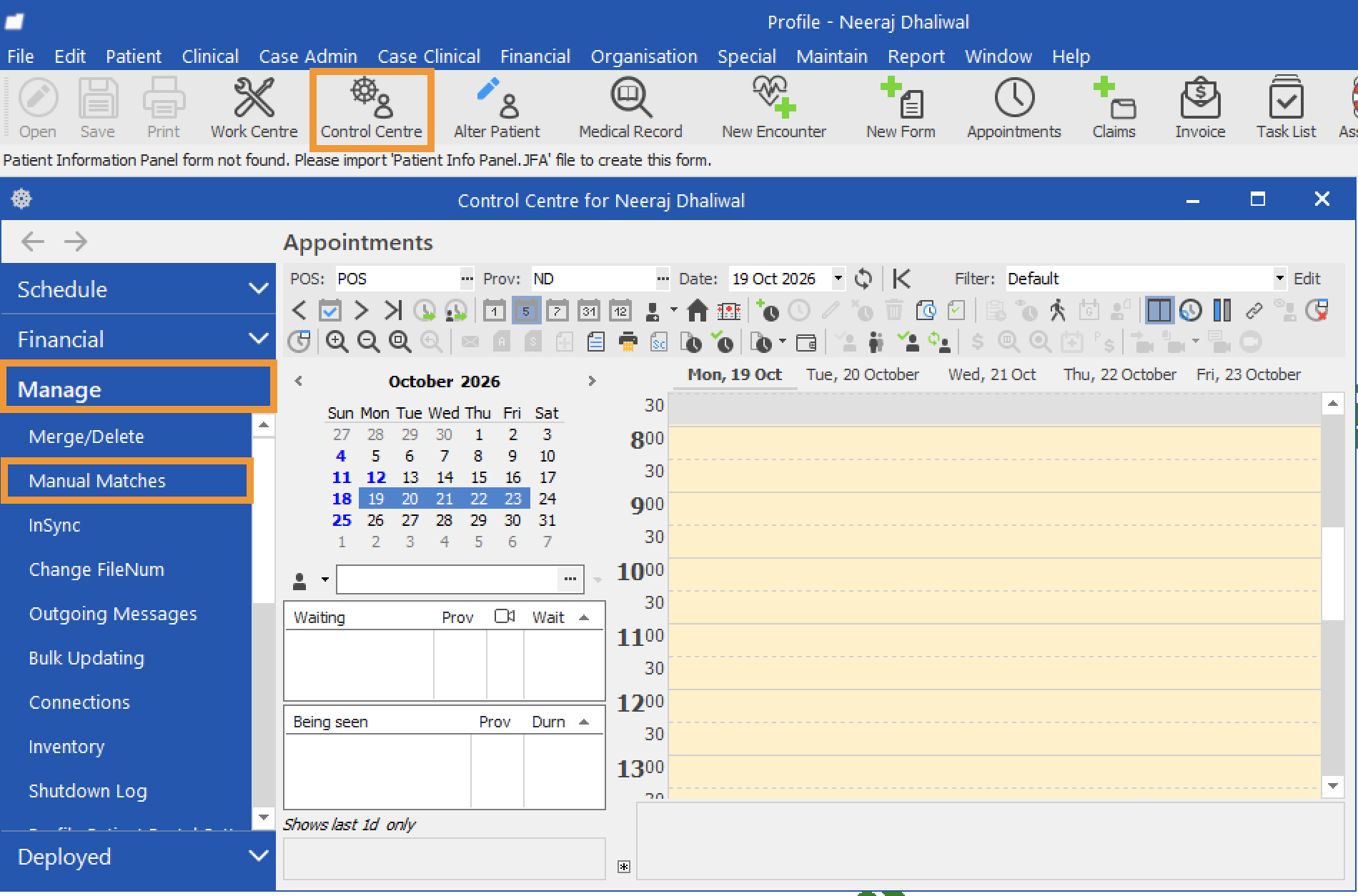
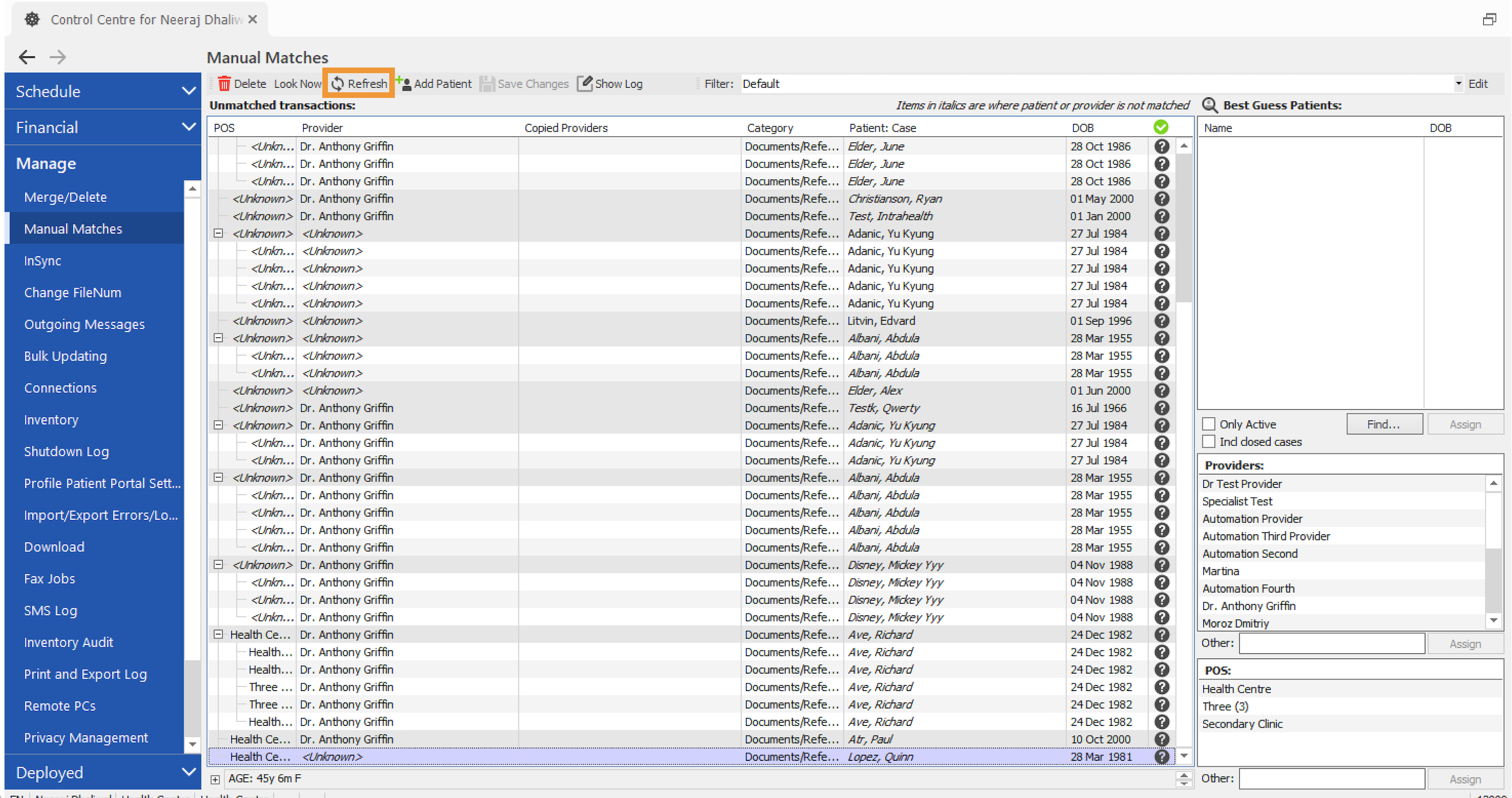
- Open the Control Centre in Profile. Open the 'Manage' dropdown in the left sidebar and select 'Manual Matches'.
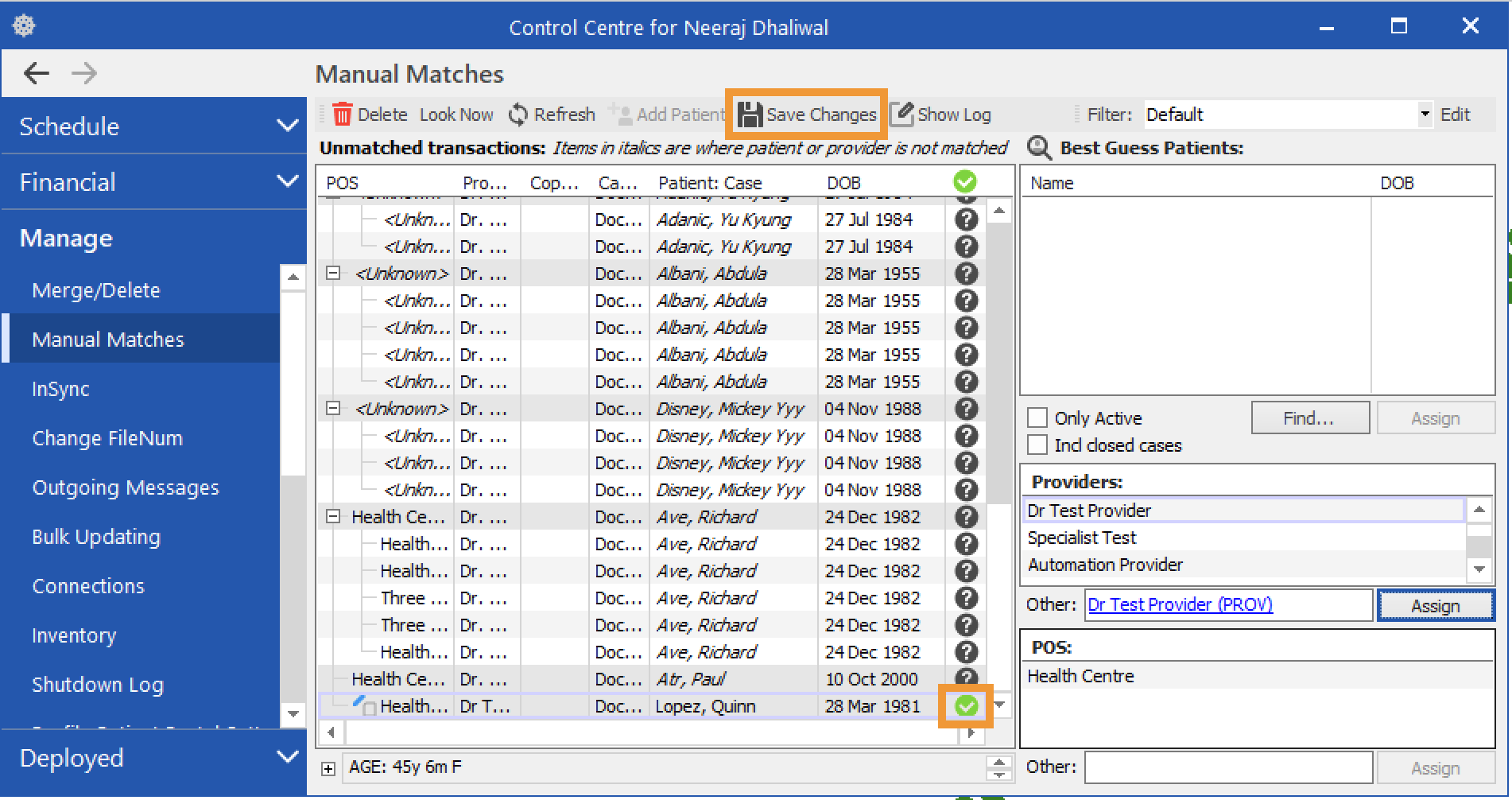
- Under Unmatched transactions, locate the eReferral you want to process using the patient's name or date of birth. If the referral is not listed, click 'Refresh'. Click the applicable row so that it is highlighted in purple.
Create a Patient Chart When Needed
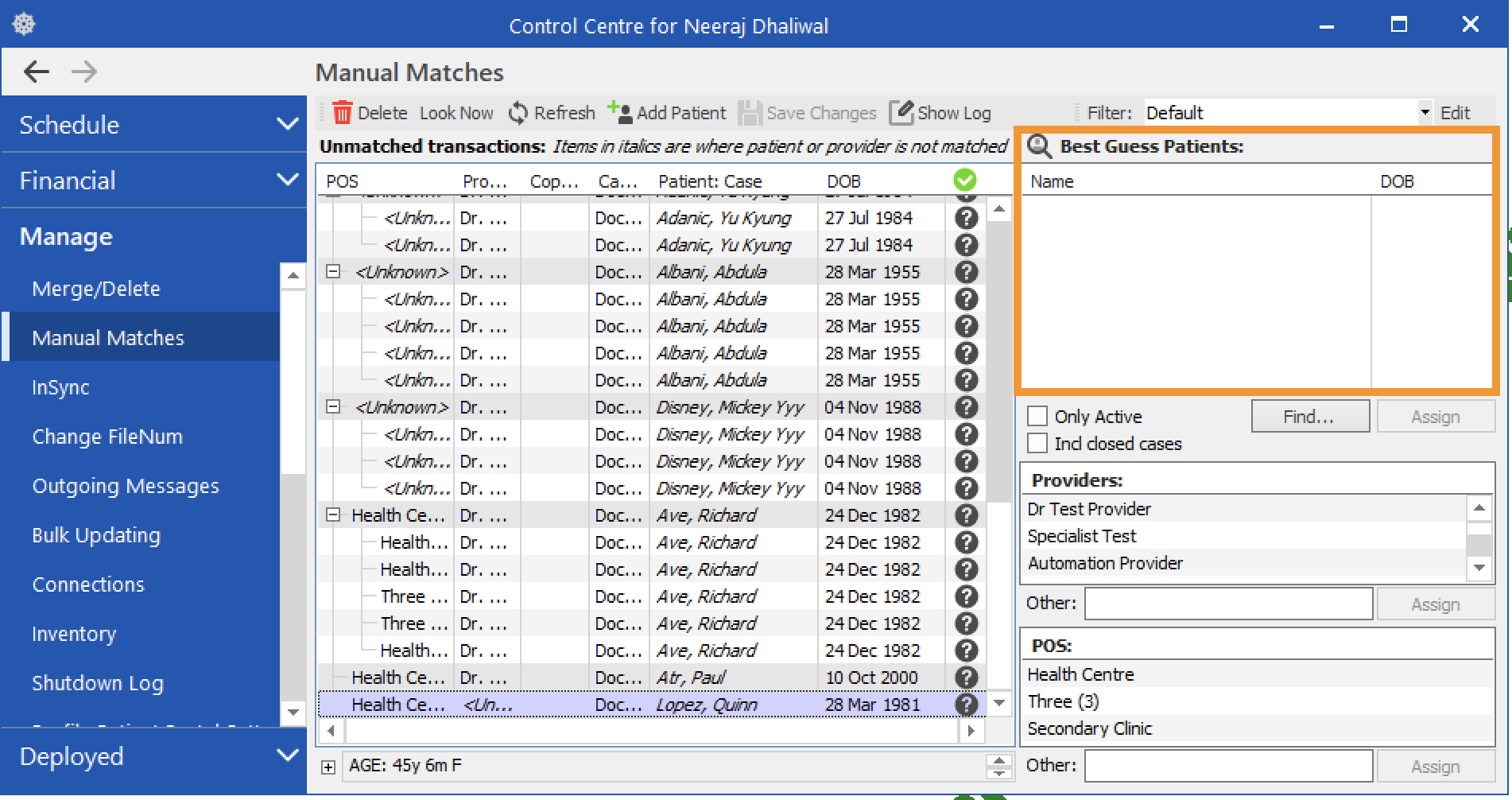
- If the patient's name appears in the Best Guess Patients section, they have a matching chart in Profile and you can skip this section. If the section is empty, the patient does not have an existing chart in Profile.
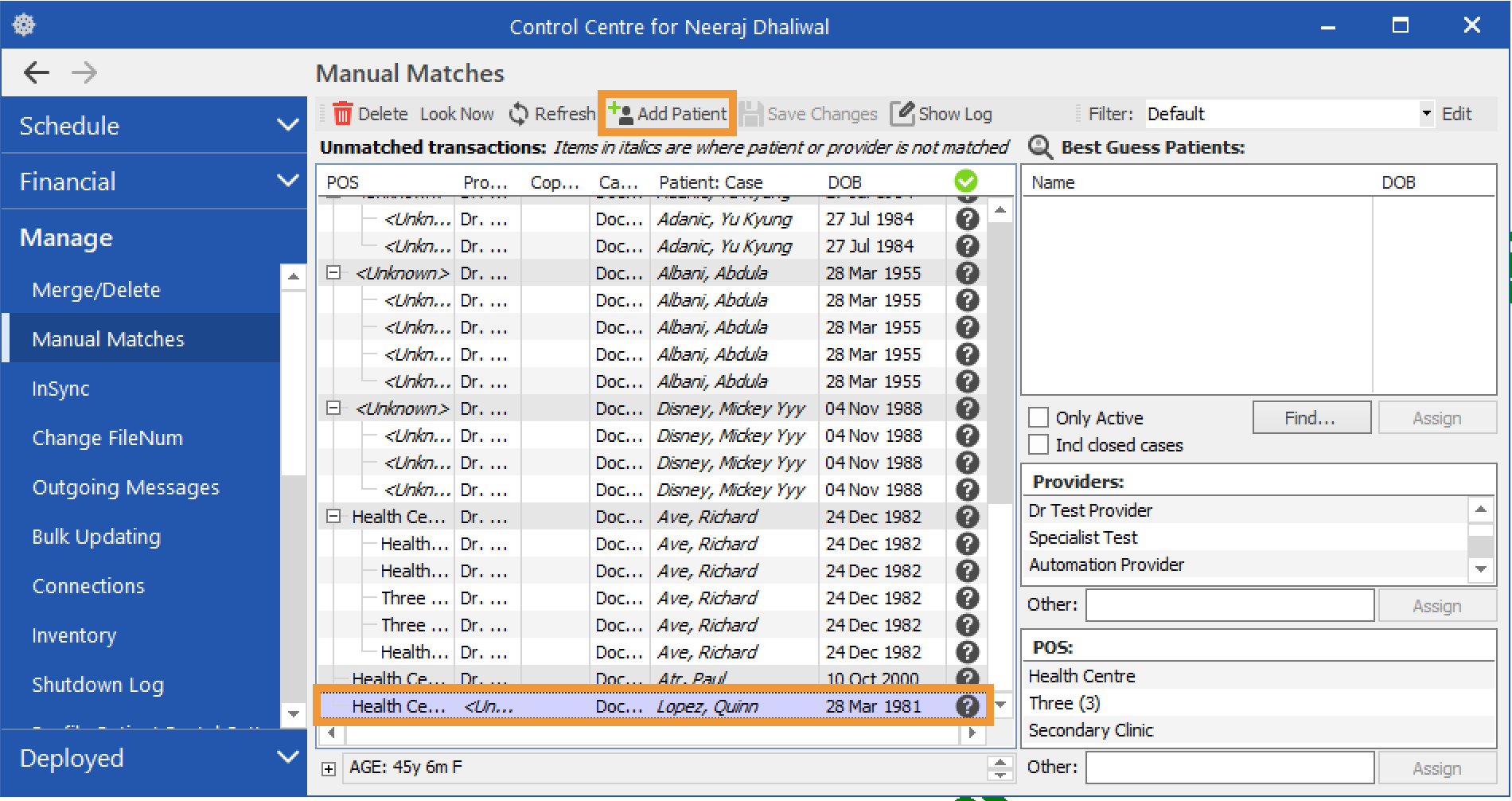
To create a patient chart, follow these steps:
- Ensure that the patient's referral is selected, and then click 'Add Patient'.
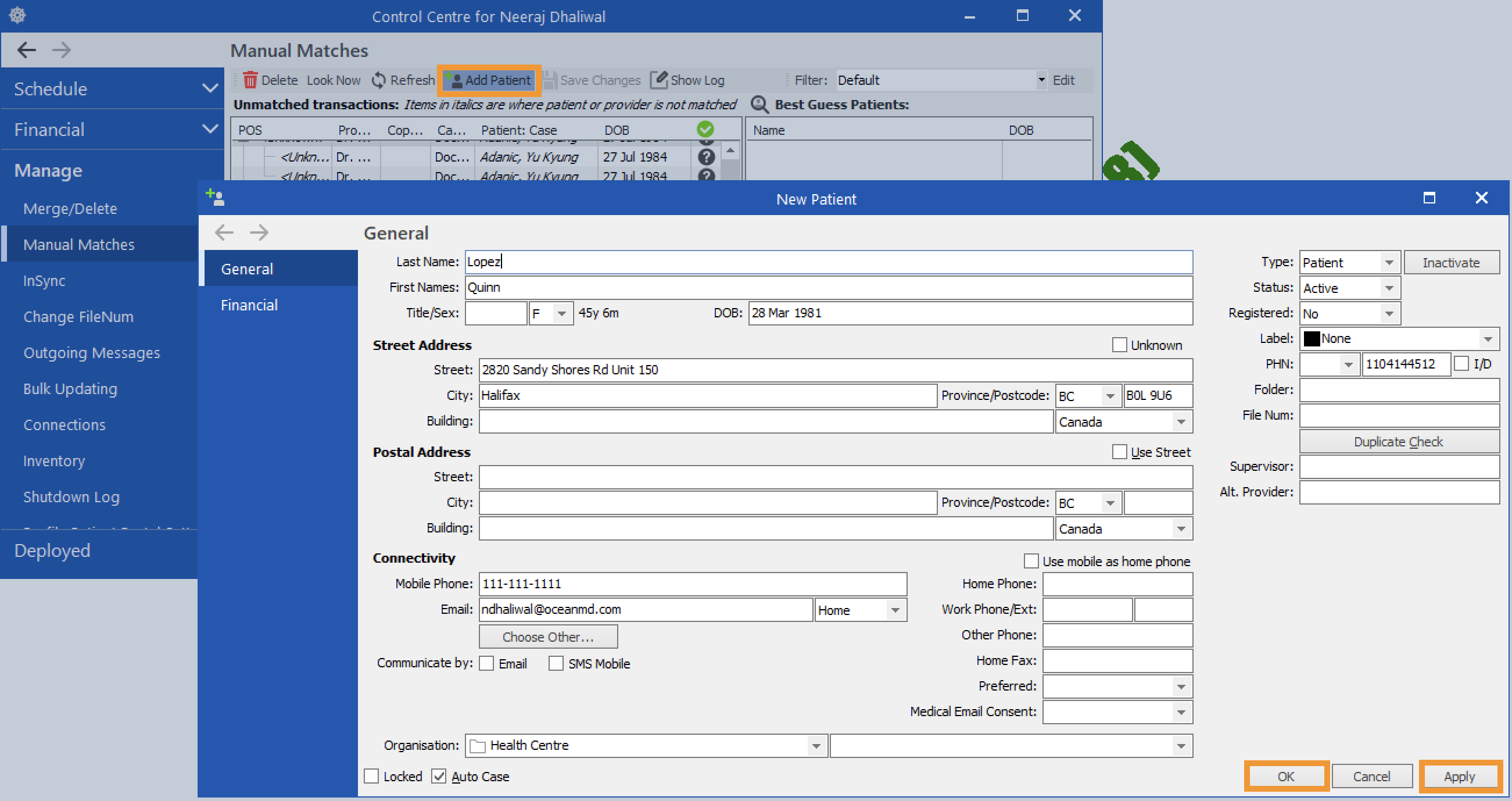
- Enter the patient's details in the window that opens. Relevant information included in the eReferral will be populated automatically. Click 'Apply' to apply your changes, and then click 'OK' to create the patient chart.
Assign a Provider
Next, match the patient to a provider in Profile.
- Click the patient's name under the Best Guess Patients section. Select the appropriate provider from the Providers list and click 'Assign'.
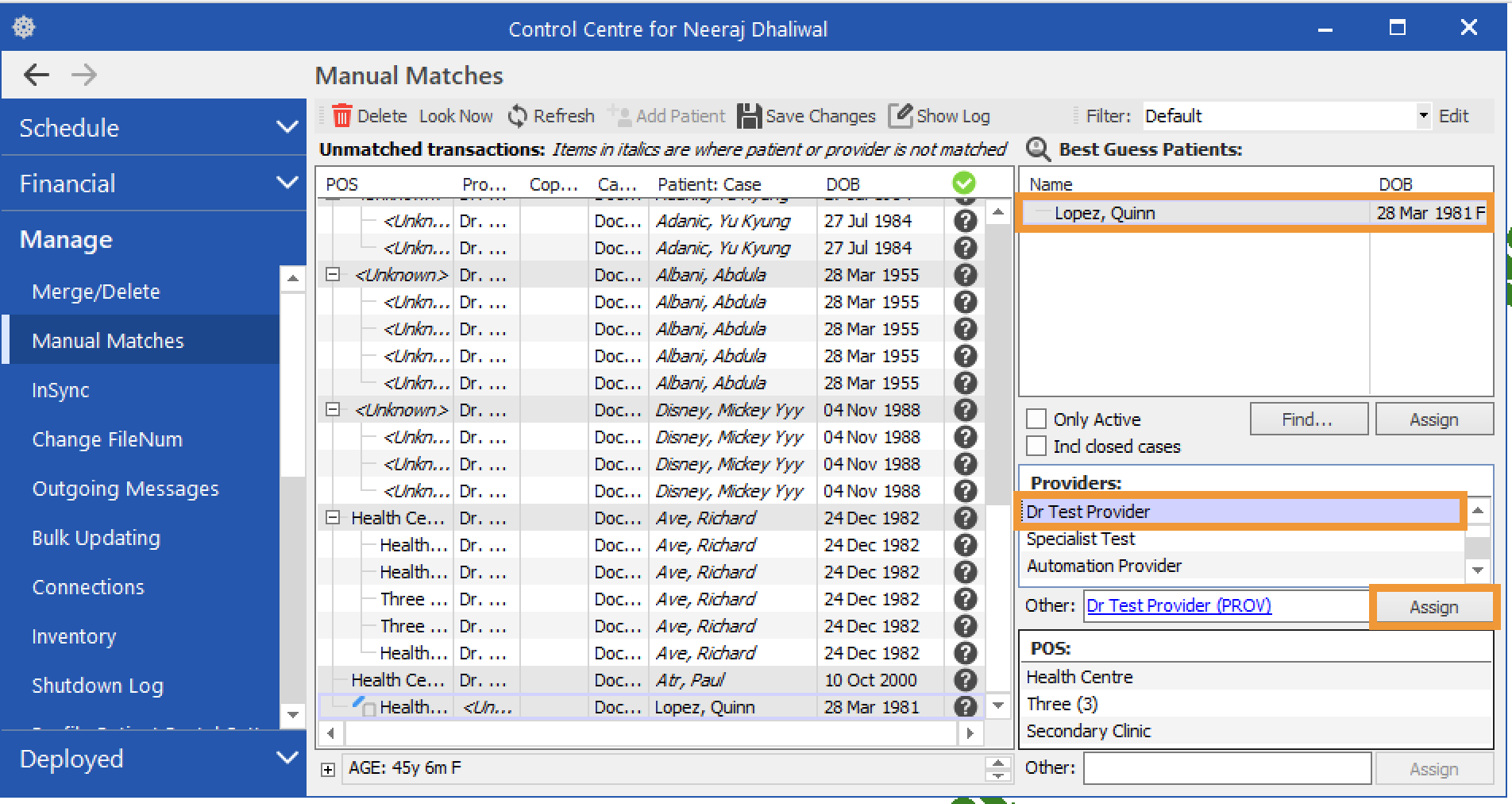
- A window will appear asking you to confirm that you want to match the patient and provider. Click 'Yes'.
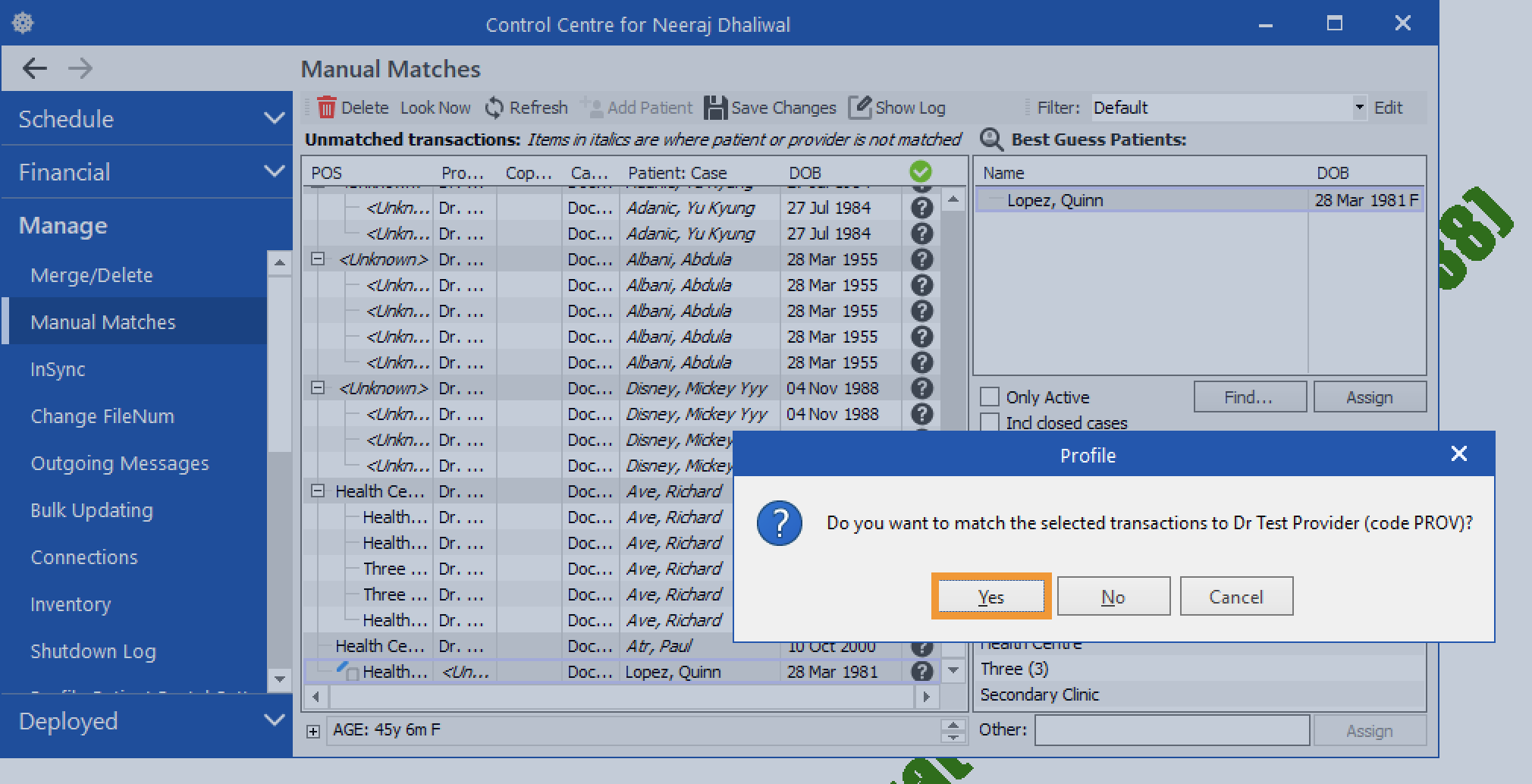
- A green check mark will appear next to the patient's name when the match has been completed successfully. Click 'Save Changes'.