
EMR Notifications for received eRequests allow providers to get automated alerts directly within their EMR when key status updates occur for eRequests sent through the Ocean Provider Network.
Prerequisites
Before setting up EMR Notifications for Med Access, a user with Site Admin access to your Ocean Site must complete the following prerequisite steps:
- Enable EMR users in your Ocean Cloud Connect configuration by selecting one or more users in the 'Sync EMR User(s)' setting.
- Perform a full schedule synchronization by clicking 'Sync Full Schedule' in Ocean Cloud Connect.
Configuration
EMR Notifications for received eRequests are configured in the 'Directory Listing'. Only users with Site Admin access can perform the configuration on behalf of users.
How Received eRequest Notifications appear in Med Access
To configure EMR Notifications for received eRequests, follow the steps below:
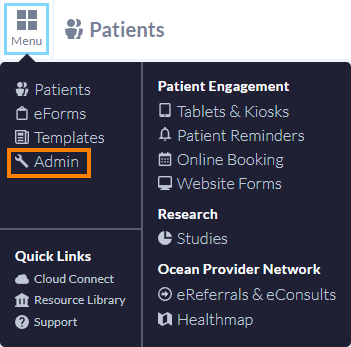
- After logging in to the Ocean Portal, open the 'Menu' and select 'Admin'.
- Click 'Directory Listing'.

- Select the 'Manage EMR Notifications' button.

-
Three tables will be displayed: 'New eRequests', 'Cancelled eRequests, and another for 'New eRequest Messages'.
For each Directory Listing, select the desired EMR User to be notified for each eRequest event under the 'EMR User' column.
Your changes will be automatically saved and apply to both new and existing eRequests.
Note: When the drop-down arrow next to the Directory Listing name is selected, additional customization options become available for individual Health Service Offerings.

How Received eRequest Notifications appear in Med Access
Expand the tabs below to see how each received eRequest EMR Notification appears in Med Access.
The notification will appear as an Active Task in the respective patient chart and be assigned to the EMR User as selected in Ocean.

Notes
• The 'Reason for referral:' portion of the notification will only appear if the optional 'ax_reasonForReferral' analytic value has been populated for the eRequest.
- • If you have the Ocean-MA Extension installed in your web browser, the extension will adjust the Task properties as detailed in the Ocean-MA Extension FAQ.

The notification will appear as an Active Task in the respective patient chart and be assigned to the EMR User as selected in Ocean.

Notes
• The 'Reason for referral:' portion of the notification will only appear if the optional 'ax_reasonForReferral' analytic value has been populated for the eRequest.
- • If you have the Ocean-MA Extension installed in your web browser, the extension will adjust the Task properties as detailed in the Ocean-MA Extension FAQ.
-
The notification will appear as an Active Task in the respective patient chart and be assigned to the EMR User as selected in Ocean.

Notes
• The 'Reason for referral:' portion of the notification will only appear if the optional 'ax_reasonForReferral' analytic value has been populated for the eRequest.
- • If you have the Ocean-MA Extension installed in your web browser, the extension will adjust the Task properties as detailed in the Ocean-MA Extension FAQ.

Frequently Asked Questions
- Yes, when EMR Notifications for received eRequests are created successfully (or fail to be created), it is logged as an event within the respective eRequest's Event Log.

- If you are seeing EMR-related error notifications in Ocean (such as “EMR user unavailable” or “Invalid EMR user(s)”), this usually indicates that one or more EMR user accounts are no longer active or properly synchronized.
These notifications appear when Ocean detects that an EMR user linked to your configuration has been removed, deactivated, or is otherwise unavailable.
For step-by-step guidance on identifying and resolving these issues, please refer to the article: Quick Troubleshooting Guide: EMR Notifications for Sent/Received eRequests. 
-
When an EMR notification needs to be generated and no matching patient chart exists in the EMR, Ocean automatically creates a full patient chart to ensure the notification can be properly generated and associated with the correct patient record.
As part of this process, an additional PDF document titled “Awaiting Initial Review” is added to the newly created chart. This document indicates that the patient record was created due to an incoming referral and did not previously exist in the EMR.
The referral notification will appear as an Active Task within the new patient chart and will be assigned to the EMR user selected in Ocean. The status “Awaiting Initial Review” confirms that the referral requires action and has not yet been accepted or declined.

- Yes. If Ocean needs to generate an EMR Notification and no chart exists, chart creation will still succeed even if the referral does not include a Health Number.
-
Ocean imports an updated referral record PDF into the corresponding patient chart showing a Declined status.
When a new patient chart is generated to facilitate an EMR Notification, it is important that the Task/Document title includes the word “Declined” . This allows EMR users to leverage their EMR’s querying tools to identify charts that were created solely to facilitate an EMR Notification where the eRequest was later declined, and to bulk remove them if needed.
