eForm Item Types

There are various question types that you can add to your Ocean eForm, each of which is listed and described in this article.

Below you will find the full list of item types available in the eForm Editor that you can choose from to add to your Ocean eForms.

Item Type Description

No/Yes

No/Yes/Not Sure

  • Shows the caption with No and Yes buttons.
  • Shows the caption with No, Yes, and Not Sure buttons.
[√] Checkbox
  • A simple checkbox that is useful for a list of symptoms, for example.

    Tip: Use a No/Yes item if you need to distinguish No from an unchecked box.

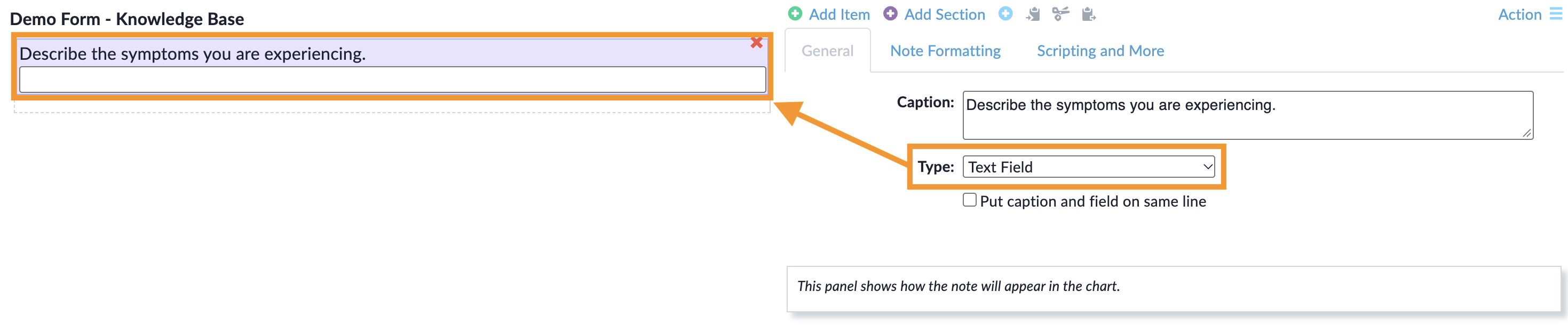
Text Field

Text Field (Numeric Only)

Text Area

  • Text Field allows a single-line text response. Minimize the use of text responses on tablets as much as possible.
  • Text Field (Numeric Only) allows a single-line numeric response.
  • Text Area allows a multi-line text response.
Menu Allowing Single Selection
  • Menu Allowing Single Selection allows the user to select one choice.

Use the Menu Choices tab to add menu choices. From the Menu Choices tab, you can configure the menu to appear as a dropdown menu, horizontal buttons, or vertical buttons using the "Menu Type" setting.

  • By selecting Dropdown, you can display the choices in a dropdown menu.
  • By selecting Buttons, you can display the choices as horizontal buttons.
  • By selecting Buttons stacked vertically, you can display the choices as vertical buttons.
Menu Allowing Multiple Selections
  • Menu Allowing Multiple Selections allows the user to select more than one choice.

Use the Menu Choices tab to add menu choices. From the Menu Choices tab, you can configure the menu to appear as horizontal or vertical buttons using the "Menu Type" setting.

  • By selecting Buttons, you can display the choices as horizontal buttons.
  • By selecting Buttons stacked vertically, you can display the choices as vertical buttons.
Label
  • Displays read-only text. This item type is useful for instructions, consent form text, and similar content.
Date
  • Shows a calendar control. The date format that appears in the field after a date is selected can vary depending on the user's computer date and time settings and/or operating system. For more information about date formatting, refer to "How are dates formatted in Ocean?".
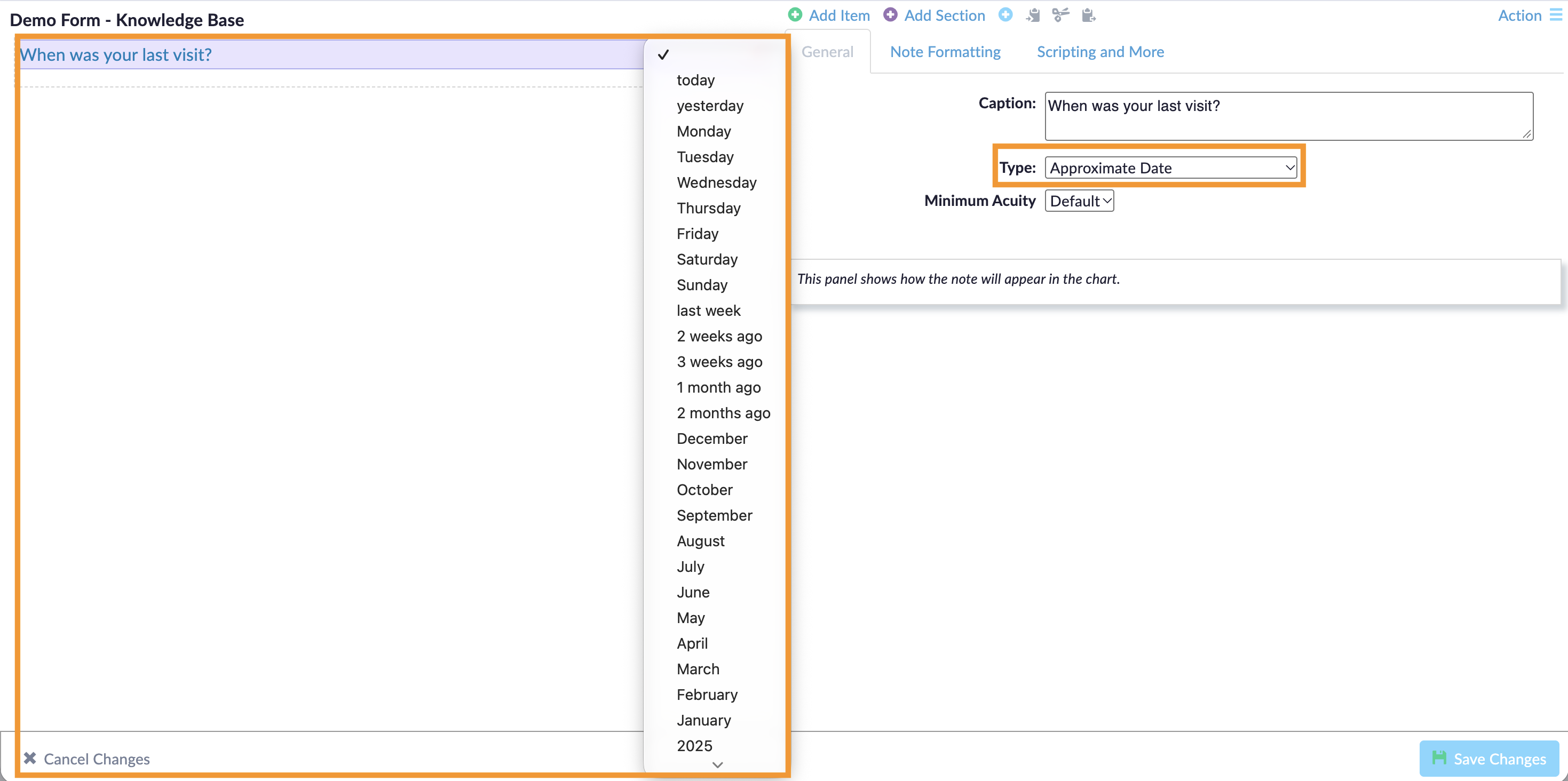
Approximate Date
  • Approximate Date presents a menu of suitable date choices. Use the "Minimum Acuity" setting to adjust the units available to choose from.
Approximate Duration
  • Approximate Duration presents a menu of suitable duration choices. Use the "Minimum Acuity" setting to adjust the units available to choose from.
Numeric Scale
  • Can be used for simple numeric scales, visual analog scales, Likert scales, and more.
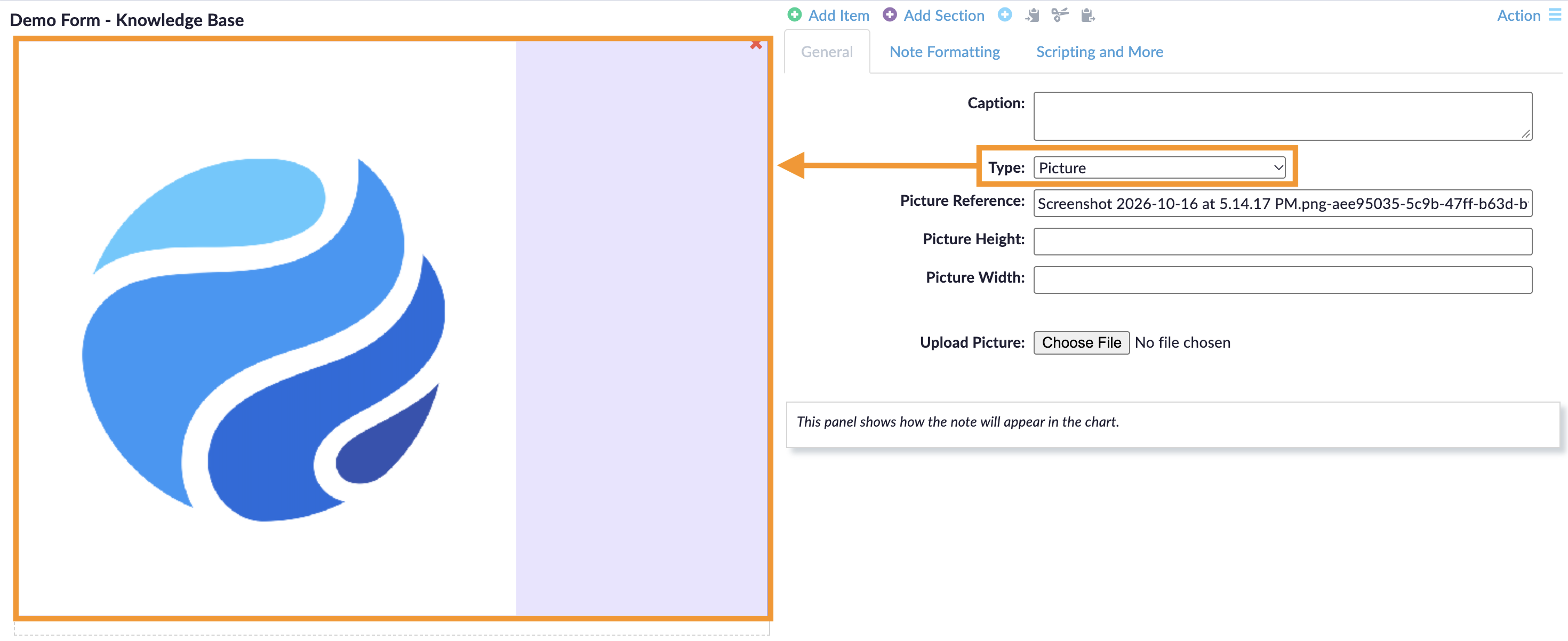
Picture
  • Displays an image file that you upload in the eForm Editor.

    Image files are limited to 1 MB and must use one of the following formats: .jpeg, .jpg, .png, or .gif.

    Image files must have lowercase file extensions (for example, .jpg, not .JPG).

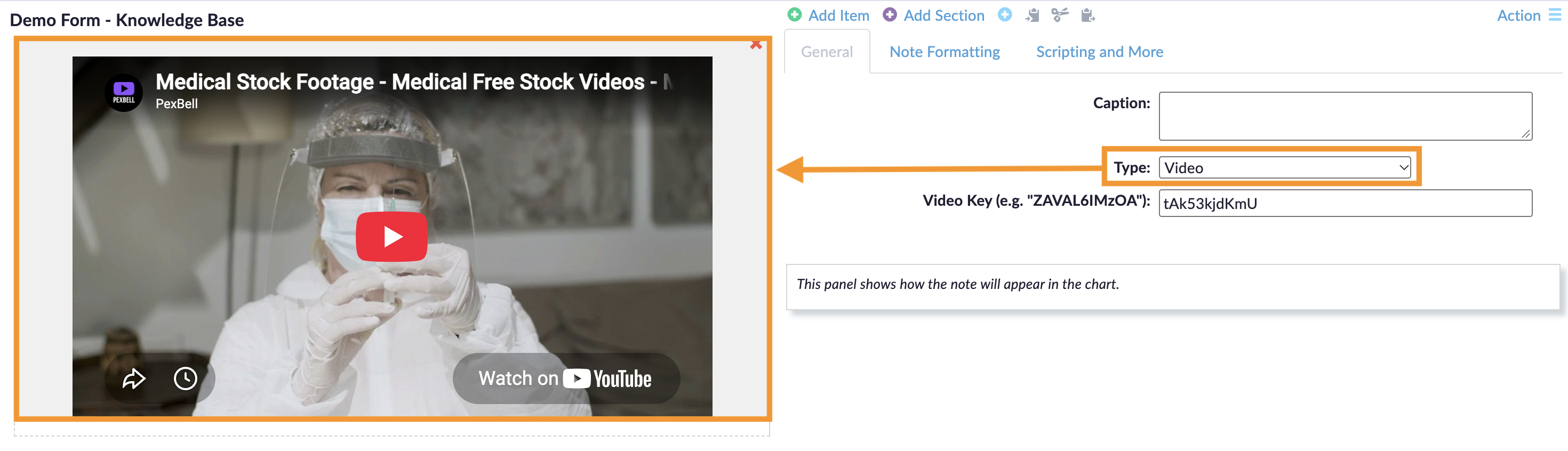
Video
  • Displays a video that you add by entering its video key.

    Note: The video must be hosted on YouTube.

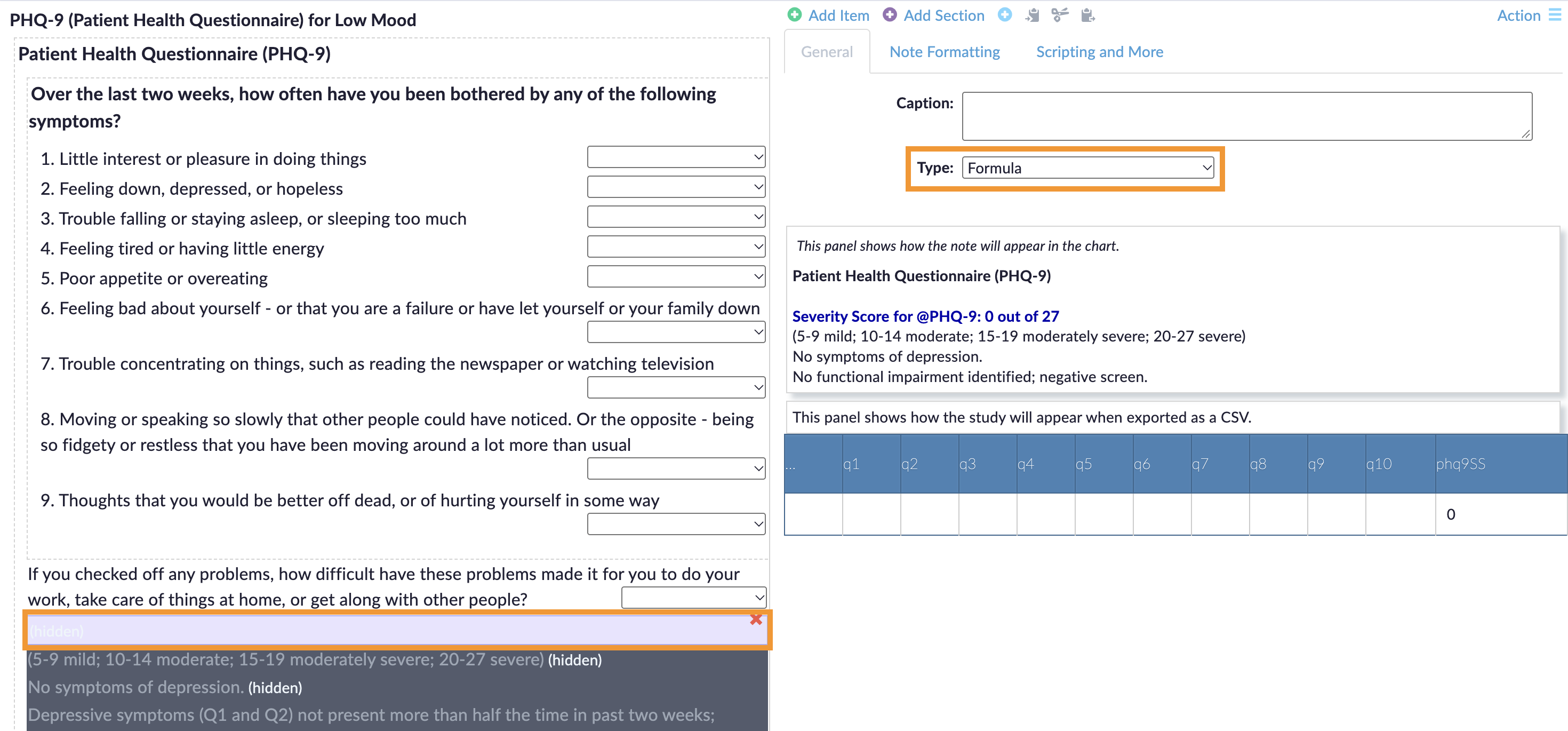
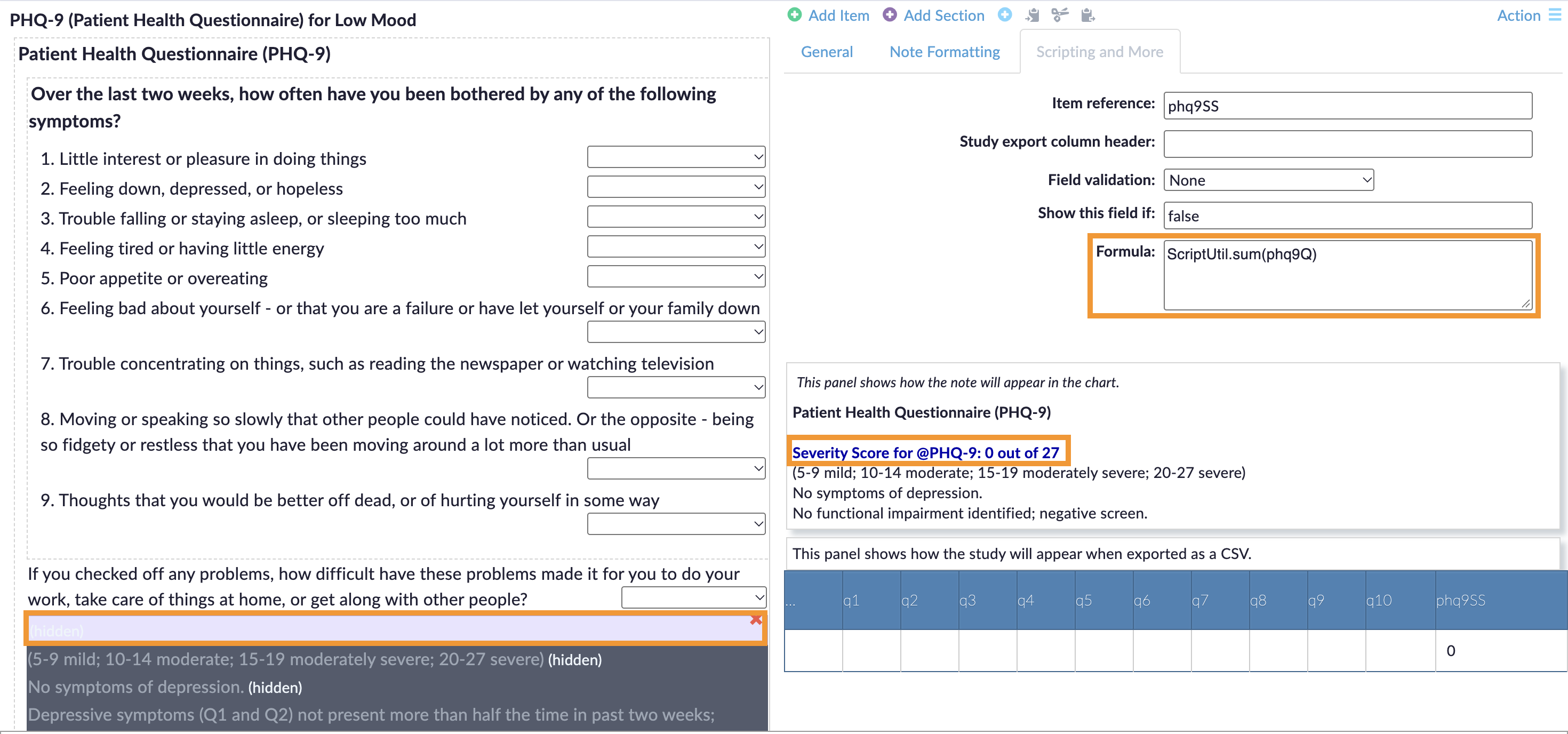
Formula
  • A special item that calculates an expression to generate a number or string. Formula items can be used for scores, generating hyperlinks in generated notes, and more.
Have more questions? Submit a request