
Review Ocean's pre-made templates that are used with Patient Messaging or Patient Reminders, allowing you to get started right away.
Your Ocean site includes pre-made templates, allowing you to get started right away with your Patient Messaging & Reminders products. These default templates include information and wording that patients will see when they receive a secure message or reminder from your clinic.
You can choose to use these templates as they appear by default, or you can use them as a content guide that can be customized to suit your clinic's needs.
-
Open the Template Manager within the Ocean Portal.
-
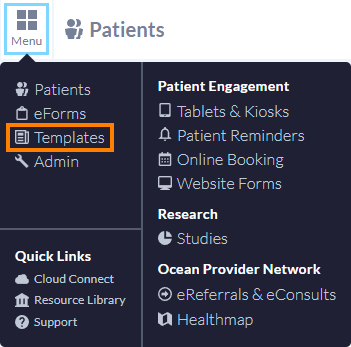
In the top left corner of the Ocean Portal, select "Menu" and click "Templates". This brings you to the Template Manager.
Note: You must be an Ocean Site Admin to access the Template Manager.
-
-
Review your list of templates.
- The Template Manager shows your Ocean site's templates that can be used with Patient Messaging & Reminders.

- You will find two pre-made templates ("Default - Secure Message" and "Default - Appointment Reminder") that you can use right away - one for Patient Messaging, and one for automatic Patient Reminders.
- Press "Edit" next to one of the default templates to open the Template Editor.
-
Review the default template content.
- The Template Editor displays each different component of your template, with a description of the functionality.

- The contents of the pre-made templates can be used immediately, or you can use it as a content guideline for further customization.
- Once you are finished reviewing the contents, press the "Save" or "Cancel" button at the bottom of the page to return to the main Template Manager area.
-
Review your global template settings.
- Click "Settings" in the top right corner to review settings that apply to all of your templates.

- Email Friendly Name and From Address
Shows how messages and reminders will appear when received by patients in their email inbox.
- Lock email body contents for non-admins
Set this to 'Yes' if you would like to prevent users without Site Admin access from editing the email body when sending a secure message to a patient.
- Overdue Notifications
Select your preferred behaviour for alerts of overdue patient responses and eForm completions.
- Clinic Overview
Use this field to provide patients with general information about your clinic. For example: programs and services, contact information, operating hours, parking directions, etc.
Patients can view this information within the Ocean Health Messenger by selecting 'About my clinic' from the menu options.
- Clinic Logo
By default, no logo will be displayed to patients within the Ocean Health Messenger.
To display a logo when patients are directed to the Health Messenger and asked to verify their identity, as well as within the 'About my clinic' area of the Ocean Health Messenger, first upload it within the 'Organization' settings for your Ocean Site, and then select 'Use organization logo'.