1. Set Up Cloud Connect to Receive eSubmissions

    Ocean Cloud Connect is required to safely store your Ocean Site’s Shared Encryption Key. Completing this setup is necessary before you can receive eSubmissions.

    Note: Setting up Cloud Connect is a one time step.

    About Ocean Cloud Connect

    Ocean Cloud Connect is used to safely store your Ocean Site's Shared Encryption Key. 

    Prerequisites

    Setting Up Ocean Cloud Connect

    Log in to Ocean Cloud Connect.

    • Log in using your existing Ocean user account credentials. This is the same Ocean user account that you use to log in to the Ocean Portal.
    • Ocean Cloud Connect login screen 
      Note: If you have not yet enabled Two Factor Authentication (2FA), you will be guided through the setup process before signing into Ocean Cloud Connect.
    Note: Despite using the same Ocean user account credentials, you must log in to Cloud Connect separately. Being signed into the Ocean Portal does not automatically sign you into Cloud Connect (or vice versa).

    Store your Shared Encryption Key in Cloud Connect.

    • After logging in to Ocean Cloud Connect, click the 'Store my Encryption Key' button.
    • You will be prompted to enter your Shared Encryption Key. After entering it, click 'Save'.

      At this point, your Shared Encryption Key has been successfully saved in Ocean Cloud Connect.

    Ensure that Cloud Connect is enabled in your Ocean Site.

    • Log in to the Ocean Portal using your Ocean user account credentials.
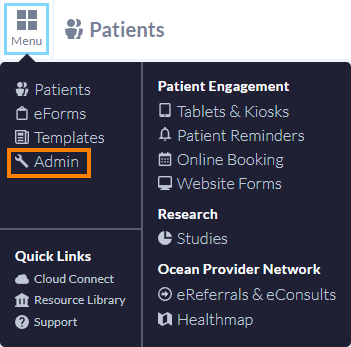
    • Open the 'Menu' in the top left corner and click 'Admin'.
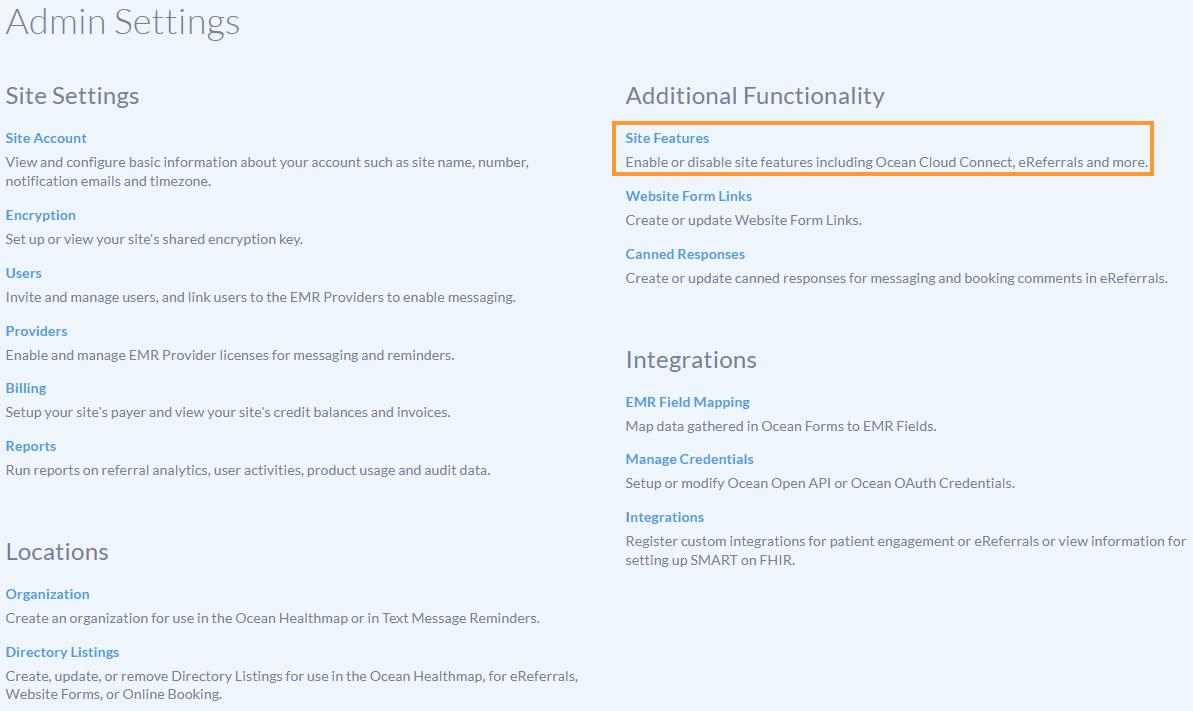
    • From the Admin Settings page, click 'Site Features'.
    • Ensure that the 'Enable Ocean Cloud Connect' checkbox is enabled.

      Note: You will need to manually enable this checkbox.


  2. Understanding the eSubmissions View

    Learn how to navigate Ocean's eSubmissions area, and the basic sections within an eSubmission.

    The eSubmissions view is used for viewing, tracking, and managing all of your eSubmissions in one central area. Learning the basic functionalities of this area will allow you to confidently navigate Ocean and handle your eSubmissions with ease.

    eSubmissions Opening an eSubmission

    The diagram below outlines the key areas and functionalities in the eSubmissions view.


    1. Search Box

    To find a specific eSubmission, type into the search bar. You can search by patient surname, health number or MRN. 

    2. Received Status Folder Group

    The 'Received' (All) folder group contain individual status folders which are used to organize eSubmissions as they progress through their lifecycle. This includes a 'New' folder, 'In Progress' folder, and 'Completed' folder.

    3. Visible Columns Customization

    Contains options to customize which columns are displayed across the eSubmissions table, allowing you to toggle visibility based on your preferences.

    4. Patient eSubmission List

    Shows basic patient information associated with eSubmissions that match your currently selected folder and applied filter(s).

  3. Acknowledging and Declining eSubmissions

    Learn how to acknowledge, decline, and download an eSubmission PDF.

    1. Receive an email notification and access the eSubmission

    • Log in to the Ocean Portal, and use the menu to navigate to the 'eSubmissions' area.
    •  
    • Locate the eSubmission under the 'Received (All)' tab and within the 'New' status folder. Click on the eSubmission to open it and view more details.

      Tip: Use the “Visible Columns” dropdown to show or hide columns and customize your eSubmissions view.

    •  

    2. Review and acknowledge or decline the eSubmission

    • After opening the eSubmission, review its contents to gain a more detailed understanding of the submission and ensure it contains all of the information you require.
    •  
    • Use the 'Decline' or 'Acknowledge' button at the top of the eSubmission to indicate your decision.
    •  

    Tip: Processing and Managing eSubmissions Outside of Ocean

    • If you manage eSubmissions outside of Ocean, open the eSubmission and use the three dots at the top to download and review the submission PDF, then continue processing externally.

      In Ocean, selecting ‘Acknowledge’ moves the submission to the ‘In Progress’ folder, while ‘Decline’ moves it to ‘Completed’ folder.

  4. Messaging within eSubmissions

    Learn how to communicate with other eSubmission stakeholders using the Messaging functionality.

    While eSubmissions can be managed externally, you may still receive messages through the Ocean platform after a submission is sent.

    Viewing New Messages

    • Log in to the Ocean Portal, and use the menu to navigate to the 'eSubmissions' area.
    • eSubmissions navigation 
    • eSubmissions with a new message can be found in the 'Needs Review' tab.
    • Needs Review eSubmissions 
    • After opening the eSubmission, review messages and optionally download the submission PDF by clicking the three dots at the top.
    • Needs Review message 
    • After completing all required actions, click the three dots on the right of the message and select 'Mark as Reviewed' .
    • Needs Review message 

    Note: Once marked as reviewed, the eSubmission will be removed from the "Needs Review" tab and returned to the primary view.

    Responding to Messages

    • Within the 'Messaging/Notes' area, ensure the Messages tab is blue, and select 'New Message' at the bottom.
    • New Message button in eSubmission 
    • Select the appropriate message recipient using the 'Select recipient' dropdown, type your message into the text box, optionally add an attachment, and press 'Send message'.

      When multiple stakeholders are involved in an eSubmission, the 'To:' dropdown menu displays the name of the involved stakeholder's Directory Listing and Ocean Site. However, since it is not mandatory for eSubmission senders to be associated with a Directory Listing, the eSubmission sender's full name and Ocean Site will simply be displayed for selection instead.

    • Send message window 
    • The message recipient will receive an email notification that you have sent them a message.

    Note: All messages within an eSubmission are visible to all stakeholders. Once a message is sent, the eSubmission will move to the 'Needs Review' area of the eSubmissions page.

    Additional Message Functionalities

    • Once a message has been sent, additional functionalities can be accessed by clicking the three dots next to the message.
    • Additional message actions 

    Note: The 'Delete' option is only available to the user who sent the message.

  5. Completing eSubmissions

    Learn how to close the loop on an eSubmission lifecycle.

    After an eSubmission has been acknowledged, it can be marked as ‘Approve’ or ‘Declined,’ at which point it is moved to the Completed folder.

    • Locate the eSubmission within its current status folder. This is typically in the 'In Progress' folder.
    • Open the eSubmission, and select either the 'Decline' or the 'Approve' button at the top.
    • The eSubmission will be automatically moved to the 'Completed' status folder.

Set Up Cloud Connect to Receive eSubmissions

Ocean Cloud Connect is required to safely store your Ocean Site’s Shared Encryption Key. Completing this setup is necessary before you can receive eSubmissions.

Note: Setting up Cloud Connect is a one time step.

About Ocean Cloud Connect

Ocean Cloud Connect is used to safely store your Ocean Site's Shared Encryption Key. 

Prerequisites

Setting Up Ocean Cloud Connect

Log in to Ocean Cloud Connect.

  • Log in using your existing Ocean user account credentials. This is the same Ocean user account that you use to log in to the Ocean Portal.
  • Ocean Cloud Connect login screen 
    Note: If you have not yet enabled Two Factor Authentication (2FA), you will be guided through the setup process before signing into Ocean Cloud Connect.
Note: Despite using the same Ocean user account credentials, you must log in to Cloud Connect separately. Being signed into the Ocean Portal does not automatically sign you into Cloud Connect (or vice versa).

Store your Shared Encryption Key in Cloud Connect.

  • After logging in to Ocean Cloud Connect, click the 'Store my Encryption Key' button.
  • You will be prompted to enter your Shared Encryption Key. After entering it, click 'Save'.

    At this point, your Shared Encryption Key has been successfully saved in Ocean Cloud Connect.

Ensure that Cloud Connect is enabled in your Ocean Site.

  • Log in to the Ocean Portal using your Ocean user account credentials.
  • Open the 'Menu' in the top left corner and click 'Admin'.
  • From the Admin Settings page, click 'Site Features'.
  • Ensure that the 'Enable Ocean Cloud Connect' checkbox is enabled.

    Note: You will need to manually enable this checkbox.


Understanding the eSubmissions View

Learn how to navigate Ocean's eSubmissions area, and the basic sections within an eSubmission.

The eSubmissions view is used for viewing, tracking, and managing all of your eSubmissions in one central area. Learning the basic functionalities of this area will allow you to confidently navigate Ocean and handle your eSubmissions with ease.

eSubmissions Opening an eSubmission

The diagram below outlines the key areas and functionalities in the eSubmissions view.


1. Search Box

To find a specific eSubmission, type into the search bar. You can search by patient surname, health number or MRN. 

2. Received Status Folder Group

The 'Received' (All) folder group contain individual status folders which are used to organize eSubmissions as they progress through their lifecycle. This includes a 'New' folder, 'In Progress' folder, and 'Completed' folder.

3. Visible Columns Customization

Contains options to customize which columns are displayed across the eSubmissions table, allowing you to toggle visibility based on your preferences.

4. Patient eSubmission List

Shows basic patient information associated with eSubmissions that match your currently selected folder and applied filter(s).


Acknowledging and Declining eSubmissions

Learn how to acknowledge, decline, and download an eSubmission PDF.

1. Receive an email notification and access the eSubmission

  • Log in to the Ocean Portal, and use the menu to navigate to the 'eSubmissions' area.
  •  
  • Locate the eSubmission under the 'Received (All)' tab and within the 'New' status folder. Click on the eSubmission to open it and view more details.

    Tip: Use the “Visible Columns” dropdown to show or hide columns and customize your eSubmissions view.

  •  

2. Review and acknowledge or decline the eSubmission

  • After opening the eSubmission, review its contents to gain a more detailed understanding of the submission and ensure it contains all of the information you require.
  •  
  • Use the 'Decline' or 'Acknowledge' button at the top of the eSubmission to indicate your decision.
  •  

Tip: Processing and Managing eSubmissions Outside of Ocean

  • If you manage eSubmissions outside of Ocean, open the eSubmission and use the three dots at the top to download and review the submission PDF, then continue processing externally.

    In Ocean, selecting ‘Acknowledge’ moves the submission to the ‘In Progress’ folder, while ‘Decline’ moves it to ‘Completed’ folder.


Messaging within eSubmissions

Learn how to communicate with other eSubmission stakeholders using the Messaging functionality.

While eSubmissions can be managed externally, you may still receive messages through the Ocean platform after a submission is sent.

Viewing New Messages

  • Log in to the Ocean Portal, and use the menu to navigate to the 'eSubmissions' area.
  • eSubmissions navigation 
  • eSubmissions with a new message can be found in the 'Needs Review' tab.
  • Needs Review eSubmissions 
  • After opening the eSubmission, review messages and optionally download the submission PDF by clicking the three dots at the top.
  • Needs Review message 
  • After completing all required actions, click the three dots on the right of the message and select 'Mark as Reviewed' .
  • Needs Review message 

Note: Once marked as reviewed, the eSubmission will be removed from the "Needs Review" tab and returned to the primary view.

Responding to Messages

  • Within the 'Messaging/Notes' area, ensure the Messages tab is blue, and select 'New Message' at the bottom.
  • New Message button in eSubmission 
  • Select the appropriate message recipient using the 'Select recipient' dropdown, type your message into the text box, optionally add an attachment, and press 'Send message'.

    When multiple stakeholders are involved in an eSubmission, the 'To:' dropdown menu displays the name of the involved stakeholder's Directory Listing and Ocean Site. However, since it is not mandatory for eSubmission senders to be associated with a Directory Listing, the eSubmission sender's full name and Ocean Site will simply be displayed for selection instead.

  • Send message window 
  • The message recipient will receive an email notification that you have sent them a message.

Note: All messages within an eSubmission are visible to all stakeholders. Once a message is sent, the eSubmission will move to the 'Needs Review' area of the eSubmissions page.

Additional Message Functionalities

  • Once a message has been sent, additional functionalities can be accessed by clicking the three dots next to the message.
  • Additional message actions 

Note: The 'Delete' option is only available to the user who sent the message.


Completing eSubmissions

Learn how to close the loop on an eSubmission lifecycle.

After an eSubmission has been acknowledged, it can be marked as ‘Approve’ or ‘Declined,’ at which point it is moved to the Completed folder.

  • Locate the eSubmission within its current status folder. This is typically in the 'In Progress' folder.
  • Open the eSubmission, and select either the 'Decline' or the 'Approve' button at the top.
  • The eSubmission will be automatically moved to the 'Completed' status folder.