
This article describes how to set up a FHIR eReferral integration between Ocean and Intrahealth Profile.
Note: This guide covers the FHIR eReferral integration. It does not cover FHIR Patient Engagement integrations.
Prerequisites
- Confirm that your clinic is using Intrahealth Profile version 9.0.8 or later. Contact Intrahealth if an upgrade is required.
- If your clinic uses a self-hosted Profile environment, IIS and HTTP is needed to be set up. Contact Intrahealth for more information.
- Ensure that you have Ocean Site Admin access and have two-factor authentication enabled for your Ocean user account.
- Consider using the OceanMD FHIR eReferral Integration Questionnaire to collect the required information.
Step 1: Prepare your Ocean Site
Complete the OceanMD Getting Started Guide
Complete the three steps in the OceanMD Getting Started Guide:
- Create your Ocean user account.
- Create your Ocean Site.
- Submit the Ocean request form.
- When creating your Ocean user account and Ocean Site, you will be prompted to specify the EMR that you are using. Select 'Other' and enter Intrahealth Profile in the 'Please specify' field.

- When submitting your Ocean request form, enter Intrahealth Profile in the 'Additional Details' field.

Store the Shared Encryption Key in Ocean Cloud Connect & Enable Ocean Cloud Connect
- Follow the instructions in Storing the Shared Encryption Key in Ocean Cloud Connect without a Cloud Connect EMR Integration.
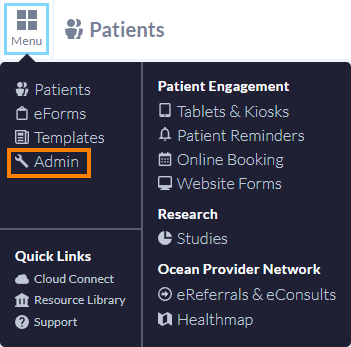
- In your Ocean Site, open the 'Menu' and select 'Admin'.
- Select 'Site Features'.

- Enable the checkbox labeled 'Enable Ocean Cloud Connect'.

- Select 'Save Changes'.
Generate Ocean OAuth credentials
- From the Admin Settings page, select 'Manage Credentials'.

- Select 'Manage OAuth Credentials'.

- Enter your Ocean account password and two-factor authentication code, and then select 'Sign in'.

- Enter a descriptive name in the 'Name' field (i.e. Intrahealth Profile OAuth Credentials), and select 'Add New Credential'.

- The OAuth ClientID and Client Secret are generated and added to the table. These values are needed for Step 2: Coordinate setup with Intrahealth.

Step 2: Coordinate setup with Intrahealth
Contact Intrahealth to begin setting up the Ocean eReferral integration. Intrahealth will:
- Obtain and enter your Profile database ID.
- Generate the required Ocean services licence.
- Enter the licence in the License Module section of Profile.
- Schedule and perform a restart of your Profile environment so that the licence takes effect.
Once these steps are complete, Intrahealth will provide detailed instructions for enabling Ocean in your EMR. You will need the following information obtained in Step 1:
- Ocean Site number
- OAuth Client ID
- OAuth Client Secret
- Shared Encryption Key
Tip: For help finding your Ocean Site number, refer to Where do I find my Ocean site number?
Intrahealth will also provide the Request URL, OAuth2 authentication credentials, and required integration settings and permissions that you will use in Step 3: Register the Integration in Ocean.
Step 3: Register the Integration in Ocean
Complete these steps yourself or with assistance from Intrahealth.
Note: If Intrahealth requires access to your Ocean Site to assist with configuration, follow the instructions in Adding a Support Site to Your Site. If you are joining the Ocean Provider Network through a provincial program, you may also need to add the provincial program's Support Site.
- In the Ocean Portal, open the Menu and select Admin.
- Select Integrations.

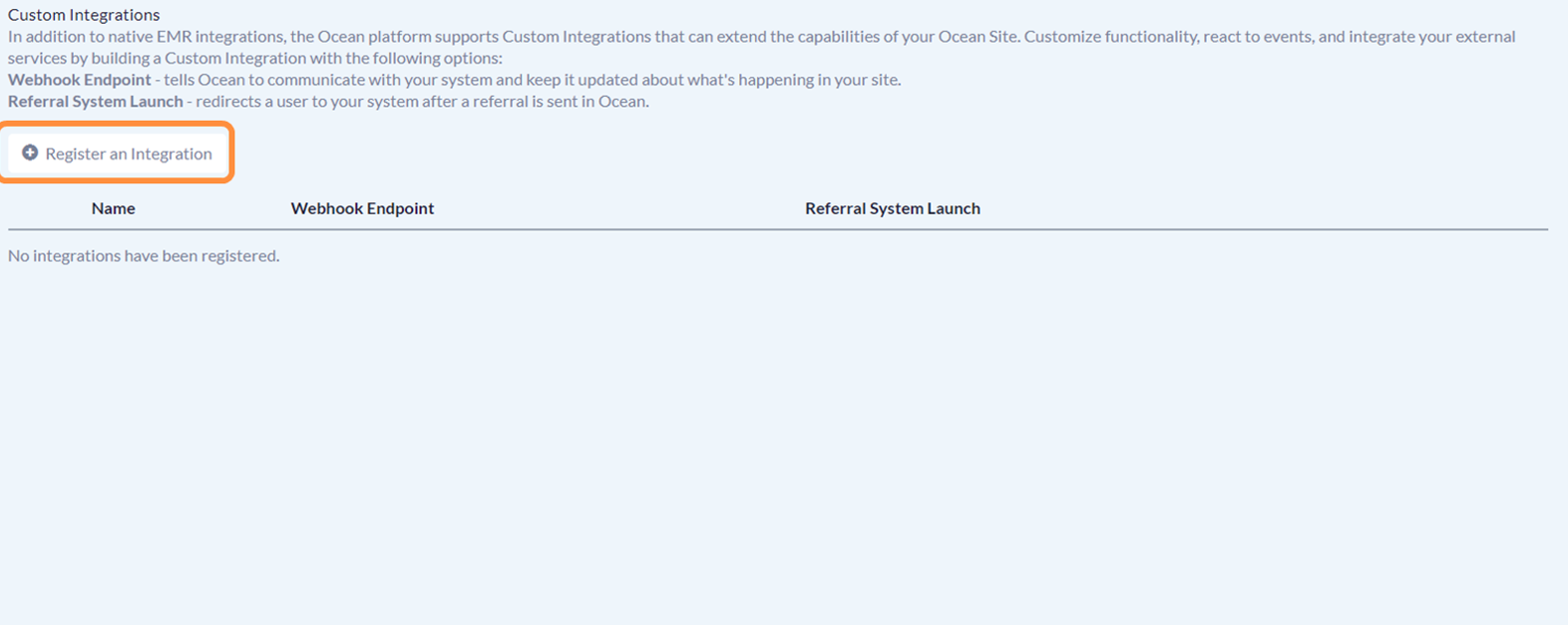
- Select Register an Integration.
- Select eReferrals as the integration type.

- Enter a descriptive Integration Name (for example, Intrahealth Profile), and enter the Request URL provided by Intrahealth.

- Under Payload Type, select FHIR V0.11.1.

- Select OAuth2 Authentication. Enter the authentication credentials provided by Intrahealth.

- Select the configuration settings for your FHIR eReferral Integration advised by Intrahealth. For information about the available settings and permissions, refer to Configuring Settings and Permissions for API Integrations.

Important
Under API Behaviour, select Post a copy of the referral (all integrations) and all subsequent status updates (FHIR v0.11 only) to this endpoint when a new referral is sent from this site. This setting must remain selected so that Profile receives updates to the eReferral.
- Select 'Save'.
- Your Ocean Site's Intrahealth Profile eReferral integration is now configured.
Step 4: Link the Integration to your Directory Listing (for Receivers only)
Complete this step only if your integration receives eReferrals.
Prerequisites
- Your clinic must have a Directory Listing that is claimed by your Ocean Site and configured to receive eReferrals. If necessary, find or add your clinic to the Ocean Provider Network and claim the Directory Listing to your Ocean Site.
To link the Integration:
- In the Ocean Portal, open the 'Menu' and select 'Admin'.
- Select 'Directory Listings'.

- Select 'Edit' on the relevant listing.

- In the 'Listing Information' tab, ensure that 'Will this listing accept eRequests?' is set to 'Yes, eReferrals and/or eConsults.'

-
In the Enablement tab of the Directory Listing, locate the Integrations section.
In the 'External Service Id' field, manually enter the name of the FHIR eReferral integration that you configured earlier.
In the 'Integration' field, use the dropdown menu to select the FHIR eReferral integration that you configured earlier.

- Select 'Save'.
Step 5: Request that SMART launch credentials and URLs be added to the Ocean allowlist
Intrahealth Profile allows users to launch Ocean directly from the EMR. This supports single sign-on and allows information from the patient chart in the EMR to pre-populate eRequest forms in Ocean.
If you are unsure where to find the SMART launch values, contact Intrahealth. For more information, refer to the Allowlisting section of the Ocean SMART App Launch Overview.
Obtain the following values and provide them to OceanMD Support so that your Intrahealth server can be added to the allowlist:
| Required information | How to obtain it |
|---|---|
| Ocean Site number |
For help finding your Ocean Site number, refer to Where do I find my Ocean site number?
|
|
OAuth Client ID OAuth Client Secret |
Obtain these values from Step 1: Generate OAuth credentials.
|
|
Authorization endpoint Token endpoint Token issuer URL |
Obtain these values from your Intrahealth EMR. |
| Server URL |
On the Admin Settings page in your Ocean Site, select 'Integrations'.
Under the SMART on FHIR heading, locate your Ocean Site's SMART on FHIR launch URL.
|


Step 6: Link your Profile account to your Ocean user account
Each person using the integration must link their Profile account to their Ocean account once.
- Follow Intrahealth's instructions on how to launch Ocean from Profile.
- Sign in to your Ocean user account.
- After successfully signing in, your Profile user account will be linked to your Ocean user account. This means the next time you launch from Profile into Ocean, you will be automatically signed in to your Ocean user account.
Note: Performing the account linkage is a one-time step that must be individually performed by each EMR user that will be using Ocean.
Ensure that each person who will use Ocean has been invited to join your Ocean Site and has created their Ocean user account before they attempt to link their accounts.
Step 7: Test the Integration
- Launch Ocean from Profile.
- Confirm that the correct patient is displayed.
- Send a test eReferral.
- Receive and process a test eReferral, if your clinic receives eReferrals.
- Confirm that referral information and status updates appear correctly in both systems.