1. Initiate Your Ocean eSubmission

    You can access the Ocean eSubmission Network from the link in your EMR (for integrated EMRs) or directly from the Ocean Healthmap to initiate your eSubmission.

    With an Ocean account, you can initiate an Ocean eSubmission at any time directly from the Ocean Healthmap. If you are using an EMR which is integrated with Ocean, you can also initiate an eSubmission at any time by following the steps below.

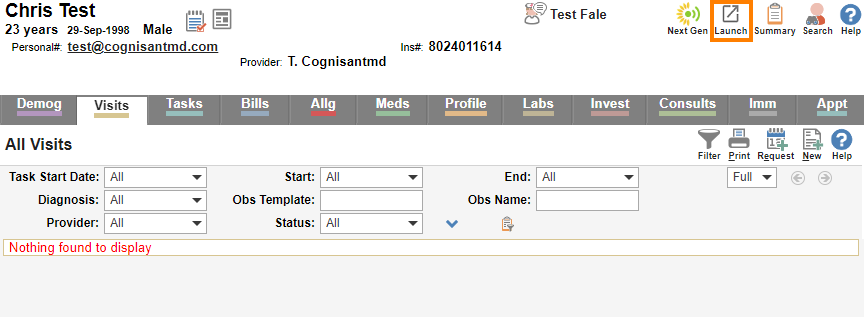
    Initiate your eSubmission (without an attachment)

    PS Suite Med Access Accuro OSCAR Pro OSCAR Non-Integrated
    • Click the "Refer" button on the Ocean toolbar in the patient record.

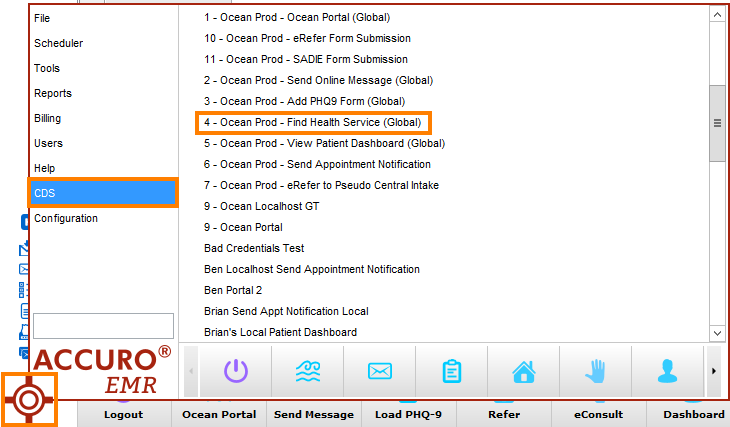
    Initiate your eSubmission (with an attachment)

    PS Suite Med Access Accuro OSCAR Pro OSCAR Non-Integrated
    • The EMR-specific actions above will take you directly to the Ocean Healthmap.
    • Note: Log in to the Ocean Healthmap with your Ocean user credentials if your user name does not appear in the top right so that your provider details are autopopulated in the eSubmission.
  2. Select Your eSubmission Recipient

    Search for your desired recipient to create your eSubmission.

    • Browse or search the Ocean Healthmap for a Directory Listing to send your eSubmission to.
    • The search bar at the top of the page allows you to type in a key term to search for, or select related health services in the geographic region that your map is focused on.
    • You can also browse the health service categories to categorically search for health services in the geographic region that your map is focused on.
    • The 'Advanced Search and Filtering' option allows you to define more specific criteria for your search results. To filter for Directory Listings that are only accepting eSubmission, enable the ‘Only if accepting eSubmission’ checkbox.
    • To broaden your search results beyond the geographic region that your map is focused on, you may choose to zoom out, clear your filters, or click to search the whole directory. You may also zoom in and out within the Healthmap to narrow or broaden your search.
    • Once you determine your desired recipient, select the Directory Listing and click 'Send eSubmission'.

    Test Mode

    • If you are looking to send a test eSubmission, use the test mode toggle in the bottom left corner of the screen to enable/disable test mode.
    • When test mode is enabled, the healthmap will only show recipient Directory Listings that also have test mode enabled.
  3. Send Your eSubmission

    Complete the eSubmission form and send your submission off to the recipient.

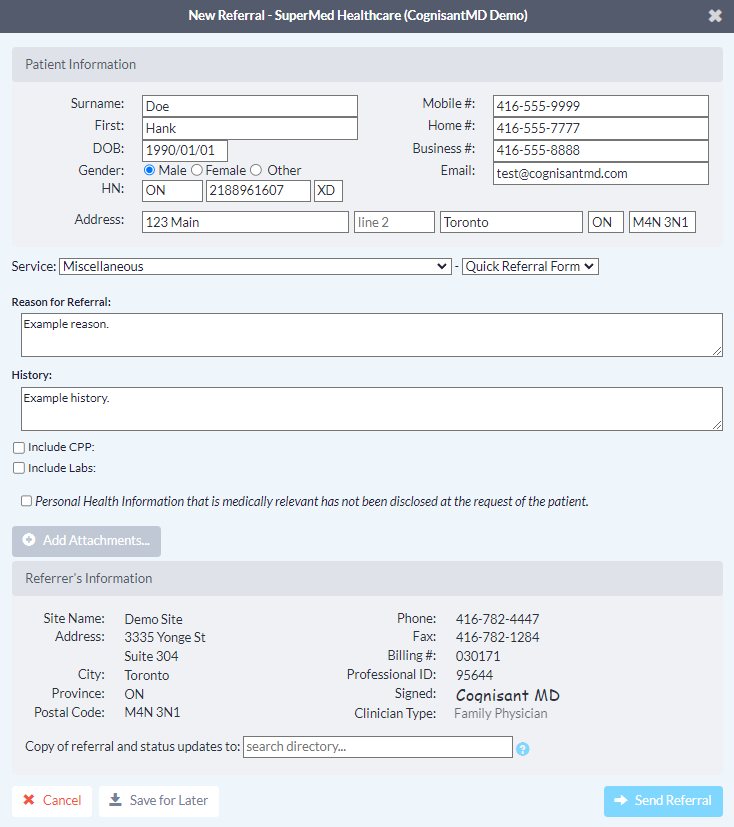
    • Complete the eSubmission form, as required. If you initiated the eSubmission from an integrated EMR, patient contact information and other required details will be automatically pre-populated. Complete the remaining fields as required.

      Note: The 'Email' field in the Patient Information section supports only one patient email address per eSubmission. Do not include more than one email patient address in this field.

    • Include any relevant attachments by pressing the 'Add Attachments' button and selecting them from your computer.

      Note: If you are a Med Access user and using the Ocean-MA Extension you will be automatically prompted to include any queued attachments as soon as the eSubmission form is opened.

      If you are a PS Suite, Accuro, or OSCAR Pro user and you initiated your eSubmission with an attachment, it will be automatically included below the 'Add Attachments' button.

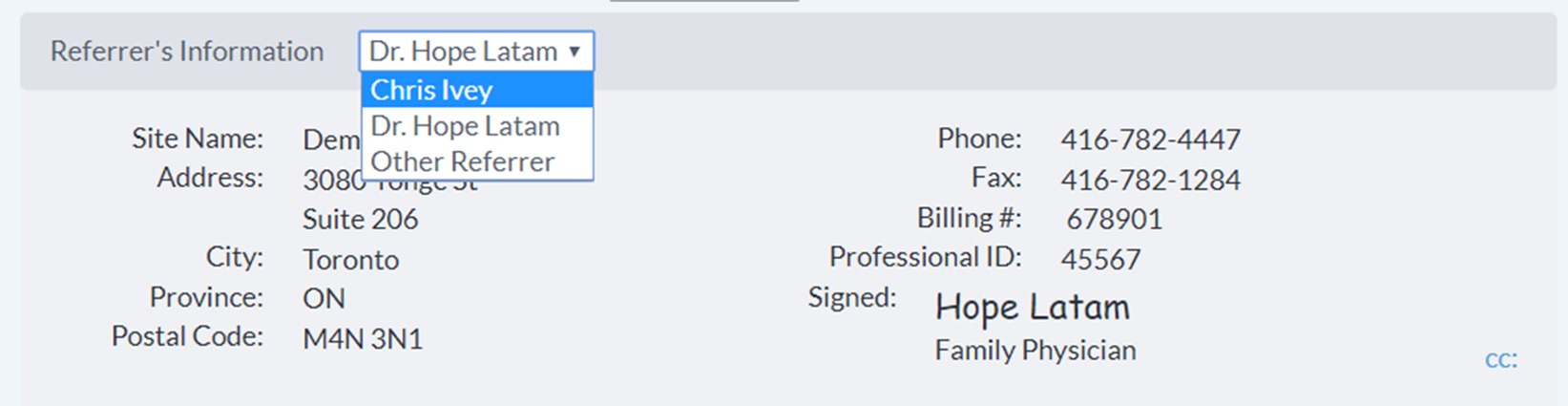
    • If you are sending an eSubmission as a delegate, you will need to select the appropriate provider that you are referring on behalf of (from the dropdown menu at the top of the "Referrer Information" panel).
    • Click the "Send" button to send your eSubmission.
    • Once sent, you will see a confirmation window.
    • The eSubmission will then be documented in the patient's chart.
    PS Suite Med Access Accuro OSCAR Pro OSCAR Other EMR

    The eSubmission note and the Ocean eSubmission Custom Form are automatically downloaded into the patient chart.

    Using the Ocean eSubmission Custom Form, an internal PS message can optionally be triggered to the PS user/group of your choice as a reminder follow up on the submission in the specified number of days. The Ocean eSubmission Custom Form Also also offers a shortcut to quickly create a PSS Pending Test / Consult.

    • If the 'Automatically Import Attachments to EMR' setting is disabled in your Cloud Connect configuration, the submission note will be added to the patient chart as only a textual Progress Note.
    • If the 'Automatically Import Attachments to EMR' setting is enabled in your Cloud Connect configuration, the submission note will be added to the patient chart as both a textual Progress Note and a eSubmission record PDF attached to an additional Progress Note. The eSubmission PDF includes any attachments that were included at the time of sending the eSubmission.
  4. Viewing eSubmissions in the Ocean

    Learn how to navigate Ocean's eSubmissions area, and the basic sections within an eSubmission.

    The eSubmissions view is used for viewing, tracking, and managing all of your eSubmissions in one central area. Learning the basic functionalities of this area will allow you to confidently navigate Ocean and handle your eSubmissions with ease.

    eSubmissions Opening an eSubmission

    The diagram below outlines the key areas and functionalities in the eSubmissions view.


    1. Search Box

    To find a specific eSubmission, type into the search bar. You can search by patient surname, health number or MRN. 

    2. Send Status Folder Group

    The 'Sent' (All) folder group contain individual status folders which are used to organize eSubmissions as they progress through their lifecycle. This includes a 'New' folder, 'In Progress' folder, and 'Completed' folder.

    3. Visible Columns Customization

    Contains options to customize which columns are displayed across the eSubmissions table, allowing you to toggle visibility based on your preferences.

    4. Patient eSubmission List

    Shows basic patient information associated with eSubmissions that match your currently selected folder and applied filter(s).

Initiate Your Ocean eSubmission

You can access the Ocean eSubmission Network from the link in your EMR (for integrated EMRs) or directly from the Ocean Healthmap to initiate your eSubmission.

With an Ocean account, you can initiate an Ocean eSubmission at any time directly from the Ocean Healthmap. If you are using an EMR which is integrated with Ocean, you can also initiate an eSubmission at any time by following the steps below.

Initiate your eSubmission (without an attachment)

PS Suite Med Access Accuro OSCAR Pro OSCAR Non-Integrated
  • Click the "Refer" button on the Ocean toolbar in the patient record.

Initiate your eSubmission (with an attachment)

PS Suite Med Access Accuro OSCAR Pro OSCAR Non-Integrated
  • The EMR-specific actions above will take you directly to the Ocean Healthmap.
  • Note: Log in to the Ocean Healthmap with your Ocean user credentials if your user name does not appear in the top right so that your provider details are autopopulated in the eSubmission.

Select Your eSubmission Recipient

Search for your desired recipient to create your eSubmission.

  • Browse or search the Ocean Healthmap for a Directory Listing to send your eSubmission to.
  • The search bar at the top of the page allows you to type in a key term to search for, or select related health services in the geographic region that your map is focused on.
  • You can also browse the health service categories to categorically search for health services in the geographic region that your map is focused on.
  • The 'Advanced Search and Filtering' option allows you to define more specific criteria for your search results. To filter for Directory Listings that are only accepting eSubmission, enable the ‘Only if accepting eSubmission’ checkbox.
  • To broaden your search results beyond the geographic region that your map is focused on, you may choose to zoom out, clear your filters, or click to search the whole directory. You may also zoom in and out within the Healthmap to narrow or broaden your search.
  • Once you determine your desired recipient, select the Directory Listing and click 'Send eSubmission'.

Test Mode

  • If you are looking to send a test eSubmission, use the test mode toggle in the bottom left corner of the screen to enable/disable test mode.
  • When test mode is enabled, the healthmap will only show recipient Directory Listings that also have test mode enabled.

Send Your eSubmission

Complete the eSubmission form and send your submission off to the recipient.

  • Complete the eSubmission form, as required. If you initiated the eSubmission from an integrated EMR, patient contact information and other required details will be automatically pre-populated. Complete the remaining fields as required.

    Note: The 'Email' field in the Patient Information section supports only one patient email address per eSubmission. Do not include more than one email patient address in this field.

  • Include any relevant attachments by pressing the 'Add Attachments' button and selecting them from your computer.

    Note: If you are a Med Access user and using the Ocean-MA Extension you will be automatically prompted to include any queued attachments as soon as the eSubmission form is opened.

    If you are a PS Suite, Accuro, or OSCAR Pro user and you initiated your eSubmission with an attachment, it will be automatically included below the 'Add Attachments' button.

  • If you are sending an eSubmission as a delegate, you will need to select the appropriate provider that you are referring on behalf of (from the dropdown menu at the top of the "Referrer Information" panel).
  • Click the "Send" button to send your eSubmission.
  • Once sent, you will see a confirmation window.
  • The eSubmission will then be documented in the patient's chart.
PS Suite Med Access Accuro OSCAR Pro OSCAR Other EMR

The eSubmission note and the Ocean eSubmission Custom Form are automatically downloaded into the patient chart.

Using the Ocean eSubmission Custom Form, an internal PS message can optionally be triggered to the PS user/group of your choice as a reminder follow up on the submission in the specified number of days. The Ocean eSubmission Custom Form Also also offers a shortcut to quickly create a PSS Pending Test / Consult.

  • If the 'Automatically Import Attachments to EMR' setting is disabled in your Cloud Connect configuration, the submission note will be added to the patient chart as only a textual Progress Note.
  • If the 'Automatically Import Attachments to EMR' setting is enabled in your Cloud Connect configuration, the submission note will be added to the patient chart as both a textual Progress Note and a eSubmission record PDF attached to an additional Progress Note. The eSubmission PDF includes any attachments that were included at the time of sending the eSubmission.

Viewing eSubmissions in the Ocean

Learn how to navigate Ocean's eSubmissions area, and the basic sections within an eSubmission.

The eSubmissions view is used for viewing, tracking, and managing all of your eSubmissions in one central area. Learning the basic functionalities of this area will allow you to confidently navigate Ocean and handle your eSubmissions with ease.

eSubmissions Opening an eSubmission

The diagram below outlines the key areas and functionalities in the eSubmissions view.


1. Search Box

To find a specific eSubmission, type into the search bar. You can search by patient surname, health number or MRN. 

2. Send Status Folder Group

The 'Sent' (All) folder group contain individual status folders which are used to organize eSubmissions as they progress through their lifecycle. This includes a 'New' folder, 'In Progress' folder, and 'Completed' folder.

3. Visible Columns Customization

Contains options to customize which columns are displayed across the eSubmissions table, allowing you to toggle visibility based on your preferences.

4. Patient eSubmission List

Shows basic patient information associated with eSubmissions that match your currently selected folder and applied filter(s).