
A One-Time Booking link allows an existing patient to book a single appointment using a unique link that expires after a set period of time. This is useful for appointments that should only be offered to specific patients, such as initial consultations, specialist appointments, or other appointment types that should not be available through a general public booking link.
Each One-Time Booking link is intended for a single patient and should not be forwarded or shared. Once the appointment has been booked or the link expires, it can no longer be used.
Prerequisites
- Your Ocean Site has Advanced Clinic Booking enabled. If it is not enabled, contact the OceanMD team.
- Your Ocean Site has at least one Booking Link with "Show this link in One-Time Bookings" enabled. For instructions, refer to "Set Up Booking Links."
- Your EMR Schedule(s) must be activated for use in Online Booking under a "Patient Engagement Licence (Plus)." For instructions, refer to "Adding Ocean Licences."
Sending a One-Time Booking Link to Patients
Initiate your email message
There are two methods to send a One-Time Booking Link, as outlined below:
- Select "Email" from the Ocean custom form or toolbar.
-


- Alternatively, you can launch the Patient Dashboard from the patient's chart in your EMR and select "Send a One-Time Booking Link."
-

- This will open a message window. Select "Send a One-Time Booking Link."
-

- Open the patient's chart and access the TELUS Launcher.
-
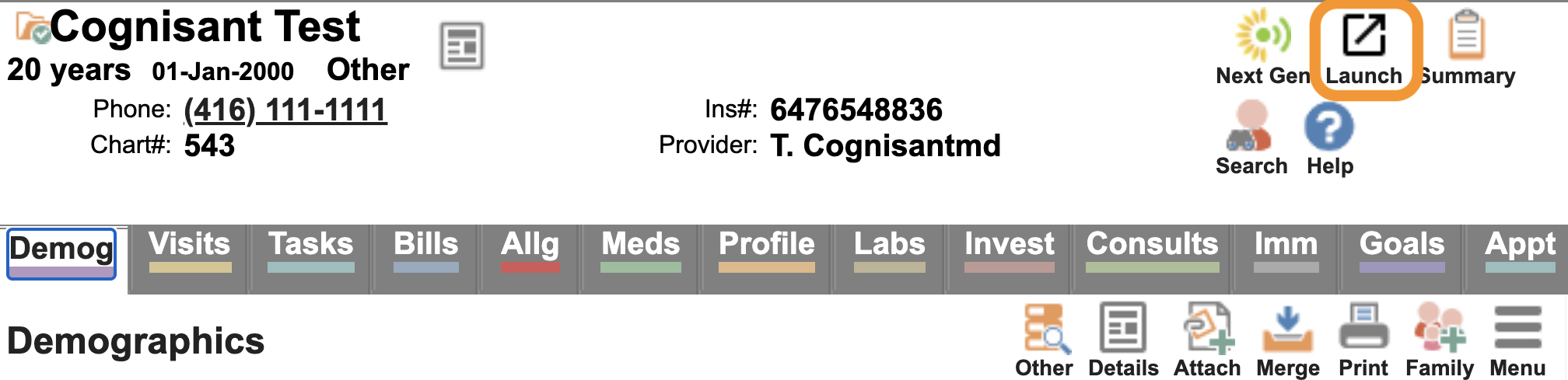
- Under My Extensions, locate "Ocean" and select "Send Message."
-

- Alternatively, you can launch the Patient Dashboard from the patient's chart in your EMR and select "Send a One-Time Booking Link."
-
- This will open a message window. Select "Send a One-Time Booking Link."
-
There are 3 options for initiating your Patient Message once the relevant patient chart has been opened in Accuro:
- Option 1: Select the "Send Patient Message" CDS Quick Link from the Accuro action bar.
-

- Option 2: Select the "Send Patient Message" global CDS link from within the CDS menu.
-

- Option 3: Select the "View Patient Dashboard" CDS Quick Link from the action bar, or use the equivalent global CDS link to open the Ocean Patient Summary, and then select "Email Patient."
-

- Alternatively, you can launch the Patient Dashboard from the patient's chart in your EMR and select "Send a One-Time Booking Link."
-
- This will open a message window. Select "Send a One-Time Booking Link."
-
-
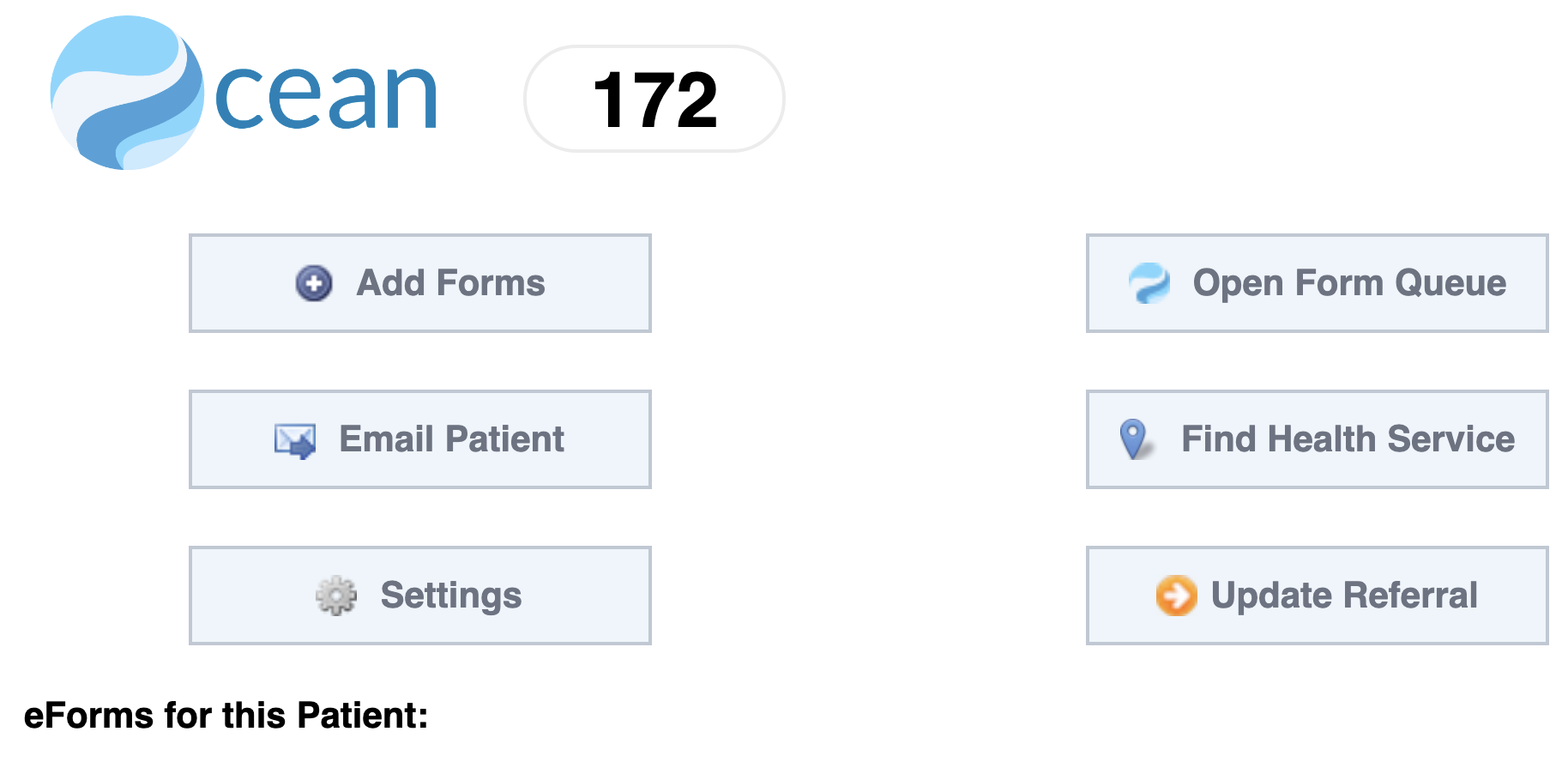
Select "Email Patient" from the Ocean eForm.
Alternatively, expand the Ocean Toolbar within the patient chart using the grey arrow on the right and select "Email."
-

- Alternatively, you can launch the Patient Dashboard from the patient's chart in your EMR and select "Send a One-Time Booking Link."
-
- This will open a message window. Select "Send a One-Time Booking Link."
-
- Log in to the Ocean Portal.
-

- Navigate to the eReferrals & eConsults page and select the relevant referral from the Pending Booking folder.
-
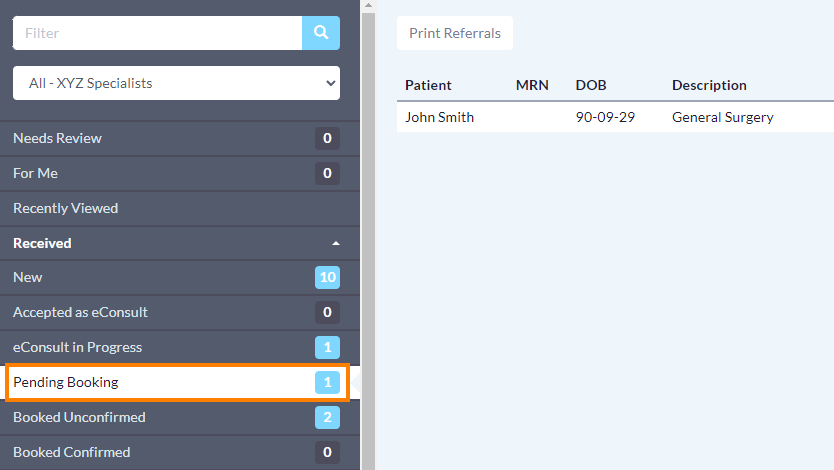
- Navigate to the scheduling pane of the referral and select "Send One-Time Booking Link."
-

- This will open a message window, and "Send a One-Time Booking Link" is selected by default.
-
-
Complete the One-Time Booking Link Message
If available, the “To:” field is automatically populated with the patient’s email address from their EMR chart. The message fields are also pre-populated using your Site Default template.
- If you have already created a One-Time Booking Link template, select 'Templates', then select the appropriate template. To learn more about creating templates or changing your Site Default template, refer to “Creating Templates for One-Time Booking Links”.
-

- Once selected, these template settings will apply:
- Appointment Window
-
Select the date range during which the patient can book their appointment. By default, it is set to 1 year.
- Booking link
-
Select the applicable One-Time Booking Link from the dropdown menu. Only One-Time Booking Links available in your Ocean site will appear.
- Minimum notice required
-
Use the Advanced settings to prevent patients from booking too close to the appointment time. Enter the minimum number of days and hours required before the appointment.
-
Send One-Time Booking Link
- Select ‘Send One-Time Booking Link’ .
-

- A confirmation window will appear once the email has been sent. Click ‘OK’.
-

-
Note: The successful sending of an email does not guarantee its delivery. It may bounce, be spam-filtered, or fail to be read by the recipient.
-
Configure your email address for alerts (optional)
Clinics can receive an email notification when a patient cancels an upcoming apopintment through Online Booking. To set this up, refer to this article: Enabling Appointment Cancellation from Patient Reminders
Note: This is a site-wide setting that can only be set up by a Site admin .

To learn more about monitoring One-Time Booking Links, see Monitoring the status of One-Time Booking Links.