
NOTE
The BC Lab eOrder Project has not yet been released.
The BC Lab eOrder Project eliminates the need for paper requisitions and ensures information is transmitted securely and electronically.
Using Ocean, providers can launch a requisition from the EMR or from the Ocean Healthmap, and send it off electronically. Patients can also receive a printed copy of the requisition to bring to the lab, if needed.
Steps to Send a Lab eOrder
1. Initiate your eOrder
- Click the "Refer" button on the Ocean toolbar in the patient record.

- Press the "Launch" icon from within the patient's chart.

- Locate the "Ocean" extension, and select "View Patient".

- Press the "Send eReferral" button from within the patient's dashboard.

- With your desired patient in context in Accuro, click the "Send eRequest / Find Health Service" global CDS link.
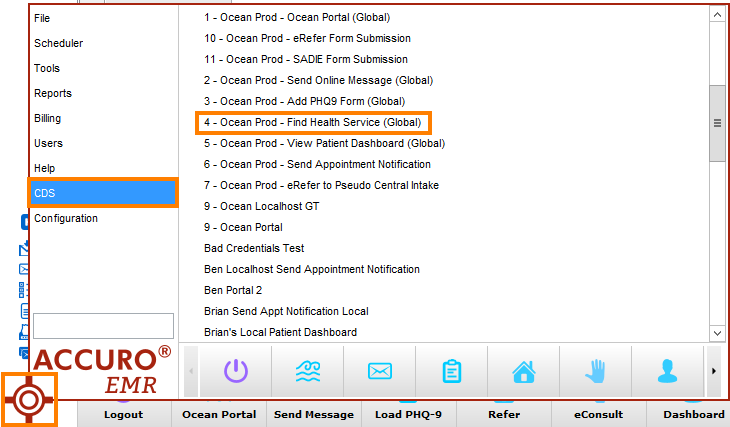
- Alternatively, you can click your equivalent user-friendly CDS link on the action bar.

- Click the 'Refer' button on the Ocean Toolbar.

- Alternatively, click the 'Oc.' shortcut on the relevant patient's appointment from the schedule, and then click 'Find Health Service' on the Ocean eForm.

In a web browser, navigate directly to the Ocean Healthmap.
2. Select the PHSA BC Lab eOrder Directory Listing
Note: All eOrders in British Columbia should be sent to the PHSA BC Lab eOrder directory listing
- Search for the PHSA BC Lab eOrder directory listing on the Ocean Healthmap.
-

-
Click Send eOrder.
Note: If this button is greyed out, you may not be licensed to send eOrders. If you are interested in sending Lab eOrders through Ocean, please reach out to the Program at dro.program@phsa.ca
-

3. Complete the SOPLR Form
-
Clicking Send eOrder opens the Standard Outpatient Laboratory Requisition (SOPLR) form. The Patient Information section will be automatically populated from the EMR, if available.
-

-
Copy eOrder and lab results to: you can optionally copy another provider with a directory listing (e.g., family physician or specialist) to receive results.Results distribution will occur outside of Ocean.
Note: This is an optional step.
-

-
Copies to (CC) Doctors Outside of Ocean Program: you can optionally copy another provider outside of Ocean (e.g., family physician or specialist) to receive results. Results distribution will occur outside of Ocean.
Note: This is an optional step.
-

4. Use Autofill Templates
Note: This is an optional step in the BC Lab eOrder workflow.
-
Ocean's Autofill Templates make completing requisitions more efficient. If you've created Autofill Templates for certain tests, select a template from the dropdown to quickly populate the SOPLR form.
To learn more about using Autofill Templates, please refer to Autofill Templates.
5. Add Tests
- Select the appropriate test(s) using one of the available checkboxes, or under Other Tests, search the provincial catalogue for the lab test(s) you want to order.
-


6. Review and Send
- Review the Order Summary to confirm details.
-

- Click Send eOrder.
- The SOPLR form will be validated upon send, and if any required information is missing, an error message will appear.
What Happens After Sending a Lab eOrder
- The completed SOPLR form is sent to a provincial holding tank.
-

- A PDF copy of the SOPLR is generated. You may want to print this for your patient, as page 2 includes important patient instructions.
- If the patient has consented to email notifications, they will also receive an email confirming that a lab requisition has been sent, along with next steps.
-

- The SOPLR PDF and Ocean Referral note are downloaded into the EMR (if the site is integrated).
Accessing the SOPLR PDF Later
If you need to re-print the SOPLR after sending:
- Log in to the Ocean Portal.
-

- Click Menu -> eReferrals & eConsults.
-

- Open the Lab eOrders status folder.
-

- Select the patient's Lab eOrder.
- Under the Messaging window, click the eye icon to view and print the PDF.
-

Frequently Asked Questions
Expand each tab below to learn more:
No, there is a dedicated Lab eOrder folder, that you can use to track your sent lab eOrders.
eOrders are stored in Ocean for 365 days after the sent date, after which they will be archived. After 365 days, they will also no longer be available in the provincial holding tank.
Results for lab eOrders are not distributed through Ocean.
No, the messaging pane is disabled for lab eOrders.
Lab eOrders cannot be modified once they've been sent to the provincial holding tank.
No, since the patient can visit the lab at any time, their appointment information will not be updated in Ocean.