
What is Team-Based Booking?
Team-Based Booking is the newest improvement to Ocean's Online Appointment Booking solution, designed to support walk-in clinics, flu shot clinics, and clinics that operate using a team-based approach.
What features are included in Team-Based Booking?
This new module introduces powerful features designed to improve the booking experience for both patients and staff:
- Simplified Patient Flow: Patients now select their appointment type first, and are then shown a list of eligible providers, to streamline the booking flow.
- First Available Appointment: Clinics may choose to display the earliest appointment time available to patients.
- Group Scheduling: Group multiple providers into a shared schedule so patients can book an appointment without selecting a specific provider. Perfect for urgent care, walk-in and flu shot clinics.
How does Team-Based Booking compare to Standard Booking?
| Feature | Description | Standard Booking | Team-Based Booking |
|---|---|---|---|
| Booking Flow | The order of the steps the patient performs to book an appointment online. | 1) Select Booking Schedule 2) Select Appointment Type |
1) Select Appointment Type 2) Select Booking Schedule |
| Pre-Booking Form | The eForm that patient completes when booking an appointment online. | Highly customizable, can be used to enforce highly complex booking rules, and contains sensitive eForm item types. | Highly customizable, does not support complex booking rules, and does not contain sensitive eForm item types. |
| First Availability | The ability to display the first available appointment for your Booking Schedules. | Not available. | Can be optionally enabled. |
| Group Schedules | The ability to create a single "group schedule" made up of multiple independent Booking Schedules. | Not available. | Can be optionally configured. |
How can I start using Team-Based Booking?
Prerequisites
- Your Ocean Site must be approved for participation by the OceanMD Team.
Step 1: Set Up Appointment Types Available for Online Booking
The first step is to Set Up Appointment Types Available for Online Booking for all providers who will be using online booking.
Note: We highly recommend enabling and configuring EMR Appointment Type Mapping so that you can take advantage of the powerful restrictions that are available within each Booking Schedule.
Expand the tab below for additional information regarding the set up of Appointment Types when using Team-Based Booking.
Since patients first choose their Appointment Type and then choose a Booking Schedule when booking online, it is important for you to decide how general or specific your Appointment Types should be depending on your clinic preferences and workflows.
For example, a wide range of specific Appointment Types that may or may not be offered by a large number of Booking Schedules is more relevant in the Team-Based Booking experience, since Ocean will intelligently route the patient to select from only the list of Booking Schedules that offer their chosen Appointment Type.
In contrast, if you have only a few identical appointment types that are offered by the providers at your clinic, there is a limit to the amount of intelligent type-to-provider routing that can be achieved based on the patient's chosen appointment type.
Step 2: Set Up Booking Schedules
The second step is to Set Up Booking Schedules in Ocean for each of the EMR Schedules that you would like patients to book into online.
Expand the tab below for additional information regarding the set up of Booking Schedules when using Team-Based Booking.
- A key concept to understand when using Team-Based Booking is the difference in the customizable Pre-Booking Form that patients fill out when booking their appointment online:
- In the Standard Booking experience, patients first select their desired Booking Schedule, and then select their Appointment Type directly within the Pre-Booking Form of the chosen schedule. This gives clinics the opportunity to configure complex booking rule logic based on the patient's chosen appointment type (e.g., prevent the patient from booking based on their responses to customized screening questions).
- In the Team-Based Booking experience, since the patient first selects their desired appointment type before selecting the Booking Schedule (i.e., outside of the Pre-Booking Form), clinics cannot configure complex booking rule logic based on the patient's chosen appointment type.
- To support an individual Booking Schedule being used in both a Team-Based Booking Link and Standard Booking Link simultaneously, Ocean offers dedicated Pre-Booking Forms for each booking flow within the Booking Schedule itself.
- When the Team-Based Booking flow is being used, Ocean will continue to respect all restrictions configured within each Booking Schedule.
Step 3: Set Up Booking Links
The third step is to set up your Booking Link(s) in Ocean to host the Booking Schedules that you configured earlier.
- In the 'Online Booking area of the Ocean Portal, click the 'Settings' button.

- Next to the 'Booking Links' heading, click 'Configure'.

- Click 'Add Booking Link'

- Select 'Team-Based Booking Link'

- Consult the 'Team-Based Booking Link Configuration Settings' section below for details on new Team-Based booking settings and configurations option available within the Booking Link.
-
Click the 'Save' button at the bottom of the page.
After saving, the URL for your Booking Link will be generated at made available under the 'Booking Links' heading within the Online Booking Settings page.
Team-Based Booking Link Configuration Settings

Next, refer to the Set Up Booking Links article for details about the configuration settings available in both Standard Booking Links and Team-Based Booking Links.
Configuration options specific to Team-Based Booking Links are outlined below:
First Available Appointment
- Optionally enable the ability to show patients the first time slot available for each Booking Schedule or Grouped Schedule when selecting their provider.

- When enabled, Ocean will also display the number of additional time slots that are available over the next 10 days.
Add Grouped Schedule
Optionally configure a Grouped Schedule to combine up to ten individual Booking Schedules into a single schedule choice for patients to select during the booking flow.
- Click 'Add Grouped Schedule'.

- Enter a Group Name that patients will see and select to book into this group.
- Choose the Group Booking Form that patients will complete when booking with this group.
- Select the individual Booking Schedules to include in this group.
- Click 'Save Changes'.
- Once saved, the Grouped Schedule will appear as a single option for patients to select when booking online.

- When a patient books into a Grouped Schedule, Ocean will randomly select an individual schedule from the group to book the patient into, while still respecting all restrictions configured within each independent Booking Schedule.
Note: Loading times may be impacted for sites configured with multiple groups, each with up to 10 schedules. For these configurations, we recommend turning off First Available to help maintain performance
What is the patient experience?
When a Team-Based Booking Link is used, patients book online with the following steps:
- Check-in
- Select Type & Schedule
- Provide Details
- Choose Date & Time
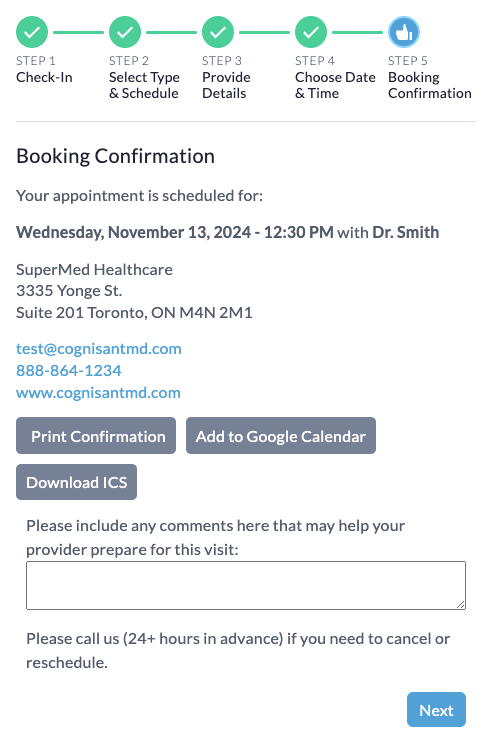
- Booking Confirmation
Expand the tab below for a visual walkthrough:
- Check-in: The patient enters their information.

-
Select Type & Schedule: The patient selects their desired Appointment Type, and can then choose from the schedules that offer it.
Note: If the 'First Available Appointment' setting has been enabled within the Booking Link, Ocean will display the first time slot available for each schedule and the number of additional time slots that are available over the next 10 days.

- Provide Details: The patient completes the Pre-Booking Form (Team-Based) for the chosen schedule.

- Choose Date & Time: The patient chooses an appointment date and time.

- Booking Confirmation: The patient is presented with the booking confirmation details for their appointment, and the opportunity to complete the Post-Booking Form for the chosen schedule.
Frequently Asked Questions
Expand each tab below to learn more:
When a Booking Schedule is configured to only accept same-day appointments and is hosted in a Team-Based Booking Link, Ocean will continue respect the time of day that the schedule becomes available to patients each day, and patients will only be able to book appointments for the current day.
When the 'First Available Appointment' functionality is enabled and no appointments are available within the next 10 days, Ocean instructs patients to proceed to the next step in the booking sequence to review appointments beyond the next 10 days. If no appointments are available at all (i.e., including and beyond the next 10 days), patients will not see any availability in the booking calendar and will be unable to book an appointment.
When the 'First Available Appointment' functionality is disabled and no appointments are available at all, patients will not see any availability in the booking calendar and will be unable to book an appointment.
Yes, you can host multiple alternate configurations of a Booking Schedule in a single Team-Based Booking Link.
Yes, a Booking Schedule can be hosted in a Team-Based Booking Link both as an independent Booking Schedule and as a part of a Grouped Schedule.
No, since patients choose their Appointment Type prior to completing the Pre-Booking Form during the Team-Based Booking flow, the patient's chosen Appointment Type is not included in the note generated from the Pre-Booking Form.
However, when EMR Appointment Type mapping is enabled (highly recommended), the relevant Appointment Type will be applied directly to the appointment within the EMR schedule.
When the 'First Available Appointment' setting is enabled, Ocean evaluates the relevant EMR schedule(s) and determines the earliest available time slot. Ocean also evaluates the number of additional time slots available in the next 10 days, while ignoring any duplicate availability across schedules (i.e., in the case of a Grouped Schedule).
For example, if four individual schedules within a Grouped Schedule all have an open time slot at 10:00 AM, Ocean recognizes that [4 x 10:00 AM] time slots exist, but will present this to the patient as a single 10:00 AM time slot availability, since all four slots occur at the exact same time and the duplicate availability is generally not relevant to the patient at the time of booking the appointment.
Team-Based Booking is an additional $10 for each active Patient Engagement (Plus) licence on your Ocean Site.
- Actively using Ocean Online Booking, with at least 3 Booking Schedules
- Available to schedule a 30-minute configuration session within the next 4 weeks
- Using one of the following EMRs: PS Suite, Med Access, Accuro, or OSCAR Pro
- At this time, only users on PS Suite, Med Access, Accuro, and OSCAR Pro can participate.
No, this new module was designed to feel very similar to our standard online booking experience, so patients will find it familiar and easy to use.
The main difference is that it allows patients to fast-track their booking by showing them the first available appointment across a group of providers who offer the same service.
For schedules like walk-in or grouped bookings, patients won’t select a specific provider. Instead, they’ll book with any available provider from the group, which helps fill the schedule faster without impacting the patient experience.
Known Issues
There are no known issues at this time. Please use the Clinic Feedback Form to report any issues you experience.