
For internal OceanMD staff participating in the Ocean Labs early access pilot.
The Ocean Healthmap Early Access (BETA) Chrome extension lets you try a new Healthmap and referral experience in your browser. Use it to search for health services, compare directory listings, explore locations on a map, and prepare a referral in the redesigned workspace.
Start with Launch, use Find to compare destinations, and move to Send to prepare a referral. Save, Tune, and Help cover shortcuts, preferences, and pilot feedback. Click a screenshot for a larger view.
Early access: Features and screen layouts may change as the pilot develops. Your installed version may differ from the examples shown here. Use an approved test patient and test destination when exploring referral workflows.
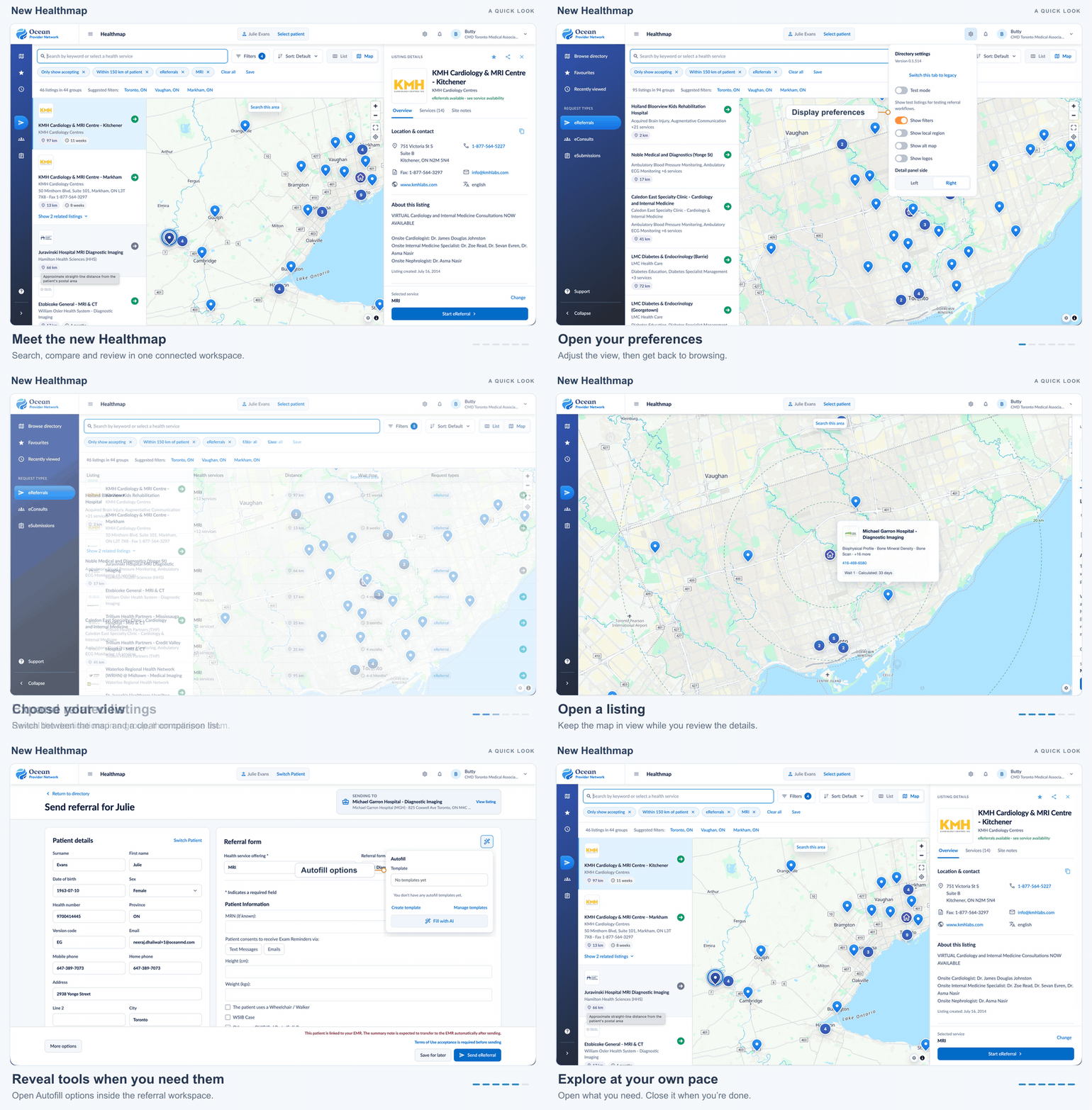
Try the workflow
Install in your Ocean Chrome profile
Open Google Chrome on your computer, using the Chrome profile you use for Ocean. Open the Ocean Healthmap Early Access (BETA) Chrome Web Store listing. Use the direct pilot link. Click 'Add to Chrome'. Review Chrome's permissions prompt and click 'Add extension' to complete installation.
Click the Extensions puzzle-piece icon beside Chrome's address bar. Find Ocean Healthmap Early Access and click the pin icon to keep it available in your toolbar. If Ocean or Healthmap was already open, refresh the page after saving any work in progress.
Note: Install from a regular Chrome window. Chrome does not allow extension installation in Guest or Incognito mode. A managed browser may also restrict installation. See Google's Install and manage extensions instructions.
If the pilot listing is unavailable or installation is restricted, contact Ocean Labs in Slack for help with access.
Launch with a patient
-
Open Healthmap from the patient menu
-
Sign in to your Ocean account and open the Patients page.
Find your approved test patient and click their name to open the patient menu.
Click 'Find Health Service...'.
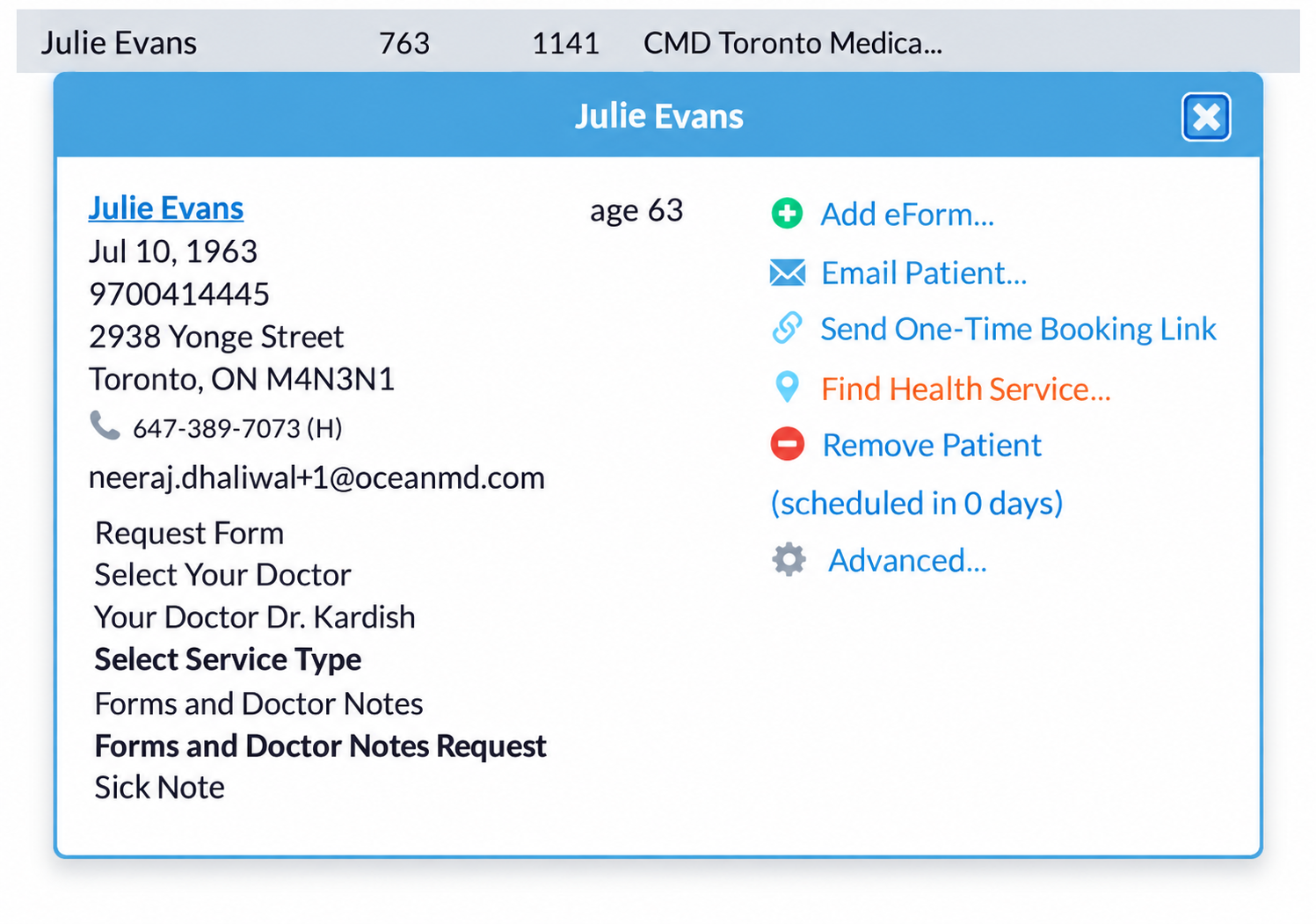
Open Healthmap from the patient's Find Health Service action.
-
Healthmap opens in the new experience. Check the patient name at the top of the page before continuing.
You can also open Ocean Healthmap directly to browse the directory. Opening the public directory does not load a patient from your EMR; sign in and select a patient when your workflow requires one.
What Is the Extension?
A Chrome extension is an add-on installed in your browser. This extension displays the early access interface on supported Ocean Healthmap and referral pages, using your existing Ocean session and permissions. Installing it changes the experience in the Chrome profile where you install it; it does not enable the new interface for everyone at your Ocean Site.
Ocean Labs is using the pilot to learn which changes make directory discovery and referral preparation easier. Staff feedback helps identify confusing steps, missing information, and issues to address before a wider rollout. The extension does not create an Ocean account or grant additional access to Ocean services. View the extension in the Chrome Web Store.
What Can I Try?
- Map and List views: Explore locations visually or compare listings in a table.
- Search and filtering: Narrow by health service, municipality, request type, language, province, wait time, creation date, and distance.
- Related listings: Expand grouped results to see additional listings associated with a location.
- Listing details: Review contact information, services, and site notes in a panel beside your results.
- Favourites and saved searches: Return to frequently used listings or reuse a search with its filters and preferred view.
- Referral preparation: Work with patient and referrer details beside the referral form, with Autofill options and a fixed send bar.
- Display preferences: Try logos, an alternate map layout, a local region search, and your preferred side for listing details.
This guide covers the Healthmap and referral extension. Patient Dashboard and Send Patient Message belong to the separate patient engagement extension.
Choose a service and compare results
-
Search, then choose your view
-
Enter a keyword or choose a health service in the search field at the top of Healthmap. For example, select MRI to compare listings offering that service. Choosing a specific health service also enables 'Wait time' sorting.
Click List to compare the listing, services, distance, wait time, and request types in columns. Click Map to see results beside their locations. These are two views of your search.
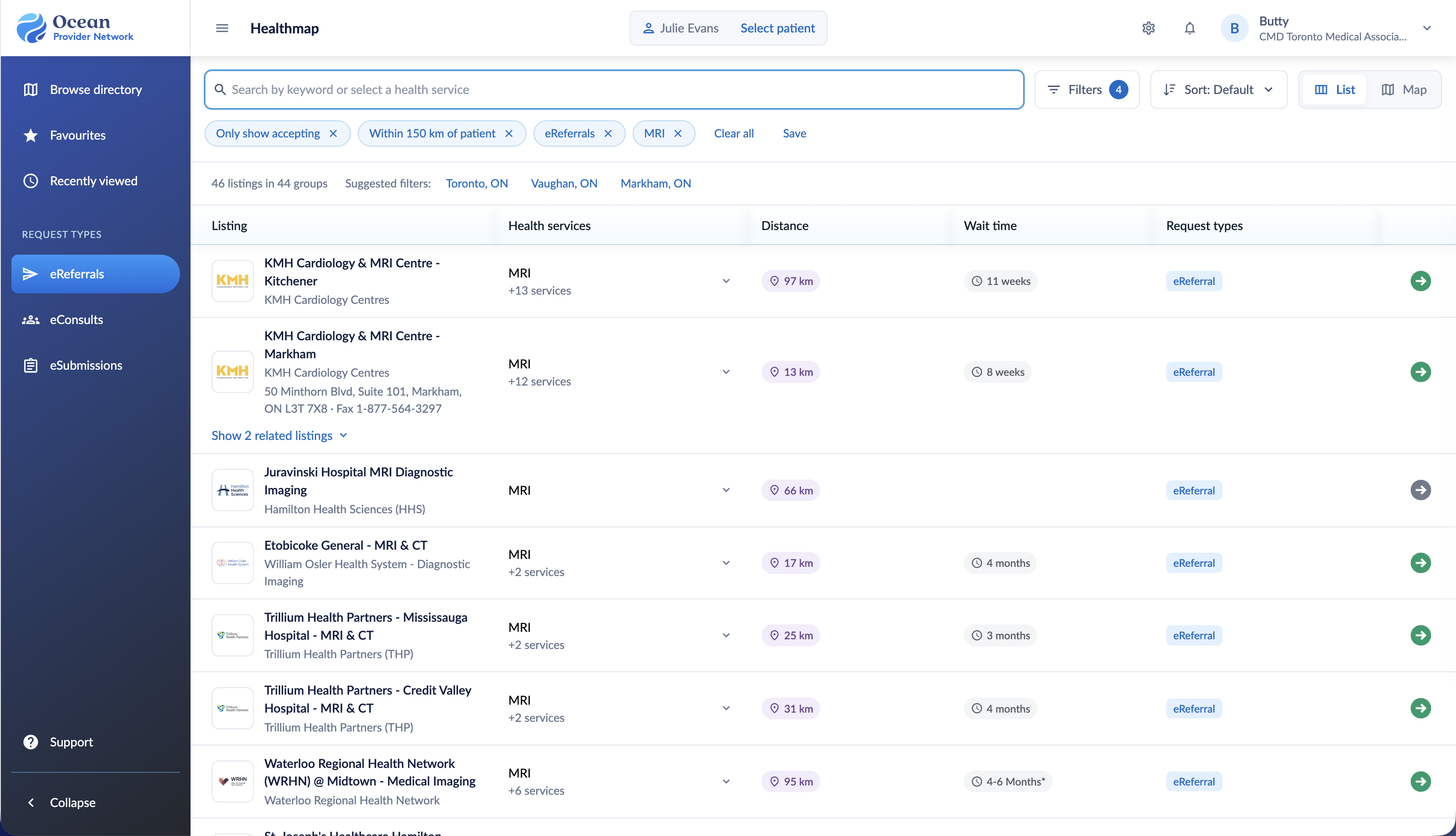
An MRI search in List view.
-
Refine the results
-
Apply filters and check the chips
-
Click 'Filters'.
Choose the criteria you need. The options include service, search areas, request type, accepting status, listed address, catchment area exclusion, language, province, wait time, creation date, and maximum distance.
Click 'Done' to return to your results.
Review the chips beneath the search field. Click a chip's X to remove that filter, or 'Clear all' to broaden the search.
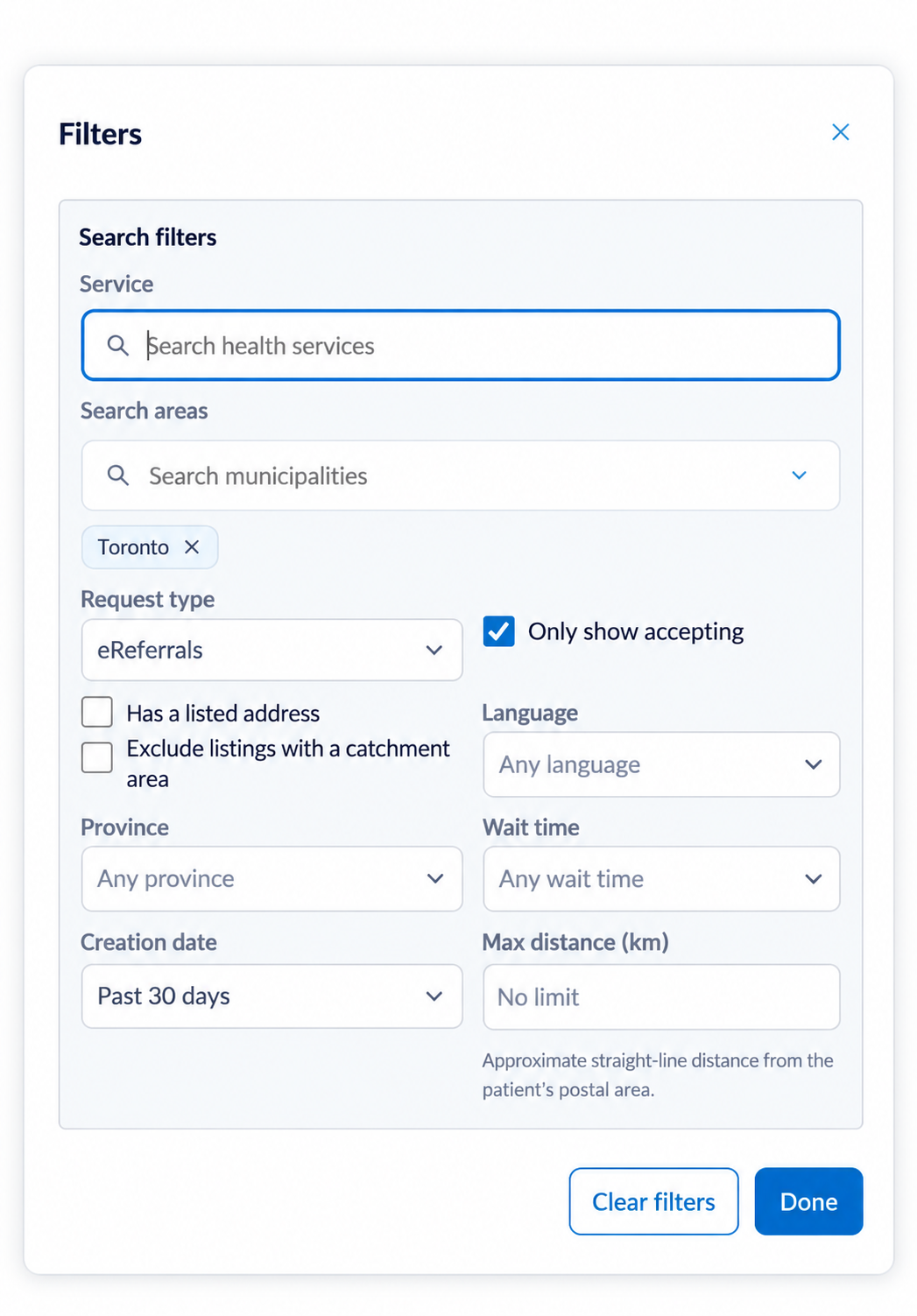
The Filters dialog.
-
Search areas lets you select municipalities such as Toronto. You can also add a suggested municipality below the search bar. For example, an MRI search with Toronto selected shows services in that area even when the selected patient lives elsewhere.
A fresh patient-based Ocean Portal launch may begin with eReferrals, Only show accepting, and a 150 km distance limit. Existing searches and restored sessions can retain different choices. Check the active chips before assuming a listing is missing.
Distance: Distance values are straight-line estimates from the available patient location, or the referring clinic when used as a fallback. A postal-area estimate may be used when a precise patient location is unavailable. They are not driving distances.
Sort and expand results
Open 'Sort' to choose Default, Distance, or Wait time. Distance requires a usable location. Wait time requires a selected health service; it may be unavailable until you choose one. Available wait information can differ between services and listings.
Where a result offers 'Show related listings', click it to expand the additional listings. Each expanded listing remains a separate referral destination. Review the exact listing before starting a referral.
Compare carefully: Wait information belongs to the selected service, distance is a straight-line estimate, and related listings remain separate referral destinations.
Review the destination
-
Check the listing and selected service
-
Click a result or open a listing from the map.
Review the Overview for location, contact information, languages, and listing description.
Open Services where available to review individual health service offerings. Check Site notes for relevant notes.
Check the Selected service at the bottom of the panel. Use 'Change' if you need another service.
Click 'Start eReferral' when you are ready to prepare the referral.
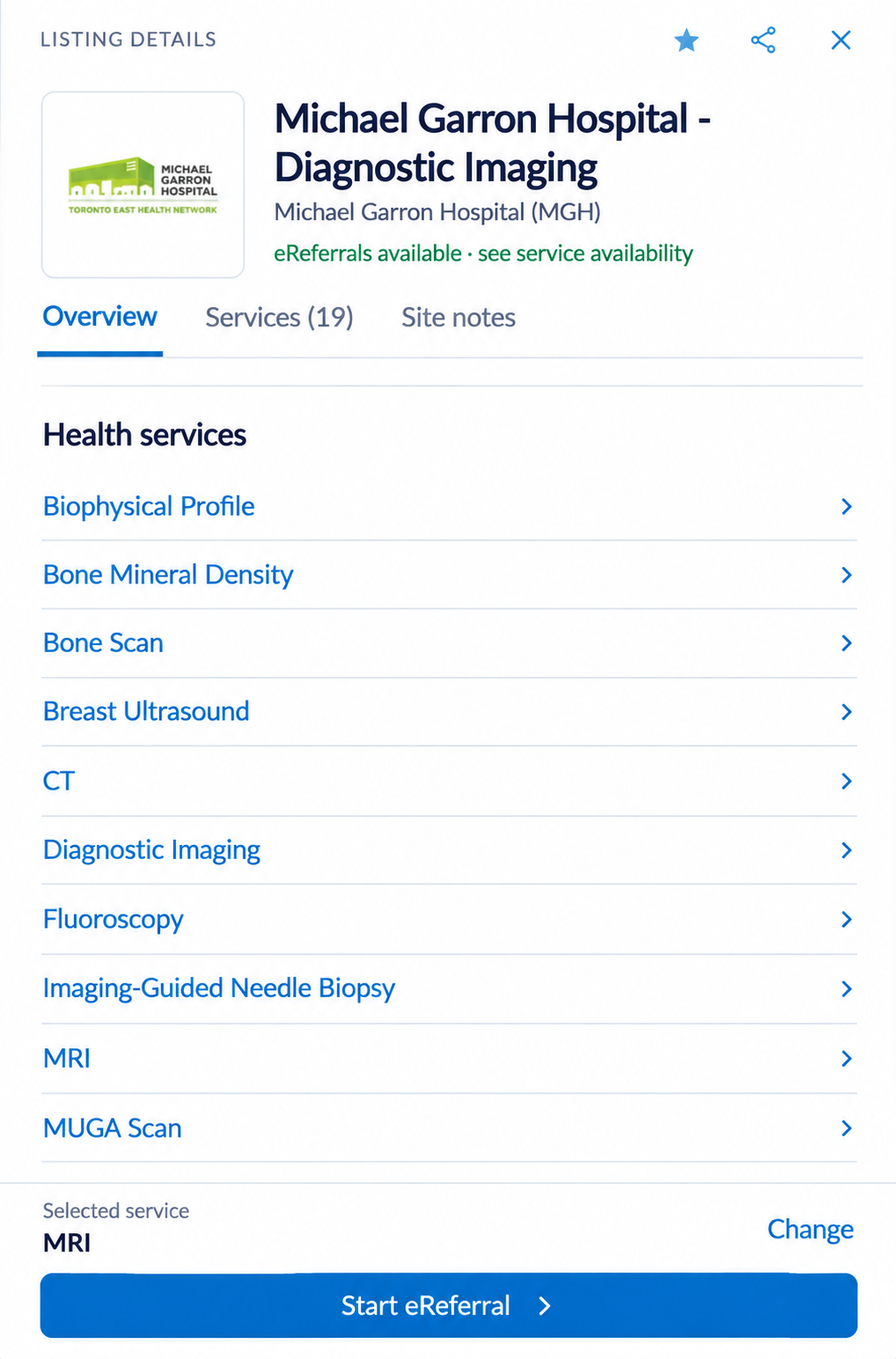
Review the listing and selected service before starting.
-
The star and share controls appear at the top of the panel. The X closes it and returns space to the results or map. Empty sections may be omitted, so every listing will not have identical tabs or content.
Explore the map and workspace
Use these references when you want to explore the map or identify a control. The annotated images match the descriptions in the tables below them.
Use the map to understand where services are located relative to the patient and each other.
- Listing pins: Open a pin to see a listing summary and available service or wait information.
- Numbered clusters: These group listings in the same map area. Open a cluster or zoom in to inspect its listings. A location with several listings can show a chooser.
- Patient home marker: The purple home icon identifies the available patient location.
- Search this area: Pan or zoom to the area of interest, then click this button to search the visible map area.
- Zoom, expand, and recentre: Use + and - to change scale, the expand control for a larger map, and the target control to return toward the patient location when available.
Catchment areas and distance rings
Open the gear in the bottom-right corner of the map to adjust map overlays. This is separate from the Directory settings gear in the top navigation bar.
Show catchment areas: Display available catchment boundaries on the map. Review the service's eligibility information when choosing a destination.
Show distance rings: Display rings at 5, 10, and 20 km around the patient home marker when a patient location is available.
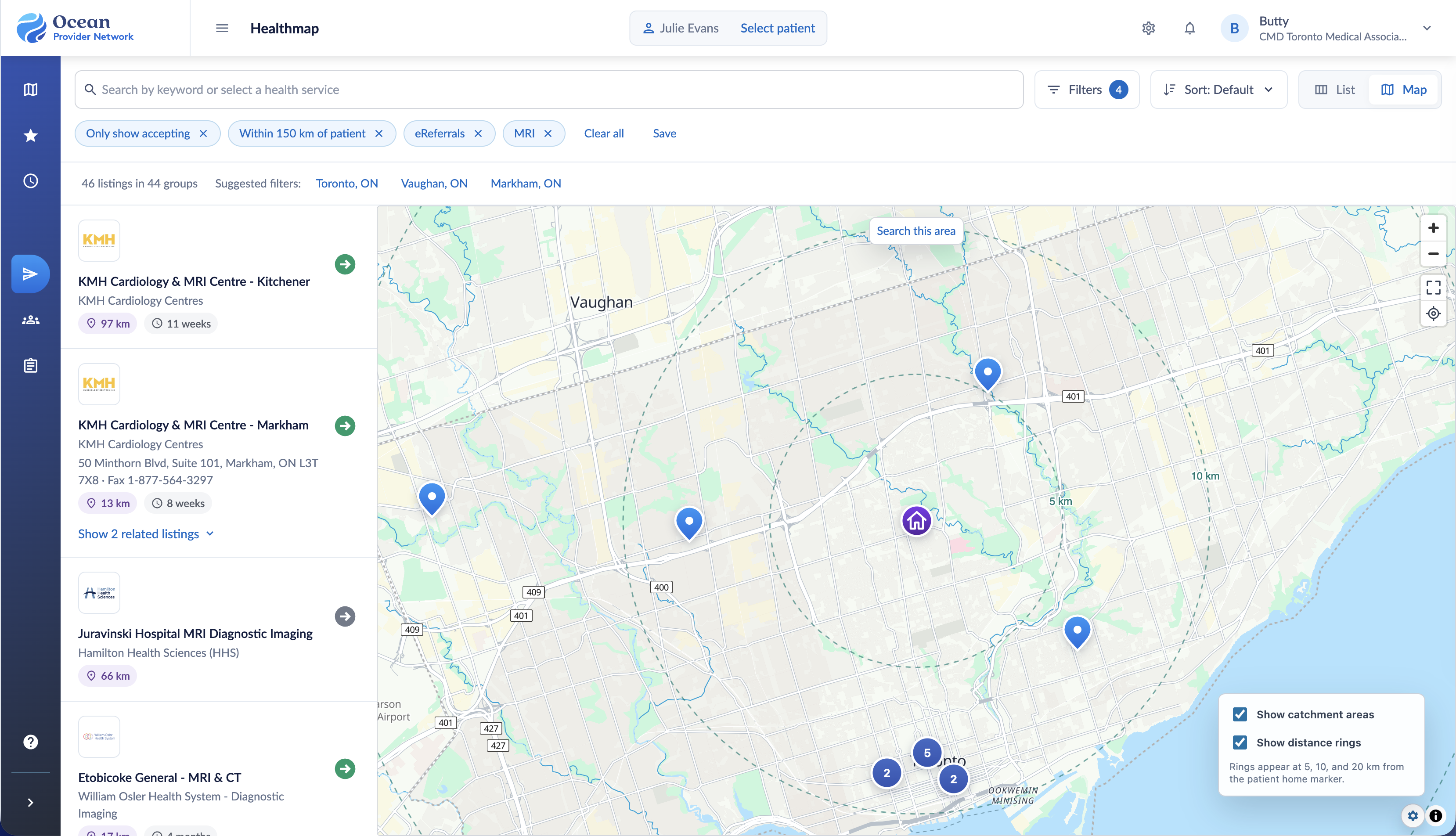
In the expanded map, you can still open listing summaries and details. Use the expand control again to return to the results-and-map layout.
The annotated example below shows Healthmap with a listing open. The six areas work together: choose a search, review the results, then open a listing without leaving the map.
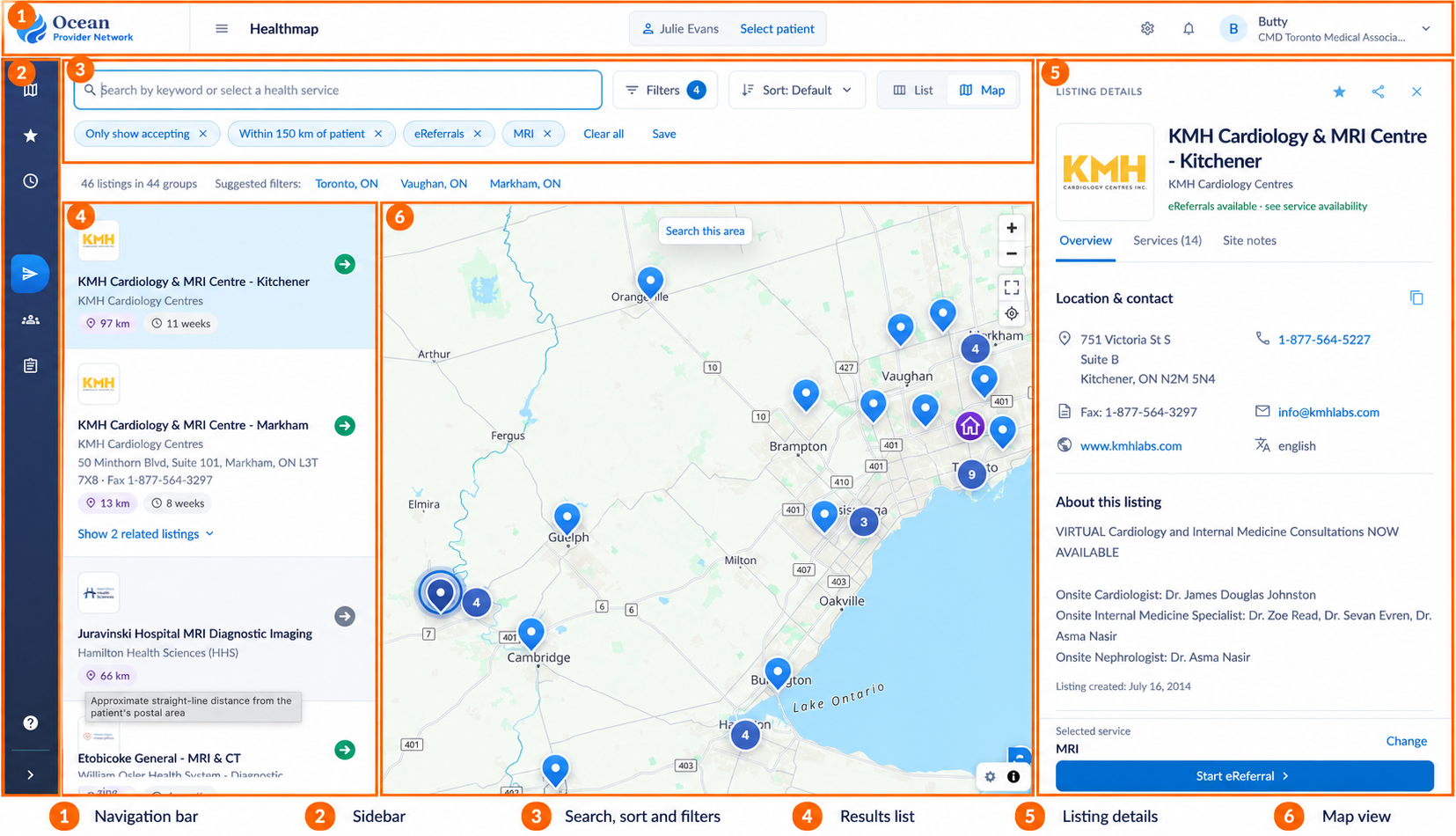
| Area | What You Will Find |
|---|---|
| 1. Navigation bar | The menu control, current patient and patient selector, Directory settings gear, notification bell, and signed-in user and Ocean Site. Check the patient and site context here before preparing a referral. |
| 2. Sidebar | Browse directory, Favourites, Recently viewed, and shortcuts for eReferrals, eConsults, and eSubmissions. Collapse the sidebar to give the workspace more room. |
| 3. Search, sort, and filter bar | The keyword or health service search, Filters button and active filter count, Sort menu, and List/Map selector. Active filters appear as removable chips. Clear all and Save sit alongside them; suggested municipality filters appear below. |
| 4. Results list | Listing and organization names, health services, distance, and available wait information. Expand related listings where offered. Click a listing to review it, or use its referral arrow to begin the referral workflow. |
| 5. Listing details panel | Favourite star, share control, close button, Overview, Services, and Site notes tabs where available. Review contact details and the selected service, then use Start eReferral. |
| 6. Map view | Listing pins, numbered clusters, the patient home marker when available, and map controls. Use Search this area to search the visible region. Zoom, expand, recentre, and map settings help you explore. |
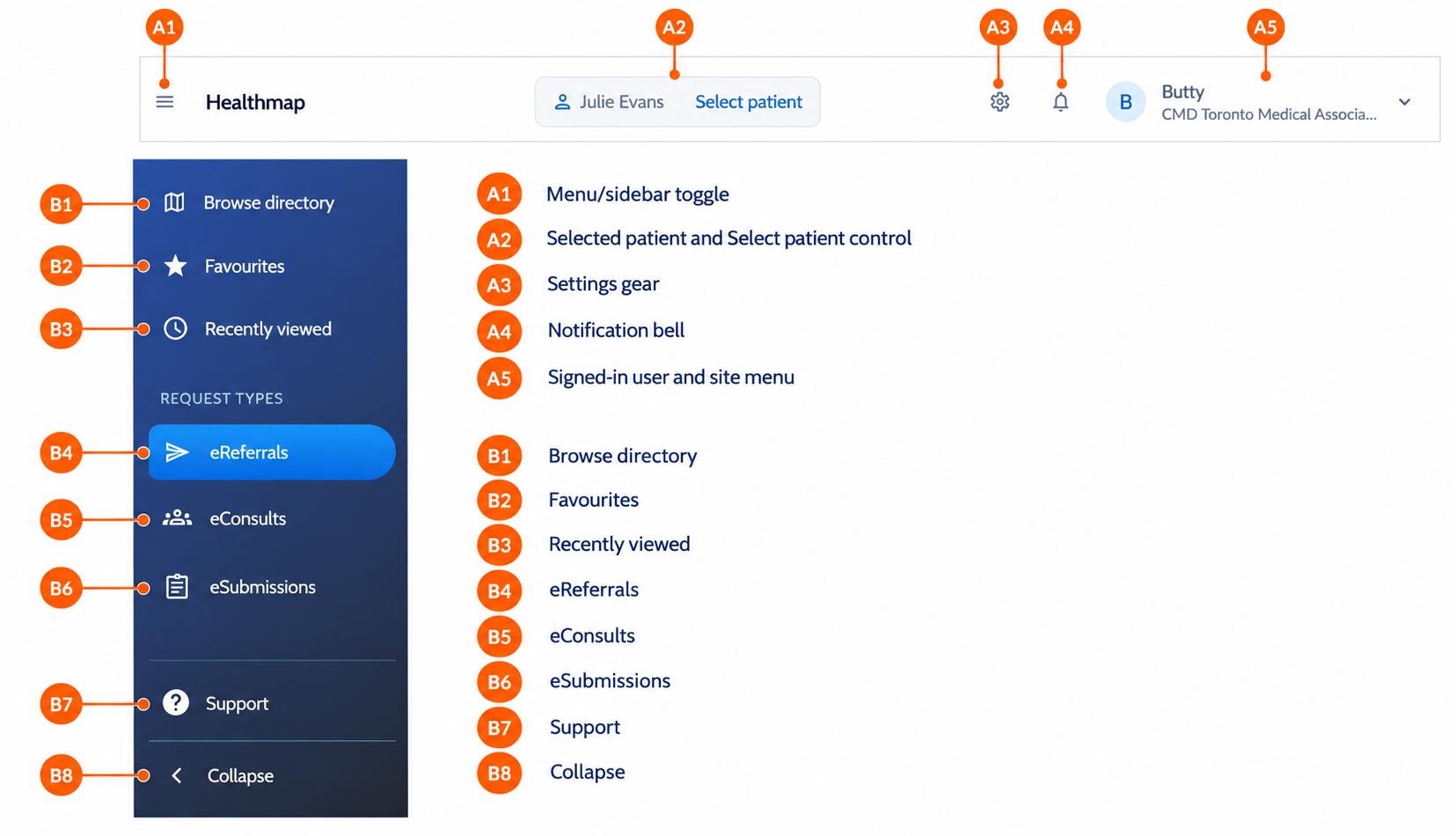
| Annotation | Control | How to use it |
|---|---|---|
| A1 | Menu / sidebar toggle | Expand or collapse the navigation area. |
| A2 | Patient and Select patient | Check the current patient or choose another before preparing a referral. |
| A3 | Directory settings | Open preferences, the installed version, and the legacy switch. |
| A4 | Notification bell | Access the notification control. |
| A5 | User and Ocean Site | Confirm your signed-in user and current site context. |
| B1 | Browse directory | Return to directory browsing. |
| B2 | Favourites | Revisit saved listings. |
| B3 | Recently viewed | Return to listings you opened recently. |
| B4–B6 | eReferrals / eConsults / eSubmissions | Choose the relevant request-type shortcut. |
| B7 | Support | Access the support control. |
| B8 | Collapse | Give the results and map more room. |
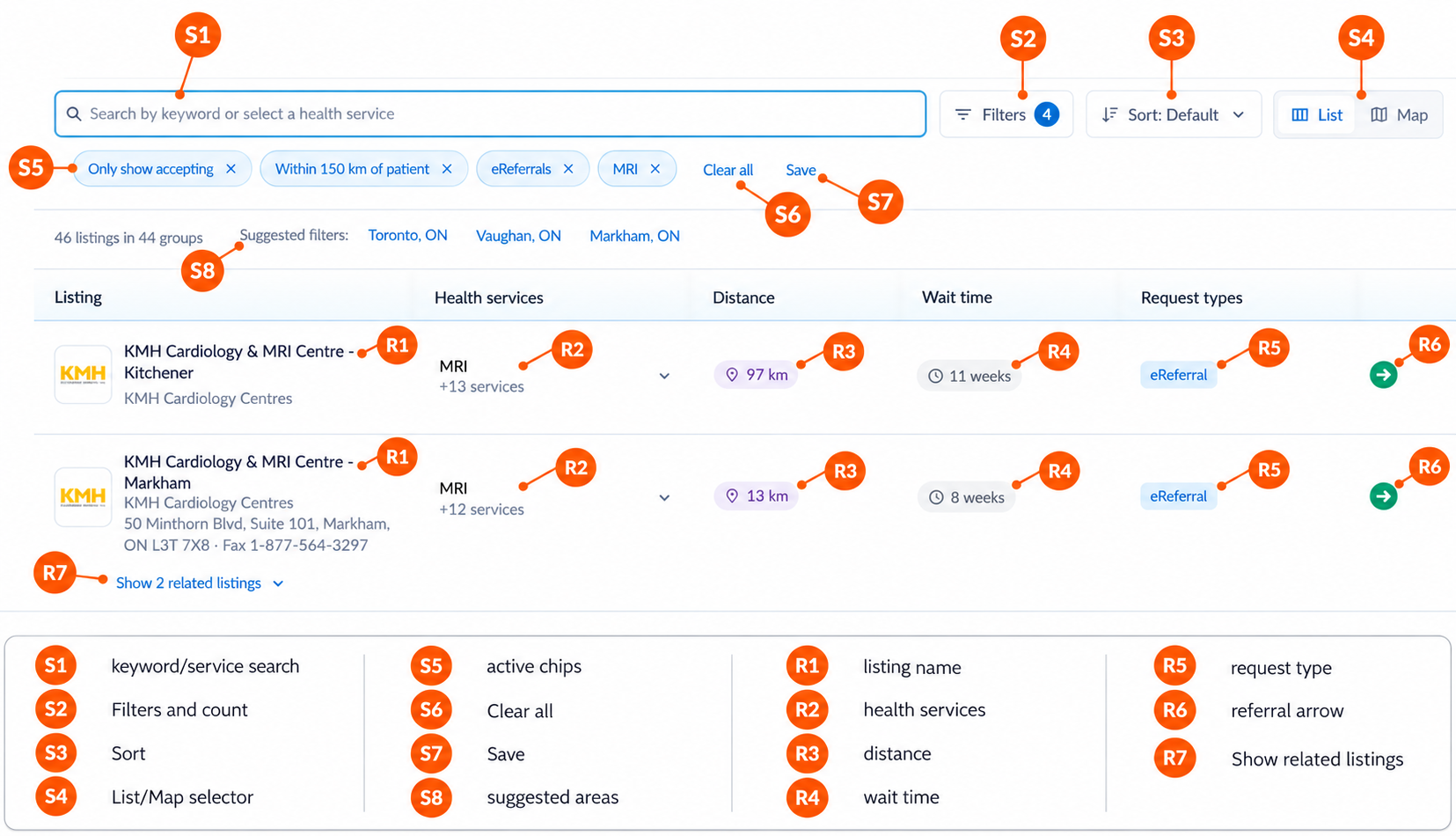
| Annotation | Control | How to use it |
|---|---|---|
| S1 | Keyword / service search | Enter a keyword or select a health service such as MRI. |
| S2 | Filters and count | Open filter choices and check how many are active. |
| S3 | 'Sort' | Choose Default, Distance, or Wait time when available. |
| S4 | List / Map | Compare results in columns or explore their locations. |
| S5 | Active chips | Review your criteria; remove an individual chip with its X. |
| S6 | 'Clear all' | Broaden the search by clearing active filters. |
| S7 | 'Save' | Save the search criteria for reuse in this browser. |
| S8 | Suggested areas | Apply a suggested municipality to the search. |
| R1 | Listing name | Open the exact destination to review it. |
| R2 | Health services | Review the displayed service and additional offerings. |
| R3 | Distance | Compare the available straight-line location estimate. |
| R4 | 'Wait time' | Compare available service-specific wait information. |
| R5 | Request type | Check the request type available for the listing. |
| R6 | Referral arrow | Begin the referral workflow for that listing. |
| R7 | Related listings | Expand additional destinations associated with the result. |
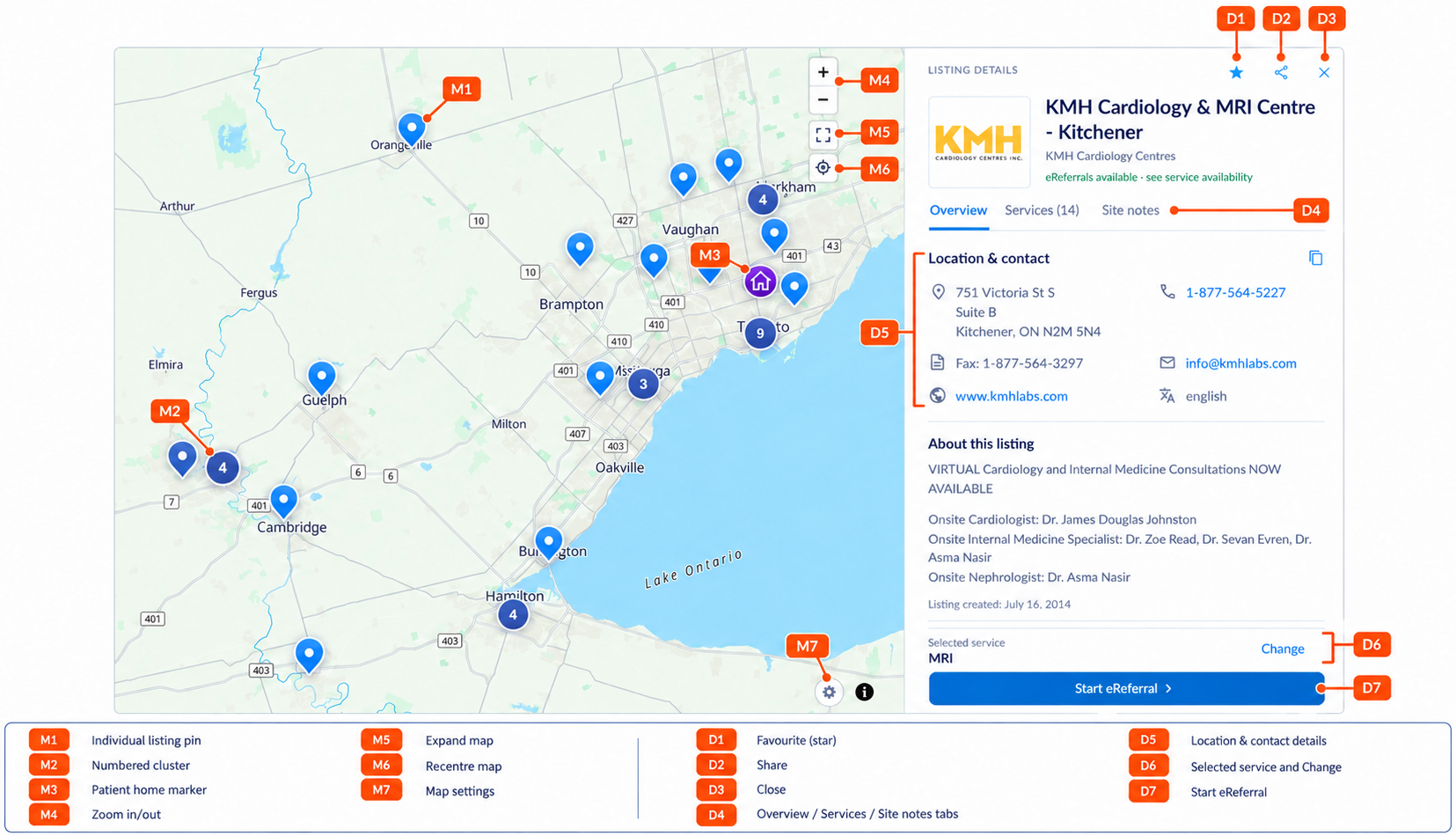
| Annotation | Control | How to use it |
|---|---|---|
| M1 | Individual listing pin | Open a listing summary on the map. |
| M2 | Numbered cluster | Open or zoom into grouped listings. |
| M3 | Patient home marker | Locate the available patient location. |
| M4 | Zoom controls | Change the map scale. |
| M5 | Expand map | Use a larger map; select again to return. |
| M6 | Recentre | Return toward the patient location when available. |
| M7 | Map settings | Show catchment areas or distance rings. |
| D1 | Favourite star | Access the favourite control for this listing. |
| D2 | Share | Access the listing sharing control. |
| D3 | Close | Close the details panel. |
| D4 | Overview / Services / Site notes | Review the available listing information and offerings. |
| D5 | Location and contact | Check address, phone, fax, website and language information. |
| D6 | Selected service and Change | Confirm the service or select a different offering. |
| D7 | 'Start eReferral' | Open the referral preparation page. |
Understand the referral workspace
The new referral page keeps the patient and referrer information in the left column and the referral form in the right column. A fixed send bar keeps the main actions available at the bottom of the page.
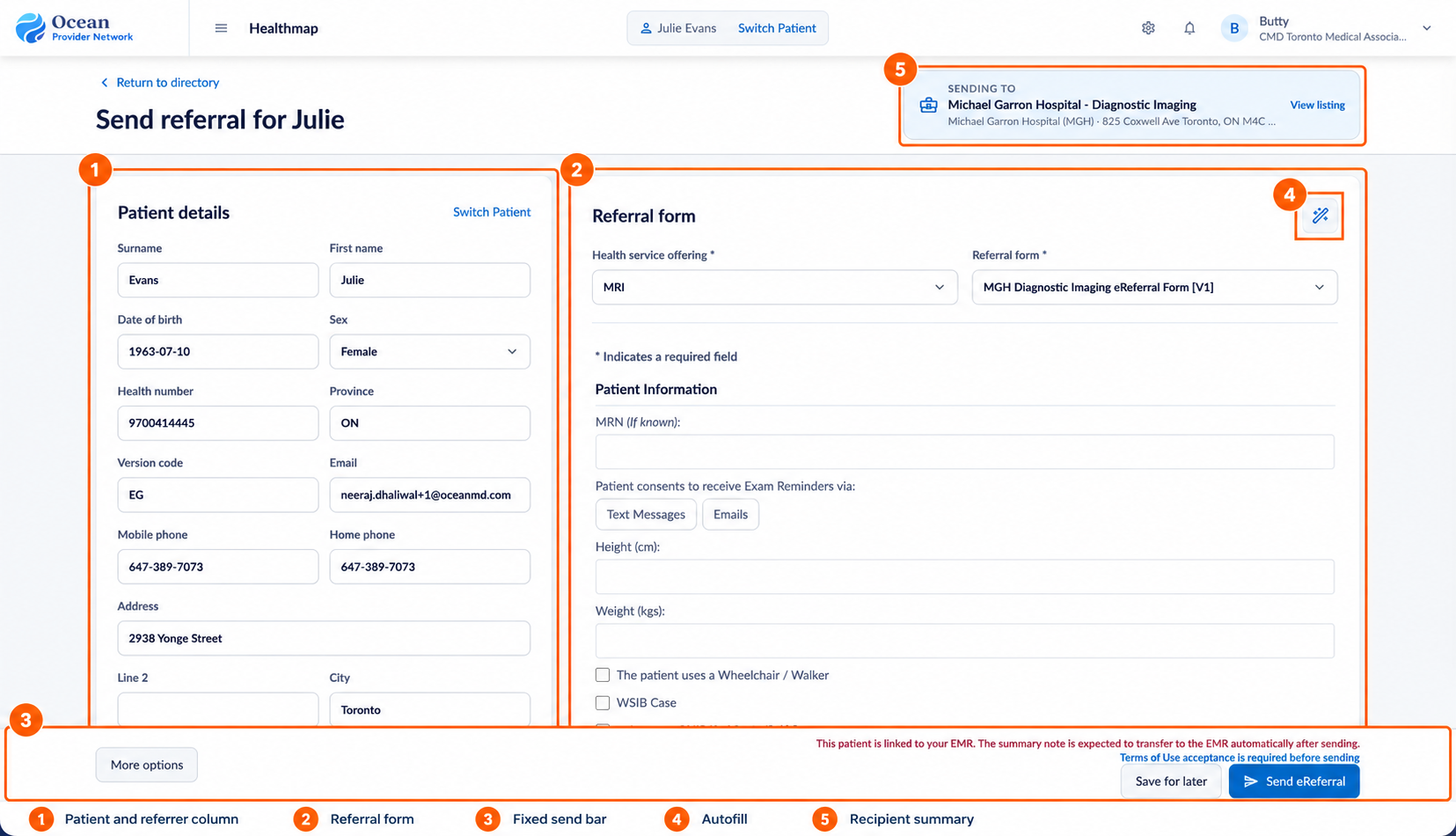
| Area | What You Will Find |
|---|---|
| 1. Patient and referrer column | Patient identity, health number, contact details, and address, with referrer information further down. Use Switch Patient if you need to change the patient, and recheck the context before proceeding. |
| 2. Referral form | Health service offering and Referral form selectors, followed by the chosen form's questions. Required fields are marked with an asterisk. Review any attachments and other referral sections further down the page. |
| 3. Fixed send bar | More options, workflow notices, Save for later, and Send eReferral. The bar remains at the bottom while you work through the referral. |
| 4. Autofill wand | The magic wand in the upper-right of the Referral form card opens template and Fill with AI options. |
| 5. Recipient summary | The Sending to banner identifies the destination. View listing opens its details for another check. |
Complete and review the referral
Confirm the patient, referrer, destination, health service offering, and referral form. Complete the required questions and review the information already populated.
Review attachments and any additional sections or notices required by the workflow. Use 'Save for later' if you need to pause, or 'Send eReferral' when the referral is ready. Resolve any validation or Terms of Use requirements shown on the page.
Note: The fixed bar can show an EMR transfer notice when the patient is linked to an EMR. Follow the message shown for your workflow rather than assuming that every launch will transfer a summary note automatically.
Use Autofill when appropriate
-
Open the wand and choose an option
- Click the magic wand at the top-right of the Referral form card to open Autofill.
- Template: Find and apply an available Autofill template.
- Create template: Create reusable form content where supported. Templates should contain generic content and no personal health information.
- Manage templates: Open template management in another tab.
- Fill with AI: Open the AI-assisted form filling workflow where configured for the pilot.
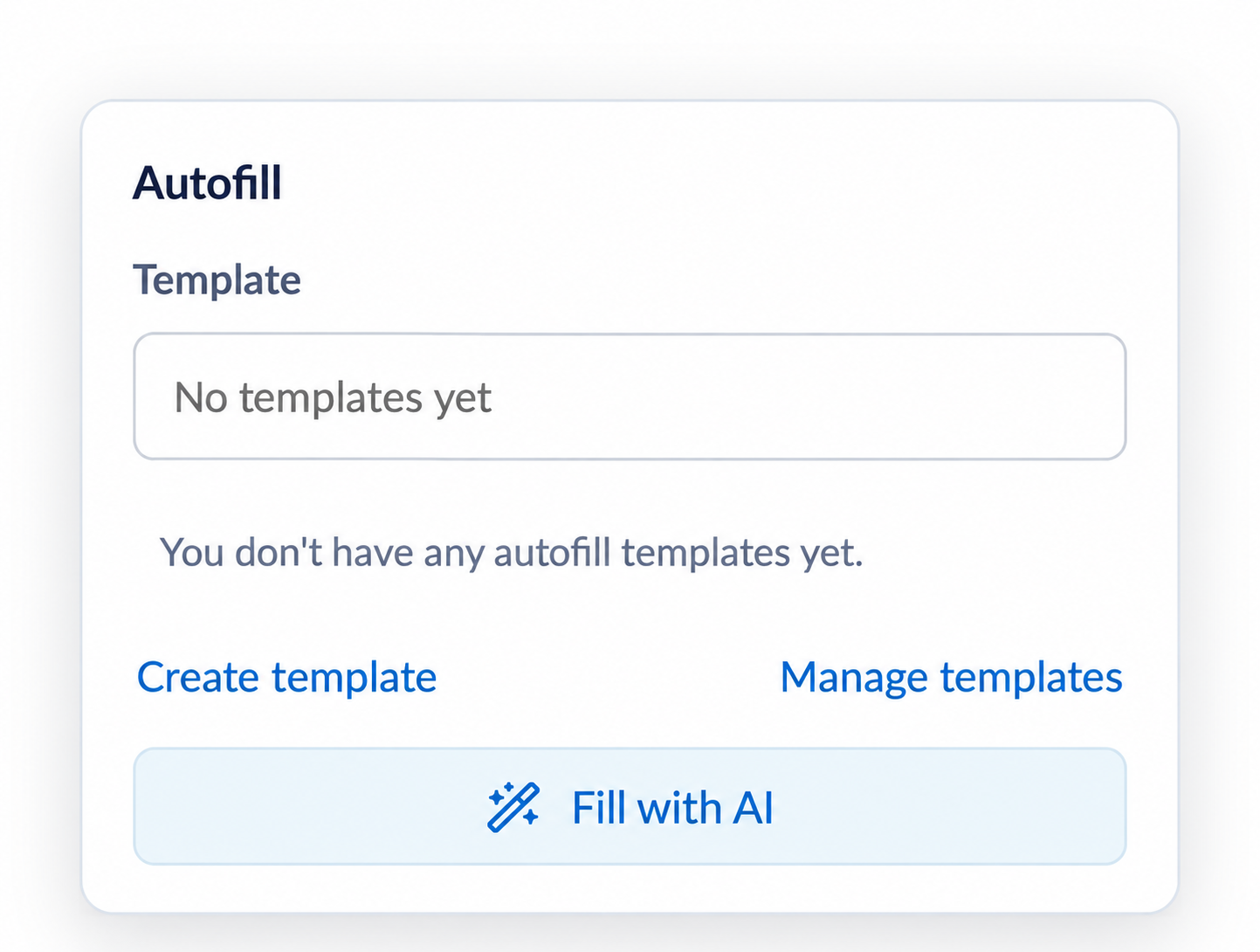
Autofill options. The example account has no templates yet.
- Click the magic wand at the top-right of the Referral form card to open Autofill.
Review before sending: Review all populated values before sending, whether they came from the patient record, a template, or AI assistance. AI assistance does not replace the sender's review and confirmation.
Return to the directory
-
Save your work before leaving
- Click Return to directory at the top-left of the referral page. If you have unsaved changes, the Leave this referral? dialog offers two choices:
- Stay on referral: Continue editing or save the referral for later.
- Return to directory: Leave the referral and discard unsaved changes.
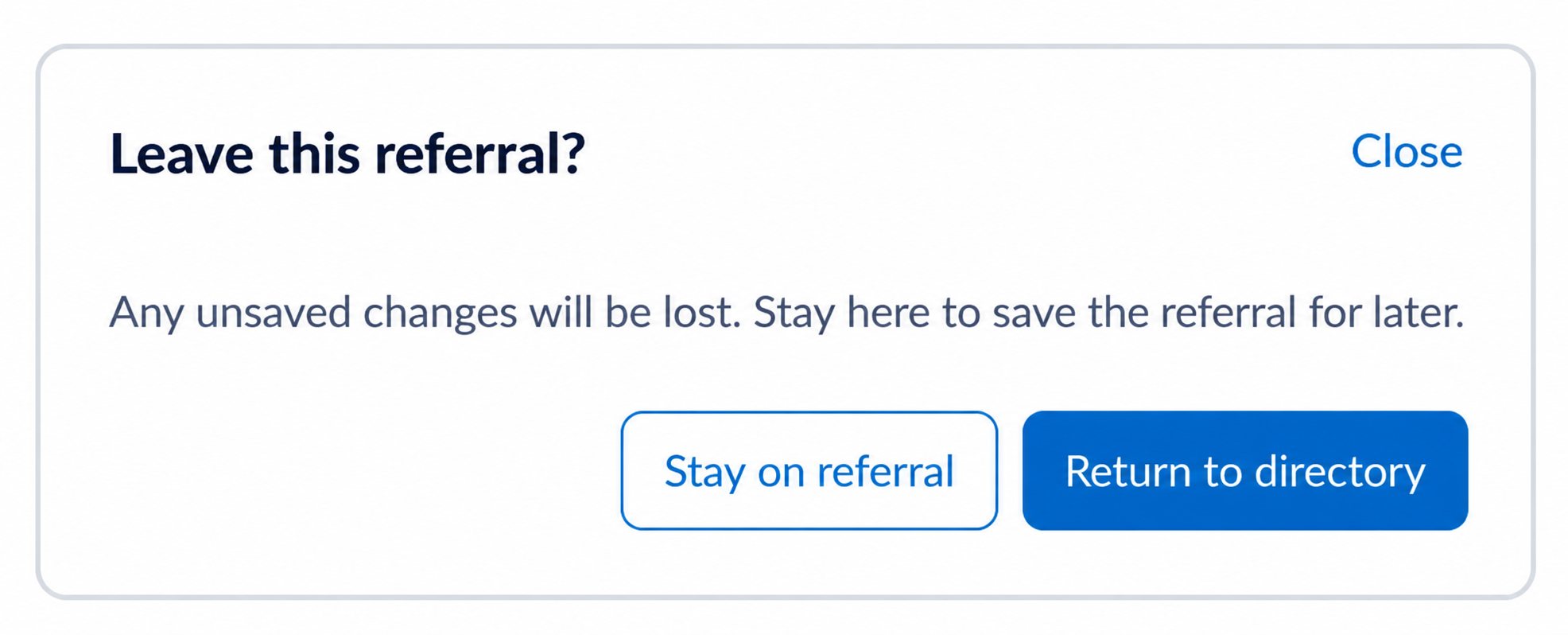
Save your work before leaving if you want to return to it later.
- Click Return to directory at the top-left of the referral page. If you have unsaved changes, the Leave this referral? dialog offers two choices:
Unsaved work: Choose Stay on referral to keep editing or save for later. Returning to the directory discards unsaved changes.
Finding the right listing
The extension uses Ocean’s existing directory search to retrieve listings, then combines, checks, and orders the results in your browser. Ocean remains the source of listing data and visibility rules. The pilot adds a layer we can fine-tune as users tell us which results are useful, unexpected, or missing.
From your words to a result list
Start with the full query. The extension first sends your complete search to Ocean with the selected service and filters. For a search with at least two meaningful words, it then runs extra searches for those words in parallel, using the same criteria. Up to five distinct words are used; common joining words, duplicates, and one-character terms are skipped. Phone and fax searches stay intact.
Combine the evidence. The browser merges the successful responses and removes duplicates by listing identity. It considers which word searches returned each listing and looks for the words in returned names, organizations, service descriptions, offering details, tags, languages, and address fields.
Bring stronger matches forward. Listings matching more of your words rank higher. Matches to all meaningful words, the full query, and the listing or organization name receive extra weight; Ocean’s original order helps break ties. If any listings match at least two words, those become the preferred result set. Otherwise, the search falls back to full-query hits or available individual-word matches. Empty, single-word, and numeric searches keep Ocean’s returned order.
For example: A search such as “MGH knee” can combine Ocean’s full-query response with separate “MGH” and “knee” responses, then favour listings connected to both terms. This illustrates the matching logic; it does not guarantee a particular listing is available.
Sort is a separate choice. Wait-time sorting happens in the browser for the selected health service: comparable known waits come first, shortest to longest, with unknown or unparseable waits last. Distance sorting requests Ocean’s distance order; combined municipality results are also sorted locally from the chosen reference location. Geographic distances are straight-line estimates, not driving distances or travel times. The ordering limitations below explain where these behaviours are still being refined.
How Search areas use municipal geography
Search areas use a bundled, adapted copy of Statistics Canada’s 2025 Census Subdivision boundaries. These describe municipalities and equivalent areas across Canada. Their names, province codes, centre coordinates, and boundary shapes are available locally; the extension does not call a live Statistics Canada service during a search.
Suggest nearby areas. Municipal centre coordinates help compare areas with the patient or clinic location and suggest nearby choices within 200 km. Typing an area name can find municipalities beyond that suggestion range, subject to the selected province. Suggestions describe geography; they do not indicate listing counts or available services.
Search each selected area. The extension sends Ocean a rectangular envelope around each municipality, processing up to two municipalities concurrently. Dense envelopes that reach the result limit can be split into smaller rectangles, within a bounded retry depth. Returned listings are then checked against the actual municipal boundary in the browser, so a location inside the rectangle but outside the municipality is removed. Results from all selected areas are combined and deduplicated.
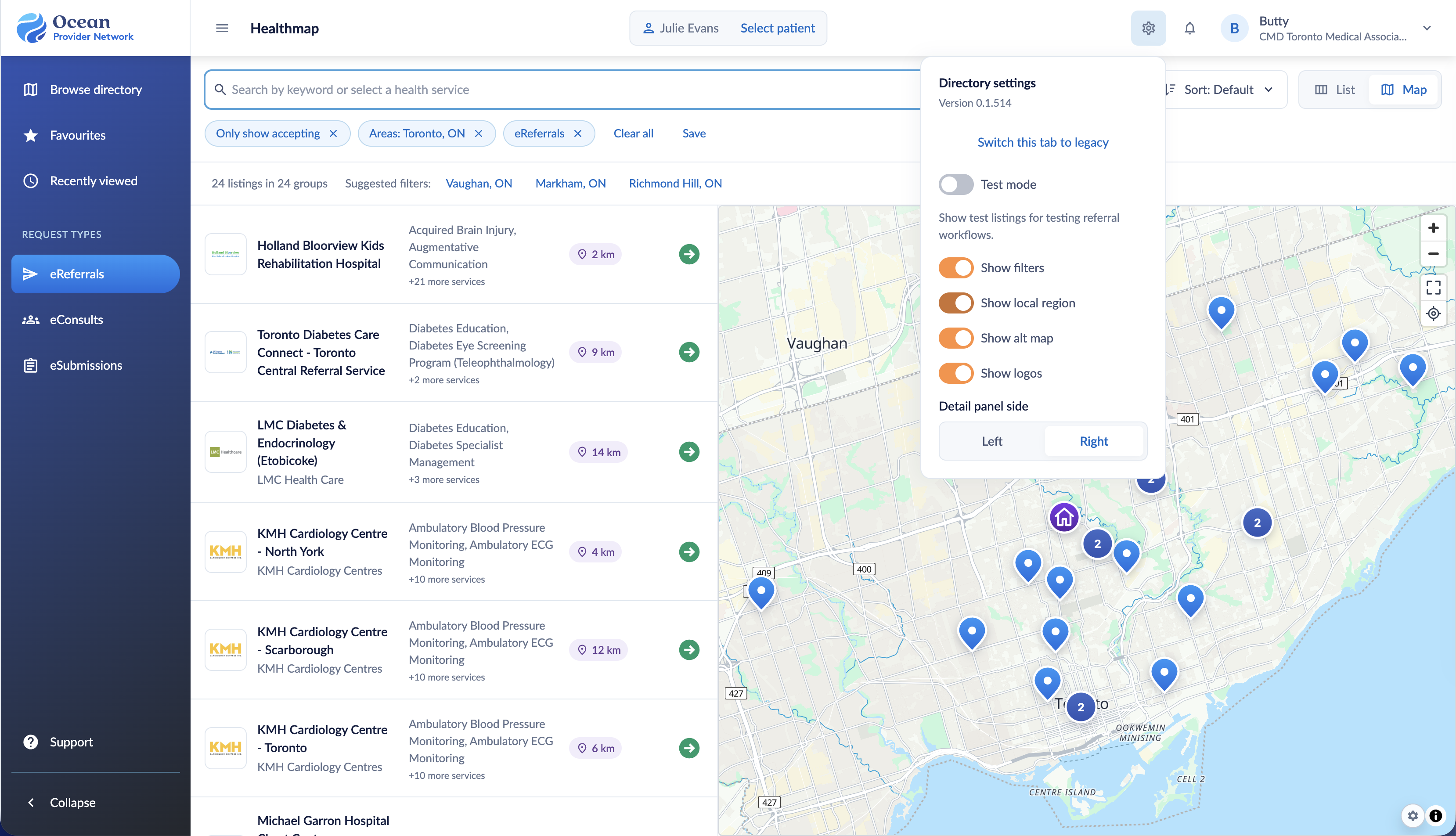
Use the best available location. Visible listing coordinates determine boundary membership. If coordinates are missing, an exact normalized city-name match can include a listing with a visible address, but does not create a map pin. Hidden or unresolved locations cannot be placed in a municipality reliably. With Show local region enabled, a fresh automatic patient search first looks for the municipality containing the patient location, then falls back to a nearby municipal centre when necessary. Manually chosen filters and saved searches take priority.
Check the area chip: A municipality is a geographic search scope, not a health region, neighbourhood, or referral catchment. Choosing Search areas replaces the active distance radius and explicit map-area scope. Choosing a radius or map-area search clears the municipality selection; the other filters continue to apply.
What the filters do
Ocean receives the criteria it supports, and the extension applies additional checks to the returned listings in the browser. Different filters narrow the results together; multiple Search areas include listings from any selected area. The active chips show the criteria in force, even when the filter controls are hidden.
| Filter | What it does | Where it happens |
|---|---|---|
| Health service | Limits the search to the selected service offering. It also provides the service context for acceptance checks and wait-time sorting. | Ocean; local service checks |
| Search areas | Includes listings in any selected municipality. The browser checks the returned locations against municipal boundaries and removes duplicate listings. | Ocean area queries + browser |
| Request type | Requests listings supporting eReferrals, eConsults, or eSubmissions. Use Only show accepting as well to check current acceptance for the selected service and request type. | Ocean |
| Only show accepting | Keeps listings with an accepting service for the selected request type and, when chosen, health service. Uses Ocean listing and service acceptance flags; listings restricted to website forms are excluded. | Browser |
| Has a listed address | Keeps listings with a visible street, city, or postal-code value. A listed address does not guarantee an in-person service or usable map coordinates. | Browser |
| Exclude listings with a catchment area | Removes listings with a catchment at listing level or on the selected service; without a service filter, any service catchment can exclude the listing. This does not test whether the patient lives within a catchment. | Browser |
| Language | Requests English or French and checks the language values returned on the listing or its service offerings. A match on another offering does not confirm the selected service is available in that language. | Ocean + browser |
| Province | Requests the selected province and checks the returned address fields, recognizing province names and codes. Selecting a municipality does not automatically add a province filter. | Ocean + browser |
| Wait time | Sends Ocean the selected maximum Wait 1 threshold: Under 30, 90, or 180 days. This filter is separate from the browser’s wait-time sort and depends on Ocean’s wait-time data and matching. | Ocean |
| Creation date | Requests listings added in the past 30, 90, or 365 days, then checks their returned creation date. Unknown dates are excluded. This is the listing’s creation date, not its latest update. | Ocean + browser |
| Max distance (km) | Requests a surrounding map rectangle, then keeps listings within the straight-line radius of the patient, or the referring clinic when a patient location is unavailable. Hidden addresses and missing coordinates cannot pass this check. | Ocean + browser |
| Selected map area | Uses the map rectangle committed through Search this area. Panning or zooming alone does not apply that new area as a search filter. | Ocean |
Display preferences do not filter results. Show filters controls the visibility of the controls. Catchment overlays and distance rings help you interpret the map; displaying them does not apply a catchment or distance filter.
What is still limited
- Coverage is bounded. Ocean returns a limited candidate set for each request. Larger requests and geographic subdivision improve coverage, but a browser filter cannot recover a listing Ocean never returned. A “+” result count or incomplete-results notice means you should narrow the service, keywords, or area. Extra word searches are best effort: failed word requests are skipped, and if all fail, the full-query response is used.
- Relevance is based on words and returned data. The local reranker does not resolve clinical intent, synonyms, spelling errors, or patient eligibility. A strong text match still needs a review of the listing and service details.
- Ordering is still being refined. Multiword relevance ranking can take precedence over distance order in searches without Search areas. Default results from several municipalities are combined area by area, rather than assigned one shared relevance score across all areas.
- Geography is approximate. Bundled boundaries are generalized and need periodic updates. Municipal centres and postal-area location estimates can put a patient near a boundary in an unexpected area. Municipal searches do not resolve referral catchment eligibility or travel time.
- Metadata can be missing or uneven. Hidden addresses, missing coordinates, unknown creation dates, language fields, and inconsistent wait labels affect filtering and sorting. The extension uses the available Ocean data; it does not fill in missing facts. Separate referral destinations also remain separate listings.
Help us fine-tune the results
Share examples in the HM Feedback canvas in the Ocean Labs Slack channel. Include the exact search words, health service, area and other active chips, sort choice, and extension version. Name the listing you expected and explain whether it was missing, ranked too low, outside the expected area, or incorrectly included or excluded by a filter.
This context helps us distinguish Ocean’s candidate selection and listing data from the extension’s word matching, geographic checks, and local filtering. We can then tune the appropriate part of the search and check whether the change improves the experience for other users too.
Make it yours
Revisit favourites and recently viewed listings
-
Find a saved destination
-
Click Favourites in the sidebar to revisit saved listings. The example below shows a Site Favourites group. The groups available to you depend on your Ocean context.
Use Search favourites by name to narrow the saved listings. For example, searching for “msk” brings the MSK Shoulder Clinic into focus. Clear the search to see the group again.
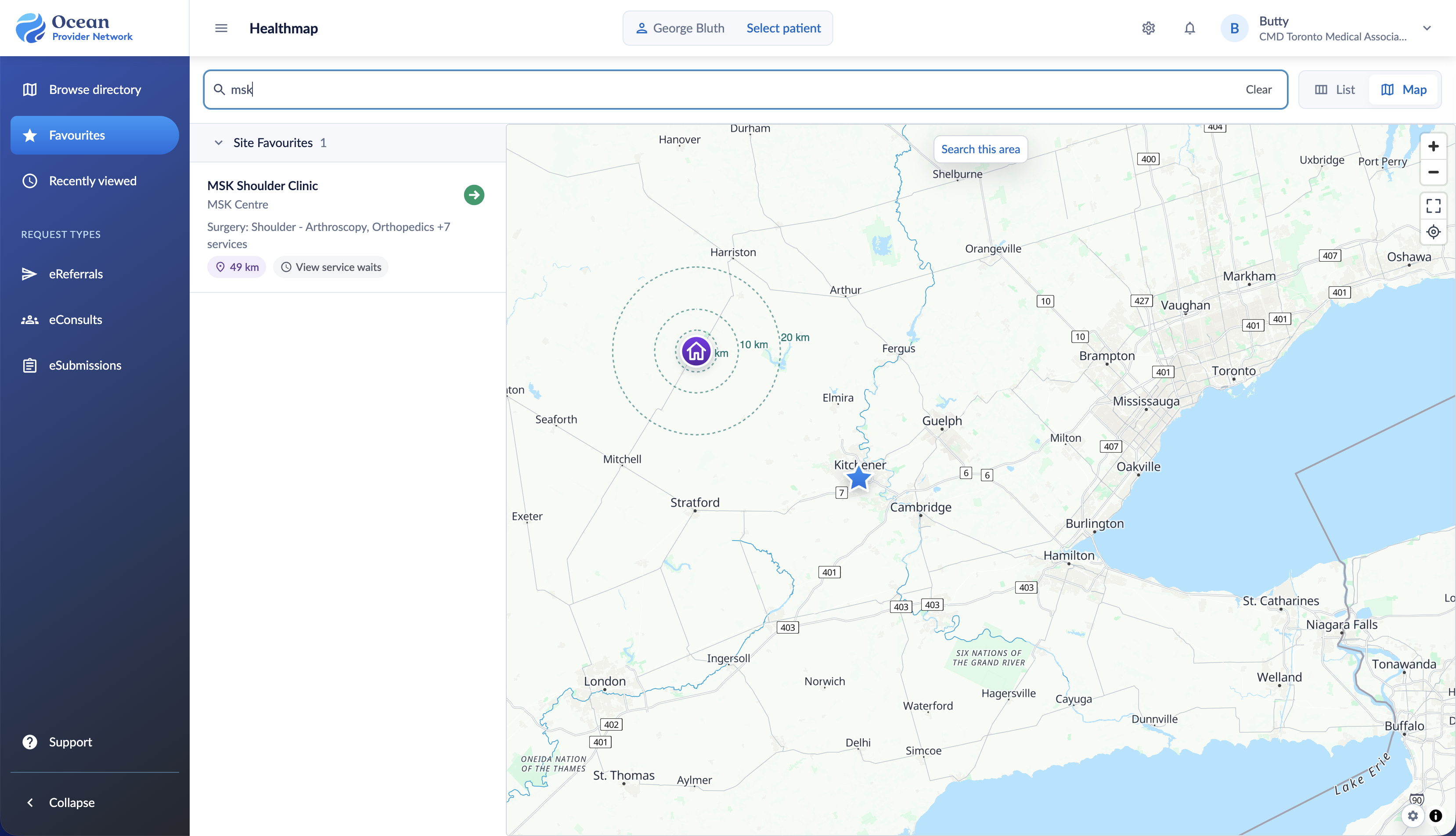
Search within favourites by listing name.
-
Use Recently viewed in the sidebar to return to listings you have opened. Favourites save destinations; saved searches save the criteria you use to find destinations.
Save a useful search
Saved searches let you reuse your search terms, filters, sort order, and List or Map view in the same browser.
-
Set up and name the search
-
Set up a search, such as MRI in the Toronto area.
Choose your preferred sort order and view.
Click 'Save' beside the active filter chips.
Enter a descriptive 'Search name' and click 'Save' in the dialog.
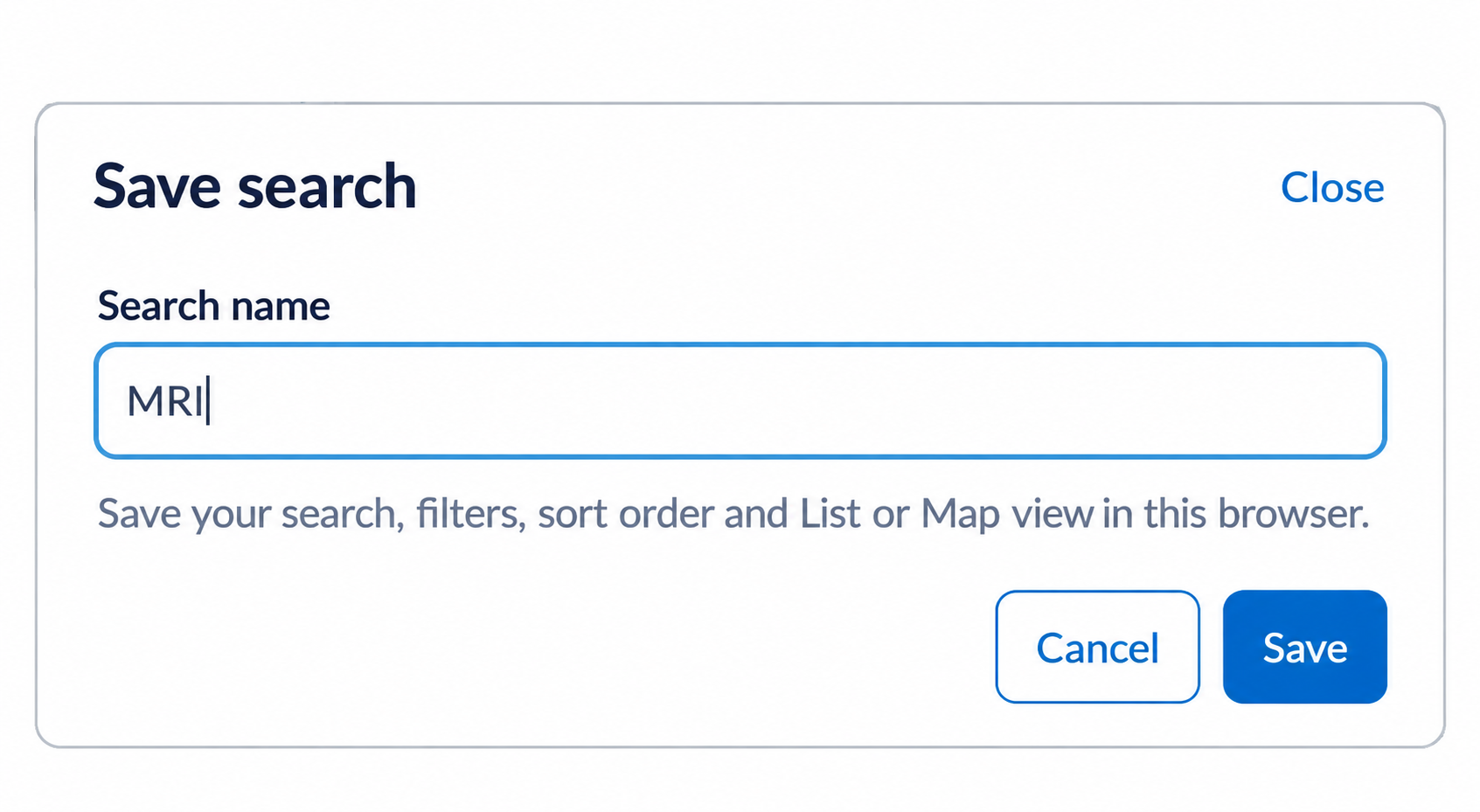
Give the search a name that will be easy to recognize.
-
Your saved search appears as a tab above the search field. Click the tab to return to it. You can keep separate searches for frequent tasks, such as MRI services or newly created listings.
Update, rename, or remove a search
To update a search's criteria, open its tab, change the filters or view, and click 'Save' beside the chips. A dot on the tab indicates changes from the saved search.
-
Manage a saved search
- To rename or remove a search, click the pencil beside its name. In Edit saved search, enter a new name and click 'Save', or click Remove search.
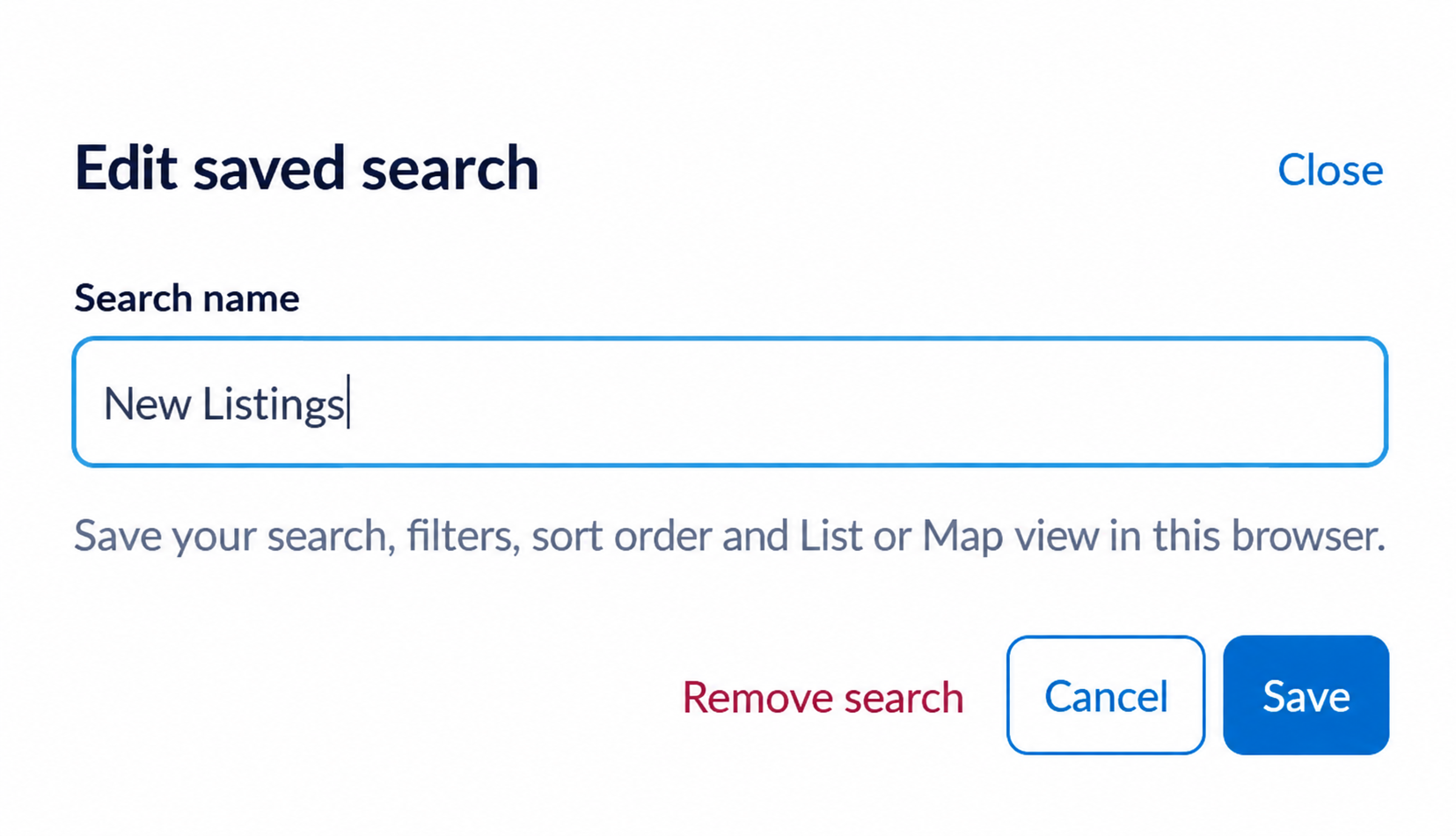
Rename or remove a saved search from its pencil control.
For a “New listings” search, choose a Creation date range such as Past 30 days in Filters, then save the criteria. Saved searches are stored in this browser; use the same browser profile and Ocean environment to revisit them.
Choose your directory preferences
-
Open Directory settings
- Click the Directory settings gear in the top navigation bar. The popover includes your extension version and these preferences:
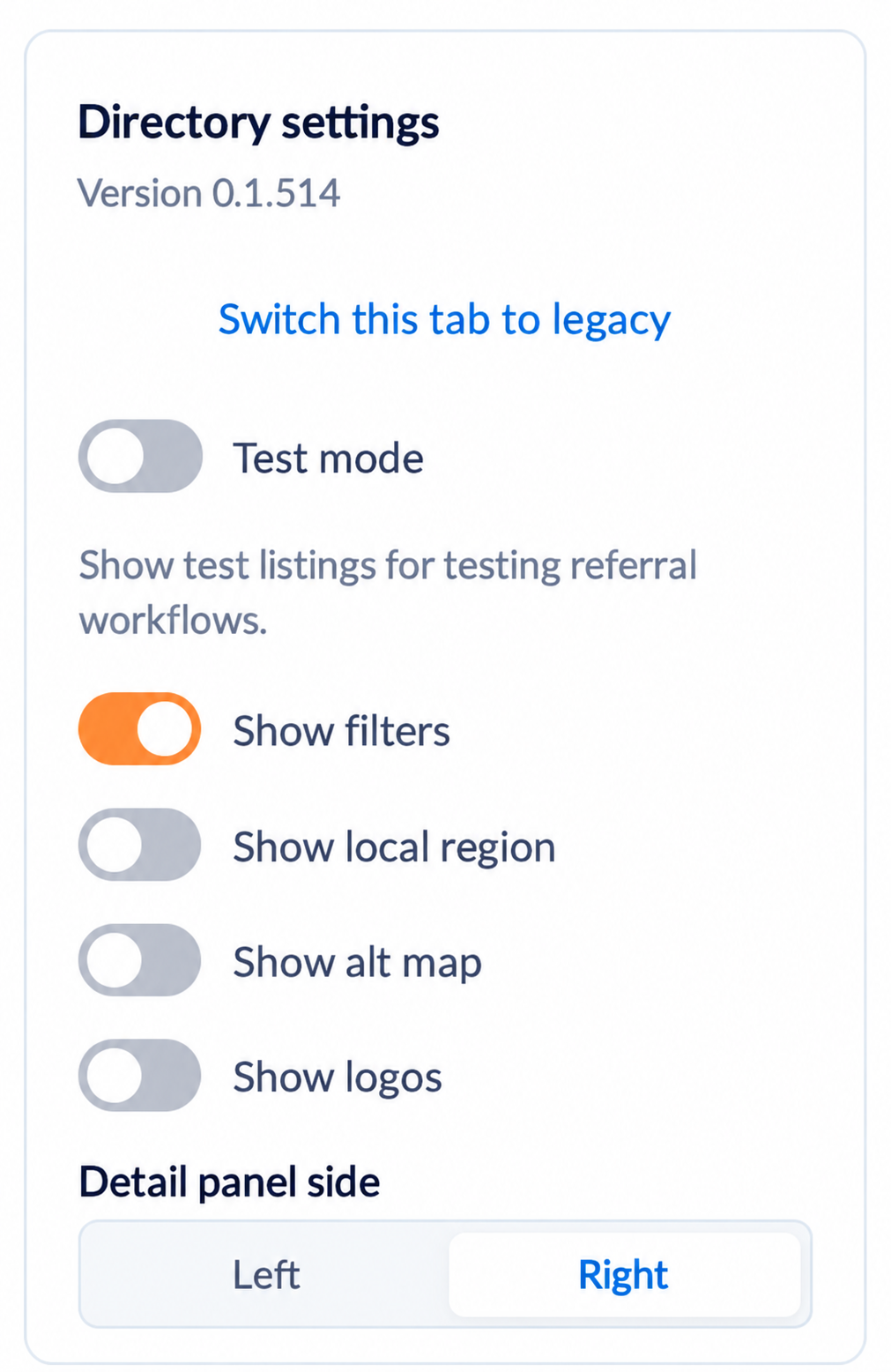
Directory settings. Record the Version value when sharing feedback.
| Setting | What It Does |
|---|---|
| Test mode | Shows test listings for testing referral workflows. Choose an approved test listing when practising; this toggle does not make every destination a test destination. |
| Show filters | Controls the display of the filter controls. |
| Show local region | Uses the selected patient's municipality as a search area when their location can be resolved. Check the resulting area chip and adjust it if needed. |
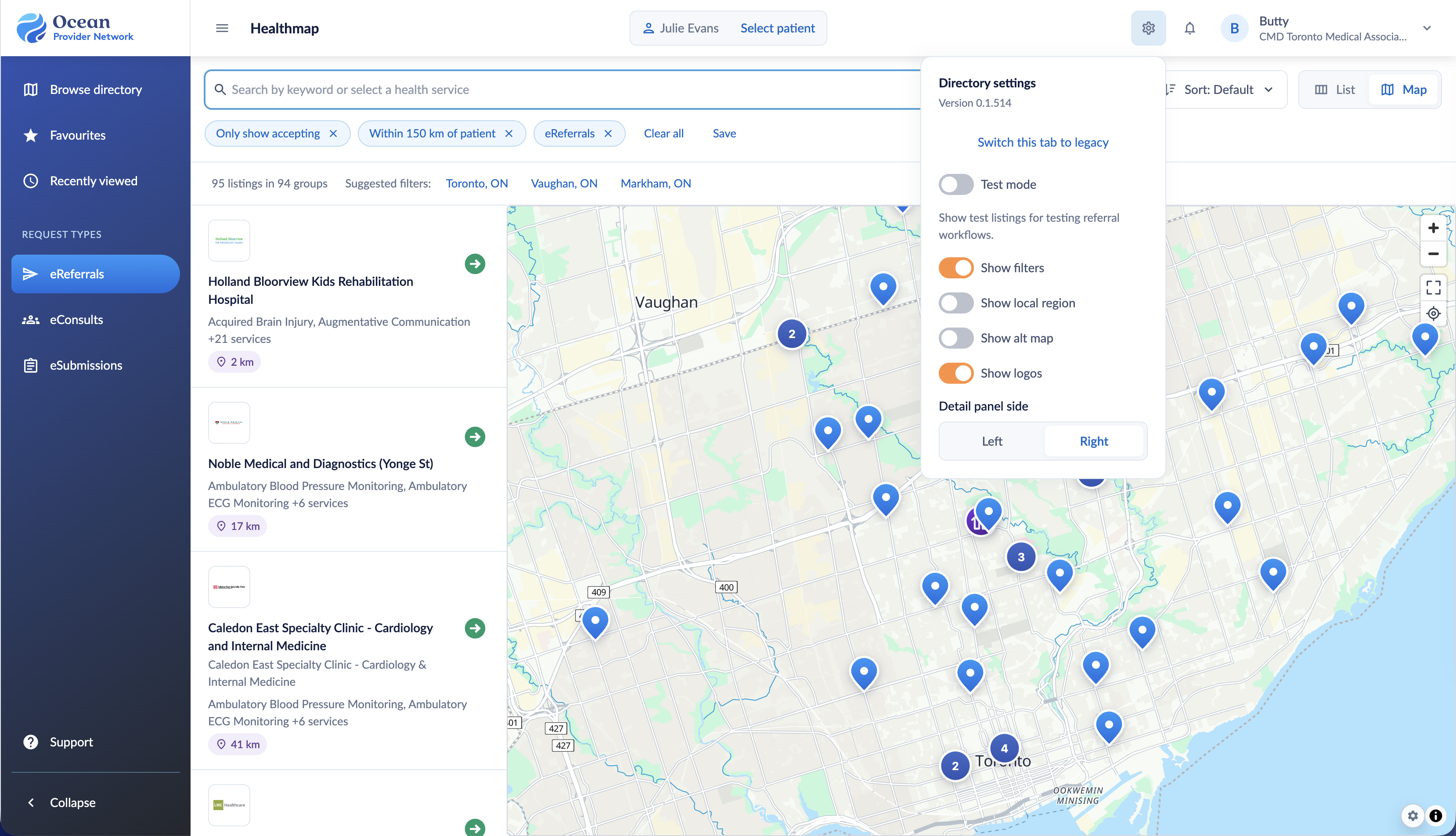
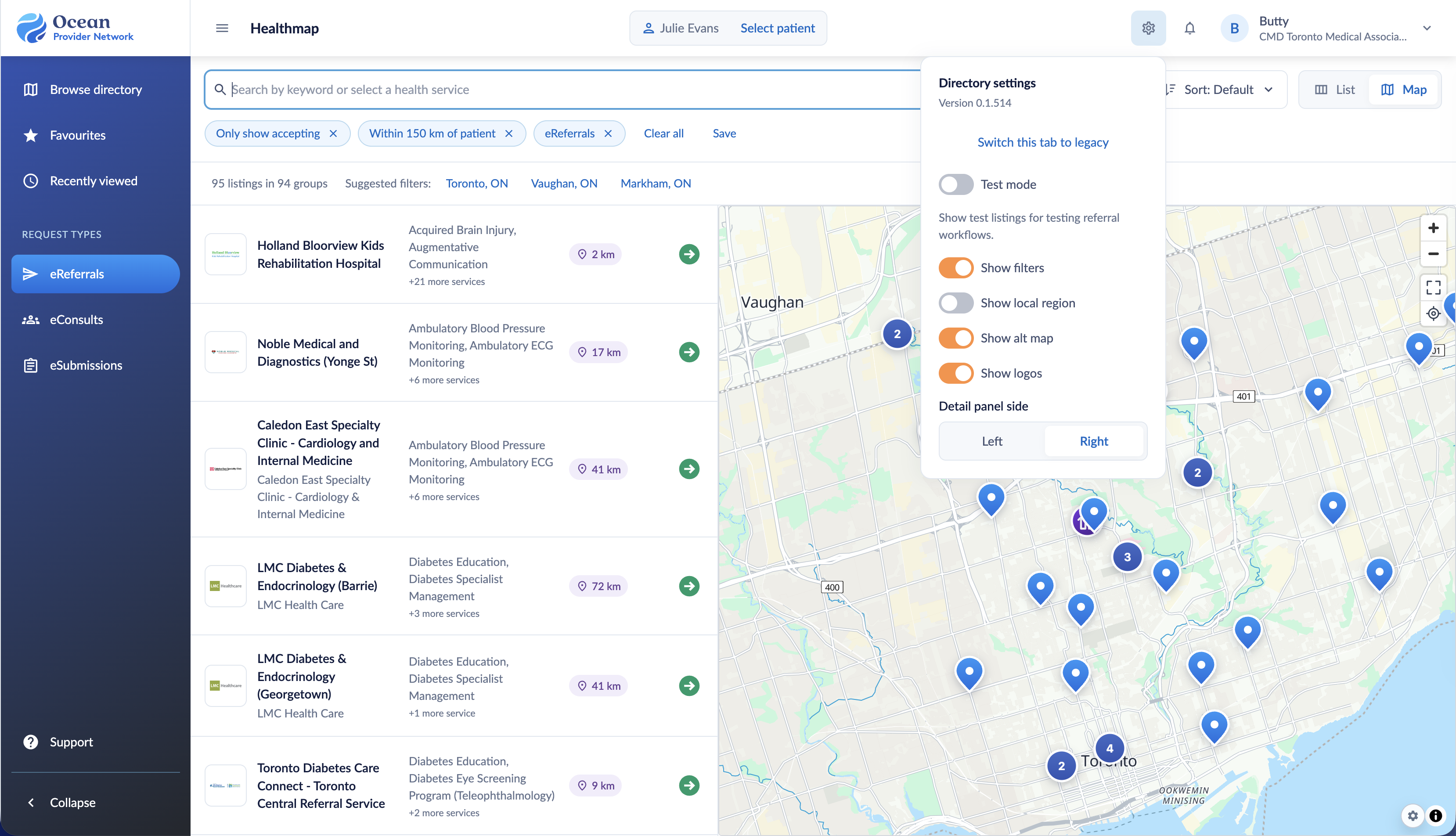
| Show alt map | Changes the results-and-map layout, giving results a wider, more column-like presentation. |
| Show logos | Shows available listing logos alongside results. |
| Detail panel side | Chooses whether listing details open on the Left or Right. |
'Show logos'
Alternate map layout
Local region search
Return this tab to legacy
Click 'Switch this tab to legacy' in Directory settings to return the current tab to the existing Healthmap experience. To return to the new experience, open the extension from Chrome's toolbar while the Healthmap tab is active and choose 'Return to new UX'.
Save first: Save referral work before switching modes. Unsaved changes can be lost, and referral drafts do not transfer between modes.
Share feedback with Ocean Labs
Share bugs, confusing steps, ideas, and things that worked well in the HM Feedback canvas in the Ocean Labs Slack channel.
In Healthmap, click the Directory settings gear. Note the full 'Version' number beneath the Directory settings heading. Use your installed version, not the version shown in an article screenshot or the Store listing. Open the Ocean Labs channel in Slack and find the HM Feedback canvas.
Add a feedback entry with the task you were trying to complete, the steps you took, what you expected, and what happened.
Include a screenshot or short recording when it helps explain the issue. Remove patient identifiers and other sensitive information before sharing.
If you cannot open the new interface, open Chrome's Extensions → Manage extensions, find Ocean Healthmap Early Access (BETA), and open 'Details' to check the installed version.
Suggested feedback format
Extension version: [full installed version]
Area: [Search / Map / Listing details / Referral form / Other]
Task: [what I was trying to do]
Steps: [short sequence to reproduce]
Expected: [what I expected]
Actual: [what happened]
Context: [Ocean environment/site, launch path, active filters, List or Map view]
Impact and frequency: [blocked / workaround available / happened once or repeatedly]
Screenshot or recording: [with sensitive information removed]
For example: “In Map view, I searched for MRI in Toronto, opened a listing, and clicked Change beside the selected service. I expected the service choices to open, but the panel did not respond. It happened twice.” Include the installed version and a screenshot with the entry.