Ocean Sites receiving eSubmissions can access their eSubmission Analytic Data at any time, from within the Admin Settings page of the Ocean Portal.
Since eSubmission analytics do not contain patient health information, they are maintained indefinitely within Ocean. This means that even though the Ocean eSubmissions themselves are automatically archived from Ocean over time, their analytic data will always be accessible from within your Ocean Site.
Export eSubmission Analytic Data
-
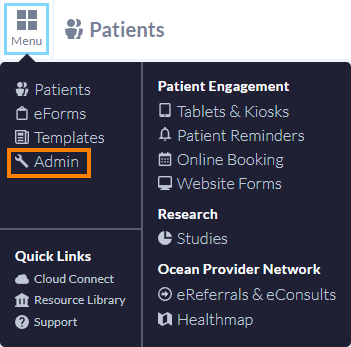
Log in to the Ocean Portal, open the Menu, and select 'Admin.'
Note: You must have Site Admin access on your Ocean Site to access eSubmission analytic data.
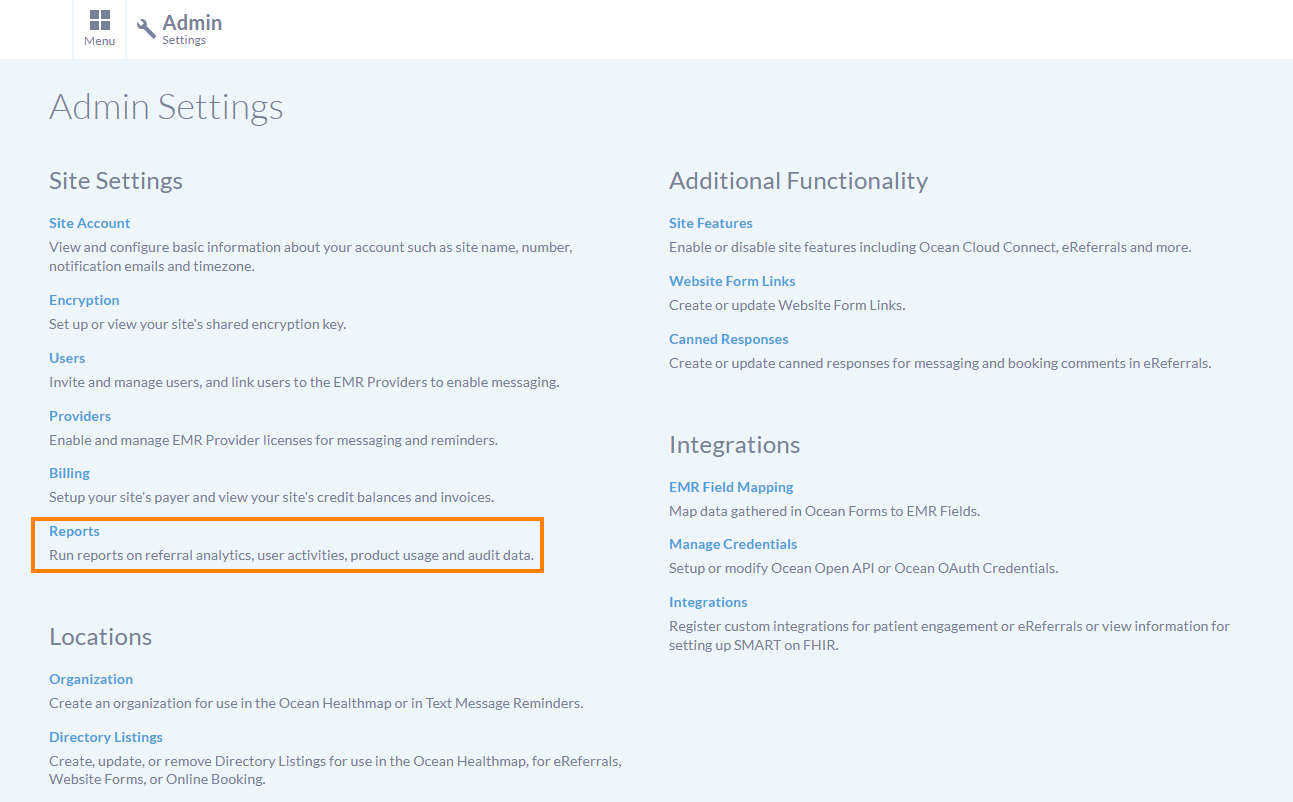
- Select 'Reports'.
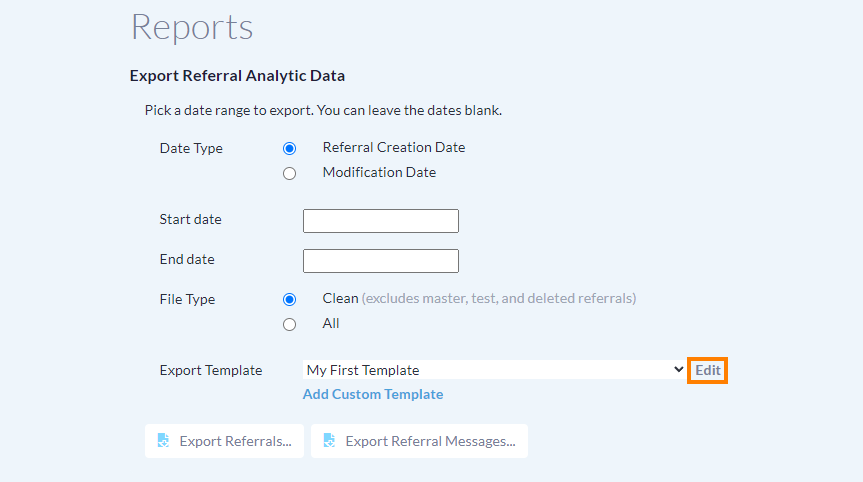
- Under the 'Export eSubmission Analytic Data' heading, specify a Date Type.

-
Optionally specify a date range.
You can either download data within a specific date range, view all data since you started receiving eSubmissions to a specific date (select just an end date), all data from a specific date onwards (select just a start date), or all data since you started receiving eSubmissions (leave both dates blank).
- Optionally select your desired Export Template (see 'Create an Export Template' below).
- Click 'Export eSubmissions'. This will export your eSubmission analytic data in a CSV file.
Create an Export Template
To capture customized data in your eSubmission Analytics Export, you can make use of a custom Export Template. An Export Template allows you to define the specific analytic values that you would like to capture in your .csv export file.
As a prerequisite to creating an Export Template, you must ensure that your desired analytic values and their respective eForm item reference mapping on the eSubmission eForm has been completed. Please review the Capturing eForm Analytics support article for more detailed information.
- Log in to the Ocean Portal, open the Menu, and select 'Admin'.
- Select the 'Reports' option.
- Under the 'Export eSubmission Analytic Data' heading, press the 'Add Custom Template' button. This opens the 'New Export Template' page.
- Enter a name for your custom Export Template. It is recommended that the name briefly describes the purpose of this template, so that you can easily recognize it in the future.

-
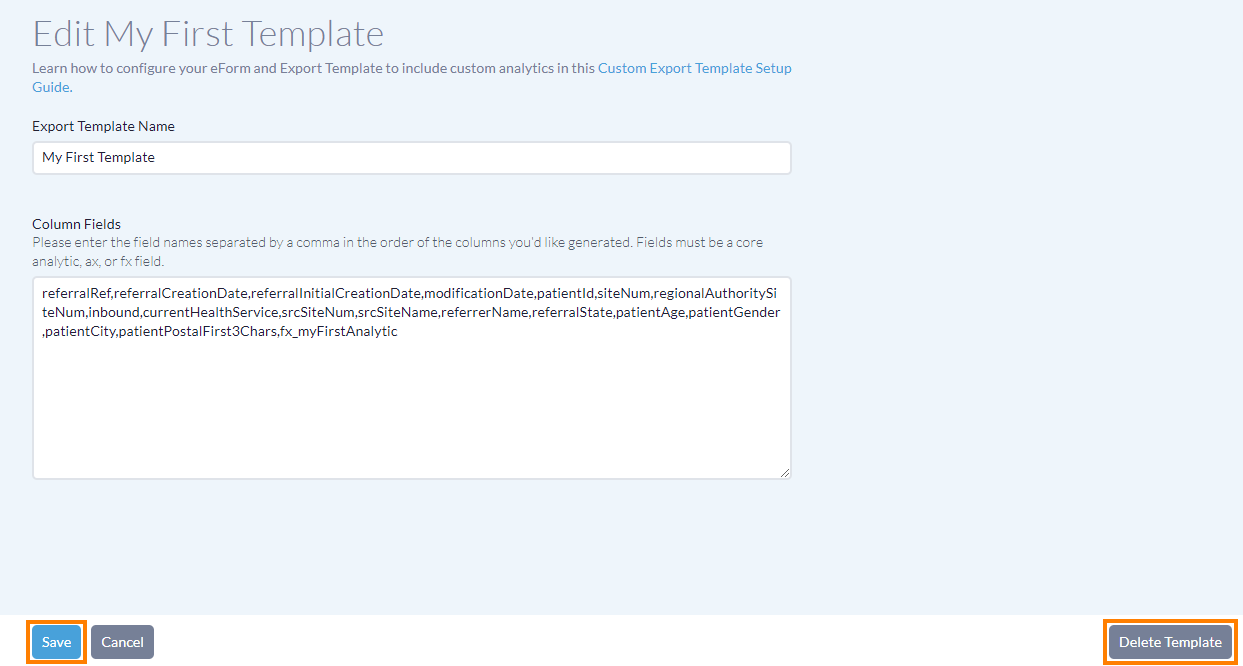
The 'Column Fields' text box allows you to specify your desired column headers for your final .csv export file. Enter the specific analytic values that you would like to include in your export as columns, separated by a comma.
Note: Please note that the column fields must be either a core analytic value or a custom analytic value with the prefix of 'fx_'. The analytic values are case sensitive.
- Once your column fields are finalized, press 'Save' at the bottom.
Custom Analytics
Custom Analytics are the user-defined analytic values that capture the response data from their respective eForm item reference mapping in the eSubmission form. Custom Analytics must start with the prefix of fx_ with a unique name following the underscore (e.g., fx_myFirstAnalytic).
Your custom analytic values can then be included as a Column Field in your custom Export Template, and their respective eForm responses will be included in the .csv export file under the appropriate analytic value column header. It is important to note that analytic value names are case sensitive.
Generating Custom Reports
Once your custom Export Template has been saved and at least one eSubmission capturing the desired analytic data has been received, you can obtain the .csv export file.
- Under the 'Export eSubmission Analytic Data' heading, select your desired Date Type, Start date, End date, File Type, and Export Template.
- Press the 'Export eSubmissions...' button to download your .csv export file.
Testing your Export Template
Any time a new custom Export Template is created, it is recommended that you generate an export after at least one test eSubmission has been received including the desired analytic values to validate that the .csv export file is populating and displaying the data as desired.
During testing, verify that the 'File Type' is set to 'All' to ensure you are capturing eSubmissions that have been marked as test eSubmissions, and/or eSubmissions that were sent from a test listing.
Editing a Custom Export Template
If you have an existing custom Export Template(s) you are able to modify it or delete the Template entirely. It is important to note that deleting a custom Export Template does not remove the eForm item references defined in the eSubmission form.
- Under the 'Export eSubmission Analytic Data' heading, select the Export Template that you would like to modify, and press the 'Edit' button.
- The selected Template's properties will appear, allowing you to modify the template and use the 'Save' button, or delete the template entirely by using the 'Delete Template' button.